How to Check Blender Vertices
Learn how to check blender vertices in Blender for accurate counts, clean topology, and optimized meshes. This educational guide walks through Edit Mode, viewport statistics, and practical cleanup techniques to verify vertex counts and topology.


You will learn how to check blender vertices by inspecting the mesh in Edit Mode, reading vertex counts from the viewport statistics, and confirming topology accuracy. The process covers selecting all vertices, enabling on-screen statistics, and identifying common issues like duplicate points or stray vertices. Use these steps to ensure clean geometry before modeling further.
Understanding Vertex Data in Blender
Vertices are the fundamental points that define 3D shapes. In Blender, every vertex joins with edges to form faces, which collectively create the mesh you model, animate, and render. Checking blender vertices isn’t just about knowing a count; it’s about confirming topology integrity, density distribution, and editability. As you work, you’ll often compare the total vertex count across objects, subobjects (like loose parts), and accidental duplicate vertices that inflate counts or create shading artifacts. A solid grasp of what a vertex is will help you diagnose issues quickly, whether you’re preparing game assets, sculpting high-poly models, or retopologizing for animation. By the end of this section, you’ll understand where vertex data lives in Blender’s data structures, how edits affect those counts, and how to read vertex information without getting lost in numbers.
Key concepts to remember:
- A vertex is a single point in 3D space that connects to edges. Count matters for density and performance.
- The total vertex count is the sum of all vertices in a mesh or sub-mesh, not just those you see in current selection.
- Duplicates and stray vertices can grossly inflate counts and degrade topology, shading, and UVs.
Understanding these ideas sets the foundation for precise vertex checks that you can apply to any project, from a simple prop to a complex character.
Why Vertex Checks Improve Your Workflow
In any Blender project, keeping vertex counts predictable helps with performance, export reliability, and downstream workflows like UV mapping and normal calculations. When you check blender vertices, you gain the ability to:
- Detect topology issues early, such as poles, boundary edges, and non-manifold vertices that complicate sculpting or texturing.
- Ensure consistent density across a model, which improves deformation during animation and lighting predictability during rendering.
- Prepare models for game engines or external renderers by avoiding unnecessary vertex bloat that slows down real-time performance.
Effective vertex checks combine visual inspection with quantitative reads. You will soon learn practical methods to verify vertex data without slowing down your workflow, so you can iterate quickly and confidently.
Tools and Indicators You’ll Use
To check blender vertices effectively, you’ll rely on a few core tools and indicators:
- Edit Mode with vertex selection enabled to inspect individual points and their connections.
- Viewport statistics (Verts, Edges, Faces) that summarize counts for the active mesh.
- The header and overlays in Blender’s 3D Viewport that reveal current geometry and selection state.
- Optional Python snippets or add-ons that can report counts automatically for large projects.
These tools provide a quick, repeatable method to verify vertex counts during daily modeling, cleanups, and topology reviews. As you become fluent, you’ll be able to apply these checks in any phase of your project, from concept to final polish.
Step-by-Step: How to Read Vertex Counts in Blender's Viewport
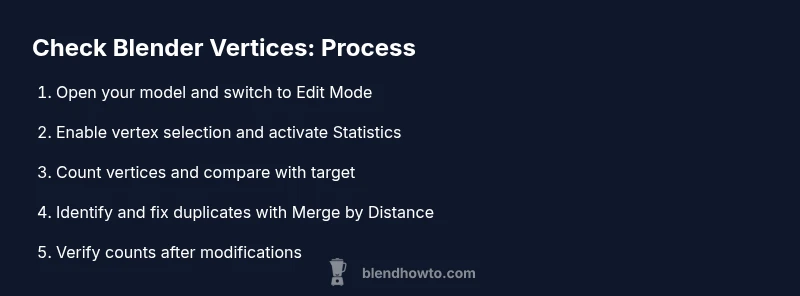
To begin checking blender vertices, you’ll need to switch to a mode where vertices are visible and countable. Start by selecting the mesh object in Object Mode, then press Tab to enter Edit Mode. In Edit Mode, switch to Vertex selection (the 1 key in most configurations). Ensure all vertices are selected (A). Look at the viewport header or enable the statistics overlay to read the current Verts count. If your mesh is composed of multiple sub-objects, repeat the count for each part and sum them as needed. If you notice a discrepancy between expected and actual vertex counts, proceed to identify duplicates or stray vertices using Merge by Distance or by removing doubles. After making adjustments, recount to confirm the changes.
This practical approach gives you immediate feedback on topology and helps you maintain clean, performant meshes as you model or retopologize.
Practical Checks: Count, Compare, and Clean
A robust workflow for checking blender vertices combines a few essential steps. First, count the total vertices in the active mesh by reading the Verts number in the top header or the overlay statistics. Second, inspect vertex distribution by selecting a subset of vertices and ensuring proportional density across regions. Third, scan for duplicates or stray vertices that do not contribute to the mesh’s geometry; these typically occur during Boolean operations, intersections, or manual edits. Fourth, apply a gentle cleanup, such as Merge by Distance, to collapse overlapping vertices without altering the intended silhouette. Finally, re-check the vertex count to verify that the cleanup didn’t remove intended structure. Document any significant changes if you’re tracking asset evolution across a project.
These checks help you maintain predictable topology while preserving your model’s essential shape and deformation characteristics.
Topology Checks: Density, Flow, and Clean Edges
Beyond raw counts, topology matters. Vertex checks should also assess edge flow and edge length distribution. A model with evenly distributed vertices tends to deform well and renders smoothly. Look for areas with overly dense clusters vs. sparse regions, which can cause shading artifacts or uneven texture mapping. When density is inconsistent, consider selective retopology or local subdivision control to align vertex spacing with surface curvature and intended deformation. Use proportional editing or smoothing techniques carefully to preserve edge loops and maintain clean geometry. These checks aren’t just about correctness; they empower you to make informed decisions about where to add or remove geometry to reach your modeling and animation goals.
Advanced Checks: Per-Object and Per-Submesh Validation
For complex scenes, you’ll often work with multiple objects or submeshes. In these cases, verify vertex counts per object, then compare against the combined total. This is crucial when exporting to engines or game pipelines, where a mismatch between object-level counts and scene-level counts can cause data integrity issues. In Blender, you can temporarily join objects to perform a global check, then separate them back into their original components. When you’re done, review any changes to ensure you haven’t introduced unintended topology shifts. These practices support a robust, scalable workflow as your projects grow in complexity.
When and Why to Use Python for Vertex Checks
For large projects or automation workflows, Python scripting in Blender offers powerful ways to validate vertex data. A simple script can count vertices for the active object, all objects in a scene, or specific collections, and can flag anomalies for review. Scripting reduces manual overhead and ensures consistent checks across sessions. If you’re new to scripting, start with a basic snippet that queries object data and prints the vertex count to the system console. As you gain confidence, you can extend the script to identify duplicate vertices, identify non-manifold edges, or export vertex data to external tools for comparison. A small, repeatable script can save significant modeling time over the course of a project.
Wrap-Up: Integrating Vertex Checks into Your Routine
The habit of checking blender vertices becomes second nature once you integrate it into your modeling workflow. Regular vertex checks help you catch issues early, maintain clean topology, and avoid surprises during export or rendering. Practice makes this a seamless part of the process: you’ll automatically switch to Edit Mode, count vertices, scan for duplicates, perform a targeted cleanup, and re-check—all while maintaining focus on your creative goals. With consistent checks, you’ll produce more reliable models that are easier to texture, animate, and render.
Tools & Materials
- Blender (any recent version)(Ensure you have a mesh loaded to inspect. Prefer a project with at least one object in Object Mode.)
- Target mesh or scene(Select the specific mesh you want to inspect in the Outliner or 3D Viewport.)
- Keyboard and mouse(Basic navigation: Tab to switch modes, 1/2/3 for vertex/edge/face select, A to select all.)
- Viewport Overlay/Statistics(Enable vertex/edge/face counts in the viewport to read counts quickly.)
- Python Console (optional)(For automation: write small scripts to fetch counts across objects or scenes.)
Steps
Estimated time: 30-45 minutes
- 1
Open your Blender project and select the target mesh
In Object Mode, click the mesh you want to inspect, or select it from the Outliner. This ensures all subsequent steps read the correct vertex data. If you’re working with multiple objects, repeat for each mesh individually to keep counts accurate.
Tip: Use the Outliner to quickly locate and select hidden or multiple meshes that contribute to the scene’s vertex counts. - 2
Enter Edit Mode and switch to vertex selection
Press Tab to enter Edit Mode, then press 1 to enable vertex selection. This lets you focus on vertices rather than edges or faces, which is essential for precise counting and cleanup.
Tip: If you can’t see vertices clearly, toggle X-ray view or enable Overlays to highlight vertex points. - 3
Select all vertices in the mesh
With all vertices visible, press A to select everything. If you work with a subset, press Alt+A to clear the selection and reselect as needed. Ensure you’re counting the entire mesh, not just a portion.
Tip: Double-click a vertex to select connected vertices for local checks on density. - 4
Read the vertex count from the viewport statistics
Look at the viewport header or enable Statistics in Overlays to view Verts. Note the number shown for the active mesh. Compare with previous counts if you’re maintaining a change log.
Tip: If you don’t see counts, enable Viewport Overlay -> Statistics or activate the header display in your Blender version. - 5
Identify duplicates and stray vertices
Scan for obvious duplicates by using Merge by Distance or Remove Doubles. Look for vertices that don’t contribute to edges or faces—these can indicate hidden geometry or stray points.
Tip: Start with a small merge distance and gradually increase to avoid collapsing essential geometry. - 6
Perform a targeted cleanup and recount
Apply a controlled cleanup (Merge by Distance) to reduce redundant vertices. Recount with A selected to confirm the final number matches your target or expectations. Repeat for any sub-meshes if necessary.
Tip: Always save a backup before applying irreversible edits to preserve original topology. - 7
Optionally script or log vertex checks
For larger projects, use a small Python snippet to print the vertex count or compare counts between objects. This ensures repeatable checks across sessions and collaborators.
Tip: Even simple scripts can quickly flag discrepancies that manual checks might miss.
Frequently Asked Questions
What is a vertex in Blender and why does it matter for checks?
A vertex is a single point in 3D space that connects to edges to form faces. Vertex counts influence density, performance, and deformability, making accurate checks essential for reliable modeling.
A vertex is a point that helps build edges and faces; counting them helps you manage density and performance.
How do I view vertex counts in Blender while modeling?
Enter Edit Mode, select all vertices, and read the Verts value in the viewport statistics. This gives you the total vertex count for the current mesh.
Go to Edit Mode, select everything, and read the vertex count in the viewport statistics.
Why might vertex counts change after edits or modifiers?
Edits and modifiers can add or remove geometry. After changes, recount to confirm the new vertex total and ensure topology remains clean.
Edits or modifiers can change geometry; recount to verify the new vertex total.
What should I do about duplicate vertices?
Duplicates inflate counts and can cause shading artifacts. Use Merge by Distance to consolidate overlapping vertices and recheck counts.
Merge duplicates to clean the mesh and recheck the vertex count.
Can I automate vertex checks in Blender?
Yes, Python scripting via bpy lets you query vertex counts and automate consistency checks across objects or scenes.
You can use Python scripting to automate vertex checks in Blender.
Is there a quick way to validate topology during retopology?
Retopology workflows often involve frequent vertex checks. Use guided steps to maintain consistent edge flow and verified counts as you rebuild geometry.
During retopology, regularly check vertex counts to keep topology clean.
Watch Video
What to Remember
- Master vertex concepts for better topology control
- Use Edit Mode and vertex selection to read counts
- Enable viewport statistics to read Verts, Edges, Faces
- Merge by Distance to fix duplicates without damaging shape
- Validate counts per object in complex scenes
- Optional scripting enhances repeatable checks