How to Check Blender Mesh Triangles
Learn how to check blender triangles in Blender to ensure clean shading, stable topology, and reliable renders. This step-by-step guide covers selection tricks, triangulation, and normals checks.


By the end of this quick answer you’ll know exactly how to check blender triangles in your mesh, identify quads and ngons that should be triangles, and apply reliable fixes for clean shading. You’ll explore selection tricks, the Triangulate tool, and normal checks to ensure correct face orientation across your model.
how to check blender triangles in practice
Triangles are the simplest polygon in Blender topology, but they can cause shading artifacts and inconsistent deformations if not managed carefully. In practice, you’ll want to know how to check blender triangles, how to spot stray ngons and long, skinny faces, and how to fix topology without breaking UVs or animation. According to BlendHowTo, a proactive approach saves time during sculpting, rigging, and rendering. This section outlines a reliable workflow you can apply to most projects, from character models to hard-surface assets. Start by inspecting face counts, normals, and edge loops, then move to targeted fixes that preserve your model’s silhouette and UV layout. The goal is a predictable triangle distribution that works whether you’re shading with flat colors or smooth gradients. BlendHowTo’s guidance emphasizes testing changes on representative areas before committing to a model-wide rewrite.
Identifying triangles vs quads and ngons
In Blender, faces are made up of vertices and edges; a triangle uses 3 vertices, a quad uses 4, and ngons have more than 4. The distinction matters because many modifiers, skinning rigs, and game engines expect a stable triangle or quad structure. Your objective when checking blender triangles is to recognize where you have non-triangular faces and decide whether to leave them for downstream processing or convert them now. Quads can be preferable for subdivision modeling and clean UVs, but triangles are inevitable in certain workflows. Use Edit Mode (Tab) and select a face; the Mesh properties panel shows the number of vertices for the active face. For large meshes, consider running a quick search for faces with more than 3 vertices and listing them for manual review. This practice aligns with BlendHowTo recommendations for maintaining consistent topology across edits.
Common offenders: ngons, long edges, and flipped normals
Ngons (faces with five or more vertices) often slip into models during sculpting or booleans. Long, skinny triangles near joints can cause shading artifacts under subdivision or animation. Flipped normals can appear as dark patches and incorrect lighting, even if geometry is correct. When you check blender triangles, start by scanning for ngons and long edges that raise red flags in the viewport. Use the Select menu to filter by face vertex count and check the normals by enabling display of normals (N-panel > Mesh Display). A quick fix is to triangulate problematic areas or re-topologize them into quad-friendly loops, but always test shading after changes to ensure consistent light response. BlendHowTo notes that consistent normals are essential for reliable lighting across scenes.
Blender built-in tools for detecting triangles
Blender ships with a suite of topology checks you can use without plugins. In Edit Mode, you can use Select > Similar > Amount of Vertex to quickly identify faces with 3 vertices (triangles) or more. This helps isolate candidates for triangulation, especially on meshes with many faces. To clean up, try Mesh > Clean Up > Degenerate Dissolve and Mesh > Normals > Recalculate Outside to fix shading orientation. Display overlays (Normals, Face Orientation) guide you during the process. After marking problem areas, BlendHowTo recommends testing shading on representative areas before applying bulk changes to the entire model.
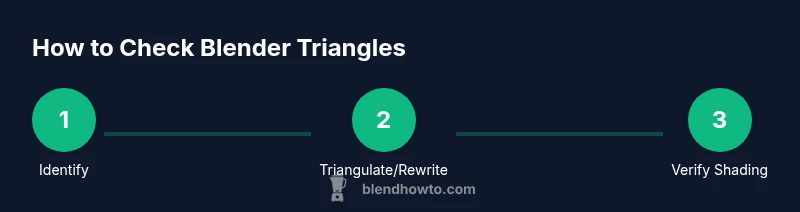
Step-by-step workflow: identify, triangulate, and verify
Start by isolating problem regions where ngons or long edges appear, then decide whether to triangulate or rebuild loops. Use a targeted approach: preserve critical edge loops that define silhouette and UV seams, and avoid indiscriminate triangulation that may warp textures. Once you have a plan, apply the chosen fix to one region at a time, and immediately test shading and deformation in a quick render or shading preview. Maintaining backups is essential, and BlendHowTo advises keeping a versioned file before performing topology edits so you can compare results and revert if needed.
Testing shading and deformation after fixes
After addressing topology, inspect the model under multiple lighting setups and angles to catch subtle shading artifacts. Check smooth shading with Auto Smooth enabled and verify that normals align with the faces’ orientation. A common pitfall is altering topology without updating UVs, so re-check UV integrity and tile behavior in texture space. If deforming a character, test a few poses to confirm there are no unexpected distortions at joints. The BlendHowTo team emphasizes validating both shading and deformation to ensure the topology changes yield predictable results in downstream steps such as rigging and animation.
When to triangulate and when to preserve quads
Triangulation is often necessary for real-time engines and some export pipelines, but preserving quads can be advantageous for subdivision modeling and cleaner UVs. The decision depends on your target workflow: games, VR, or high-end renders may respond differently to topology. Use a pragmatic approach: maintain quads where possible, triangulate only where required by the pipeline, and always verify shading after any structural changes. BlendHowTo recommends documenting your triangulation decisions so teammates know why certain faces were split.
A practical quick-start checklist
- Back up your project before topology edits. - Identify ngons, long edges, and flipped normals. - Separate changes to small regions to test impact. - Recalculate normals and check shading in multiple light setups. - Validate UVs after any topology change. - Save incremental versions as you progress. - Export a test file to ensure the target pipeline handles topology as expected. Following this checklist helps beginners stay organized and avoids costly mistakes later.
Common pitfalls and tips for better topology
Avoid indiscriminate triangulation that can disrupt UV seams or edge flow. Maintain consistent edge loops that define hard edges and silhouettes. When in doubt, rebuild topology around critical areas like joints and high-detail regions rather than blindly triangulating whole sections. Regularly test with a few renders to catch issues early, and remember that consistent normals and proper scale (Ctrl+A) support reliable lighting across scenes. For ongoing projects, integrate topology checks into your standard workflow to reduce rework and improve render fidelity. BlendHowTo’s tested practices emphasize clarity and repeatability over ad-hoc fixes.
Tools & Materials
- Blender (latest stable release)(2.8+ recommended; ensure essential topology tools are present)
- Computer with modern GPU(For viewport performance and real-time checks)
- Sample .blend mesh (e.g., character proxy or hard-surface model)(Use a non-destructive model you can triangulate safely)
- Project backup copy(Always save before applying topology changes)
- Optional add-on: Mesh Extras(Useful but not required)
Steps
Estimated time: 60-90 minutes
- 1
Open your mesh and prepare the scene
Launch Blender, open the project, and switch to Object Mode. Ensure your viewport shading is set to Solid with a quick shading preview so you can see topology clearly. This initial setup helps you observe how topology behaves under lighting and shading.
Tip: Save a version before changes to compare results later. - 2
Enter Edit Mode and switch to Face Select
Select the mesh, press Tab to enter Edit Mode, and press 3 to enable Face select. Turn on Limit Selection to Visible to focus on the faces you can see without hidden geometry interfering. This step isolates the exact faces you’ll inspect first.
Tip: Use a small subset of faces to start; scale up gradually. - 3
Identify faces with more than three vertices
Use Select > Similar > Amount of Vertex to filter by vertex count and highlight ngons and triads. Inspect each highlighted face to determine whether it should be triangulated or rebuilt for quad-friendly topology.
Tip: Group related faces to review in batches rather than one-by-one. - 4
Check normals and shading orientation
Display normals (N-panel > Mesh Display) and recalculate outside (Mesh > Normals > Recalculate Outside). Verify that all faces point outward and shading reads consistently from different angles.
Tip: If a single area looks off, check for inverted normals in nearby faces as well. - 5
Plan topology fixes for each region
Decide whether to triangulate problematic faces or rebuild loops to convert ngons to quads. Maintain critical edge loops that define silhouette and UV seams. Document the approach before applying changes.
Tip: Prefer local rewiring over global topology changes when possible. - 6
Apply triangulation or rebuild loops
If triangulating, use Edit Mode > Mesh > Faces > Triangulate Faces and confirm there are no UV distortions. If rebuilding loops, create clean edge loops that preserve shape and texture coordinates.
Tip: Check UVs after any topology alteration to avoid seam shifts. - 7
Apply transforms and clean up
Apply scale and rotation (Ctrl+A) to ensure accurate measurements. Run Clean Up tools to remove degenerate geometry and loose edges that can cause shading noise.
Tip: Always work on a duplicate layer to compare results. - 8
Verify shading and export readiness
Switch to Material Preview or Rendered shading and perform a quick render. Verify that lighting is consistent across edges and that the topology behaves as expected in downstream steps like rigging or exporting.
Tip: If issues persist, revert to the backup and re-evaluate the topology approach.
Frequently Asked Questions
Why should I check blender triangles in a model?
Checking blender triangles helps ensure predictable shading, deformation, and export readiness. It reduces artifacts and makes topology easier to manage during rigging and animation.
Checking triangles helps ensure shading and deformation stay predictable across lighting and animation.
How can I quickly find ngons in a mesh?
Use Select > Similar > Amount of Vertex to highlight faces with more than 3 vertices. Review and decide whether to triangulate or rebuild around those faces.
Use Select Similar to highlight non-triangular faces and review them.
Is triangulation always better for rendering?
Triangulation is common for real-time engines, but quads can be better for subdivision and clean UVs. Always test shading after changes to ensure expected results.
Triangulation depends on the rendering or export target; test shading after edits.
How do I fix flipped normals?
In Edit Mode, select all faces and choose Mesh > Normals > Recalculate Outside. Ensure lighting reads consistently across the model.
Recalculate normals outside and verify shading from multiple angles.
Can I automate topology checks with plugins?
Blender provides built-in tools for topology checks. Plugins exist, but for most workflows native tools are sufficient and reliable.
Blender's built-in tools cover most topology checks; plugins aren’t required.
What about preserving UVs while editing topology?
Plan topology around UV islands, avoid seams across texel-dense areas, and re-check UVs after changes to prevent texture distortion.
Keep UVs in mind when editing topology and re-check after changes.
Watch Video
What to Remember
- Check topology early to prevent shading artifacts
- Preserve UVs and edge loops when fixing topology
- Back up before topology edits and test shading frequently
- Normals alignment is essential for reliable lighting