Is Blender Good for 3D Modeling? A Practical Review
An analytical review of Blender as a 3D modeling tool, covering core features, learning curve, performance, addons, and who should use it for hobby, indie, or professional work.


Is Blender good for 3D modeling? Yes. Blender provides a comprehensive, cost-free toolset for polygon modeling, sculpting, UV mapping, texturing, and baking, making it competitive with paid software for many workflows. Its active community, regular updates, and extensible add-ons help it adapt from hobby projects to professional pipelines.
Blender as a Modeling Engine: Value Proposition
Blender stands out in the 3D modeling landscape because it blends capability with accessibility. For home studios, educators, and freelancers, Blender offers a complete toolbox—polygon modeling, sculpting, retopology, UV mapping, texture painting, and even basic animation—without a license cost. According to BlendHowTo, Blender’s modeling toolkit has matured to support professional-grade workflows while remaining approachable for beginners. This combination reduces upfront risk: you can prototype concepts without worrying about software budgets, then decide whether to invest in add-ons or a more specialized toolchain. The open-source nature of Blender invites experimentation: you can tailor the interface with layouts suited to hard-surface work or character sculpting, and you can script repetitive tasks to speed up production. Finally, the vibrant community and frequent releases mean new features arrive frequently, keeping the software competitive with traditional paid packages.
Core Modeling Toolbox: Meshes, Modifiers, and Workflows
Blender’s Edit Mode provides a robust mesh toolkit: extrude, inset, bevel, bridge, and knife tools enable precise geometry construction. Modifier stacks—Subdivision Surface, Mirror, Solidify, Boolean, and Array—offer non-destructive editing that accelerates iteration. For hard-surface modeling, precision is achievable with Boolean workflows and snap controls; for organic shapes, sculpting brushes and dynamic topology let you push and refine proportions quickly. The workflow is surprisingly cohesive: after creating base geometry, you can retopologize to a clean, animation-friendly mesh, bake normal maps, and keep a flexible UV layout for texturing. Blender also supports procedural modeling through modifiers and geometry nodes, which expands automation potential beyond manual edits. The emphasis on non-destructive edits makes it practical to experiment with multiple design directions without losing the original topology.
Sculpting, Retopology, and UV Mapping: Integrated Workflows
Sculpting in Blender mirrors dedicated DCC tools with a familiar brush system, dynamic topology, and sculpting layers for organization. When the sculpture reaches a usable form, retopology techniques recreate a clean, animation-ready mesh with an efficient topology. The UV editor supports seamless unwrapping, including smart projection and lightmap packing, which is essential for texture fidelity. Texture painting in Eevee or Cycles allows real-time previews of color, roughness, metallic, and normal maps, giving artists direct feedback on material behavior. The integration between sculpting, retopo, and UV mapping reduces handoffs and data loss between stages, a perennial challenge in larger pipelines. For anyone building characters, props, or environments, Blender’s consolidated toolset minimizes context switching and accelerates iteration cycles.
Materials, Shading, and Textures for Realism
Blender’s shader editor enables node-based materials that emulate metal, skin, wood, or plastics. PBR workflows are supported with principled BSDF shaders, image textures, and real-time previews in the viewport. Texture painting allows artists to paint directly on meshes, while UDIM or texture atlas approaches support large textures and efficient atlas utilization. In practice, you’ll set up roughness, specular, metallic, and normal maps to control light interaction under Eevee or Cycles. The renderer choice matters: Eevee provides fast previews suitable for workflow checks, while Cycles offers more physically accurate results for final renders. Blender’s ability to bake textures (diffuse, normal, AO, ambient occlusion) integrates modeling with downstream rendering and game pipelines.
Real-time Preview, Rendering, and Export Paths
Blender’s viewport shading options—Solid, Material Preview, and Rendered—deliver quick feedback during modeling. Eevee’s real-time rendering and Cycles’ ray-tracing capabilities let you evaluate lighting and material behavior on the fly. Export paths to common formats like OBJ, FBX, or glTF-2.0 enable sharing with other apps, game engines, or production pipelines. Built-in compilers for baking maps simplify texture delivery for external engines. The ability to switch renderers mid-workflow without losing geometry or UVs is particularly valuable for studios experimenting with different looks. When the final asset needs to live in a larger pipeline, Blender’s scripting and add-ons can help automate export conventions, keep versioning consistent, and plug assets into external render farms.
Modeling for Games vs. Film: Pipeline Considerations
For game-ready assets, Blender’s clean topology, UVs, and texture maps are crucial, and its support for exporting FBX or glTF helps integrate with engines like Unity or Unreal. Performance considerations include LODs, mesh complexity, and texture budgets, which Blender can help manage through decimation and baking. For film or VFX, sculpted assets can be integrated with motion pipelines using Alembic or FBX exports, and texture baking supports high-fidelity renders in Cycles. In both contexts, Blender benefits from a strong set of add-ons and a modular approach to scene organization. The key is to align your modeling approach with the final destination—whether a real-time engine or a high-fidelity render—and to leverage Blender’s non-destructive modifiers and nodes to maintain flexibility.
Learning Curve and Community Resources
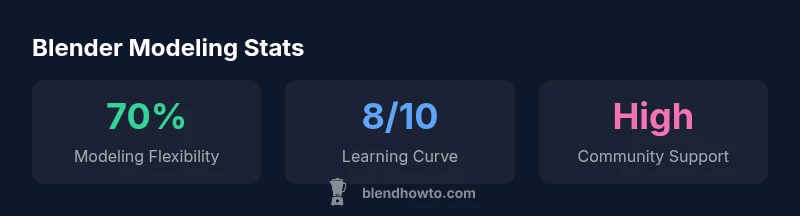
Blender’s learning curve is real, but it’s also well-supported. Beginners can start with fundamental modeling tasks, then progressively explore sculpting, UV mapping, and shading. The official manual, community tutorials, and numerous courses cover topics from basic navigation to advanced topology strategies. A dedicated community means you’ll frequently encounter tips, best practices, and time-saving add-ons. For instructors or self-learners, BlendHowTo’s guides offer practical, step-by-step workflows that align with common modeling scenarios, and many practitioners share project files to accelerate hands-on learning. The trade-off is initial setup time and the need to curate reliable learning resources, but the payoff is a flexible, capable tool that grows with your skill level.
Performance and Hardware Considerations
Modeling and texture work are moderately GPU-accelerated, and modern GPUs with 4–8 GB of VRAM support real-time previews and comfortable viewport performance, especially with efficient scene organization. For larger projects, a multicore CPU, ample RAM (16 GB or more), and a capable GPU help, but Blender remains surprisingly forgiving on mid-range hardware if you manage scene complexity. The software itself is highly dependent on the user’s workflow; heavy sculpting, high-poly scenes, or dense texture painting may demand optimization strategies like multiresolution sculpting, decimation, or baking to reduce memory use. Optimize scenes by using instances for repeated assets, keeping a clean modifier stack, and leveraging geometry nodes to create procedural variations instead of duplicating high-detail meshes.
Add-ons That Elevate Modeling
Add-ons expand Blender’s core capabilities without changing the base workflow. For modeling, popular choices include enhancing retopology, enabling advanced booleans with fewer artifacts, improving UV packing, and streamlining texture baking. Add-ons like Hard Ops and BoxCutter (for hard-surface modeling), or TexTools (for texture workflows) can significantly accelerate daily tasks. Since Blender is open-source, you can write your own scripts to automate repetitive steps, which is especially valuable for studios handling iterative design phases. The best approach is to start with a few well-documented add-ons relevant to your workflow and gradually expand as you identify bottlenecks.
Real-World Use Cases: From Concepts to Prototypes
In practice, Blender supports a wide range of modeling roles—from character design and product visualization to architectural visualization and indie game development. Freelancers often begin with concept sketches, then model in Blender, sculpt details, texture, and produce renders or in-engine assets. For teams, Blender can serve as a modeling hub that feeds assets into Unreal or Unity, with shared asset libraries and standardized export formats. The ability to iterate quickly—from concept to near-final look—helps reduce iteration time and fosters a more experimental approach to design. The result is a practical, all-in-one solution suitable for many modeling tasks, especially when cost or flexibility matters more than industry-standard software lock-in.
Getting Started: Quick Start Guide for Beginners
To begin, install Blender, explore Basic Modeling, and complete a small project—perhaps a simple prop or environmental asset. Practice fundamental tools: extrude, loop cut, bevel, and basic sculpting. Create a UV map, apply a simple material, and render a preview using Eevee to understand lighting behavior. As you progress, try a few key add-ons that align with your goals, such as retopology or texture baking tools. Document your workflow, save incremental versions, and compare results in different renderers. Finally, integrate feedback from peers and your own testing to optimize topology, UVs, and textures for the chosen target (game, film, or visualization).
Authority Sources
For readers seeking external validation and deeper context, the following major publications discuss 3D graphics, digital content workflows, and modeling practice:
- https://spectrum.ieee.org
- https://www.nature.com
- https://www.acm.org
Note: These sources provide general context about digital content creation and technology trends; Blender-specific practices are covered in BlendHowTo guides and community resources.
What's Good
- Zero cost and open source
- Comprehensive modeling toolbox (mesh, sculpt, retopo, UVs)
- Non-destructive workflow via modifiers and geometry nodes
- Active community and vast addon ecosystem
- Strong documentation and cross-project flexibility
The Bad
- Steeper learning curve for 1st-time users
- Interface can feel dense without guided onboarding
- Workflow differences may require adaptation when translating to other software
- Some industry-standard pipelines favor paid tools for specific studios
Best all-around for learners and indie projects who want a complete, cost-free modeling workflow
Blender offers a strong, flexible suite for 3D modeling that scales from beginner experiments to professional-quality assets. While it requires time to learn, its no-cost access and rich addon ecosystem make it a solid choice for many users, especially when budget and customization matter.
Frequently Asked Questions
Is Blender suitable for professional productions?
Yes, Blender can be used in professional contexts for modeling, texturing, and pre-visualization, particularly in indie or small-studio environments. Its flexibility and extensibility allow integration with common pipelines, though some studios may supplement with proprietary tools for specific tasks.
Yes. Blender works for many professional tasks, especially in indie and small studios, and it can plug into standard pipelines with the right add-ons.
What are the best add-ons for modeling in Blender?
Popular modeling add-ons include tools for hard-surface geometry, enhanced UV packing, and streamlined retopology. Start with a few well-documented options like hard-surface helpers and UV tools, then expand as you identify bottlenecks in your workflow.
Try a couple of core add-ons first, then expand based on your workflow needs.
How steep is the learning curve for beginners?
Blender has a genuine learning curve, especially for users new to 3D concepts. Structure your study around core modeling tasks, then layer in sculpting, texturing, and shading. With consistent practice and guided tutorials, most learn the fundamentals in a few weeks to a couple of months.
It takes time, but with steady practice and good guides you’ll progress quickly.
Can Blender handle game-ready assets?
Absolutely. Blender supports efficient topology, UVs, and texture baking suitable for game pipelines. Export formats like FBX and glTF help integrate with engines such as Unity or Unreal, and Blender’s modifiers can help optimize assets before export.
Yes, Blender is well-suited for game asset creation with proper export practices.
How does Blender compare to Maya for modeling?
Blender offers a broader, cost-free toolkit and a powerful node-based workflow, while Maya provides industry-standard pipelines and extensive support in large studios. For individuals and small teams, Blender often delivers similar results with a lower barrier to entry, though some professional studios prefer established workflows tied to Maya.
Blender is cost-effective and capable; Maya remains a staple in many studios for large-scale pipelines.
What hardware is recommended for large Blender projects?
Aim for a mid-to-high-end workstation: 16–32 GB RAM, a multi-core CPU, and a capable GPU with 6–12 GB VRAM. For very heavy sculpting or large scenes, more RAM and a stronger GPU help, but Blender scales well with smart scene management and progressive detailing.
A modern quad-core or higher CPU, 16 to 32 GB RAM, and a solid GPU will handle most projects well.
What to Remember
- Start with core modeling tools in Edit mode to build solid topology
- Leverage modifiers and geometry nodes to speed up iteration
- Combine sculpting with retopology for efficient asset creation
- Choose Eevee for fast previews; switch to Cycles for realism
- Invest in a few essential addons to unlock workflow gains