MB Lab Blender: A Practical Addon Guide
Discover how to install, configure, and use MB Lab Blender to create realistic humanoid characters in Blender with practical, step-by-step guidance for beginners and hobbyists.


This guide shows you how to install mb lab blender, enable the addon, and start a basic humanoid workflow in Blender. You’ll cover addon setup, morphs, rig basics, and a simple render. Ensure you have a recent Blender version and access to the addon from a trusted source.
What MB Lab Blender is and why it matters
mb lab blender is a Blender addon designed to streamline humanoid character creation. It provides presets for body proportions, facial morphs, skin textures, and a rig-ready skeleton that integrates with Blender’s animation system. For home artists and hobbyists, the addon can reduce iteration time and help you focus on storytelling rather than low-level rigging. According to BlendHowTo, MB Lab Blender serves as a practical bridge between Blender’s native tools and a ready-to-use humanoid workflow. The addon works with Blender’s shader system and rigging tools, allowing you to adjust proportions, expressions, and skin tones with intuitive sliders. This makes it ideal for quick concepts, education, and projects where credible results matter but you don’t want to start from scratch. In this guide, you’ll learn how to assess fit, install the addon, and begin building a usable humanoid character.
Prerequisites and setup for MB Lab Blender
Before diving in, confirm you have a suitable workstation and the right software versions. You should be running a current Blender release on a capable computer with at least 8 GB RAM and a modern GPU for smoother previews. Have a reliable internet connection to download MB Lab Blender from official sources, and prepare a simple reference image set for proportional shaping. Additionally, create a dedicated project folder to keep assets organized. This early groundwork helps prevent missteps when you start configuring MB Lab’s morphs and rig.
Installing MB Lab Blender: steps and best practices
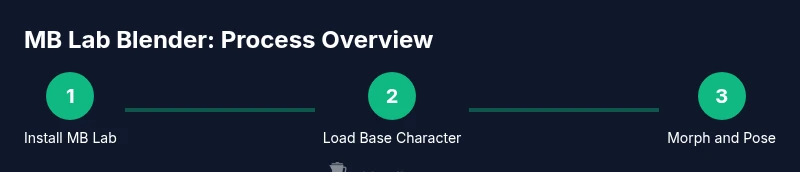
Installing MB Lab Blender is a straightforward process if you follow a clean sequence. First, download the addon from a trusted repository, then enable it in Blender’s Add-ons preferences. Next, verify compatibility with your Blender version and runtime dependencies, and finally activate the addon globally. Once activated, open MB Lab’s panel to load a base character and inspect the available presets. A common best practice is to start with a neutral baseline to ensure measurements and bone alignments are consistent across characters. This helps reduce skewed morphs or rig deformations when you begin posing.
The character pipeline: morphs, rigging, textures
MB Lab Blender’s pipeline centers on morph controls, a customizable rig, and texture options that work within Blender’s shader framework. Morphs let you adjust body dimensions, facial expressions, and limb lengths without editing the mesh directly. The rig provides FK/IK compatibility and parented controls for natural movement. Textures cover skin color, pores, and subtle blemishes to improve realism. As you tweak morph sliders, monitor edge loops and topology to avoid distortions in extreme poses. Remember to save multiple presets so you can compare progression and revert to a dependable baseline if needed.
Hands-on: building a base humanoid using MB Lab Blender
Begin with a neutral base character to establish a solid foundation. Load the MB Lab preset that most closely matches your target proportions, then adjust facial features and body proportions with the morph sliders. Next, align the skeleton with the mesh, check bone roll, and test simple limb movements to ensure rigs respond predictably. Apply base textures and a simple skin shader, then perform a quick render to verify lighting and shading. Save intermediate files frequently to track changes and avoid data loss as you iterate.
Lighting, shading, and rendering MB Lab characters
Realistic lighting makes or breaks a humanoid render. Use a three-point setup: key light for shape, fill light to reduce harsh shadows, and a rim light to separate the character from the background. In shading, keep skin subsurface scattering subtle to avoid plastic looks, and adjust specular highlights to reflect your lighting environment. For animation previews, enable motion blur sparingly to preserve facial detail while conveying motion. Finally, render at a modest resolution first to confirm color balance and texture fidelity before committing to a full-size render.
Troubleshooting common issues and performance tips
If morphs look distorted, verify that the base mesh topology supports the intended range of motion and that the rig is properly bound. For slow previews, reduce texture resolution or disable high-detail shaders while posing, then re-enable them for final renders. Conflicts can arise when multiple add-ons influence the same rig controls, so disable other addons temporarily to isolate the issue. Regularly back up projects and create a clean test file to ensure you can reproduce results without legacy data. Keeping Blender up-to-date and clearing caches can also improve performance during heavy viewport operations.
Advanced tips: integrating MB Lab with other Blender workflows
Advanced users can blend MB Lab with external sculpting tools by exporting morph targets and re-importing them into a custom base mesh. You can also reuse MB Lab’s presets as starting points for game-ready assets by baking shapes into a lower-polygon proxy and retopologizing elsewhere. For animation, combine MB Lab-generated rigs with Blender’s constraint system to create complex character interactions. Finally, consider integrating with a texture library for color consistency across a project, which helps maintain a cohesive look when you render multiple characters in the same scene.
Tools & Materials
- Blender software(Latest stable release recommended (any recent major version))
- MB Lab Blender addon(Download from official repository or trusted mirrors)
- Reference imagery(Front, side, and three-quarter views to guide proportions)
- External texture packs (optional)(High-quality textures can improve realism)
- Backup storage(External drive or cloud storage for project files)
Steps
Estimated time: 1 hour 30 minutes - 2 hours
- 1
Prepare Blender environment
Open Blender and create a new project. Verify that your scene units are set to metric or imperial consistently with your target character. Enable the MB Lab Blender addon from Preferences > Add-ons and load its panel to confirm it’s active.
Tip: Double-check addon is enabled in preferences and visible in the right-hand side toolbar. - 2
Install and enable MB Lab Blender
Install the addon file if you downloaded a zip, then enable it in the Add-ons manager. Restart Blender if necessary and verify the MB Lab panel appears in the UI. This ensures your workflow uses MB Lab’s characters and morphs.
Tip: If the panel doesn’t show, re-check compatibility with your Blender version and reinstall the addon. - 3
Load a base MB Lab character
From MB Lab, choose a base humanoid preset that best matches your intended proportions. This gives you a consistent starting mesh and bone structure for further morphs and rigging.
Tip: Start with a neutral preset to avoid locking yourself into extreme proportions early. - 4
Adjust morphs and proportions
Use the morph sliders to dial in height, limb length, and facial features. Make small, iterative changes and compare against reference images to maintain believable anatomy.
Tip: Save a named preset after each meaningful adjustment so you can revert quickly. - 5
Configure rig and bone alignment
Check bone rolls, limb alignment, and IK/FK setup. Run a quick pose test to ensure joints move naturally and there are no mesh penetrations or clipping.
Tip: If you see tiny mesh intersections, adjust bone positions by a few degrees and re-test. - 6
Apply materials and textures
Assign a skin shader and apply texture maps. Tweak roughness, subsurface scattering, and specular highlights to fit your lighting environment.
Tip: Keep texture resolutions balanced to maintain performance in viewport and render. - 7
Set up lighting and render a test frame
Create a simple three-point lighting rig and render a test frame. Use viewport shading to preview textures, then refine light color temperature to match mood.
Tip: A neutral gray background helps the character stand out and reduces color cast. - 8
Save and export your work
Save your Blender project with a descriptive name. If needed, export the character for other workflows (e.g., game engines) by baking shapes or exporting props.
Tip: Use incremental saves and maintain a clear folder structure for assets.
Frequently Asked Questions
Is MB Lab Blender compatible with the latest Blender version?
Compatibility depends on the addon version and Blender build. Always check the MB Lab Blender release notes and test in a clean project before committing to a production scene.
Compatibility depends on the addon version and Blender build; always check release notes and test in a clean project.
Do I need a license to use MB Lab Blender?
MB Lab Blender is typically available as a free addon in open-source ecosystems. Verify the addon’s source to confirm licensing terms before use in commercial projects.
MB Lab Blender is generally free, but always verify the addon’s license in the source to ensure compliance.
Can I export MB Lab characters to game engines?
Yes, MB Lab characters can be prepared for export; you may bake morphs or retarget rigs depending on the engine. Prepare a clean topology and test export in small increments.
You can export MB Lab characters to game engines by baking morphs and ensuring compatibility with the target engine.
What Blender settings impact MB Lab performance the most?
Texture resolution, sub-surface scattering quality, and viewport shading level have the biggest impact. Reducing texture sizes during blocking helps speed iteration.
Texture resolution and shading quality affect performance the most; lower them during blocking, then re-enable for final renders.
How do I troubleshoot missing MB Lab presets?
Ensure the addon data path is correct and that the preset files are not corrupted. Reinstall the addon if presets fail to load, and consult the addon’s documentation for recovery steps.
If presets are missing, check the data path, reinstall, and review documentation for recovery steps.
Are there any safety or compatibility warnings I should know?
Always back up your project before major morph changes. Incompatibilities between addons can cause conflicts; test in a clean scene to isolate issues.
Back up your project before big changes and test addons separately to avoid conflicts.
Watch Video
What to Remember
- Install MB Lab Blender and enable the addon.
- Use neutral base presets for reliable morphing.
- Test rig movement early to catch binding issues.
- Balance textures and lighting for realistic skin.