QRemeshify Blender: A Practical Addon Guide for Remeshing
Learn how to use the qremeshify blender addon to simplify remeshing in Blender. Step-by-step setup, practical presets, troubleshooting, and real-world workflows for faster, cleaner topology.


With qremeshify blender, you can generate clean, topology-friendly meshes from almost any model. This quick guide shows how to install, configure, and apply the addon for rapid, reliable remeshing in Blender. You’ll see practical presets, evaluate results with viewport checks, and troubleshoot common issues to keep your project on track.
What is qremeshify blender?
qremeshify blender is an addon that streamlines remeshing in Blender by offering prebuilt workflows and live previews. It focuses on generating topology-friendly meshes from complex geometry while preserving important features. According to BlendHowTo, the addon is designed for artists who want clean, manufacturable topologies without manually retopologizing every edge. The BlendHowTo team found that users appreciate its non-destructive approach, which lets you compare results before committing to a mesh rebuild. Unlike generic remesh operators, qremeshify provides presets tailored for organic characters, hard-surface props, and dense environments. It also integrates with Blender’s modifier stack, so you can stack remeshing with sculpting, UV mapping, or shading steps. In practice, qremeshify reduces iteration time by offering in-editor controls and visual feedback. If you’re transitioning from standard Remesh or Quadriflow, expect a smoother workflow and better control over density distribution. This section sets the stage for practical usage and helps you determine whether qremeshify fits your project goals.
Why use qremeshify for Blender projects
QRemeshify blender offers faster iteration, better topology control, and clearer previews compared to traditional remesh tools. For hobbyists and professionals alike, the addon provides targeted presets that adapt to organic shapes, hard surfaces, and architectural elements. It also integrates with Blender’s existing toolchain, so you can sculpt, UV map, and shade in a single workflow. From a learning perspective, the addon reduces trial-and-error by exposing density and preservation options in an intuitive panel. BlendHowTo’s guidance emphasizes how these presets help newcomers avoid common topology traps while giving advanced users a reliable baseline from which to customize.
Practical benefits include: faster topology cleanup, reduced need for manual retopology, consistent edge flow, and better compatibility with UVs and baked textures. These advantages can be especially valuable when preparing models for real-time engines or 3D printing, where predictable topology matters. By focusing on practical presets and live previews, qremeshify helps you validate changes on the fly and maintain creative momentum.
Installation and setup basics
Getting started with qremeshify blender is straightforward. Begin by downloading the addon from an official source, then install it via Blender’s Add-ons preferences. After installation, enable the addon and configure basic settings like default density, symmetry, and feature preservation. If you’re using Blender for the first time, take a moment to review the addon’s documentation and any release notes to ensure compatibility with your current Blender version. A small and organized workspace helps—configure a dedicated 3D Viewport area for remeshing previews, and keep a separate Outliner pane for quick object selection. Remember to save a backup before applying substantial topology changes; you can always revert if results don’t match expectations. The key is to set up a stable baseline before testing presets on a sample model.
Core workflow: Remeshing with qremeshify
The qremeshify workflow centers on selecting a mesh, choosing a preset, and applying the remesh operation with live previews. Start by selecting your target object, then pick a preset appropriate for the model type (organic, hard-surface, or mixed). Adjust density and preservation controls to guide how aggressively topology is rebuilt. Use viewport previews to compare different presets side-by-side, enabling quick decisions about feature retention and edge flow. Once you’re satisfied with the preview, apply the remesh, and review the result in Edit Mode to refine vertices and faces. Keep an eye on shading and normals after remeshing and consider a light cleanup pass with standard Blender tools if needed.
Presets and parameter controls
Presets are the quickest way to begin. Each preset is tuned for typical scenarios: low-poly character planning, high-detail sculpture-friendly topology, or dense prop meshes. Key controls include edge length (which drives loop density), detail preservation (to hold critical features), and symmetry (to maintain balanced topology for mirrored models). You can mix presets with manual tweaks to density and preserve-geometry regions. When working with characters, enable facial feature preservation; for hard-surface assets, emphasize clean edge flow along sharp edges. Remember to test presets on a small section of the mesh before applying them globally to avoid surprises in larger models.
Managing topology and UV considerations
Topology management is central to successful remeshing. qremeshify helps you maintain clean edge loops while reducing unnecessary topology. After remeshing, you may need to re-unwrap UVs or adjust seams to accommodate the new topology. If you output to a game engine, validate tangent space, normals, and shading to prevent artifacts. For detailed texturing, consider a secondary pass on UV islands to optimize texel density. The addon’s previews should help you anticipate where UVs may stretch, guiding you to re-unwrap in a targeted way rather than redoing entire shells.
Quality checks: evaluating remesh quality
Quality checks are essential for confidence in the result. Use Blender’s viewport shading to inspect topology, inspect edge loops for unwanted triangles, and verify surface smoothness with gentle sculpting or Bevel operations. Compare different presets by toggling visibility of the remesh modifier or using a simple comparison render. Look for preserved features, consistent density where needed, and minimal distortion around critical geometry like joints or corners. If issues arise, revert to a previous preset or adjust density and preservation settings before reapplying.
Performance, memory, and troubleshooting
Remeshing can demand significant memory, especially on dense meshes. If you notice slowdowns or freezes, reduce the working mesh density, work with a lower-resolution proxy during iteration, and enable incremental saves. Ensure Blender is up to date and that addon conflicts aren’t interfering with the remesh operation. If a crash occurs, check console logs for error messages related to mesh data or modifiers, and try disabling other addons temporarily. In most cases, a clean restart of Blender plus a smaller test model resolves the issue.
Real-world examples: character vs prop remeshing
Character workflows benefit from preserving facial features and hairline topology, so start with preservation settings and apply a gentle density increase in key regions. For props, prioritize clean edge loops around chamfers, bolts, and seams to ensure predictable shading and texturing. In both cases, use previews to compare multiple presets quickly, then select the one that balances fidelity with performance. The end result should be a topology that is easy to texture, rig, or export to a game or render pipeline.
Tools & Materials
- Blender 3.x (latest stable)(Ensure your version supports add-ons and remeshing workflow.)
- qremeshify blender addon(Download from the official source and verify compatibility with your Blender version.)
- Sample 3D models (OBJ/FBX or Blender file)(Practice workflows on low- to mid-poly models before heavier assets.)
- Backups and versioning strategy(Save incremental versions before major topology changes.)
- Adequate system memory(16 GB RAM or more is recommended for high-density meshes.)
- UV maps and texture references(Optional but helps with post-remesh texture work.)
Steps
Estimated time: 30-60 minutes
- 1
Install the addon
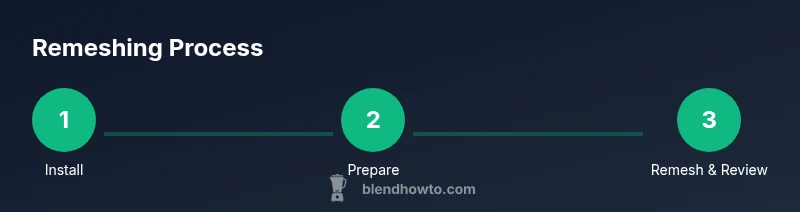
In Blender, navigate to Edit > Preferences > Add-ons > Install. Select the qremeshify blender ZIP and enable it. Confirm the addon appears in the Remesh panel and that Blender recognizes it without errors.
Tip: Always install from a trusted source and keep a clean startup file to avoid conflicts. - 2
Enable addon and open remesh panel
Open the Remesh panel in the 3D Viewport sidebar. Ensure the addon is enabled and that a sample mesh is selected to prepare for remeshing.
Tip: If the panel isn’t visible, enable the right toolbar or reset addon search to refresh the list. - 3
Prepare your mesh
Select the target mesh, apply scale if needed, and check normals. A clean base mesh helps remeshing produce predictable results.
Tip: Apply Scale (Ctrl-A) to avoid scale-related density artifacts. - 4
Choose an initial preset
Pick a preset aligned with your model type (character, prop, or environment). View the live preview to gauge density distribution.
Tip: Start with a balanced preset before pushing density up or down. - 5
Adjust density and preservation
Tweak density, edge preservation, and feature retention to shape topology. Use live previews to compare impact on key regions.
Tip: Preserve critical features around joints and sharp edges to avoid collapsing details. - 6
Preview and compare
Toggle between presets to compare results side-by-side. Use viewport shading to inspect topology and artifacts.
Tip: Mark a favorite preset for iterative testing on similar models. - 7
Apply remesh and review
Apply the remesh operation, then inspect the result in Edit Mode. Clean up stray verts and adjust seams as needed.
Tip: If topology is unsatisfactory, revert to a previous step and adjust density again. - 8
Save and document
Save the project and create a note on which preset was used for future reference. Compare the remeshed mesh against the original to quantify changes.
Tip: Maintain versioned backups before large topology changes.
Frequently Asked Questions
What is qremeshify blender and how does it work?
QRemeshify blender is an addon that streamlines remeshing in Blender by providing presets and live previews. It recalculates topology while aiming to preserve critical features, making remeshing faster and more predictable.
QRemeshify blender is an addon for Blender that speeds up remeshing with presets and live previews.
Is qremeshify blender compatible with latest Blender versions?
The addon is designed to work with recent Blender releases. Always check the addon notes for compatibility with your exact version and update status before upgrading Blender.
It works with recent Blender releases; check the addon notes for compatibility.
Can I use qremeshify blender for character models?
Yes. The addon includes presets tailored for organic shapes and character topology to help maintain natural topology during remeshing.
Yes, it supports character models with presets for organic topology.
How do I troubleshoot if the addon crashes?
First, disable conflicting addons and ensure you’re on a supported Blender version. Check console logs for errors and try a smaller test mesh before retrying the remesh.
Disable other addons, confirm compatibility, and test with a small model.
Are there alternatives to qremeshify blender?
Blender’s built-in Remesh and Quadriflow are common alternatives. Each has strengths in different scenarios; compare results to choose the best fit.
Yes—Blender Remesh and Quadriflow are common alternatives; compare results to decide.
Is qremeshify blender free or paid?
Addon licensing varies by source. Always review the official addon page for licensing details and any included features or restrictions.
Licensing depends on the source; check the official page for details.
Watch Video
What to Remember
- Start with presets to save time
- Preview topologies before applying
- Preserve key features to avoid artifacts
- Test on small models before scaling up
- Always back up work before major changes