Quad Remesher Blender: Step-by-Step Guide to Quad Topology
Learn to install and use Quad Remesher in Blender to convert triangles into quad-dominant topology. This step-by-step guide covers settings, details, and common pitfalls for clean, production-ready meshes.


By the end of this guide, you will install and use the Quad Remesher addon in Blender to convert a dense triangle mesh into clean quad topology. You’ll configure density targets, preserve detail, and run remeshing iterations that balance edge flow with performance. Expect practical steps, tips, and common pitfalls explained with clear, repeatable actions.
What Quad Remesher Blender Does
Quad Remesher Blender is an addon that reshapes a mesh into quad-dominant topology, smoothing edge flow while preserving silhouette and details. It automates a key part of the retopology process, enabling artists—both hobbyists and professionals—to produce clean, animation-ready geometry from dense, tris-heavy imports. While it excels on mechanical shapes, organic forms benefit from careful density settings and reference models. In this guide, you’ll learn how to harness Quad Remesher effectively, with a balanced approach to speed and quality, using the exact workflow described below.
Core Concepts Behind Quad Remeshing
Understanding what's happening under the hood helps you get better results. Quad Remesher targets quad topology by estimating edge flow and distributing density across the surface. You control density with a target value or edge length and adjust preservation settings to keep important features intact. The goal is a quad-dominant mesh that remains faithful to the original silhouette, supports UVs and textures, and reduces triangles for animation and sculpting.
Installing Quad Remesher in Blender
Start by downloading the addon from a trusted source and enabling it in Blender's Preferences. You may need a license or a trial depending on the version. Once activated, locate the Quad Remesher panel in the 3D Viewport's toolbar and verify the addon is loaded correctly by testing a quick remesh on a simple cube. Keep an eye on compatibility with your Blender version and any required dependencies.
Basic Workflow: From Triangles to Quads
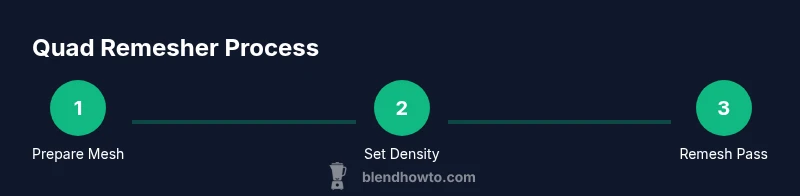
Import or create your mesh, perform any essential cleanup, then open the Quad Remesher panel. Set a sensible density target, choose preservation options, and run the remesh pass. Inspect the resulting topology for ngon-free quads and a clean edge flow. Iterate by adjusting density or feature preservation until you’re satisfied with the balance of detail and performance.
Practical Settings: Density, Features, and Detail
Density targets control how many quads the remesher will attempt. Start with a mid-range target and adjust upward for dense models or downward for rough shells. Enable feature preservation for sharp edges or silhouettes, and experiment with boundary preservation for hard edges. Use a small test mesh to preview changes before applying it to your full model.
Tips for Quality Topology and Edge Flow
Use a reference mesh or multiple viewpoints to guide topology. Check edge loops around critical features and avoid creating skinny quads. Keep meshes scaled consistently to ensure density behaves predictably across different models. Save incremental versions before major remesh passes to compare topology progress.
Troubleshooting Common Issues
If you see ngons after remeshing, switch to a higher density or enable more aggressive feature preservation. Large, dense meshes can strain memory; decimate or simplify sections before remeshing. If the result disagrees with the silhouette, reduce density locally or perform selective retopology on problem areas.
A Real-World Example: Remeshing a Character Mesh
A common workflow starts with a high-detail sculpt, followed by a decimated proxy for remeshing. After running Quad Remesher, you’ll inspect edge loops around joints and facial features, then perform targeted cleanup on any remaining ngons. The final topology should be quad-dominant, clean for rigging and animation while maintaining the major poses and proportions.
Performance and Best Practices for Large Meshes
For large meshes, consider working in parts and consolidating results. Use a stable reference mesh to guide density decisions and avoid drastic changes mid-model. Regularly save versions and test in the viewport with shading modes that reveal topology quality (wireframe or shaded with wireframe). This keeps your workflow efficient and predictable.
Tools & Materials
- Blender (latest LTS)(Ensure Blender version supports Quad Remesher add-on (Blender 3.x+ recommended).)
- Quad Remesher addon(Obtain a license or trial; confirm compatibility with your Blender build.)
- Reference/guide mesh(A clean reference model to compare topology against.)
- Simple test mesh(Use a basic shape to validate the workflow before tackling complex models.)
- Backup/incremental versions(Save versions before major remesh iterations to compare progress.)
- UVs ready for texturing(Optional, but helpful to verify UV layout after remeshing.)
Steps
Estimated time: 45-60 minutes
- 1
Prepare the mesh
Select your object, apply scale, and run a quick cleanup to remove stray vertices or non-manifold edges. This ensures remeshing starts from a clean base and minimizes surprises later.
Tip: Work on a duplicate to preserve your original model. - 2
Enable Quad Remesher and checkout basics
Activate the Quad Remesher addon in Preferences, then locate its panel in the 3D View. Confirm the interface loads and set the initial remesh options on a simple test mesh.
Tip: If the panel isn’t visible, re-enable the addon and restart Blender. - 3
Set density target
Choose a mid-range density target or adjust edge length to steer how dense the quad grid becomes. This balances shape fidelity with polygon count.
Tip: Start with medium density and adjust up or down after a quick preview. - 4
Run the remesh pass
Apply the remeshing operation on the test mesh. Observe edge loops and quad distribution, focusing on preserving silhouette and essential features.
Tip: Check for ngons and unexpected topology right after the pass. - 5
Review and refine
Examine the topology in problem areas (joints, fingers, eyes). Run additional passes or tweak preservation settings to improve edge flow without over-smoothing details.
Tip: Use local remeshing on problem regions rather than redoing the entire mesh. - 6
Finalize and export
Once satisfied, finalize the quad-dominant topology and export for rigging, texturing, or sculpting. Save a version with the remeshed mesh and, if needed, bake or transfer details from the original.
Tip: Keep a version history to track topology changes over time.
Frequently Asked Questions
What is Quad Remesher in Blender?
Quad Remesher is an addon for Blender that re-topologizes meshes to quad-dominant topology. It automates edge-flow decisions to produce cleaner quads, aiding rigging and sculpting. Expect faster retopology with repeatable results.
Quad Remesher is an addon that helps you make quad-dominant topology quickly and reliably in Blender.
Is Quad Remesher compatible with Blender 3.x?
Yes, Quad Remesher generally supports Blender 3.x versions. Always check addon documentation for the exact version compatibility and any required license.
It usually works with Blender 3.x, but verify the addon docs for your version.
Can Quad Remesher preserve fine details like sculpted features?
Quad Remesher can preserve many features when proper preservation settings are enabled. Very fine sculpted details may require supplemental retopology or baking from a high-resolution source.
Yes, with the right preservation options, though some tiny details may need extra tweaking.
Do I still need manual retopology after using Quad Remesher?
Often, Quad Remesher handles bulk topology, but manual retopology is still useful for problem areas, very complex features, or optimization for animation.
You’ll likely do some manual tweaks after remeshing for perfection.
How can I improve performance when remeshing large meshes?
Remesh in sections where possible, decimate unnecessarily dense areas, and work with stable viewport settings to reduce real-time computation while reviewing results.
Remesh in parts and keep an eye on performance with decimation if needed.
Watch Video
What to Remember
- Plan density before remeshing
- Check topology after each pass
- Preserve key features to avoid loss of detail
- Save incremental versions before major steps