2D Animation on Blender: A Practical Guide
Learn to create fluid 2D animation in Blender using Grease Pencil. Step-by-step workflows, tips, and export options for beginners and hobbyists seeking practical, production-ready techniques.


You will learn how to create clean 2D animation in Blender using Grease Pencil: set up a focused 2D workspace, sketch and ink strokes, manage timelines with keyframes, and export ready video. This guide covers essential workflows for drawing in layers, onion skin, simple lip-sync shapes, and efficient iteration to speed up production. BlendHowTo's team shares practical tips to avoid common pitfalls.
Why Grease Pencil is Ideal for 2D Animation
Grease Pencil is Blender's built-in toolset for drawing in a 2D plane while existing inside a 3D scene. It combines sketch, ink, and color workflows with the power of Blender's compositor, rigging, and rendering engines. For 2D animation on Blender, Grease Pencil provides a centralized, non-destructive workflow that keeps your art in vector-like strokes while allowing you to adjust timing, perspective, and layering as your project evolves. According to BlendHowTo, this approach lowers entry barriers for beginners and speeds up iteration for hobbyists and professional artists alike. By staying inside a familiar 3D environment, you can bring in references, import audio, and later composite with 3D elements if you want to mix styles. The result is a flexible pipeline where drawing, animation, and post-processing share a consistent toolchain, reducing context-switching and boosting your learning curve.
Setting Up a Dedicated 2D Workspace in Blender
Starting with the right workspace matters. In Blender, switch to the 2D Animation workspace or customize a layout that places Grease Pencil editors on one side and the timeline on the other. Create a new Grease Pencil object and rename it to your character or element to keep your scene organized. Enable layers for sketch, ink, and color, and consider turning on the camera and 2D canvas in the viewport to keep an orthographic view. If your project involves lip-sync or mouth shapes, allocate a dedicated layer pair for the mouth and the phonemes. At this stage, mark a simple storyboard or reference sheet in an image editor and import it into Blender as a background image for guide drawing. BlendHowTo emphasizes keeping files modular: separate assets into clean layers and reuse assets across scenes to save time. A well-organized setup pays dividends when you scale up to longer animation sequences.
Building Your Stroke Library: Sketch, Ink, Color
A core advantage of Grease Pencil is separating stages of drawing, inking, and coloring. Start with a light sketch layer to lay out pose, composition, and motion arcs. Switch to an ink layer to finalize linework, using high-contrast strokes for readability in the final render. Add a color layer beneath linework for flat coloring, shading, and simple lighting. Keep a dedicated shadow layer for cast shadows or soft shading to enhance depth without switching engines. Organize strokes into clean loops for each character or object; that makes later edits and lip-sync alignment easier. From BlendHowTo, a practical tip is to use consistent brush settings across scenes so your animation has a cohesive look. Enable snap-to-grid when drawing essential shapes, and consider using reference images pinned in the viewport. Regularly save incremental versions; this helps you back out of accidental edits and test new style directions without losing progress. As you work, continually compare your rough pass with the final lines to maintain clarity and readability.
Onion Skinning and Frame Management
Onion skinning lets you view multiple surrounding frames as translucent overlays, which is crucial for timing and fluid motion. In Blender, enable onion skin in the Grease Pencil settings and configure the number of frames to show before and after the current frame. Use this to check pose continuity and arc consistency across the walk cycle, jump, or character expressions. For larger projects, create a frame-range and label keyframes with descriptive names; this helps you navigate complex sequences. Another practical technique is to create a separate layer for in-betweens and the main action, so you can adjust speed and timing without altering the main pose. The BlendHowTo team recommends occasionally switching to a 3D reference model to verify perspective, then returning to your 2D strokes for final polish. Regular cleanup of unused frames and stray strokes can keep your file size manageable and improve playback performance on modest hardware.
Rigging and Posing 2D Characters with Armatures
Although Grease Pencil is 2D, you can rig characters using armatures in Blender and bind strokes to bones for consistent deformation. Start by creating an armature in a separate layer, then parent the Grease Pencil object to the armature and enable envelope or automatic weights if you are comfortable. Build a simple limb skeleton: spine, arms, legs, and a head bone that drives facial features. Use constraints to create bending limits or squash-and-stretch when appropriate, but avoid over-deformation that makes lines wobble. Pose your character by rotating the bones and adjusting the grease pencil weights. For mouth shapes, you can create a dedicated bone for the jaw and animate the mouth layer separately. In this workflow, keep your rigs modular so you can reuse them across different characters. BlendHowTo notes that keeping a clean rig reduces the number of keyframes needed and helps maintain consistent timing across scenes.
Keyframes, Interpolation, and Timing for Smooth Motion
Keyframe placement is the backbone of effective animation. Place keyframes at important moments: contact, recoil, extremes, and settle positions. Blender supports multiple interpolation modes (linear, bezier, constant) which control acceleration and easing curves. Start with stepping through frames to place early poses, then switch to eased curves to refine motion. For 2D work, consider adjusting the timing by duplicating frames for slow-burn moments or using ease-in and ease-out to avoid robotic movements. Keep track of your timing with the timeline and a rough timing chart to avoid drift over scenes. A useful trick from BlendHowTo is to scrub playback while you adjust curves and use the Graph Editor to fine-tune tangents. Save several versions of the animation to compare pacing and ensure readability of motion across characters.
Lip Sync, Facial Expressions, and Mouth Shapes
Lip-syncing in Blender with Grease Pencil can be approached with phoneme-based mouth shapes or simpler expressive cues. Create a limited set of mouth shapes on a dedicated layer and switch shapes in sync with dialogue. For timing accuracy, import a transcript and map phonemes to frames; overlay a reference audio track and mark phoneme shifts. You can drive the mouth shapes with shape keys or bone-based controls, depending on your rig. Keep facial expressions consistent with the character’s personality and maintain a stable baseline pose to avoid abrupt shifts when mouth shapes change. Blender's clean viewport helps preview dialogue in context with the character’s micro-expressions. BlendHowTo suggests starting with a basic six-to-eight-mouth shapes and expanding as you refine your timing and diction. If a line sounds off, adjust the timing rather than the shape to maintain readability.
Rendering, Compositing, and Output Options
Plan your output early: decide between a flat color look or a shaded appearance, then choose an appropriate compositor path. Grease Pencil strokes render cleanly with solid colors, but you can enrich the final image with a simple light pass in the compositor. For export, render as a video file or export as an image sequence for post-processing. Use a transparent background if you plan to drop the animation over backgrounds later. If you need motion blur or camera effects, enable the appropriate nodes in the compositor or enable motion blur in the render settings. In the context of 2D animation, compositing can be used to add glow, shadows, or depth cues without changing the underlying strokes. The BlendHowTo team finds that testing renders at a small baseline resolution helps you iterate more quickly before committing to final output.
Practical Workflow for Real-World Projects
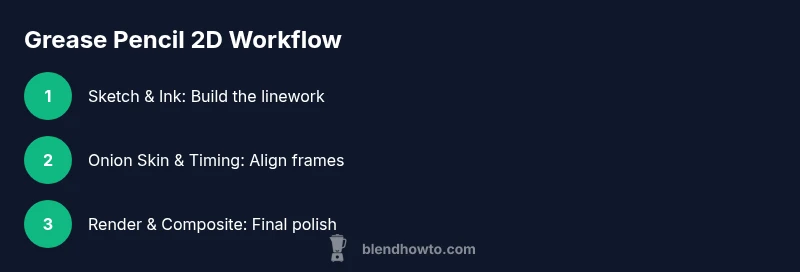
Real-world projects demand robust organization and a repeatable pipeline. Start with a storyboard and a folder structure that separates assets by character, background, audio, and renders. Work in an iterative loop: sketch, ink, color, animate, review, adjust, and render. Save as you go and maintain a changelog to track revisions. When collaborating, keep asset naming consistent and export reference sheets for the team. A typical project builds from a mood board to a rough pass, a clean pass, and a final polish pass. Blender's Grease Pencil tools are powerful, but consistent workflows matter most. BlendHowTo recommends establishing a daily backup routine and keeping your file sizes under control by archiving older iterations after moving on to new passes.
Advanced Tips for Efficient 2D Animation in Blender
Push your efficiency by combining Grease Pencil with Blender's advanced features: use geometry nodes to generate backgrounds, apply texture overlays on color layers, and take advantage of drivers for autonomous lip-sync cues. Use layer proxies to switch between shots without duplicating entire scenes, and keep a master blend file with reusable assets. Optimize performance by caching strokes and decimating unnecessary geometry when testing. Finally, invest time in learning keyboard shortcuts and hotkeys; a few well-chosen keys can dramatically speed up your workflow. BlendHowTo's experience shows that incremental improvements compound over time, allowing you to tackle ambitious 2D animation projects with confidence.
Tools & Materials
- Blender (latest stable release)(Install from blender.org and ensure it runs on your OS.)
- Graphics tablet(Helpful for natural drawing; any tablet with pressure sensitivity works.)
- Keyboard and mouse(Set up shortcuts to switch tools quickly.)
- Storyboard references and script(Helps plan sequences and lip-sync.)
- External references (images, audio)(Optional for more realism.)
Steps
Estimated time: 2 hours 30 minutes
- 1
Create a Grease Pencil object
Open a new Blender file, add a Grease Pencil object, and rename it to your main character. This step establishes the canvas you will sketch on and keeps your file organized from the start.
Tip: Name your layers clearly (Sketch, Ink, Color) to simplify later edits. - 2
Switch to a 2D Animation-friendly workspace
Switch to the dedicated 2D Animation workspace or arrange editors so you have a Grease Pencil editor alongside the timeline. This improves visibility and speed during early passes.
Tip: Enable a clean orthographic view to avoid perspective drift. - 3
Create layers for sketch, ink, and color
Add separate layers for each stage of your drawing pipeline. Keeping layers distinct prevents accidental edits and makes it easier to test different styles.
Tip: Lock layers you’re not editing to prevent accidental changes. - 4
Draft a rough sketch
Draw a loose pose and composition on the Sketch layer. Focus on silhouette, gesture, and timing rather than clean lines at this stage.
Tip: Use light strokes to leave room for adjustments. - 5
Ink the linework and apply color
Switch to the Ink layer to refine lines. Add a Color layer beneath for flat colors; keep line weights consistent for readability.
Tip: Limit brush variety to maintain a cohesive aesthetic. - 6
Enable onion skin and manage frames
Turn on onion skin to preview adjacent frames and adjust timing. Define a reasonable frame range to guide animation without clutter.
Tip: Keep the frame range modest during early passes. - 7
Build a simple rig for the character
Create a basic armature and bind the Grease Pencil strokes to bones for consistent deformation. This helps with longer sequences and easier posing.
Tip: Use a modular rig you can reuse on other characters. - 8
Animate with keyframes and refine timing
Set keyframes at critical poses (contact, extremes, rest). Use Graph Editor to tune easing curves for natural motion.
Tip: Preview often; small timing tweaks yield big readability gains. - 9
Add lip-sync and facial cues
Create mouth shapes on a dedicated layer and map them to dialogue. Align shapes with phonemes and audio cues for clearer speech.
Tip: Start with a minimal set of mouth shapes and expand as needed. - 10
Render, review, and iterate
Render a draft, review in context, and adjust timing and linework. Iterate until narration and motion feel cohesive.
Tip: Render at a small resolution first to speed up iteration.
Frequently Asked Questions
What is Grease Pencil and why use it for 2D animation in Blender?
Grease Pencil is Blender's integrated tool for drawing and animating in a 2D plane within a 3D scene. It supports sketching, inking, coloring, and animation in one workflow, which is ideal for quick iterations and clean integration with other Blender features.
Grease Pencil lets you draw and animate in 2D right inside Blender, so you can keep everything in one toolset.
Do I need a drawing tablet to start 2D animation in Blender?
A drawing tablet is recommended for natural strokes and faster drawing, but you can start with a mouse. Tablets improve pressure sensitivity and line quality over time.
A tablet helps a lot, but you can begin with a mouse and upgrade later.
Can I export 2D animations from Blender to standard video formats?
Yes. Blender supports exporting to video formats and image sequences. You can render to formats like MP4 or AVI, or export frames for post-processing in other software.
Blender can export 2D animations as video files or as image sequences for editing elsewhere.
Is Blender beginner-friendly for 2D animation?
Yes. The Grease Pencil workflow provides approachable entry points for beginners, with a gentle progression from sketching to final rendering. More advanced techniques come with practice.
Blender is approachable for beginners, especially with Grease Pencil, though some concepts require practice.
What are common pitfalls when animating in 2D with Blender?
Common issues include inconsistent line weight, poor timing, and cluttered layers. Onion skin helps with timing, while a clear layer structure prevents confusion during edits.
Watch out for timing inconsistencies and too many layers; keep a clean structure.
Can I integrate 2D animation with 3D elements in Blender?
Yes. You can combine 2D Grease Pencil drawings with 3D scenes, backgrounds, and effects to create hybrids that blend flat art with depth.
You can mix 2D drawings with 3D scenes for hybrid visuals, adding depth and richness.
Watch Video
What to Remember
- Master Grease Pencil basics to build a solid 2D workflow
- Organize layers and assets for scalable projects
- Use onion skin and frame ranges for timing precision
- Leverage simple rigs to keep animation efficient
- Render and iterate to achieve cohesive visuals