How to Animate on Blender: A Practical Step-by-Step Guide
Learn how to animate on Blender from planning to rendering. This comprehensive guide covers keyframes, the Graph Editor, timing, and practical tips for smooth, believable motion.


In this guide, you’ll learn how to animate in Blender—from setup to a completed render. You’ll create keyframes, use the Graph Editor, and refine timing with practical tips. By the end, you’ll animate a simple object with believable motion and improve your workflow. This article by BlendHowTo provides clear steps, visuals, and practical safety notes.
Getting started with animation in Blender
If you're wondering how to animate on Blender, you’ll begin by understanding the interface, the timeline, and how Blender handles motion data. This section introduces the core concepts you’ll use throughout the project: objects, keyframes, and the two animation spaces most artists rely on—the 3D Viewport for posing and the Graph Editor for timing. By configuring a simple scene with a camera, a light, and a single mesh, you’ll gain hands-on familiarity with Blender's workflow. The timeline lets you scrub through frames, set a keyframe by pressing I, and then move forward to set a second pose. As you work, keep your goals concrete: a 2-3 second motion with a clear start and end. BlendHowTo's approach emphasizes small, repeatable steps and frequent previews to catch timing issues early. This is how you build confidence before diving into more complex rigs or character animation.
Tip: Use simple references to anchor your motion, then iterate in small increments. This keeps the process approachable for beginners and reduces overwhelm.
Planning your animation: from idea to timing
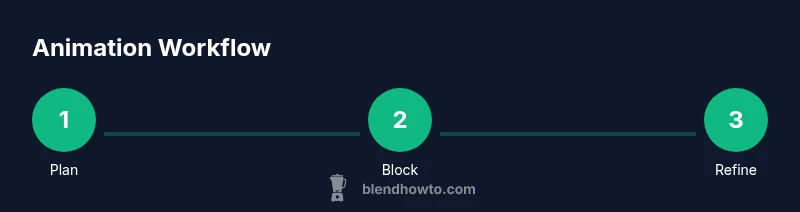
Effective animation begins with planning. Define the story or action, sketch a quick storyboard, and note the key poses you want to hit. Create a shot list detailing scene setup, camera angles, and required assets. Reference video footage or animatics can help lock in timing before you touch a keyframe. In Blender, outline your timeline with a rough blocking pass—this means placing major poses at important frames (e.g., start, peak, end). By planning ahead, you’ll save time during later refinements and avoid looping back to the start due to unexpected timing shifts. BlendHowTo recommends a 10-20% planning window before you commit to detailed animation work.
Pro tip: Keep your blocking pose-first, then progressively refine each pose to preserve clear storytelling through motion.
Core animation concepts: keyframes, interpolation, and curves
Keyframes are the backbone of Blender animation. You set a pose at a frame and Blender interpolates the frames in between. Interpolation modes determine how motion moves from one keyframe to the next. The Graph Editor is where timing and easing are shaped—handles, tangents, and curves let you create snappy starts, graceful arcs, or sudden stops. Understanding these concepts helps you move beyond simple linear motion to more natural dynamics. The BlendHowTo Team emphasizes practicing with a simple object first, then transferring the same techniques to a rigged character. This section also covers the difference between location, rotation, and scale keyframes, and how to use cyclic animation for looping actions.
Hands-on tip: Start with a straight-line curve and gradually introduce ease-in and ease-out to mimic real-world acceleration and deceleration.
Blocking and posing for movement: establishing the motion arc
Blocking is the step where you block in the main poses to establish the motion arc and primary timing. Focus on silhouettes and weight shifts rather than perfect deformation. In Blender, arrange your objects on separate layers or collections to keep the scene organized as you block. Use the timeline to jump between keyframes quickly and ensure the pose reads clearly from multiple camera angles. This stage is about intent—each pose should convey the narrative or action before you spend time on fine-tuning.
Pro tip: Pose-to-pose blocking is faster than frame-by-frame brute-forcing; use this approach to preserve your storytelling rhythm.
Refinement: polishing motion with Graph Editor and curves
After blocking, refinement focuses on timing accuracy and motion quality. The Graph Editor reveals how every axis changes over time and lets you smooth or sharpen motion curves. You’ll adjust easing handles, adjust tangents, and correct any overshoot or jitter. Pay attention to anticipation and follow-through—these subtle timing cues sell the motion. Blender’s modifiers and constraints can help maintain consistency across related objects, such as a limb following a torso animation. The goal is to achieve a cohesive motion that feels intentional and believable.
Note: Frequent previews help catch timing errors early, reducing rework later in the pipeline.
Timing, pacing, and anticipation: creating believable motion
Timing is everything in animation. Great motion balances anticipation, action, and reaction. In Blender, you’ll tweak the spacing of keyframes to control the speed of motion and the distance traveled by objects. Pacing affects how audiences perceive weight and energy; slow in, slow out, and arc-based motion often feel more natural than rigid, uniform movement. Use anticipation frames to prepare the viewer for a move, and ensure that the final pose reads clearly at the end of the shot. This section also covers using the Dope Sheet for high-level timing decisions and the NLA editor for layering sequences.
Pro tip: Build in micro-timings for subtle expressions—these micro-motions dramatically improve perceived realism.
Rendering setup: engines, sampling, and output settings
Rendering is the final stage where motion becomes an image sequence. Blender offers multiple engines, including Eevee for real-time previews and Cycles for realistic lighting. Choose an engine that fits your project’s needs and render configuration. Pay attention to sampling rates, motion blur, and output resolution. For animation, render tests at low resolution to iterate quickly, then finalize with higher fidelity. Organize your outputs by scene, take, and frame range, and keep backups of intermediate renders. This section also covers basic color management, filmic tonemapping, and using compositor nodes to polish the final look. The goal is to achieve consistent, artifact-free frames suitable for editing.
Pro tip: Do a short test render every 5-10 keyframes to verify lighting, motion, and timing together.
Troubleshooting common animation issues
Animation in Blender can present some headaches, from subtle jitter to runaway curves. Common fixes include adjusting interpolation, balancing keyframes to prevent drift, and ensuring constraints don’t conflict with parent relationships. If you see unexpected motion during playback, check the timeline’s frame rate setting and verify that you’re editing the correct object’s curves in the Graph Editor. For rigs, ensure weight painting is consistent and that bone constraints behave as intended. Finally, always test renders with motion blur enabled to catch sampling artifacts early. This proactive approach reduces debugging time and keeps your project on track.
Warning: Always keep a clean save before major edits so you can revert if a curve edit creates unintended consequences.
Tools & Materials
- Blender software (latest version)(Download from blender.org and install according to your OS.)
- A computer capable of running Blender(Any modern computer with a dedicated GPU is recommended.)
- Keyboard and mouse or tablet(For precise posing and graph editing.)
- Sample project file or simple scene(Use a basic mesh, camera, and light to practice.)
- Reference materials or videos(Helpful for timing and movement references.)
- External drive or cloud backup(Back up large renders and project files.)
Steps
Estimated time: 60-90 minutes
- 1
Plan your animation
Define the action, storyboard the key poses, and note timing goals. Decide on the scene, character or object, and shot list before touching Blender. This planning reduces revisions later and keeps the motion coherent.
Tip: Create a one-page storyboard with 3-5 key poses to anchor your work. - 2
Set up the scene and base keyframes
Create or import your object, set up a camera and lighting, and place your first keyframe for the main pose. Ensure you save a clean version before adding more keyframes.
Tip: Lock reference angles to keep your composition consistent as you pose. - 3
Block in the main motion
Place the major poses at evenly spaced frames to establish timing. Don’t worry about fine details yet—focus on readable silhouettes and motion arc.
Tip: Use I to insert a keyframe and G to move, then adjust until the pose reads clearly. - 4
Refine timing in the Graph Editor
Open the Graph Editor and inspect the curves for major axes. Adjust tangents and handles to create smooth easing and natural speed changes.
Tip: Prefer smooth curves over jagged steps for most character motion. - 5
Add secondary motion and details
Introduce follow-through, weight shifts, and subtle facial or secondary movements. These details bring life to motion without overpowering the main action.
Tip: Layer secondary motion on a separate action strip for easier tweaking. - 6
Test render and iterate
Render a short animation preview at low resolution to check timing, lighting, and motion. Tweak curves or keyframes based on the preview.
Tip: Test early and test often to catch issues before final rendering.
Frequently Asked Questions
What is the Graph Editor and why is it important?
The Graph Editor shows animation curves for all animated properties, letting you adjust timing, easing, and refinement. It’s essential for natural movement and precise control over motion.
The Graph Editor shows curves for timing and easing, and you’ll edit them to get smooth motion.
How do I create a walk cycle in Blender?
Start with blocking poses for contact, recoil, and passing positions. Then refine timing with curves, animate the hips, and add arm swing for balance. Loop the cycle by aligning the end pose with the start pose.
Block key poses for contact, pass, and recoil, then refine and loop.
Which render engine should I use for animation?
For quick previews, Eevee is suitable due to speed and real-time feedback. For realism and lighting accuracy, Cycles is preferred, at the cost of longer renders.
Use Eevee for previews and Cycles for final renders if quality is the priority.
How can I optimize curves for performance?
Avoid excessive keyframes; simplify curves with easing and use interpolation types that match the motion. Group related curves and hide unused ones to reduce clutter.
Keep curves simple and organized to improve performance.
What file formats should I export for animation projects?
Common choices include image sequences (PNG, EXR) or video formats (MP4) depending on the workflow, plus a Blender project file for future edits.
Export as image sequences for flexibility, or MP4 for quick sharing, plus save your .blend file.
How long does it take to learn basic Blender animation?
Learning the basics typically takes a few weeks of consistent practice, with longer timelines for complex rigs or advanced motion. Start with small projects to build foundational skills.
A few weeks of steady practice usually covers the basics.
What to Remember
- Plan before posing to lock in motion intent
- Master the Graph Editor to fine-tune timing
- Block in major poses first, then iteratively refine
- Use references to inform timing and weight
- Render test previews early to catch issues