Blender Mixamo Guide: Import & Animate Animations in Blender
Step-by-step guide to using BlendHowTo techniques for importing Mixamo animations into Blender, retargeting to a Blender rig, baking actions, and troubleshooting common issues for smooth animation pipelines.


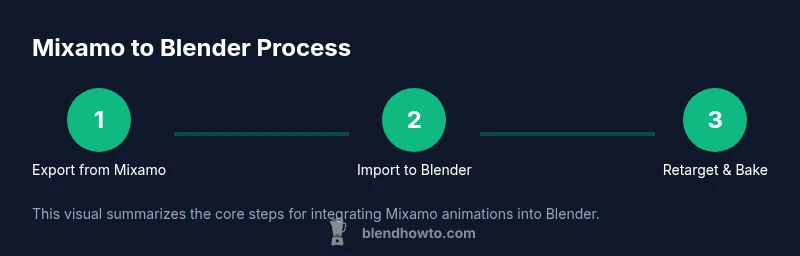
Learn how to bring Mixamo animations into Blender, retarget them to a Blender rig, and export polished clips. This quick answer outlines the core workflow: prepare your character, export FBX from Mixamo, import into Blender with correct settings, retarget the animation to a compatible armature, bake the action, and troubleshoot common issues like scale and root motion. A full step-by-step guide follows in the article.
Why Blender + Mixamo is a powerful combo for animators
According to BlendHowTo, Blender paired with Mixamo provides a practical, approachable workflow for hobbyists and aspiring 3D artists. Mixamo handles quick rigging and animation presets, while Blender offers robust retargeting, baking, and export options to produce clean, ready-to-render sequences. This combination shortens the learning curve for newcomers and accelerates iteration for seasoned artists alike. By leveraging Mixamo's animation library and Blender's rigging tools, you can test, refine, and render character animation with fewer bottlenecks and greater flexibility.
Blender's open ecosystem means you can integrate Mixamo assets into any project—from simple character rigs for a personal portfolio to more complex scenes for short animations. The key is understanding how to map Mixamo's skeleton to Blender's Armature, preserve root motion when needed, and bake the final actions so they are portable across platforms and engines. This article provides a clear, actionable pipeline with practical tips and common pitfalls to avoid.
If you are a home enthusiast or an aspiring 3D artist, this guide will help you build confidence in blending two powerful tools. By the end, you should be able to import a Mixamo character, apply a new animation set, and export a Blender-ready rigged animation without heavy manual rigging from scratch.
Understanding Mixamo's rigging and the Blender import pipeline
Mixamo provides a ready-made humanoid rig with a catalog of animation clips. When you export from Mixamo, you typically receive an FBX with a particular bone naming convention and axis orientation. Blender, on the other hand, uses its own armature system and coordinate space. The import pipeline focuses on keeping scale consistent, preserving bone hierarchies, and ensuring that the animation data remains usable after import. A key concept is using Blender's standard Rigify or a simple Humanoid rig as a target for retargeting, which allows you to reuse Mixamo animations on a consistent bone structure.
The most common import pitfalls involve axis mismatches (Blender expects Z up, Y forward) and scale differences between your Mixamo export and Blender's scene units. To minimize surprises, set Blender’s Unit System to Metric, with 1 Blender unit = 1 meter, before importing. When feasible, download FBX with the option that yields cleaner bone data for Blender compatibility. If you plan to retarget later, consider a scene layout that keeps the target rig separate from the source geometry to avoid accidental edits.
Prepping your Mixamo character for Blender
Preparation is the foundation of a smooth pipeline. Start by ensuring your character mesh is clean, with no stray vertices or internal faces that could cause shading or weight-paint issues later. Rename the Mixamo skeleton bones to a predictable scheme if you plan to use a Blender armature that differs from Mixamo’s naming. This makes the retargeting stage less error-prone. If your character uses blend shapes (morph targets), export them separately or ensure they are compatible with Blender's shape keys.
Additionally, verify that the character’s scale matches Blender’s world scale. If you export at an unusual scale, you’ll encounter bone length discrepancies on import. A practical approach is to export the Mixamo character in a clean T-pose, apply any necessary modifiers in the modeling stage, and ensure the character’s origin is at the pelvis or hip joint so it matches Blender’s expected root location. Finally, save a copy of the character without animations, so you have a clean base for retargeting later.
Importing Mixamo FBX into Blender and cleaning the rig
To import, choose File > Import > FBX (.fbx). In the import options, enable Apply Transform, Forward: -Z Forward, Up: Y Up, and Bake Animation. This preserves the animation data but allows you to correct any misalignment immediately after import. After import, inspect the bone roll, hierarchy, and names. If needed, rename bones to match Blender’s expectations for the target rig and delete any nonessential helper bones.
Next, switch to Pose mode and test a few keyframes to confirm that the limbs move as expected. If rotations look inverted, adjust the bone axes in the armature’s Roll in Edit mode. It’s common to discover minor discrepancies at this stage; these can be corrected before retargeting. Finally, re-parent the character to a clean, Blender-native rig (or a simple Rigify skeleton) to set up a consistent retargeting workflow.
Retargeting animation to a Blender armature
Retargeting aligns the Mixamo animation to your Blender rig so that the motion applies correctly. Start by ensuring both rigs share the same rest pose and a compatible bone naming scheme. In Blender, add constraints such as Copy Transforms or Copy Rotation to the target bones to follow the source bones. A practical approach is to create a mirrored or simplified target rig that captures essential joints (hips, spine, shoulders, elbows, hips, knees, ankles).
Bake the animation after applying constraints to create a single Action that can be cleaned and edited in the Dope Sheet or NLA editor. If you have access to motion transfer tools, you can use them to streamline retargeting, but this guide focuses on built-in Blender functionality. After baking, scrub the timeline to verify smoothness and fix any clipping or interpolation issues with keyframe adjustment.
Common issues and fixes when using Blender Mixamo
Root motion: Mixamo animations often rely on root motion. If your character slides or drifts, bake root motion into the root bone or disable it during baking, then reapply as needed. Scale mismatches: If limbs look too long or too short, compare the rest pose to the Blender rig and adjust bone scale or export options from Mixamo. Axis flips: If limbs bend in the wrong direction, verify the Forward and Up axes in Blender’s import dialog and rotate the root bone to correct alignment. Degenerate geometry: Remove hidden or duplicate vertices that could cause jitter during animation. Finally, make sure you’re working with a clean Action and, if needed, separate the animation into individual clips for easier troubleshooting.
Exporting your animated model back to FBX or glTF
When you’re ready to export, decide on the target format. FBX is common for game engines and Blender-to-engine pipelines, but glTF is increasingly preferred for web-based visualization. In Blender, select the armature and mesh, then File > Export > FBX or glTF 2.0. Ensure you enable Bake Animation, apply all transforms, and include armature actions. For FBX, use the Armature and Mesh options, and make sure to export with the correct axis orientation for your target engine. If you plan to re-import later, consider exporting with a separate action track or keeping a clean, non-destructive workflow by using NLA tracks.
Quick-start checklist to try today
- Have Blender installed (latest stable) and a Mixamo account ready.
- Export a Mixamo animation as FBX with the appropriate settings for Blender.
- Import the FBX into Blender, adjust axis and scale, and inspect the rig.
- Retarget to a Blender-friendly armature and bake the action.
- Test the animation in a simple scene and iterate on weight painting or minor bone adjustments.
- Export again to FBX or glTF for use in other apps or engines.
- Save versions frequently to track changes and revert if needed.
Tools & Materials
- Blender (latest stable)(Download from blender.org and install on your workstation.)
- Web browser + internet(Access Mixamo and Blender websites; manage uploads/downloads.)
- Mixamo account(Free or premium account for uploading characters and applying animations.)
- FBX files from Mixamo(Export using FBX options suitable for Blender (e.g., FBX for Unity/Max).)
- A reference Blender/humanoid rig(Optional if you want to retarget to a standard Blender rig.)
- Adequate hardware(8GB+ RAM recommended; SSD beneficial for large files.)
Steps
Estimated time: 60-120 minutes
- 1
Prepare project and assets
Open Blender, set units to metric, and create a new project folder. Import a clean base mesh if needed and organize your assets (models, textures, and animation files) into a dedicated directory. Ensure you have a named Mixamo character ready for export.
Tip: Keep a consistent folder structure to track assets and versions. - 2
Export Mixamo animation as FBX
In Mixamo, select the character and the animation you want. Choose FBX as the export format and select a version that preserves the animation data without excessive compression. Note the frame rate and unit settings to align with Blender later.
Tip: Use a frame rate similar to your Blender project to avoid timing shifts. - 3
Import FBX into Blender
In Blender, go to File > Import > FBX and enable Apply Transform, Forward: -Z Forward, Up: Y Up. Check Bake Animation to preserve the motion, then import. Inspect the rig and mesh for alignment issues right after import.
Tip: If the import looks off, adjust the axis settings and re-import. - 4
Clean and align the rig
Switch to Edit mode and inspect bone names and hierarchies. Rename any nonstandard bones to simple names (hip, spine_01, left_arm, etc.) and remove extraneous helper bones. Re-center the origin if the model’s pivot is off.
Tip: Clear extraneous bones that will complicate retargeting. - 5
Retarget animation to Blender armature
Create or use a Blender-friendly armature. Use constraints (Copy Rot, Copy Transforms) to map source bones to target bones. Then bake the animation to create a single Action that you can refine in the Dope Sheet.
Tip: Test a few frames to verify motion fidelity before baking. - 6
Bake and refine the action
Bake the animation into a Blender Action, scrub the timeline, and fix any deformation or pose issues. Adjust keyframes and weight paint as needed to ensure anatomy looks natural. Save intermediate versions as you refine.
Tip: Baking helps ensure animation portability across engines. - 7
Troubleshoot common issues
If the character slides, verify root motion handling and ensure transforms were applied before baking. If limbs bend oddly, tweak bone roll, orientation, and interpolation. Repeat retargeting with small adjustments until the result is stable.
Tip: Document fixes for future projects. - 8
Export the final animation
Export the animated model as FBX or glTF with Bake Animation enabled and include the armature. Choose a stable export path and test re-imports to confirm everything works in your target pipeline.
Tip: Keep a backup of the original Mixamo export for reference.
Frequently Asked Questions
What is Mixamo and how does it help in Blender workflows?
Mixamo provides a library of character rigs and animations that can be uploaded and applied to characters. In Blender workflows, Mixamo accelerates the initial animation setup by offering ready-made motion data that you can retarget to a Blender armature.
Mixamo gives ready-made rigs and animations you can bring into Blender to save setup time.
Do I need external add-ons to make Mixamo work with Blender?
No paid add-ons are required. You can retarget using Blender’s native rigging tools, constraints, and baking features. Some projects may benefit from utility add-ons, but they are not mandatory for basic pipelines.
You can use Blender alone for Mixamo workflows.
How do I fix scale or axis mismatches after importing Mixamo FBX?
Set Blender’s unit scale to match the export, adjust Forward and Up axes in the import dialog, and apply transforms before retargeting. If needed, reimport with corrected axis settings and re-bake the animation.
Adjust axes and unit scale, then re-import and re-bake.
What should I do if the animation looks jerky after retargeting?
Check keyframe spacing, ensure consistent frame rate between Mixamo and Blender, and bake the action again. Adjust interpolation modes to smooth out transitions as needed.
Re-bake and adjust interpolation to smooth jerky motion.
Can I reuse Mixamo animations on different character rigs?
Yes, but you’ll typically need to retarget to each character’s rig. A clean approach uses a consistent target rig and careful bone mapping to minimize adjustments.
Retarget to each character's rig; bone mapping is key.
What Blender version is best for Mixamo workflows in 2026?
Use the latest stable Blender release to ensure compatibility with FBX import/export features and bone constraints. Updates often improve import reliability and baking performance.
Latest stable Blender version is recommended for best compatibility.
Watch Video
What to Remember
- Retarget Mixamo animations to a Blender rig using built-in tools
- Bake actions to create portable, engine-ready animations
- Maintain consistent axis, scale, and bone naming across tools
- Troubleshoot root motion and axis issues early in the pipeline
- Export as FBX or glTF with proper animation settings