Blender HDRI: Lighting, Reflections, and Realism
Learn how to use HDRI textures in Blender for authentic lighting, reflections, and materials. A beginner-friendly, practical guide to setup, tweaking, and applying HDRIs in Cycles and Eevee.


Using a Blender HDRI lets you light scenes with realistic reflections and color from a background image. An HDRI (high dynamic range image) provides a spherical map that Blender reads as environmental light, rather than fixed lamps, delivering credible skies, shadows, and surface highlights. This guide shows how to integrate HDRIs quickly and adjust their impact.
HDRI basics for Blender
HDRI stands for high dynamic range image. In Blender, an HDRI source acts as the environment map that lights the scene and supplies reflections. According to BlendHowTo, using a well-balanced Blender hdri can dramatically improve realism without adding numerous light sources. An HDRI captures real-world lighting across a wide brightness range, so bright highlights don't blow out and shadows retain detail. When used correctly, HDRIs provide an ambient sky backdrop and accurate specular reflections on metals and plastics. This section explains what HDRI is, why it's valuable for both beginner and advanced projects, and how it integrates with Blender's rendering engines (Cycles and Eevee).
Practically, HDRIs let you replace multiple light rigs with a single, physically plausible light source. They are especially effective for product shots, interior scenes, and outdoor environments where the sun is part of a broader lighting context. As you work, remember that the quality of your HDRI — its dynamic range, brightness balance, and cropping — strongly influences the final result. BlendHowTo emphasizes starting with a high-quality HDRI and then adjusting exposure and rotation to suit your scene.
Sourcing HDRIs
HDRIs come in several formats, typically .hdr or .exr, and are captured with different dynamic ranges. When you shop or browse for HDRIs, prioritize images with a wide latitude that preserve detail in both highlights and dark areas. Licensing matters: many HDRIs are free for personal projects but may require attribution or purchase for commercial work. Look for sets that include different lighting conditions—sunny skies, overcast tones, and studio-style environments—so you can choose one that matches your project mood. Organization matters as well; tag your HDRIs by scene type and brightness so you can quickly swap textures later. BlendHowTo recommends keeping a short list of go-to HDRIs for common scenarios like soft daylight or dramatic sunset lighting. While you browse, test an HDRI at multiple rotations to understand how the light direction changes the scene.
Blender setup: environment texture to world
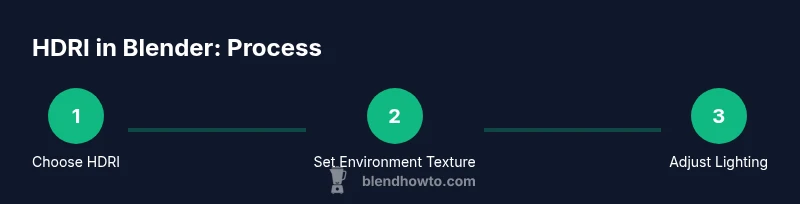
Setting up an HDRI in Blender involves a few key steps that apply to both Cycles and Eevee. Start by going to the World tab and adding an Environment Texture node. Connect this texture to the Background node to drive the scene lighting. For better control, switch to the Shader Editor in World mode and add a Mapping node to rotate the HDRI, plus a Texture Coordinate node if needed. In Cycles, enable Filmic color management for more natural tones, and consider enabling Auto Exposure in the Scene Analysis panel to prevent blown highlights. When using Eevee, enable HDRI in the world settings and adjust reflection capture through screen-space reflections and bloom settings to avoid overreaction from the environment map. Finally, assign your HDRI texture and test renders from multiple camera angles to confirm the lighting feels correct across materials and surfaces.
Lighting control: intensity, rotation, and color
HDRI intensity and rotation determine how pronounced the environment lighting appears. Start with a neutral rotation so the main light direction resembles the sun or key light in your scene. If metals look flat or wooden surfaces feel wrong, tweak the HDRI brightness by adjusting the Background node strength or the Exposure and Gamma in the Color Management setup. You can tint the HDRI subtly to influence mood: a warmer tint can simulate golden hour, while a cooler tint conveys dawn or shade. Remember that HDRIs are a foundation; combine them with practical lights (e.g., area lights or point lights) to sculpt shadows and highlight details. The BlendHowTo guidance emphasizes balancing the HDRI with scene scale and camera settings to avoid oversaturation or underexposure.
Using HDRI with Eevee vs Cycles
Cycles provides physically based lighting with more accurate global illumination, which benefits HDRI-driven scenes but can be slower. Eevee offers real-time rendering with clever approximations; HDRIs still work, but you may need to compensate with higher sample rates and tweak screen-space reflections for clean reflections. In both engines, using a 32-bit HDRI preserves more color data, producing more believable highlights and nuanced reflections. Always test render a simple scene first to calibrate exposure and shadows before committing to longer renders. BlendHowTo recommends using Filmic color management and checking multiple materials (glass, metal, plastic) to ensure consistent results across engines.
Practical workflow: interior scenes
A practical approach starts with a neutral HDRI as a baseline, then adjusts direction to match the scene’s intended sun position. Build your scene with key light shapes using area lights to reinforce depth where the HDRI lighting falls short. Use light fills to soften shadows in corners that HDRI lighting leaves too dark, especially in interior scenes. Rotate the HDRI to align windows, skylights, or architectural openings with the scene’s perspective. If you render interiors, consider adding a secondary, low-energy lights to simulate artificial lighting in rooms that HDRI cannot fully illuminate. This workflow helps you blend realism from the HDRI with intentional control from Blender’s own light system.
Product photography and macro lighting with HDRI
HDRIs can provide broad, even illumination for product photography and macro shots, especially when you want subtle reflections and a clean background. For close-ups, place a small, soft HDRI environment to avoid harsh reflections on glossy surfaces. Use a high-contrast HDRI for dramatic product looks, or a soft, diffuse HDRI for clean, studio-style shots. Pair HDRI lighting with a couple of small fill lights or backlights to emphasize edges and texture. Ensure the HDRI’s horizon line lines up with the product’s scale so that reflections appear natural on curved surfaces.
Troubleshooting common HDRI issues
If your HDRI looks washed out, reduce exposure or adjust the gamma and lift shadows by changing the World shader’s light influence. If reflections appear noisy or banding shows up in circular reflections, ensure you are using a high-quality HDRI with sufficient dynamic range and consider increasing sampling in Cycles. When the image looks skewed or the lighting direction feels wrong, re-rotate the HDRI and verify camera alignment with the environment. Finally, if render times spike dramatically after adding HDRI, check texture bounds and ensure denoising is enabled in the render settings in a way that preserves detail.
Authority sources and further reading
For more on HDR, lighting, and color science, you can consult credible sources that discuss high dynamic range imaging, color management, and physical-based rendering principles. These references support best practices for Blender workflows and HDRI usage. While HDRI techniques are constantly evolving, the guidance here reflects current industry-standard approaches and practical tips for Blender users.
mainTopicQuery
HDRI Blender
Tools & Materials
- Blender software (latest stable release)(Prefer a recent version with updated shader nodes and Eevee/Cycles improvements)
- HDRI textures (HDR or EXR)(High-quality HDRIs with wide dynamic range; organize by scene type)
- Computer capable of rendering (GPU/CPU)(GPU acceleration helps; ensure drivers are up to date)
- Image editor (optional)(For post-processing HDRI adjustments or converting textures)
Steps
Estimated time: 60-90 minutes
- 1
Prepare HDRI and scene
Gather a high-quality HDRI that matches your project mood. Create a simple scene with a camera and a neutral object to evaluate lighting. This step establishes a baseline for how the HDRI interacts with materials.
Tip: Choose an HDRI with a balanced light spread to avoid extreme hotspots. - 2
Open World settings and add Environment Texture
In Blender, switch to the World tab and add an Environment Texture node. Connect it to the Background node so Blender can read the HDRI as lighting. This initializes the HDRI-driven illumination.
Tip: If you don’t see the HDRI lighting, re-check that you’ve connected the texture to the World Background. - 3
Rotate HDRI to match the scene
Add a Mapping node to rotate the HDRI and place the light direction where you want it. Align the dominant light with windows, sun, or key light direction in your shot for realism.
Tip: Small rotations can have a big impact on shadows and reflections; test multiple angles. - 4
Adjust exposure and color balance
Tweak exposure or brightness so highlights stay natural while preserving detail in dark areas. If the scene feels too cool or warm, apply a subtle color tint to the HDRI via the mapping or color management settings.
Tip: Use Filmic color management for more natural grade and better highlight preservation. - 5
Test render with different materials
Render a frame focusing on a few key materials (metal, glass, matte). Check reflections, shadows, and color accuracy across surfaces. Iterate on HDRI rotation and exposure based on results.
Tip: If metal reflections look flat, consider adding a small fill light to revive specular highlights. - 6
Finalize and render
Once lighting looks balanced, perform a full render. Compare with a baseline shot and adjust as needed. Save your HDRI setup as a preset for future scenes.
Tip: Document HDRI name, rotation, and exposure settings for quick reuse.
Frequently Asked Questions
What is HDRI and why is it used in Blender?
HDRI stands for high dynamic range image. In Blender, an HDRI provides environmental lighting and reflections from a real-world photo, enabling more accurate shadows and color than standard single-light setups. It’s a foundational technique for realistic scenes.
HDRI is a high dynamic range image used as environmental lighting in Blender to create realistic reflections and shadows.
Where can I find HDRIs to use in my projects?
HDRIs are available from many online collections, some free and some paid. Look for sets that cover different times of day and weather conditions, and verify licensing for your project. Always test a few HDRIs to see how they affect your scene.
Look for HDRI image collections that fit your project mood and check licensing before use.
Can HDRI be used with both Eevee and Cycles?
Yes. HDRIs work in both engines, but Cycles generally provides more physically accurate lighting, while Eevee relies on smart approximations. You may need to adjust sampling, reflections, and shadows differently depending on the engine.
HDRIs work in both Eevee and Cycles; Cycles offers more realism, Eevee is faster with some trade-offs.
Why does my HDRI look washed out or too bright?
This usually happens when exposure or HDRI brightness is too high, or when the camera exposure is set aggressively. Adjust the exposure or gamma, tilt the color balance, and test renders to dial in a natural look.
If it looks washed out, lower exposure and adjust gamma or color balance, then render again.
How do I rotate HDRI to match lighting?
Use a Mapping node to rotate the HDRI and bring the sun or key light direction into alignment with your scene. Small adjustments can drastically improve shadows and reflections.
Rotate the HDRI with a Mapping node to align light direction with your scene.
What is the difference between HDRI and IBL?
HDRI is the source image that provides both light and reflections; Image-Based Lighting (IBL) refers to the general technique of lighting a scene using image-derived data. In practice, HDRI is a common form of IBL used in Blender.
HDRI is a type of image-based lighting used for environmental lighting and reflections.
Watch Video
What to Remember
- Use HDRI as a primary light source for realism
- Rotate HDRI to align with scene light direction
- Balance HDRI brightness with exposure and color management
- Test across Eevee and Cycles to understand engine differences
- Pair HDRI with practical lights for best results