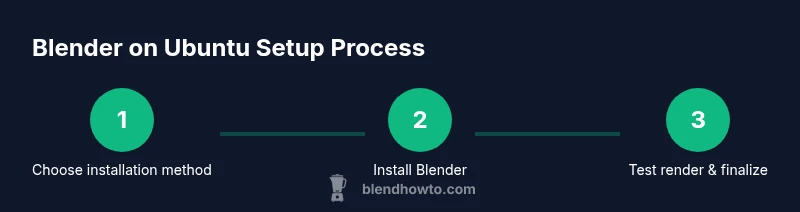
Blender on Ubuntu: Practical Setup Guide for Linux Artists
Learn to install, configure, and optimize Blender on Ubuntu using apt, snap, or flatpak. Linux workflows, GPU setup, and troubleshooting for hobbyists. Enjoy.


You will learn how to install Blender on Ubuntu, choose the best installation method (apt, snap, or flatpak), set up GPU drivers and Python extras, and run a test scene to verify performance. The guide also covers Linux-specific workflows, file paths, scene management, and troubleshooting common issues for home artists.
Why Blender on Ubuntu is a Strong Match
Blender and Ubuntu form a natural pairing for many home artists, hobbyists, and aspiring 3D artists. Ubuntu’s package management, long-term support releases, and large software repository ecosystem make it easy to install and update Blender without fragile setup steps. The open-source nature of Blender harmonizes with Linux’s philosophy of transparency, reproducibility, and customization. For a growing segment of creators, Ubuntu provides a stable base that supports GPU-accelerated rendering, Python scripting, and a wide range of add-ons. Beyond raw capability, the Linux environment encourages practical workflows: scripting repetitive tasks, managing project folders via the terminal, and using version control for assets. If you’re migrating from Windows or macOS, the command-line tools and community tutorials on BlendHowTo explain the Linux-specific nuances clearly. In 2026, more artists are choosing Ubuntu for Blender projects due to solid driver support and a thriving open-source ecosystem.
Installation Methods: APT, Snap, and Flatpak
Ubuntu users have multiple pathways to install Blender, each with its own trade-offs. The APT method is typically the most stable and integrates cleanly with system updates, but it may not always offer the very latest build. Snap provides sandboxing and easy updates, which is convenient for users who want a simple, consistent experience across distributions. Flatpak offers a middle ground, delivering newer builds while still isolating the application from system libraries. Choose the method that best fits your workflow and hardware.
- APT: sudo apt update && sudo apt install blender
- Snap: sudo snap install blender --classic
- Flatpak: flatpak install flathub org.blender.Blender
Whichever route you pick, verify the installation with blender --version and launch the app to confirm the interface behaves as expected. BlendHowTo’s guidance emphasizes aligning Blender installation with your file management habits and project backup routine to minimize disruption when updating or upgrading the software.
Handling GPU Drivers on Ubuntu for Blender
GPU acceleration dramatically speeds up rendering and viewport interaction in Blender. On Ubuntu, you should install the recommended graphics drivers for your GPU before doing heavy work. Start by diagnosing your hardware:
- Run: ubuntu-drivers devices
- If you see a recommended driver, install it with: sudo apt install <driver-package>
- For NVIDIA owners, enable CUDA/OptiX support in Blender’s preferences and ensure the CUDA toolkit is accessible
- For AMD users, ensure ROCm or OpenCL support is enabled depending on your Blender build
If you prefer a GUI path, use the Ubuntu “Software & Updates” tool under the Additional Drivers tab to select the recommended driver. After installation, reboot and test a simple render to confirm GPU acceleration is active.
Setting Up a Clean Blender Workspace on Linux
A clean workspace accelerates productivity and reduces clutter. Create a dedicated workspace directory and align Blender’s default paths to it. Consider:
- Create folders: ~/Blender/Projects, ~/Blender/Assets, ~/Blender/Scripts
- Point Blender’s preferences to use these folders for File Paths and Asset Libraries
- If you use Python scripts, place them in ~/Blender/Scripts and enable auto-run in preferences with caution
- Regularly back up projects to an external drive or cloud storage and version important files with a simple naming convention
- For reproducibility, enable a minimal startup scene and a consistent render resolution in your .blend files
This approach helps you move between machines or maintain a steady pipeline when collaborating with others.
Common Linux-Specific Pitfalls and Troubleshooting
Linux users may encounter a few recurring issues when using Blender: missing libraries after updates, permission problems accessing external drives, or driver-related glitches during rendering. Proactive steps reduce downtime:
- Always run Blender from a standard user account; avoid using root to prevent permission errors
- Install required dependencies for Blender by keeping your system updated and using official repos or trusted third-party sources
- If textures or linked assets fail to load, verify file paths and mount points, especially on external drives
- For render errors, inspect Blender’s console for missing plugins or library mismatches and consider resetting preferences if instability persists
BlendHowTo recommends maintaining a small test project to isolate issues and ensure a smooth baseline before scaling up to larger scenes.
Basic Blender Workflow on Ubuntu: From Scene to Render
A typical Linux Blender workflow starts in the 3D Viewport, where you model, texture, light, and animate. On Ubuntu, a clean start helps you build a reliable pipeline:
- Create a new project and save it in your Projects folder
- Add a few primitive shapes to learn basic transforms (G, R, S) and set up camera and lights
- Switch between Eevee for fast previews and Cycles for realistic rendering, adjusting samples and denoising as needed
- Apply materials and textures, then set up a simple lighting rig to evaluate shadows and highlights
- Render a test image at a modest resolution to gauge performance with your GPU
- Save backups frequently and maintain an organized asset library for reuse
With a consistent workflow, you’ll reduce iteration time and increase the predictability of results in Ubuntu.
Performance Tips: Optimizing Blender on Ubuntu
Performance on Linux is influenced by driver quality, Blender settings, and hardware capabilities. Use these Linux-specific strategies to maximize speed and stability:
- Enable GPU acceleration in Blender’s Preferences and tailor the device to either CUDA/OpenCL based on your GPU
- In Cycles, adjust tile size and sample counts to balance render time and quality for your hardware
- Keep texture caches reasonable and disable unnecessary Add-ons during heavy scenes
- Use denoising to reduce samples and accelerate viewport previews without sacrificing final output quality
- Consider using Eevee for real-time previews and early feedback when hardware is limited
A structured testing approach helps you identify bottlenecks quickly and iterate more efficiently on Ubuntu.
Authority Sources
This article draws on Blender’s official documentation and Ubuntu’s guidance to ensure accuracy and up-to-date compatibility across Blender and Linux versions. See the following sources for installation, configuration, and troubleshooting details:
- Blender Manual: https://docs.blender.org/manual/en/latest/
- Blender Support: https://www.blender.org/support/
- Ubuntu Blender Guide: https://help.ubuntu.com/community/Blender
Practical Troubleshooting Checklist
If Blender isn’t behaving on Ubuntu, work through this quick checklist to isolate common issues:
- Confirm the Blender version aligns with your Ubuntu release and GPU drivers
- Verify that the GPU driver is installed and active by checking system reports or running a quick benchmark
- Ensure file paths and asset directories exist and Blender has permission to access them
- Test with a fresh startup file to rule out corruption or plugin conflicts
- Review the console and Blender’s system info for errors and missing dependencies
Following this checklist helps you recover quickly and keep Blender workflows on Ubuntu running smoothly.
Tools & Materials
- Blender software(Choose installation method (apt, snap, or flatpak) and verify via blender --version)
- Ubuntu OS with internet access(Ensure you’re on a supported Ubuntu release (LTS preferred))
- GPU drivers (NVIDIA/AMD)(Install the recommended drivers before rendering for best performance)
- Package managers (apt, snap, flatpak)(Commands rely on these tools; ensure they’re functioning)
- Terminal access(Required for advanced configuration and troubleshooting)
- Backup storage(Optional but recommended for large Blender projects)
Steps
Estimated time: 60-90 minutes
- 1
Assess your system and installation method
Start by checking your Ubuntu version, hardware specs, and whether you want stability (apt) or newer builds (snap/flatpak). Decide which method aligns with your workflow and backup strategy. This sets the foundation for the rest of the steps.
Tip: If unsure, start with apt for stability and plant seeds for future testing with Snap or Flatpak. - 2
Install Blender via your chosen method
Choose one installation pathway and follow the corresponding commands. Using multiple methods can cause conflicts; pick one and stick with it for the project lifecycle.
Tip: Do not mix package sources for Blender to avoid library conflicts. - 3
Update system and verify installation
Update your system, then verify Blender is accessible from the terminal. Launch Blender to confirm the GUI loads and the first splash screen appears.
Tip: Run blender --version to confirm the expected build. - 4
Configure GPU drivers
If you have a compatible GPU, install the recommended drivers and reboot. Open Blender again to test performance in a small scene.
Tip: Use ubuntu-drivers devices to find the recommended driver. - 5
Launch Blender and load a sample scene
Open Blender, create a new project, and load a simple cube scene to verify basic operations like move, rotate, and scale.
Tip: Check console for errors after startup. - 6
Organize your project folders
Create a clean structure (Projects, Assets, Scripts) and set Blender’s File Paths and Asset Library defaults to these locations.
Tip: Consistency saves time when projects scale. - 7
Run a quick render test
Set a modest resolution, configure a basic light and camera, and render a test image to gauge GPU performance.
Tip: Iterate render settings to balance speed and quality. - 8
Back up and version work
Save frequently and use version control or incremental exports to protect against data loss.
Tip: Consider cloud backups or external drives for redundancy. - 9
Review and iterate
If performance or stability isn’t satisfactory, revisit drivers, Blender settings, and asset organization before scaling up.
Tip: Document what you change for future reference.
Frequently Asked Questions
What is the best Blender installation method for Ubuntu?
The best method depends on your needs: apt offers stability and integration with system updates, Snap provides isolated, easy updates, and Flatpak balances newer builds with isolation. Consider your workflow and driver setup when choosing.
For most users, apt is reliable and stable, but Snap or Flatpak can give you quicker access to updates and newer features.
Do I need to install GPU drivers separately for Blender on Ubuntu?
Yes. Blender benefits from GPU acceleration, and installing the recommended NVIDIA or AMD drivers will improve viewport performance and render times. Use ubuntu-drivers devices to identify the right driver and install it.
If you have a compatible GPU, install the recommended drivers to enable GPU acceleration in Blender.
Can Blender run well on older hardware with Linux?
Blender can run on older hardware, but performance varies by CPU, RAM, and GPU. Prefer lighter workflows or Eevee previews on slower systems and keep expectations aligned with hardware capabilities.
Yes, but you may need to adjust settings for speed and use Eevee for quicker previews.
Where can I find official Blender on Ubuntu documentation?
Consult Blender’s official manual (docs.blender.org) and Ubuntu’s Blender community pages for installation steps and troubleshooting. These sources provide up-to-date guidance for Linux users.
Check Blender.org and Ubuntu help pages for setup guides.
What files should I back up for Blender projects on Ubuntu?
Back up your .blend files, textures, linked assets, and Python scripts. Use versioning or scheduled exports to keep critical work safe.
Back up your project, assets, and scripts, and maintain separate copies of critical files.
Watch Video
What to Remember
- Install Blender via apt, snap, or flatpak based on your needs
- Configure GPU drivers for optimal rendering performance
- Maintain a clean, organized project structure and backups
- Use a methodical workflow to minimize Linux-specific issues
- Leverage Blender’s Linux-friendly tooling for efficient production