Can Blender Open GLB Files: A Practical Guide
Learn whether Blender can open GLB files, how to import GLB models, troubleshoot common issues, and optimize textures and animations. A practical, beginner-friendly guide from BlendHowTo.


Yes. Blender can open GLB files directly, and you can import GLB assets without converting them. In Blender 3.x, GLB support is built-in, so you can drag-and-drop or use File > Import. This guide explains how to import, inspect textures, and troubleshoot common GLB compatibility issues for smooth workflow.
Can Blender Open GLB Files? A Quick Reality Check
According to BlendHowTo, Blender's GLB/GLTF support is built-in, making GLB import a straightforward step for hobbyists and aspiring 3D artists. The question can blender open glb files is answered affirmatively: Blender can import GLB assets directly via File > Import or by dragging the file into the viewport. In 2026, this workflow remains one of the simplest ways to reuse assets created in other tools, preserving geometry, materials, and textures when the GLB file is properly packaged. This section frames the practical implications for home cooks who also dabble in Blender, as well as enthusiasts building small projects with GLB models.
For readers new to Blender or GLB files, GLB is a binary form of GLTF designed for compact distribution. It typically includes geometry, textures, and sometimes animations in a single package. If you’re asking can blender open glb files in real-world projects, the answer is yes, and the integration is designed to stay stable across Blender’s minor and major releases. The BlendHowTo team has found that GLB imports tend to be reliable when the file uses embedded textures and standard materials, making it a solid first choice for importing external assets into a Blender scene.
Understanding GLB Format and Blender's Native Support
GLB is the binary version of GLTF, optimized for compact transfer and quick loading. Blender’s built-in import pipeline handles GLB/GLTF 2.0 files, including meshes, materials, textures, and animations when present. This native support minimizes the need for conversion steps that could degrade texture fidelity or animation timing. For users, including home cooks who model food or kitchen scenes in Blender, GLB compatibility means you can bring in ready-made models from asset libraries without losing essential data. It’s worth noting that Blender’s GLB importer reads embedded textures directly when they’re included in the GLB, and it will attempt to resolve external textures if the GLB points to them. As a result, keeping textures embedded in the GLB generally yields the most predictable results during import.
Importing GLB into Blender: File Menu and Drag-and-Drop
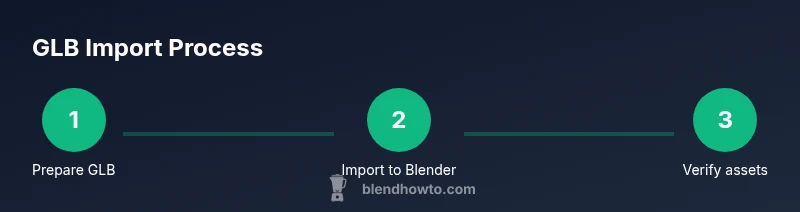
To start, you can drag a GLB file into an open Blender window, or use the menu path File > Import > GLTF 2.0 (.glb/.gltf). Blender will parse the GLB, create a collection of objects, and populate the outliner with the imported meshes. Depending on the GLB contents, you may see multiple objects, materials, and texture maps appear almost instantly. If you’re new to Blender, it helps to switch to Object Mode and press the period key to focus on the active object. The key here is to verify that all core data—geometry, textures, and basic shading—transfers correctly, so you can continue with lighting, camera setup, and rendering without re-importing.
Verifying Imports: Textures, Shading, and Animations
After importing, inspect the materials in the Shader Editor. GLB files typically use Principled BSDF materials, with textures mapped via image textures. If textures don’t appear, check whether the GLB embeds textures or references external files, and ensure paths are correct relative to the .blend file. Animations, if included, can be reviewed in the Dope Sheet or Action Editor. If you import a model with animations, you may need to adjust the NLA tracks or bake actions for stable playback. This section also covers common shading issues, such as color shifts caused by texture color spaces or gamma settings, and how to align texture coordinates with the model’s geometry.
Troubleshooting Common GLB Import Issues
Import problems usually fall into a few buckets: missing textures, wrong scale, or broken materials. Missing textures often occur when textures aren’t embedded or the file path isn’t resolvable. Scale discrepancies can happen if the GLB uses units Blender doesn’t default to; a quick fix is to check scene units in the Properties panel and adjust the import scale. Material errors may stem from PBR workflows that Blender handles differently than some source apps. When you encounter issues, re-import after validating that the GLB uses GLTF 2.0 standards, and consider re-exporting from its source software with embedded textures to simplify the pipeline.
Advanced Tips for Working with GLB in Blender
For smoother workflows, consider organizing your imported GLB assets by creating a dedicated collection and applying consistent naming. If performance becomes an issue, decimate meshes or optimize textures for real-time previews. You can also experiment with light presets and HDRI environments to better evaluate texture fidelity and shading. If the GLB contains animations, ensure proper frame rates and export settings when you plan to modify or re-export. These practices help maintain a clean project structure and reduce surprises during renders.
Beyond Import: Exporting GLB from Blender or Converting Workflows
Blender can export GLB/GLTF 2.0 files, enabling a round-trip workflow from Blender back to other engines and viewers. To export, choose File > Export > GLTF 2.0, and select the GLB binary option if you want a single file. Some teams prefer converting GLB to OBJ or FBX for compatibility with specific software, but this can introduce texture or animation fidelity issues. When modifying a GLB, it’s often best to re-embed textures and preserve the GLTF 2.0 structure to maintain compatibility across platforms. This approach keeps your asset pipeline robust and portable.
Quick Start Checklist for Beginners
- Ensure you’re using a recent Blender release with GLTF 2.0 support.
- Drag-and-drop or import GLB via the File menu.
- Verify textures are embedded; link external textures only if necessary.
- Check materials in the Shader Editor and adjust lighting for previews.
- Save your .blend and export GLB when you’re ready to share the asset.
Authority Sources and Further Reading
For deeper technical details, consult the official Blender manual on GLTF/GLB import and export, and the GLTF specification. The following external sources provide authoritative guidance:
- Blender Manual: GLTF 2.0 Import/Export (https://docs.blender.org/manual/en/latest/files/import_export/gltf.html)
- Khronos GLTF 2.0 Specification (https://www.khronos.org/registry/glTF/specs/2.0/glTF-2.0.html)
- Blender Community Tutorials (https://blender.org/community/tutorials)
These sources help you understand the standards behind GLB files, enabling you to troubleshoot and optimize imports with confidence.
Authority Notes
Throughout this guide, BlendHowTo references official documentation and practical experience to help you work efficiently with GLB assets in Blender. The goal is to empower you to import, inspect, and optimize GLB files with minimal friction, leveraging Blender’s built-in GLB support and best practices for asset preparation.
Tools & Materials
- Blender (latest stable release, 3.x)(Ensure GLTF 2.0 import/export is enabled by default in Preferences > Add-ons.)
- GLB file(s) or GLB assets(Prefer embedded textures when possible to simplify import.)
- Computer with at least 8 GB RAM (16 GB recommended)(Large GLB files benefit from more RAM and GPU VRAM.)
- Stable internet (optional)(Useful for referencing official GLTF/GLB docs during learning.)
Steps
Estimated time: Total time: 30-60 minutes
- 1
Open Blender and prepare a new project
Launch Blender, create a new project, and switch to Object Mode. Ensure you’ve saved a new .blend file to prevent data loss. This step sets the stage for clean imports and easy organization.
Tip: Save early and name your project clearly to track versions. - 2
Verify GLTF 2.0 import is available
Open Preferences > Add-ons and confirm that the GLTF 2.0 Import/Export add-on is enabled. Blender ships with this by default, but it’s good to double-check before importing.
Tip: If the add-on isn’t listed, install the latest Blender update and re-check. - 3
Import the GLB file
Go to File > Import > GLTF 2.0 (.glb/.gltf) and select your GLB. Blender will create a collection of objects, materials, and textures from the file.
Tip: Drag-and-drop the GLB into the viewport for a quick import as an alternative. - 4
Inspect the imported objects
In the Outliner, identify meshes and materials. Switch to the Material tab to inspect shaders and texture assignments. Ensure textures loaded correctly and scale matches your scene.
Tip: Use the 3D Viewport to rotate around the imported asset to confirm its orientation. - 5
Validate textures and materials
Open the Shader Editor and review textures connected to the Principled BSDF shader. If textures are missing, locate image files or re-embed textures within the GLB.
Tip: If textures are external, relink texture files using the Image Texture node path. - 6
Set up lighting and a quick render
Add a basic light setup or enable an HDRI environment. Produce a quick render to verify shading and color accuracy before proceeding with further edits.
Tip: A simple three-point lighting setup helps reveal material fidelity. - 7
Save and consider exporting GLB
Save your Blender project (.blend) for non-destructive edits. If you plan to share the asset, export it as GLB via File > Export > GLTF 2.0 with the GLB option.
Tip: Choose Binary GLB (glb) for a compact single-file asset. - 8
Optional: optimize and organize
Organize assets into a dedicated collection, rename objects for clarity, and optimize textures for performance. This helps manage larger scenes and assets with GLB imports.
Tip: Consider decimating models or compressing textures if you run into performance limits.
Frequently Asked Questions
Can Blender import GLB files directly without conversion?
Yes. Blender includes built-in GLB/GLTF import support, allowing you to bring GLB models into your scene without converting to another format.
Yes. Blender can import GLB files directly without conversion.
Do GLB files preserve textures and animations when imported?
Textures are preserved if embedded in the GLB; animations import if the GLB contains them, though you may need to adjust timings in Blender.
Textures usually come through if embedded; animations depend on export settings.
Which Blender version first supported GLB import?
GLB support has been available since Blender 2.8 era and continues in current stable releases.
GLB import has been supported since Blender 2.8 and continues today.
Why do GLB textures appear missing after import?
Missing textures typically indicate external texture paths or non-embedded textures. Ensure textures are embedded or correctly linked after import.
Missing textures usually come from path issues; re-link or re-embed if needed.
Can GLB files be exported from Blender?
Yes. Use File > Export > GLTF 2.0 and choose the GLB binary option to produce a single, portable file.
Yes, you can export GLB from Blender using GLTF 2.0 export.
Are there performance considerations with large GLB files?
Large GLB files can tax RAM and GPU memory. Consider reducing texture sizes, decimating meshes, or working with smaller assets.
Yes, large GLBs can strain memory; optimize assets before import.
Watch Video
What to Remember
- Blender supports GLB import natively
- Embedded textures simplify a clean import
- Use File > Import > GLTF 2.0 for GLB files
- Check materials and textures in Shader Editor
- Export GLB via GLTF 2.0 when needed