How to Get Blender on iPad: Workarounds and Alternatives
Learn practical, step-by-step methods to use Blender on an iPad through remote access, cloud streaming, and suitable iPad tools. This educational guide helps home cooks, hobbyists, and aspiring 3D artists navigate limitations and choose efficient workflows.


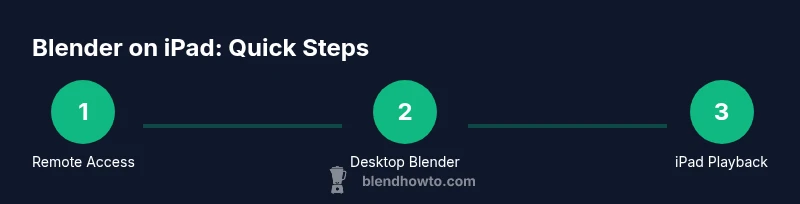
Blender isn’t natively available on iPad, but you can use it on an iPad through remote desktop to a Blender-equipped computer, or by leveraging cloud-based streaming and Blender-like apps for lighter tasks. Choose a path based on your project needs, network reliability, and whether you require full modeling power or quick edits on the go.
Understanding the current reality of Blender on iPad
If your goal is to get blender on ipad, you’re not alone. As of 2026, Blender does not have a native iPad build, so you can’t install it from the App Store or run a true desktop Blender directly on iPadOS. The good news is there are practical workarounds that preserve the Blender workflow while using an iPad as the primary input device. According to BlendHowTo, the most reliable routes are (a) remote access to a Blender-equipped computer, (b) cloud-based or browser-based streaming, and (c) using iPad-native 3D apps for more lightweight tasks. Each path has trade-offs in latency, input comfort, and feature parity. The aim of this guide is to help you pick the path that best fits your goals—whether you need full modeling power, review capabilities, or quick edits on the go.
Direct limitations you should know
Blender on iPad isn’t available as an app; even if you stream, you’re not using the same system, so you’ll face input mapping challenges, limited touchscreen support for complex modeling, and UI quirks that aren’t optimized for finger control. Your data and Blender project files typically reside on the remote machine or cloud storage, not on the iPad itself, which means you must manage file transfers and sync carefully. While streaming can feel seamless for light tasks and review, expect differences in workflow parity, keyboard shortcuts, and plugin availability. BlendHowTo emphasizes planning for these gaps before committing to a specific setup.
Primary pathways to use Blender on iPad
-
Remote desktop to a Blender-equipped computer: access the full desktop app from your iPad while controlling via touch, a keyboard, or a mouse/trackpad. Pros: full feature set; Cons: depends on network quality.
-
Cloud-based or browser-based streaming: run Blender on a cloud PC or via a browser session and stream visuals to iPad. Pros: minimal local hardware; Cons: potential latency and cost.
-
iPad-friendly 3D apps for lighter tasks: use mobile tools for blocking, sculpting, or quick edits when full Blender is not required. Pros: excellent portability; Cons: not a full replacement for Blender’s capabilities.
Setting up a desktop Blender environment you can access from iPad
To get Blender on iPad via remote access, start by ensuring you have a desktop computer (Windows or macOS) with Blender installed and updated. Create a clean workspace, organize your assets, and enable network access for remote connections. Ensure you can log in securely from outside your home network if you plan to access Blender while traveling. This section outlines how to prepare the computer and files so that the iPad connection is smooth and reliable.
Choosing a remote desktop solution for Blender on iPad
Select a remote desktop solution that offers low latency, stable video streaming, and good input responsiveness. Look for apps that support keyboard/mrowse input and external mouse/trackpad support, plus secure login. Consider concurrent connections, session persistence, and any bandwidth optimizations the service provides. Testing several sessions with a simple scene can save you headaches when you work on larger projects.
Input controls and UI adaptations on iPad
Touch input for Blender’s complex interface isn’t ideal, so plan for alternative input. A hardware keyboard and external mouse or trackpad dramatically improve productivity. If you rely on touch, map essential hotkeys to screen gestures and adjust Blender’s preferences to favor navigational shortcuts. You’ll likely benefit from a compact Bluetooth keyboard and a lightweight mouse or trackpad for precise modeling.
Performance optimization for iPad streaming
Performance hinges on network quality and the remote PC's specs. Reduce streaming resolution and color depth to improve responsiveness, enable hardware-accelerated decoding where available, and choose a cloud host with GPU acceleration for heavier tasks. Keep scene complexity reasonable during on-the-go sessions to avoid excessive latency and dropped frames.
File management and workflow between devices
Plan a clean file strategy that keeps assets consistent across devices. Use cloud storage or a synchronized folder on both the desktop Blender PC and the iPad via a remote session. Regularly save locally and remotely, and implement a versioning scheme so you can revert to earlier iterations. Clear naming conventions help when you move between devices.
Security, privacy, and data handling
When exposing a computer to the internet for remote access, prioritize strong authentication, updated software, and encrypted connections. Use VPN or secure tunneling where possible, and avoid sharing credentials. Maintain separate user accounts for remote sessions and enable two-factor authentication on cloud services and remote desktop tools. This keeps your Blender projects safe while you work from anywhere.
Common issues and troubleshooting tips
Expect occasional lag, dropped connections, and input desynchronization. If you encounter latency, tweak the remote session settings (lower resolution, increase buffer), check network speed, and ensure the desktop PC isn’t overloaded. For color management or display discrepancies, verify that the remote session matches color profile expectations and that Blender’s display settings are set to the appropriate sRGB workspace.
Tools, accessories, and setup checklist
This section lists practical items to support Blender on iPad workflows: a capable iPad with iPadOS 16+, a reliable high-speed internet connection, a reputable remote desktop app, a desktop computer with Blender installed, optional keyboard/trackpad, cloud storage for assets, and a power adapter for long sessions. Having these ready helps you move from theory to practice quickly.
Realistic expectations for learning Blender on iPad
Using Blender on iPad is about balancing accessibility with capability. You’ll likely spend more time on setup and data management than on hands-on modeling, especially during early learning. Expect some friction with full-feature workflows and plugin availability. According to BlendHowTo, progress comes from choosing a workflow that fits your goals—whether you’re drafting concepts on the go or refining detailed models from a desktop environment.
Alternatives for lighter tasks on iPad and learning paths
If your priority is quick concepting or basic sculpting, iPad-native apps can be excellent companions to Blender workflows. Apps like Shapr3D, Nomad Sculpt, or Forger offer robust modeling and sculpting experiences on iPad. Use these tools for early blocking, practice, or texture experiments, then transition to Blender on the desktop for finalization and rendering. BlendHowTo recommends this blended approach to maximize productivity while keeping learning approachable.
Tools & Materials
- iPad (latest model)(iPadOS 16+; ensure latest update; 4+ GB RAM preferred)
- Stable internet connection(Wi‑Fi is fine at home; plan mobile data limits for travel)
- Remote desktop app(Choose a client with low latency and good input support)
- Desktop computer with Blender installed(Ensure Blender is up to date and accessible remotely)
- Keyboard and/or Apple Pencil(Helpful for shortcuts and precise control)
- Cloud storage account(Sync assets between devices)
- Power backup / charger(Long sessions drain iPad battery quickly)
Steps
Estimated time: 1-3 hours
- 1
Assess your needs
Define whether you require full Blender functionality or are okay with lighter tasks via iPad-friendly apps. This shapes your chosen workflow and remote setup, preventing wasted time and money.
Tip: Clarify project scope before choosing a method. - 2
Set up your Blender workstation
Install Blender on a desktop or reliable cloud PC, update plugins, and organize assets. Ensure you can access this workstation remotely with secure credentials.
Tip: Install only the add-ons you plan to use to reduce startup time. - 3
Choose a remote access method
Pick a remote desktop or cloud streaming option that satisfies latency, stability, and security needs for your projects.
Tip: Test with a simple scene to gauge responsiveness. - 4
Install a compatible remote client on iPad
Download and configure the chosen remote client, then connect to your desktop Blender workstation.
Tip: Enable auto-reconnect in case of temporary drops. - 5
Connect and authenticate
Enter connection details, verify the session, and ensure you can interact with Blender using your input devices.
Tip: Use a password manager for secure credentials. - 6
Configure input mappings
Map essential hotkeys and navigation to your device, and adjust Blender preferences for comfortable control on iPad.
Tip: Keep a quick-access cheat sheet for common shortcuts. - 7
Open Blender and verify controls
Launch a simple scene to confirm navigation, selection, and viewport interaction work smoothly.
Tip: Start with a cube to test basic transforms. - 8
Adjust display settings for network
If latency is high, reduce viewport resolution and frame rate to improve responsiveness.
Tip: Experiment with different streaming presets available in your client. - 9
Save and organize assets
Set autosave, create a clear folder structure, and implement versioning for your Blender files.
Tip: Regular saves prevent data loss during session drops. - 10
Experiment with workflows
Try core Blender tasks like modeling, shading, and simple animation via the remote session to find what works best.
Tip: Document successful configurations for future sessions. - 11
Plan for future improvements
Outline a roadmap for updating software, improving connectivity, and refining your asset pipeline.
Tip: Schedule periodic reviews to adjust your setup as needed.
Frequently Asked Questions
Is Blender available on iPad as a native app?
No, Blender does not have a native iPad app. You can access Blender on an iPad by remote desktop to a computer that runs Blender or by using cloud/browser-based workflows. This keeps the full toolset available on a desktop while you work from the tablet.
Blender isn’t native to iPad, so you’ll need a desktop connection or browser-based workaround to use it on an iPad.
Can I render in real-time on iPad using Blender via remote access?
Rendering performance relies on the remote PC and network quality. Expect some lag compared with a local desktop, especially for large scenes or complex materials. Optimize settings and test with smaller tasks.
Rendering in real time is limited by your remote setup; you’ll likely see some delays with bigger scenes.
Are browser-based Blender options usable for production work?
Browser-based or cloud streaming options can handle basic to intermediate tasks, but they rarely match a full desktop Blender setup in features and responsiveness. Use them for quick edits or learning, not extensive productions.
Browser options can help for quick tasks, but they aren’t a full replacement for desktop Blender.
What are good iPad apps to supplement Blender on the go?
Mobile 3D apps like Shapr3D, Nomad Sculpt, and Forger offer strong modeling and sculpting capabilities for on-the-go work. Use them for blocking, sketching, or texture experiments and transfer work to Blender on a desktop for final polish.
On-the-go, try iPad apps like Shapr3D or Nomad Sculpt for quick work, then finish in Blender on desktop.
What should I prioritize to maximize success with Blender on iPad?
Prioritize a reliable remote setup, solid file management, and a workflow that leverages iPad-native tools for rapid iteration. Start with simpler projects to refine latency handling and input mappings.
Focus on a reliable workflow and clear file management, starting with simpler projects.
How does BlendHowTo suggest approaching this topic?
BlendHowTo recommends upfront planning to match your project goals with the best combination of remote access, cloud options, and iPad-native tools, then iterating based on real-world testing and feedback.
BlendHowTo advises planning your setup and iterating as you learn what works best.
Watch Video
What to Remember
- Blender cannot run natively on iPad; use remote access or alternatives.
- Choose a workflow based on project needs, network, and comfort with input devices.
- Test latency early to avoid wasted effort and optimize settings.
- Keep assets synced across devices with cloud storage and clear naming.
- BlendHowTo recommends starting with remote desktop for full features, then incorporate iPad-native tools as needed.