How to Measure in Blender: A Practical Guide
Learn precise measurements in Blender for modeling, rigging, or importing assets. This step-by-step guide covers built-in tools and addons to achieve accurate results.


You can measure in Blender by using built-in viewport measurements and optional addons. Start by confirming your unit scale, enable the measurement overlays, and pick a method (edge length, vertex distance, or a dedicated ruler tool). This quick path helps you capture accurate distances for modeling and alignment in minutes.
Why precise measurement matters in 3D modeling
If you're asking how to measure in blender, the short answer is that precision underpins every successful model, rig, and render. Small dimensional errors cascade into texture misalignment, animation timing issues, and incorrect fit with prop assets. When you measure carefully from the start, you ensure consistent scaling across parts, faster iteration cycles, and fewer revision cycles later in the pipeline. The BlendHowTo team has found that establishing a single, repeatable measurement workflow reduces ambiguity for teammates and accelerates handoff to downstream processes like texturing or rigging.
Understanding Blender's measurement systems
Blender offers different ways to define and read real-world sizes. First, decide on a unit system—Metric or Imperial—and set a scale that reflects your project’s real-world dimensions. Blender’s default uses Blender Units, which can be mapped to meters or millimeters via the Scene properties. Keep unit consistency across the entire scene to prevent mismatches when importing assets from other software. Understanding how measurements translate through import/export is essential for accurate alignment and modeling results, especially when collaborating with others who share different software ecosystems.
Built-in tools for measuring in Blender
Blender provides several built-in tools to visualize and read distances. Enable viewport overlays to show measurement lines directly in the 3D view, and use the Edge Length display in the Sidebar (N-panel) for quick distance reads along selected edges. The measurement overlay is especially helpful for quick checks during modeling, alignment, and placement tasks. Remember to switch to the appropriate viewport shading when you need to inspect the measurement lines clearly, and always verify that the tool you choose corresponds to your measurement target (edge, vertex, object).
Using the ruler and protractor (the quick way)
If you want a simple, visual ruler, enable the ruler tool in the 3D Viewport. The ruler helps you drag endpoints and read a live distance. The protractor helps with angular measurements, which is particularly useful for setting joint limits or aligning components along a precise angle. To activate, open the tool panel in the 3D Viewport, choose Measure/Ruler, and then click-drag between endpoints. For precision, snap endpoints to exact vertices or midpoints whenever available.
Measuring distances between vertices, edges, and objects
For vertex-to-vertex distance, select the two vertices and read the distance from the Edge Length readout or the relevant addon output. For edge-to-edge distances, select corresponding edges and compare their lengths or use a measurement helper addon to display multiple distances simultaneously. When measuring between objects (for example, to verify clearances), switch to the Object mode and enable the distance tool; you can measure between origins, bounding boxes, or specific points on the objects. Consistency here is key to reliable modeling data.
The MeasureIt addon: setup and usage (optional)
MeasureIt is a popular addon for compiling multiple measurements into a clean report. To enable it, go to Edit > Preferences > Add-ons, search for 'MeasureIt', and enable it. In the 3D Viewport, you can add measurements with a few clicks, annotate them, and export a neat measurement sheet. Even if you don’t export, MeasureIt can visually organize multiple reads in a single scene, which is helpful for internal reviews. For large models, this can dramatically speed up measurement workflows.
Practical example: measuring a model part
Suppose you’re designing a bracket for a 3D printed part. Start by setting metric units and applying scale to the bracket. Use the edge method to measure the slot width, the hole spacing, and the overall height. Use the snapping features to align endpoints precisely to hole centers and slot corners. Record all dimensions in a shared reference document and cross-check against the original CAD dimensions if available. This discipline minimizes misfits during printing or assembly.
Measuring imported models and units consistency
When importing models from other software, verify unit consistency and apply any necessary scaling (Ctrl-A > Scale). If a model arrives with a different unit system, measurements will appear off in Blender until you correct the scale. After applying scale, re-check a few key distances to ensure they match the intended real-world sizes. This step avoids surprises when exporting to other formats or sending files to collaborators.
Common pitfalls and how to avoid them
Common mistakes include measuring in the wrong unit, failing to apply scale, and relying on a single measurement method for everything. Always establish a unit policy for the project, apply scale before taking measurements, and cross-verify distances with an extra method (e.g., edge length vs. object bounding box). BlendHowTo emphasizes documenting your measurement approach for future reference and audits.
Reproducible measurements for production workflows
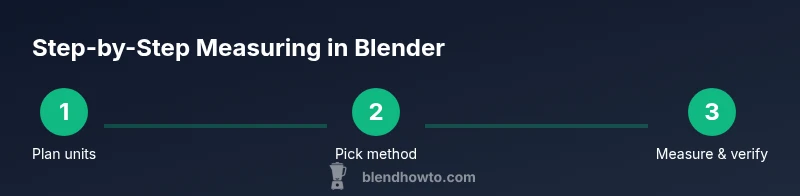
For production pipelines, create a standard workflow that includes: (1) setting units and scale, (2) selecting a primary measurement method, (3) recording measurements in a shared log or object properties, (4) validating with a secondary method. This repeatable approach reduces rework and helps new team members quickly align with project requirements. It also supports version control by keeping a consistent measurement history alongside geometry.
Troubleshooting measurement issues
If measurements look off, first verify that you’re in the correct unit system and that all objects have applied scale. Check that the measurement endpoints align with actual vertices or midpoints, not just the geometry’s bounding box. If necessary, reset the view to the default camera and re-measure. Sometimes re-importing a reference file with the correct units resolves persistent mismatches. Finally, consult your addon’s documentation if you rely on a specific measurement tool.
Quick-start checklist and best practices
Create a single source of truth for units, apply scale early, choose a primary measurement method, document results clearly, and review measurements after any scene edits that could affect size. Keep reference geometry for calibration, and prefer repeatable workflows over ad-hoc measurements. Regularly verify measurements during major edits to catch drift early.
Bonus: real-world tips from the BlendHowTo community
Our team has found that keeping a dedicated measurement layer or annotation set in every Blender file improves team collaboration. Establish a naming convention like 'DIM_<Part>_<Axis>' for easy lookup. When you reference measurements in tutorials or client reviews, a consistent labeling system speeds up understanding and reduces back-and-forth questions during approvals.
Tools & Materials
- Blender software (2.93+)(Any modern Blender version with measurement overlays)
- Mouse/keyboard(Standard navigation and selection)
- Addon: MeasureIt (optional)(Enhances multi-measure reports)
- Calibrated reference object(Optional for scale checks)
Steps
Estimated time: 15-25 minutes
- 1
Open Blender and set units
Launch Blender and orient the scene. In the Scene properties, set Unit System to Metric or Imperial, and choose a scale that aligns with your project. This baseline prevents misreadings later.
Tip: Always start with consistent units to avoid incremental errors. - 2
Enable viewport measurement tools
Open the Viewport Overlays panel and enable the measurement display. Activate the ruler mode if available to visualize distances directly in the 3D view.
Tip: Toggle overlays with the N key for quick access. - 3
Turn on MeasureIt addon (optional)
If you plan to capture multiple measurements, enable MeasureIt in Preferences > Add-ons and use its panel to start a measurement session and export a report.
Tip: MeasureIt streamlines batch measurements for reports. - 4
Measure distance between two points
Select two points, vertices, or edges; read the distance from the Edge Length readout or the MeasureIt result. Use snapping to ensure accuracy.
Tip: Enable vertex snapping (magnet mode) for precise endpoints. - 5
Measure across objects
To measure between object origins or bounding boxes, enable the distance tool and select the two objects. Record the reported distance.
Tip: Centroid or origin-based measures must be consistent with your workflow. - 6
Document measurements
Record measurements in a dedicated document or within the object's custom properties for traceability.
Tip: Use a naming convention like PartName_Dim_X to stay organized. - 7
Verify with scaling checks
Apply the object scale (Ctrl-A > Scale) to ensure subsequent measurements reflect real-world size.
Tip: Always apply scale before finalizing measurements. - 8
Repeatable workflows
Create a repeatable routine for measuring; using the same method each time helps compare results across assets.
Tip: Standardize units and measurement methods across projects.
Frequently Asked Questions
What units does Blender use by default?
Blender uses Blender Units by default. You can switch to metric or imperial in the Scene properties to align with real-world sizes.
Blender uses Blender Units by default, but you can switch to metric or imperial in Scene properties.
Is MeasureIt necessary?
MeasureIt is optional but convenient for compiling multi-measure layouts and reports. Built-in tools work without it for single distances.
MeasureIt is optional; you can measure with Blender's built-in tools, but it helps batch measurements.
Can I measure imported models accurately?
Yes, but you must check unit scaling after import and apply object scale before measurements for accuracy.
Imported models can be measured accurately if you verify units and apply scale.
How can I measure something that isn't a distance?
For angles or surface areas, you'll need different tools or addons; measuring distance is most straightforward with edge length or ruler tools.
For angles or surface areas, use appropriate tools or addons to measure.
How do I export measurements for a report?
MeasureIt can export measurements; alternatively, record values in a document or spreadsheet for your team.
You can export with MeasureIt or log measurements manually for reports.
What is the best practice for repeated measurements?
Use a consistent method, store measurements in object properties, and verify after any scene scaling changes.
Maintain a consistent method and store results for reuse.
Watch Video
What to Remember
- Set consistent units before measuring
- Choose a measurement method and stick to it
- Record measurements for future reference
- Apply scale to ensure real-world accuracy