How to Pan in Blender: Master View Navigation
Master panning in Blender with quick viewport shortcuts, trackpad tips, and camera-view panning to frame scenes precisely and efficiently.


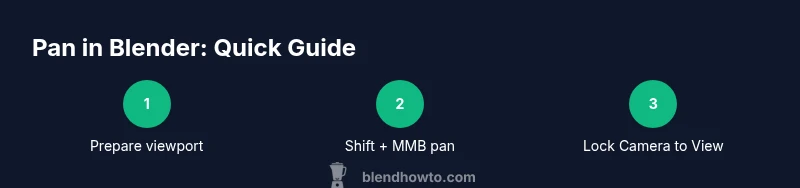
In Blender, panning moves the viewport without rotating the view. The quickest method is Shift + middle mouse button (MMB) drag to pan left, right, up, or down. On laptops or trackpads, enable Emulate 3 Button Mouse or use a two-finger drag. For camera-to-view panning, enable Lock Camera to View and pan from the viewport.
What panning does in Blender
Panning is a foundational navigation operation in Blender that shifts your perspective across the scene without changing the orientation of the camera or orbiting around a point. This capability is essential for precise work, whether you are modeling, texture painting, or setting up a camera for animation. By panning, you can quickly inspect hard-to-reach areas, compare details across different parts of a model, and maintain your current viewpoint while you adjust other properties. Understanding how to pan efficiently reduces back-and-forth and keeps your workflow smooth. BlendHowTo finds that mastering viewport navigation, including panning, is a core skill that accelerates all blending and 3D tasks.
In this guide we explore how to pan in Blender across a range of setups—from desktop workstations to laptop trackpads—so you can keep your framing steady while you work on models, materials, or lighting. The goal is to help you rely less on constant orbiting and more on controlled, linear movement of the view. This is particularly helpful when you're aligning multiple objects, checking topology, or framing renders from specific angles. As you learn how to pan in Blender, you’ll notice your ability to frame scenes precisely improves and your overall speed increases.
The core panning technique: Shift + MMB
The standard approach in Blender for viewport panning is straightforward: press and hold Shift, then drag with the middle mouse button (MMB). This action moves the view laterally and vertically without rotating the perspective. It’s the most versatile method for quick framing, especially when you want to inspect a model from a consistent angle while you tweak coordinates, scale, or materials. If you prefer, you can map panning to other inputs, but Shift+MMB remains the default, stable option across Blender versions. Pro tip: practice keeping your wrist relaxed to avoid fatigue during long sessions, as smooth panning comes from a steady, light touch.
Panning with a laptop or trackpad
Laptop users often don’t have a physical middle mouse button, which can make panning feel awkward at first. Blender supports Emulate 3 Button Mouse in Preferences > Input, which lets you pan by pressing Alt or the Alt key in combination with the left mouse button (depending on your configuration) or by using a two-finger drag if your trackpad supports it. Enabling Emulate 3 Button Mouse can dramatically improve comfort and accuracy when panning on a trackpad. If you prefer a hardware solution, consider a mouse with a reliable MMB or a compact external trackpad that supports multi-finger gestures. Consistency is key—set up a method you can use comfortably for extended sessions.
Panning the camera vs panning the viewport
There are two distinct concepts here: panning the viewport (the on-screen canvas you manipulate) and panning the camera (the camera object moving in 3D space). Viewport panning is typically used during modeling and scene setup; camera panning affects the final rendered view when animation or camera motion is involved. If you want the camera to follow your viewport motion, enable Lock Camera to View in the View panel (N > View) and pan as you would in the viewport. This makes the camera movement intuitive when you’re framing a shot for animation or visualization. BlendHowTo emphasizes practicing both modes to keep framing flexibility high while maintaining precise scene control.
Pan in camera view: aligning the shot
To pan in camera view, switch to the camera view (Numpad 0) and enable Lock Camera to View. Now, as you pan the viewport, the camera moves with it, letting you frame a shot exactly as you see it. This is especially useful when you’re composing a shot for rendering or animation, because you can assess composition in real time while keeping the camera aligned to your desired framing. Remember that camera movements can be animated later, so consider saving a few framing presets to speed up future projects.
Practical exercises to build muscle memory
Practice these exercises to build a reliable panning habit. Start with a simple cube, then move around it using only pan, zoom, and orbit in sequence: pan to reveal all faces, orbit to check perspective, and zoom to refine edge detail. Once comfortable, try panning while in camera view to study framing changes as you adjust the shot. Repeating these tasks will help you internalize the feel of Blender’s navigation and reduce time spent reorienting yourself mid-work. Consistent practice is the cornerstone of faster, more confident panning.
Troubleshooting common panning issues
If panning feels sluggish or jumpy, check your input device and input settings. On trackpads, ensure the driver supports smooth two-finger scrolling and test with Emulate 3 Button Mouse enabled for easier panning. If you accidentally orbit rather than pan, double-check that you’re using Shift + MMB, not MMB alone. When panning fails in camera view, verify that Lock Camera to View is enabled. A quick reset of the preferences or a simple restart can clear odd input hiccups that occasionally disrupt navigation in Blender.
Tips for efficient navigation and workflow
- Keep your hands relaxed and use light, deliberate mouse movements for smoother panning.
- Pair panning with precise zooming to frame your scene accurately.
- Use the camera-to-view lock when preparing shots for animation to maintain consistent framing.
- Customize input mappings if your workflow demands a different gesture for panning.
- Practice panning across different model orientations to reduce disorientation during complex scenes.
Tools & Materials
- Blender (latest version) installed(Ensure you’re using a recent build for stable navigation shortcuts.)
- Mouse with middle button (MMB)(Shift + MMB is the default pan method.)
- Trackpad or laptop input(If no MMB, enable Emulate 3 Button Mouse in Preferences or use trackpad gestures.)
- Optional: Graphic tablet(Can help with fine control for long sessions.)
Steps
Estimated time: 15-25 minutes
- 1
Prepare Blender workspace
Open Blender and ensure the 3D Viewport is visible. Reset your view to a known starting angle and position so you can measure panning speed consistently.
Tip: Close extraneous panels that may interfere with the viewport and keep your mouse sensitivity comfortable. - 2
Pan using Shift + MMB
Press and hold Shift, then drag with the middle mouse button to pan. Move slowly to test different framing angles and maintain orientation.
Tip: Practice small, incremental pans to avoid overshooting your target framing. - 3
Pan on a trackpad
If you’re on a laptop, enable Emulate 3 Button Mouse in Preferences or use two-finger drag to pan. Test how it feels compared to a mouse.
Tip: Adjust trackpad sensitivity to balance speed and precision. - 4
Pan in camera view
Switch to camera view (Numpad 0) and enable Lock Camera to View. Pan the viewport to move the camera and frame your shot as you see it.
Tip: Use this when you’re setting up scenes for animation to avoid re-framing after keyframes. - 5
Juggle pan with zoom
Combine panning with zoom to frame quickly. Use the scroll wheel for zoom, then Shift + MMB to pan to the exact composition you want.
Tip: Keep a mental distance guideline to avoid perspective distortion during framing. - 6
Reset and reorient
If you lose orientation, press Home to frame all objects or use Numpad . to focus on the selected object. Then resume panning to explore new angles.
Tip: Frequent resets help you maintain a stable sense of scale and position. - 7
Practice with a simple scene
Create a cube and practice panning around each axis. Vary the starting angle and attempt to keep all faces in view for brief moments.
Tip: Repetition builds fluidity and reduces the cognitive load of navigation. - 8
Experiment with shortcuts
Try remapping pan to a different input if your hardware demands it. Document what works best for your workflow.
Tip: Record a short note on your preferred pan method for future projects. - 9
Integrate into your workflow
Incorporate panning into larger tasks like modeling or lighting to keep your hands productive and your framing precise.
Tip: Consistency across tasks yields faster results and more confident scene framing.
Frequently Asked Questions
What is panning in Blender?
Panning moves the viewport without rotating the camera, allowing you to reframe quickly. It’s essential for efficient modeling, shading, and animation setup.
Panning means moving the view window without rotating the camera, helping you reframe a scene fast.
How do I pan without a 3-button mouse?
Use Emulate 3 Button Mouse in Preferences or rely on trackpad gestures such as a two-finger drag. You can map panning to an alternative input if needed.
If you don’t have a 3-button mouse, enable Emulate 3 Button Mouse or use trackpad gestures for panning.
What’s the difference between panning and orbiting?
Panning shifts the view without rotating around a point. Orbiting rotates the view around a focal point. Both are useful; panning is ideal for framing while orbiting helps inspect topology from different angles.
Pan moves the view; orbit rotates around a point, so use them together for flexible navigation.
How can I pan in camera view?
Enable Lock Camera to View in the View panel, switch to camera view (Numpad 0), and pan as you would in the viewport. This keeps the camera aligned with your framing.
Turn on Lock Camera to View, switch to camera view, and pan to frame your shot.
Why is panning slow or unstable on my device?
Check input device issues, adjust mouse/trackpad sensitivity, and ensure Emulate 3 Button Mouse is correctly configured. Restart Blender if needed.
If your panning is slow, check sensitivity and ensure the 3-button mouse emulation is set up correctly.
Can I customize pan shortcuts?
Yes. You can customize keymaps in Preferences > Keymap to assign panning to a more comfortable control scheme that fits your workflow.
You can customize panning shortcuts in Blender’s preferences to suit your setup.
Watch Video
What to Remember
- Master Shift+MMB panning for quick viewport moves
- Use Emulate 3 Button Mouse on trackpads when needed
- Lock Camera to View to pan the camera in camera view
- Combine pan with zoom for precise framing
- Practice regularly to build navigation fluency