How to Move Around in Blender: A Practical Guide
Learn to navigate the Blender viewport with orbit, pan, and zoom techniques. This beginner-friendly guide covers keyboard shortcuts, view presets, and best practices to move around efficiently.


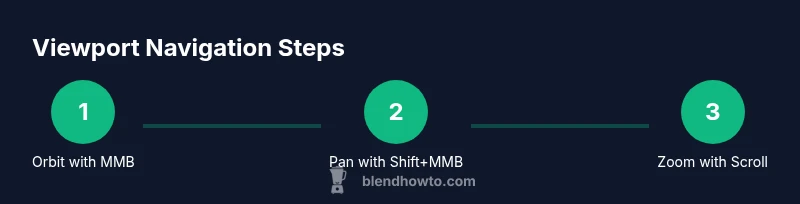
You will learn how to move around the Blender viewport quickly: rotate the view with the middle mouse button, pan with Shift+Middle Mouse Button, and zoom with the scroll wheel. You’ll also learn to snap to standard views (front, side, top) and use navigation presets to frame your work efficiently. This foundation lets you explore models, adjust scenes, and prepare shots with confidence.
Why navigation matters in Blender
Moving around in Blender is not just about looking at your model; it shapes how you think about scale, proportion, and spatial relationships. When you can orbit, pan, and zoom with confidence, you reduce time wasted fighting the viewpoint and increase momentum on the task at hand. According to BlendHowTo, efficient viewport navigation accelerates modeling and scene setup, especially when you juggle multiple objects, cameras, and lighting. For beginners, mastering navigation is the first practical step toward becoming fluent in 3D space. As you practice, you will build mental maps of where objects live in relation to the world origin, which makes tasks like aligning, scaling, and inspecting edges much more intuitive. The goal is to move around as naturally as you would in a real studio, so you can focus on the creative work rather than the controls.
Core navigation basics: orbiting the scene
Orbiting is Blender is the core skill you will use every time you explore a model. Press and hold the middle mouse button (MMB) and drag to rotate the view around the scene. You can also switch to Trackball or Turntable orbit styles in Preferences if you have a preferred feel. Trackball mode allows for smooth, continuous rotation, while Turntable provides more precise, gravity-like movement. As you orbit, try to keep your subject roughly centered to minimize re-centering later. Remember to occasionally reset the view to avoid getting lost in space; a quick recenter often saves minutes in longer sessions.
Panning and zooming: moving the viewport without losing context
Pan is how you slide the viewport without rotating the camera. Hold Shift and MMB to pan, then drag to move horizontally or vertically. This is invaluable for adjusting your framing when you need to inspect edges or align objects. Zooming is done with the mouse scroll wheel; scroll forward to zoom in and backward to zoom out. If you need finer control, use the +/- keys on your keyboard or hold Ctrl while scrolling to slow down the zoom. Practicing smooth pan and zoom helps you maintain context while shaping and sculpting.
Keyboard shortcuts: quick access to navigation presets
Blender offers keyboard shortcuts that speed up navigation. Numpad keys provide instant viewpoints: Numpad 1 for front, 3 for right side, and 7 for top views. If you are on a laptop without a Num Pad, enable Emulate NumPad in Preferences under Input. The 5 key toggles between perspective and orthographic projection, which is handy for precise alignment and measurement. For a quick reset, press Home to frame all objects in view or Alt+Home for a frame all in global space. These shortcuts become second nature with regular use.
View snapping and framing: getting focused quickly
To frame a specific object, click it to select, then press Numpad . to focus the viewport on that object. If you want to zoom out to see everything again, press Shift+C to center the 3D cursor and reset the camera view logically. You can also use the View menu to choose Frame All, Frame Selected, or Align View to Active Object. Regularly snapping to a known view makes comparisons, alignments, and adjustments far more straightforward.
Practical practice routine: daily drills to build muscle memory
Set a timer for 10 minutes and perform the following sequence: orbit around a cube, pan to its side, zoom in to inspect edges, switch to a different view with Numpad 3, then frame the cube with Numpad . Repeat with a second object. Gradually increase complexity by adding more objects and a simple camera. Building a consistent practice routine helps you move around in Blender with intention rather than trial and error.
Quick reference cheat sheet: essential moves
- Orbit: MMB drag
- Pan: Shift + MMB
- Zoom: Scroll wheel
- Front view: Numpad 1
- Right view: Numpad 3
- Top view: Numpad 7
- Frame selected: Numpad .
- Toggle perspective: Numpad 5
- Emulate NumPad on laptops: Enable in Preferences
Navigation tips for complex scenes
In crowded scenes, zoom out to gain context, orbit around the centroid, and use Frame Selected to focus on one object. When working with animation, set up a quick camera and practice panning along a path to keep the frame consistent. You can also temporarily hide unrelated objects to simplify navigation. The more you practice, the more intuitive the navigation becomes, which frees mental bandwidth for your actual project work.
Quick-start practice: your first 5-minute session
Open a new scene, add a few basic shapes, and practice orbiting, panning, and zooming while switching between front, side, and top views. Use Frame Selected to center on each object as you go. Finish by resetting the view and noting how comfortable the controls feel after a short, focused practice block.
Final navigation checklist
- Can you orbit smoothly without disorienting rotations?
- Can you pan while maintaining the subject in view?
- Do you know the standard views and when to use them?
- Have you practiced framing methods to isolate details?
Navigation pitfalls and how to fix them
If rotation feels disorienting, try switching orbit style or enabling Rotate around Selection in preferences. If pan jumps, reduce pan speed under Preferences. If zoom is too fast, use the mouse wheel slow mode or the numeric zoom controls. Regularly save your work and keep a mental map of the scene to avoid looping back to the origin unnecessarily.
Practice plan for beginners: 7-day roadmap
Day 1 focus on orbit, Day 2 on pan, Day 3 on zoom, Day 4 on combining views, Day 5 on frame selected, Day 6 on view toggles, Day 7 on a full navigation test with a simple scene.
Tools & Materials
- Blender software(Any recent version (2.8+))
- Mouse with middle button(Navigation uses MMB for orbit)
- Keyboard(Numpad shortcuts; for laptops enable Emulate NumPad)
- Numpad or Emulate NumPad(To access standard views quickly)
- Optional graphics tablet(Ergonomic navigation for some workflows)
Steps
Estimated time: 40-60 minutes
- 1
Open Blender and start a new scene
Launch Blender and create a simple scene with a cube and a camera so you have objects to orient around. This first step sets the baseline for practicing navigation while you become familiar with the viewport.
Tip: Save your project before you begin to avoid losing progress. - 2
Orbit the view using the middle mouse button
Hold the middle mouse button and drag to rotate the view around the scene. Try keeping the model near the center of the screen as you rotate to understand spatial relationships.
Tip: If rotation feels jumpy, enable Trackball orbit in Preferences for smoother motion. - 3
Pan the viewport with Shift + MMB
Hold Shift and the middle mouse button to pan, sliding the view horizontally or vertically without rotating. This helps you explore around without losing your subject.
Tip: Practice slow, deliberate panning to maintain focus on features you need to inspect. - 4
Zoom with the scroll wheel
Use the scroll wheel to zoom in and out. For fine control, hold Ctrl while scrolling to slow the zoom speed, which is useful for detailed inspection.
Tip: If you are on a laptop, use the zoom slider in the navigation panel or enable precise zoom in preferences. - 5
Switch between standard views with the Numpad
Press Numpad 1 for front view, 3 for right view, and 7 for top view. These presets help you quickly align your perspective to a known orientation.
Tip: If you don’t have a Numpad, enable Emulate NumPad in Preferences and use the number keys on the top row. - 6
Frame the selected object
Select an object and press Numpad . to frame it in the viewport. This is crucial when your scene contains multiple items and you need a quick focus.
Tip: Frame all with the View menu if you need to reset the entire scene. - 7
Toggle perspective/orthographic
Press Numpad 5 to switch between perspective and orthographic views. Orthographic can be helpful for precise alignment and measurement work.
Tip: Use perspective for a natural look and orthographic for technical accuracy. - 8
Combine navigation with simple scene changes
Move around while you adjust object positions or move cameras. Practice switching views as you reframe the scene to keep your context intact.
Tip: Place key objects near the center of the scene during practice to minimize disorientation.
Frequently Asked Questions
How do I orbit the view in Blender?
Press and hold the middle mouse button, then drag to rotate the view around the scene. You can switch orbit styles in Preferences for smoother motion.
To orbit, hold the middle mouse button and drag to rotate. If you want a smoother feel, adjust the orbit style in preferences.
What is the best way to pan the view?
Use Shift plus the middle mouse button to pan the viewport. This moves the camera view without rotating it, helping you reposition quickly.
Pan with Shift plus MMB to slide the view without changing orientation.
How can I reset the view to center on all objects?
Use the Home key or chose View > Frame All to recenter and fit all objects in view. This is useful after exploring a large scene.
Press Home or use Frame All to reset the view so everything fits again.
Do I need a Num Pad to navigate?
Not necessarily. You can enable Emulate NumPad in Preferences to use the top row keys for the same shortcuts on laptops.
You can emulate NumPad from Preferences if you don’t have a physical Num Pad.
How do I switch between perspective and orthographic views?
Press Numpad 5 to toggle between perspective and orthographic. Perspective gives a camera-like view, while orthographic eliminates perspective distortion.
Toggle perspective with Numpad 5 to switch between realistic and flat views.
What should I do if navigation feels unstable or laggy?
Check hardware performance, reduce viewport shading, and ensure you are using a recent Blender version. You can also reset preferences if something seems misconfigured.
If navigation lags, check performance and shading settings, and consider resetting preferences if needed.
Watch Video
What to Remember
- Master orbit with MMB to explore freely
- Pan with Shift+MMB to adjust framing
- Use Numpad shortcuts to switch views quickly
- Frame selected objects with Numpad . to stay oriented