How to Fix Blender Zoom: Quick Steps for Smooth Navigation
Learn practical, step-by-step methods to fix Blender zoom issues in the 3D viewport. Discover common causes, adjust preferences, and ensure smooth, reliable zoom during modeling.


Goal: fix Blender zoom in the 3D viewport. You’ll check navigation preferences, confirm you’re in the 3D Viewport, adjust clipping, and test zoom with different input devices. Requirements: Blender installed, a mouse or trackpad, and a saved project backup. By the end you’ll achieve smooth, reliable zoom in most modeling scenarios.
Understanding Blender Zoom: What Controls Zoom in the 3D Viewport
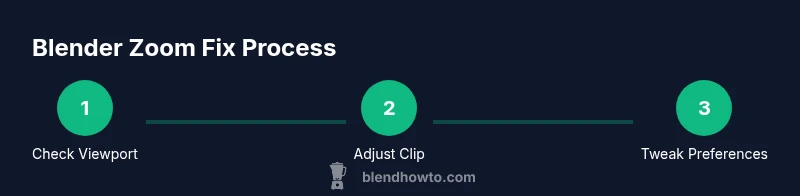
If you're asking how to fix blender zoom, the answer starts with understanding what Blender uses to compute the viewport scale. The 3D Viewport zoom is not a single knob; it combines your input device, the current view (perspective vs camera), and clipping settings. According to BlendHowTo, successful zoom behavior depends on three aspects: navigation preferences, the active view, and clipping ranges. In practice, this means that when zoom seems erratic or unresponsive, you should inspect these areas first before diving into deeper fixes. The most common misconfigurations are related to the navigation settings, a mis-set clip end value, or using a camera view when you meant to edit in the viewport. In addition, remember that Blender supports multiple input methods (mouse wheel, trackpad pinch, or touch gestures). By zeroing in on the right combination, you’ll regain predictable zoom. When you get this right, you’ll experience smoother panning and a more consistent sense of scale, which is essential for precise modeling and scene setup.
From this point, you can begin testing how zoom responds in different modes and with different devices to identify the primary bottleneck in your workflow.
Common Causes of Zoom Problems in Blender
Blender zoom issues typically fall into a few broad categories. First, clipping limits can prevent zooming past certain distances; if Clip Start is too high or Clip End too low, distant objects vanish from view or become hard to reach. Second, navigation preferences may disable or override common zoom behaviors (for example, the option to zoom to the mouse position or native smooth zoom). Third, you might be in Camera View (Numpad 0) when you intend to model in the viewport; zoom behaves differently in camera mode. Finally, input devices can contribute: older mice without smooth wheel steps, or trackpads with gesture settings, may produce jumpy or inconsistent zoom. Understanding which category applies to your setup helps you apply the precise fix without guessing.
Quick Fix Checklist You Can Try Before Diving Deeper
- Verify you’re in the 3D Viewport (not Camera View) and switch back to Perspective if needed (Numpad 5 toggles perspective/orthographic in Blender).
- Check the Clip Start and Clip End values in the View panel (press N in the 3D View and look under View > Clip). Set Start to a small value like 0.1 and End to a larger value like 1000 to allow zoom range.
- Review Navigation preferences (Edit > Preferences > Navigation). Enable Zoom to Mouse Position if your workflow relies on targeting a specific area, and ensure Zoom Mouses Wheel or Pinch Zoom is configured to be responsive.
- Test zoom with different input methods (mouse wheel, trackpad pinch, or magic mouse gestures) to rule out device-specific quirks.
- If nothing helps, reset Blender to default navigation settings (Edit > Preferences > Save & Load > Load Factory Settings) and re-test zoom.
- Finally, try a new Blender file or a fresh scene to confirm the issue isn’t file-specific.
Step-by-Step Guidance: Fixes in Action
This section complements the step-by-step guide below. It provides the rationale behind each action and how to verify success. By following these checks, you’ll confirm which cause is most likely affecting your zoom and implement a precise, minimal fix. Remember: small, targeted changes beat broad rewrites when diagnosing viewport issues. Regularly saving backups before applying fixes protects your projects from unintended changes.
How to Diagnose Specific Scenarios: Model Work, Animation, and Rendering
Zoom behavior can vary between modeling, animation, and rendering contexts. In modeling, smooth zoom helps you gauge proportions and regional detail. In animation, consistent zoom is critical when adjusting keyframes across scenes. Rendering workflows often use camera view by necessity, which changes how zoom behaves. When you observe inconsistent zoom, try switching between Viewport and Camera View to isolate whether the problem is in the viewport navigation or the camera setup. If zoom behaves correctly in one mode but not the other, focus your fixes on the problematic mode’s settings.
Best Practices for Smooth Zoom in Blender
Implement consistent navigation habits to keep zoom predictable. Use the Zoom to Mouse Position feature when precision is needed, but disable it temporarily if it causes unwanted shifts during broad viewport navigation. Keep clipping values aligned with your current scene scale, especially in large projects or architectural models. Regularly update Blender to benefit from improved input handling and bug fixes related to the viewport. Finally, consider maintaining a simple, repeatable zoom workflow across projects to avoid ad-hoc changes that complicate future work.
Tools & Materials
- Computer with Blender installed(Blender 3.x or newer recommended for up-to-date navigation features)
- Mouse or trackpad(Wheel or pinch-to-zoom; test multiple input methods if possible)
- Backup storage(Save a copy of your project before changing navigation or clipping settings)
- Keyboard(Numpad shortcuts (0, 5, +/-) help test different views quickly)
- New Blender project or sample scene(Useful for controlled testing of zoom behavior)
Steps
Estimated time: 15-25 minutes
- 1
Prepare workspace and backup
Save your current project, then duplicate the file or create a new project for testing zoom fixes. This protects your original work from unintended changes.
Tip: Use File > Save As to create a safe test copy before making navigation changes. - 2
Switch to a proper viewport
Ensure you are in the 3D Viewport and not in Camera View by toggling with Numpad 0 or clicking the viewport option. Zooming in camera view will behave differently than in the 3D view.
Tip: If you’re unsure, press Numpad 0 to cycle between views and observe how zoom reacts. - 3
Check clipping settings
Open the Sidebar (N) and inspect View > Clip Start and End. Set reasonable values (e.g., 0.1 and 1000) to allow full zoom range without clipping.
Tip: Clipping values are scene-specific; reset to defaults only if you’re unsure what to set. - 4
Test navigation preferences
Go to Edit > Preferences > Navigation. Enable Zoom to Mouse Position if you need precise targeting; ensure wheel or pinch behavior matches your device.
Tip: Some devices require you to restart Blender after changing navigation preferences to apply changes. - 5
Try multiple input methods
Test zoom with the mouse wheel, trackpad pinch, and any other available input. If one method is laggy, switch to another to determine if the issue is device-related.
Tip: Note any differences in speed, smoothness, and how zoom centers on your cursor or region. - 6
Test in a new file
Create a simple scene (cube, plane) and test zoom behavior. If zoom works fine in a new file, the issue is likely project-specific.
Tip: A minimal scene acts as a controlled baseline for comparison. - 7
Reset or reinstall if needed
If problems persist, load factory settings or reinstall Blender to reset all navigation defaults. Re-test after restoration.
Tip: Back up any custom preferences before resetting to avoid losing personalized setup. - 8
Update drivers and Blender
Check for graphics driver updates and install the latest Blender version. Bug fixes often improve viewport responsiveness and zoom accuracy.
Tip: Ensure your GPU driver is compatible with the Blender version you’re using.
Frequently Asked Questions
Why does Blender zoom feel off in some scenes but not others?
Zoom behavior can depend on the scene scale, clipping values, and whether you’re in the viewport or camera view. Verifying and syncing these settings often resolves inconsistent zoom.
Blender zoom can vary with scene scale and whether you're in viewport or camera view. Check clipping and navigation to fix it.
How do I reset the zoom-related settings without losing my project?
You can reset the navigation preferences to default without touching your scene data. Save a backup first, then reset preferences and retest zoom.
You can reset the navigation preferences to defaults without risking your project by saving a backup first.
Is Zoom to Mouse Position always available in Blender?
Zoom to Mouse Position is a navigation option that may vary by Blender version and OS. If unavailable, use standard zoom and click-drag to focus areas.
The option depends on your Blender version; if it's not available, zoom normally and focus where you need.
What should I do if clipping values don’t fix the issue?
If clipping adjustments don’t help, test in a clean file, update graphics drivers, or reset to factory settings to rule out a project-specific problem.
If clipping doesn't help, test with a fresh file and update drivers to rule out a system issue.
Can a faulty input device cause zoom problems?
Yes. Some devices have inconsistent wheel steps or gestures. Test with multiple devices to determine if the issue is device-related.
Yes, try a different mouse or trackpad to see if the problem follows the device.
When should I contact Blender support or update drivers?
Update graphics drivers and Blender to access bug fixes related to viewport navigation. If issues persist after updates, consult official support channels.
Update drivers and Blender; if problems persist, seek official support.
Is camera view zoom different from viewport zoom?
Yes. Camera view zoom is tied to focal length and camera position, while viewport zoom relates to scene navigation. Test both modes to isolate the issue.
Camera zoom follows focal length, while viewport zoom handles navigation. Check both to diagnose.
Watch Video
What to Remember
- Identify whether zoom issues are viewport or camera-related
- Adjust clipping and navigation settings for better results
- Test with multiple input devices to diagnose device-related delays
- Back up files before applying fixes
- Keep Blender and drivers up to date for the best zoom behavior