Blender Zoom Troubleshooting: Can’t Zoom in Anymore? Quick Fix Guide
Urgent guide to diagnose and fix Blender viewport zoom issues, including mouse input, navigation preferences, and driver problems. Learn practical steps to restore smooth navigation in the 3D Viewport and prevent future hiccups.


Most often, the 3D Viewport won’t zoom because the navigation settings or the mouse wheel input are misconfigured. First, test the wheel in another app to confirm hardware. Then in Blender, open Edit > Preferences > Navigation and ensure Zoom is set to Mouse Wheel and Zoom to Mouse Position is enabled. If needed, reset preferences or update your GPU driver.
What "blender can t zoom in anymore" really means in practice for the 3D Viewport
When you hear this phrase in Blender help circles, it usually points to the viewport not responding to zoom actions. In most cases, the issue isn’t a broken camera but a misconfigured navigation setting, a blocked mouse wheel input, or a corrupted preference file. According to BlendHowTo, these problems often stem from two easy-to-fix areas: input devices and Blender’s own navigation options. The good news is that the fix is usually quick and non-destructive, and you can confirm progress with a simple test in the same session. The BlendHowTo team emphasizes starting with hardware checks and then moving into Blender-specific settings to isolate the root cause.
Immediate checks you can perform (in 10 minutes or less)
- Test your mouse wheel in another program to confirm hardware functionality. If the wheel doesn’t scroll there either, the issue is likely hardware or driver-related, not Blender.
- In Blender, go to Edit > Preferences > Navigation and verify Zoom is assigned to Mouse Wheel. Also enable Zoom to Mouse Position so zoom focuses where your cursor is.
- Check for conflicting add-ons or a customized keymap that might override zoom shortcuts. Disabling or resetting those can restore normal behavior.
- Make sure you’re in the 3D Viewport (not a rendered image editor) and that the view is not locked to a camera. If you see a lock icon or “Lock Camera to View” is enabled, zoom controls may behave unexpectedly.
- Update Blender to the latest stable release and ensure your GPU drivers are current. Graphics driver issues can manifest as odd input behavior in viewport navigation.
Common culprits and how they typically present themselves
- Mouse wheel input disabled or misinterpreted by the OS: Zoom doesn’t respond even though other navigation commands work.
- Navigation preferences corrupted: Repeated crashes or odd zoom jumps occur after a crash or failed save.
- Viewport camera lock or limited context: If Camera to View is forced, zoom can feel unresponsive because the camera’s focal length determines the apparent zoom.
- Add-ons or custom keymaps: A conflicting hotkey can steal the zoom command, leaving you unable to zoom with the wheel or Ctrl++/ Ctrl+-.
Step-by-step: a practical fix path (order matters)
- Step 1: Back up your current Blender preferences and test with a clean start by running Blender with factory defaults temporarily to see if the zoom works there. This isolates whether the problem is project-specific or global. Tip: Create a quick copy of your preferences folder so you can restore your exact setup later.
- Step 2: Reset Blender to factory defaults and reconfigure basic navigation: Edit > Preferences > Navigation. Re-enable Zoom to Mouse Position and set Zoom to Mouse Wheel. Test zoom in the 3D Viewport. Tip: If Reset Preferences fixes the issue, re-import your preferences in small batches to identify the exact setting that caused the trouble.
- Step 3: Update graphics drivers and Blender to the latest stable version. A driver mismatch can produce sluggish or nonfunctional input handling. Tip: Do a clean driver install (uninstall old drivers, reboot, install the latest) to avoid residual conflicts.
- Step 4: Check for problematic add-ons and reset or disable custom keymaps related to zoom. Restart Blender and test zoom after each removal. Tip: Disable all add-ons temporarily to confirm whether the issue is addon-related before re-enabling them.
- Step 5: Verify alternate zoom methods (Numpad +/- and Ctrl+MMB drag) to ensure the problem isn’t wheel-specific. If these work, the wheel input is the likely culprit. Tip: Record which methods work so you can narrow down the root cause quickly if you need to escalate.
- Step 6: Create a new, simple scene to test the viewport. If zoom works there, the problem might be scene-specific (heavy meshes, modifiers, or 3D cursor state) rather than global. Tip: If the scene is heavy, optimize by hiding or simplifying objects temporarily during testing.
- Step 7: If the issue persists, consult Blender’s support channels or your GPU vendor’s helpdesk. Document your OS version, Blender version, driver version, and a short video or GIF showing the zoom failure. Tip: Keeping a running log of changes helps technicians diagnose more quickly.
Advanced checks if the issue still isn’t resolved
- Inspect the system’s input device settings for any accessibility features that could remap scrolling. Some OS-level settings treat the trackpad scroll differently in certain apps.
- Consider testing with a different input device (another mouse, or a graphics tablet with a wheel) to see if the problem is device-specific.
- If you’re using a dual-monitor setup, try Blender on one monitor to rule out display wrapping or DPI issues affecting the viewport.
Preventing zoom issues in the future
- Regularly save and export your Blender preferences after meaningful changes to avoid losing setup after updates.
- Keep Blender and GPU drivers updated, but test updates in a controlled workflow to catch regressions early.
- Document your preferred navigation setup and add a quick-access backup profile so you can restore quickly if something changes in future updates.
Steps
Estimated time: 30-45 minutes
- 1
Back up current preferences
Navigate to the Blender preferences folder, copy it to a safe location, and note any changes you’ve made to shortcuts or layouts. This ensures you can restore a working setup if needed.
Tip: Keep the backup on an external drive or cloud storage for safety. - 2
Reset to factory defaults
Use Blender's built-in option to load factory settings, which clears misconfigurations in navigation and input mappings. Restart Blender after the reset to apply defaults.
Tip: Only reset if you’ve exhausted other simpler checks; this will revert custom keys. - 3
Reconfigure Navigation preferences
Open Edit > Preferences > Navigation. Re-enable Zoom to Mouse Position and set Zoom to Mouse Wheel. Test zoom in the 3D Viewport after each change.
Tip: Keep a small checklist to verify each setting is correct. - 4
Update drivers and Blender
Install the latest GPU drivers for your card and update Blender to the current stable release. A driver mismatch can cause input irregularities.
Tip: Do a clean installation of drivers to avoid conflicts. - 5
Check for add-ons and keymaps
Disable or remove suspect add-ons and reset keymaps to default. Re-test zoom after each change to identify the culprit.
Tip: Document any add-ons you disable for faster re-enabling. - 6
Test with a clean scene
Create a small, simple scene to verify if zoom works independently of complex geometry or modifiers. If zoom works, the issue may be project-specific.
Tip: Isolate the project by temporarily removing heavy objects. - 7
Seek help if needed
If the issue persists after these steps, gather system details and contact Blender support or your GPU vendor for advanced diagnostics.
Tip: Include a short video of the issue to speed up troubleshooting.
Diagnosis: Blender viewport won't zoom in or out using the mouse wheel or common shortcuts
Possible Causes
- highMouse wheel input not registering in Blender due to hardware/driver issue
- mediumViewport navigation settings misconfigured (Zoom to Mouse Position disabled)
- mediumBlender preferences corrupted or partially reset
- lowConflicting add-ons or custom keymaps affecting zoom
- lowGraphics driver or Blender bug causing input lag
Fixes
- easyTest the mouse wheel in another application to confirm hardware works
- easyReset Blender preferences and re-enable default Navigation settings
- mediumUpdate GPU drivers and Blender to the latest stable version
- mediumDisable conflicting add-ons or reset custom keymaps, then test zoom
- easyTry alternate zoom methods (Ctrl+MMB, Numpad +/-) to isolate issue
Frequently Asked Questions
Why won’t Blender zoom in the 3D Viewport?
Zoom problems are usually caused by input hardware, navigation settings, or corrupted preferences. Start with a hardware check, then reset navigation in Preferences, and finally update drivers if needed.
Most zoom issues come from input or preferences. Start by testing your mouse wheel, then reset navigation settings and update drivers if necessary.
How do I reset Blender preferences to fix zoom issues?
Go to File > Defaults > Load Factory Settings to restore default preferences, then reconfigure navigation. Save these preferences to keep the changes across sessions.
Reset to factory settings, then reconfigure navigation preferences and save them.
Is there a shortcut to zoom if the mouse wheel fails?
Yes. You can zoom with the Numpad + and - keys, and you can zoom with Ctrl + MMB drag. These methods help isolate whether the issue is wheel-specific.
Use Numpad plus and minus, or Ctrl + middle mouse button drag to zoom.
Could a driver issue cause Blender zoom problems?
Graphics drivers can affect input handling in Blender. Update or reinstall your GPU drivers, and verify Blender is compatible with the driver version.
Driver problems can cause zoom issues; update or reinstall drivers and ensure Blender is compatible.
Will changing the camera lens affect viewport zoom?
Viewport zoom and camera lens are related but distinct. If Camera to View is locked, toggling it off can restore normal zoom behavior. Check the 3D Viewport’s camera constraints.
Camera settings can influence how you perceive zoom, so unlock camera to view if it’s locked.
Watch Video
What to Remember
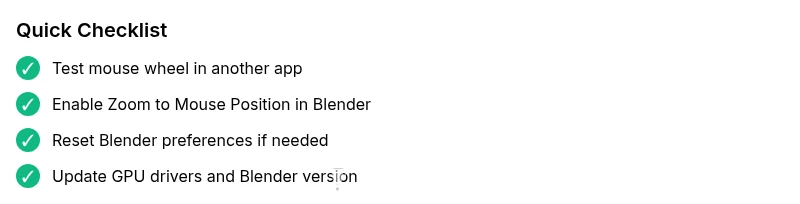
- Verify mouse hardware before deep diagnosis
- Reset and reconfigure Navigation settings
- Update drivers and Blender version promptly
- Disable addons to reveal conflicts
- Restore smooth zoom with alternate methods