Why Blender Not Letting Me Zoom In: Quick Fixes
Urgent troubleshooting guide for Blender zoom issues. Learn quick fixes, check preferences, test inputs, and prevent future zoom problems in your workflow.


The most common reason you can’t zoom in Blender is an input setting or driver issue blocking the mouse wheel. Start by checking the 3-button mouse emulation and zoom-to-mouse-position options, then test with a different mouse or trackpad. If needed, reset Blender’s preferences or disable conflicting add-ons, and verify viewport zoom works in a new file.
Understanding the symptom: why is blender not letting me zoom in
If you’re wondering why is blender not letting me zoom in, the problem usually points to input settings or a user preference, not a global software crash. The 3D Viewport relies on the mouse or trackpad to control zoom through the wheel or gesture. When zoom stops responding, start by the simplest checks and work your way toward more advanced fixes. According to BlendHowTo, addressing input and configuration first reduces confusion and speeds up resolution. By methodically validating hardware and software settings, you’ll identify the culprit faster and prevent future confusion in your blender workflow.
In many cases, the recommended first checks are quick and repeatable across machines. If your setup includes a non-standard mouse configuration, or if you’ve recently switched between a mouse and a trackpad, these changes can confuse Blender’s input map. BlendHowTo’s guidance emphasizes starting with what you can control now—hardware, basic preferences, and simple toggles—before diving into deeper, file-specific problems.
Quick checks you can run right now
Before diving into menus, perform quick checks that take only a few minutes. Confirm that your mouse wheel scrolls in other applications, ensure Blender is the active application, and test with a wired USB mouse as well as a laptop trackpad. In some cases, the issue is hardware-related rather than software. If you have Emulate 3 Button Mouse enabled, disable it to restore standard wheel navigation. Also, look for a disabled Zoom to Mouse Position option in the 3D View’s View menu and test zooming with the cursor over empty space and over an object. If the quick checks pass but the problem persists, proceed to reset preferences or test in a new file.
Common culprits and how to verify them
There are several frequent causes. Emulate 3 Button Mouse is a common culprit; it remaps mouse inputs and can disable regular wheel zoom. The next likely issue is the Zoom to Mouse Position setting, which can make zoom feel unresponsive if you expect zoom centered on the center of the screen. Third, a corrupted or temporarily misconfigured Blender preferences file can disrupt input. Finally, add-ons that override navigation or hotkeys can interfere with the default zoom behavior. To verify, turn off Emulate 3 Button Mouse, toggle Zoom to Mouse Position, reset preferences, and disable add-ons one by one to see if zoom returns.
The diagnostic flow: isolating the problem
To isolate the issue, start with the simplest steps and confirm baseline behavior. Test zoom in a fresh scene or a new file to see if the problem is scene-specific. If zoom works in a new file, the issue is likely linked to the current file’s settings or objects. If it still fails in a fresh file, the problem is more likely systemic (preferences, add-ons, or hardware). This approach aligns with BlendHowTo’s recommended troubleshooting flow, which begins with controllable inputs and progresses to deeper diagnostics.
Step-by-step fixes you can apply now
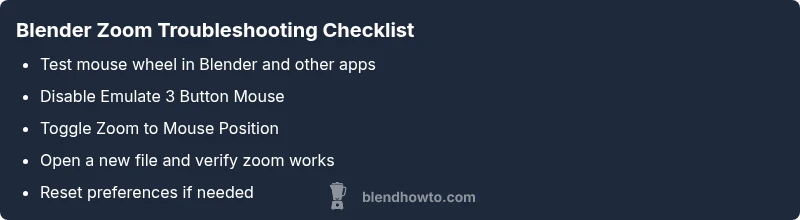
- Disable Emulate 3 Button Mouse in Preferences. 2) Toggle Zoom to Mouse Position off/on in the 3D View View menu. 3) Test with a different mouse or trackpad. 4) Open a new Blender file and try zooming to confirm whether the issue is file-specific. 5) If needed, reset Blender preferences or start Blender with factory settings. 6) Update graphics drivers if the issue persists across restarts. If none of these steps resolve the problem, it may be time to seek official support or file a bug report.
Prevention tips and safety notes
- Keep input devices clean and functional; a stuck scroll wheel can mimic a zoom failure. - Avoid installing unofficial add-ons that change navigation behavior without testing first. - Regularly back up your preferences so you can revert quickly if a tweak causes issues. - On Windows, ensure Blender runs with standard DPI scaling to prevent misreads from the mouse wheel.
Final check: when to seek help
If Blender still won’t zoom after all fixes, consult the Blender community forums or file a bug report. Include your Blender version, operating system, GPU, and a short description of the steps you tried. The BlendHowTo team recommends collecting a minimal reproducible example—this speeds up assistance and helps developers pinpoint edge cases more efficiently.
Steps
Estimated time: 20-40 minutes
- 1
Check input device functionality
Test the mouse wheel and trackpad in other programs to confirm hardware is working. Replace the device if needed.
Tip: Try a wired mouse to rule out Bluetooth polling issues. - 2
Review Blender input settings
Open Preferences, go to Input, and ensure 'Emulate 3 Button Mouse' is off. If you rely on the setting, note the impact on zoom.
Tip: After changing this, restart Blender to ensure changes take effect. - 3
Inspect Zoom to Mouse Position
In the 3D Viewport, use the View menu to toggle 'Zoom to Mouse Position' and test zoom at different cursor locations.
Tip: Be aware that this changes the focal point of the zoom rather than zoom speed. - 4
Test in a new file
Create a new .blend and verify whether zoom works there. A failure here points to a file-specific issue.
Tip: If it works in a new file, try importing assets one-by-one to identify the trigger. - 5
Reset preferences if needed
If issues persist, back up your preferences and reset to factory defaults, then reconfigure gradually.
Tip: Always keep a backup so you can restore your layout. - 6
Update drivers and retry
Update your GPU driver and ensure your OS is up to date; perform a clean restart of Blender after updates.
Tip: Driver updates can fix low-level input handling problems.
Diagnosis: Viewport zoom in Blender does not respond to mouse wheel or trackpad gestures.
Possible Causes
- highEmulate 3 Button Mouse is enabled
- highScroll wheel hardware not functioning or not recognized
- mediumZoom to Mouse Position setting interfering with expected behavior
- mediumBlender preferences corrupted or misconfigured
- lowConflicting add-ons or scripts
Fixes
- easyDisable Emulate 3 Button Mouse in Preferences
- easyTest with a different mouse or trackpad and ensure Blender is the active window
- easyToggle Zoom to Mouse Position in the 3D Viewport
- easyOpen Blender with factory settings to test a clean start
- mediumDisable recently added add-ons or reset preferences if needed
- mediumUpdate GPU drivers and operating system if the issue persists
Frequently Asked Questions
Why is Blender not zooming with my mouse wheel?
Common causes are Emulate 3 Button Mouse being enabled, or Zoom to Mouse Position affecting focal zoom. Check input settings, test a different mouse, and reset preferences if needed.
If the mouse wheel isn’t zooming, check Blender's input settings and try a different mouse to confirm hardware or configuration as the cause.
How do I enable zoom to the mouse position in Blender?
In the 3D Viewport, open the View menu and toggle Zoom to Mouse Position. This makes zoom respond around your cursor instead of the center.
Open the View menu in the 3D View and turn on Zoom to Mouse Position.
Why does zoom work in some files but not others?
If the issue is file-specific, test in a new file. If it works there, the problem is likely with the file's settings or objects. If it fails in a new file, investigate preferences or hardware.
If it only happens in one file, try creating a fresh file to isolate the issue.
Can add-ons affect navigation like zoom?
Yes. Add-ons can override navigation behavior. Disable recent add-ons one by one to identify if any are causing the problem.
Yes—try disabling recently added add-ons to see if zoom returns.
Is it safe to reset Blender preferences?
Resetting restores defaults and clears custom configurations. Back up your preferences first so you can restore them if needed.
Resetting is safe if you back up your settings; you can restore later.
How can I test Blender with a clean start?
Launch Blender with factory settings or run it under a new user profile to determine if the issue is global or file-specific.
Try starting Blender with factory settings to isolate the problem.
Watch Video
What to Remember
- Verify input devices first before deeper fixes
- Disable Emulate 3 Button Mouse if active
- Test in a new file to isolate the issue
- Reset preferences or run factory start if needed