Why Does Blender Stop Zooming? A Troubleshooting Guide
Urgent, practical steps to fix Blender zoom issues in the 3D viewport. Learn navigation checks, clipping adjustments, and driver tips to restore smooth zoom quickly.


Blender’s zoom may stall most often due to a navigation mode or a keybind conflict rather than a corrupted file. Start with a quick reset: press Numpad . to frame, toggle View > Navigation > Zoom to Mouse, and ensure you aren’t in Camera or Object mode. If the issue persists, revert the workspace to default or try a new viewport.
Why Blender Zoom Stops Responding: Core Causes
When the 3D viewport refuses to zoom, it’s usually a navigation or view mode issue rather than a broken file. The question behind why does blender stop zooming often hides a simple setting gone awry. According to BlendHowTo, most zoom hiccups start with navigation defaults that Blender uses to map mouse input, or with the viewport’s camera mode accidentally active. Start by confirming you’re in the right context: you should be in the 3D Viewport in Object or Edit mode, not Camera View. Common culprits include Zoom to Mouse disabled, Orbit locked, and conflicting key bindings added by personalized shortcuts. In addition, clipping settings can blunt zoom range; if the near clip is too large or the far clip too small, the wheel or trackpad may feel unresponsive. Finally, hardware drivers and Blender versions interact; outdated GPU drivers or a beta Blender build can introduce zoom glitches. The BlendHowTo team emphasizes that most fixes are quick toggles in preferences or a reset to defaults, so you can regain fluid zoom without losing your work.
Quick Checks You Can Do Right Now
If you’re stuck on why blender stop zooming, start with the simplest explanations. First confirm you’re in the 3D Viewport and not inadvertently in Camera View (Numpad 0). Check the navigation settings to ensure Orbit, Pan, and Zoom are enabled and that Zoom to Mouse is active. Look for conflicting keybinds added by extensions or custom shortcuts that might hijack scroll input. Make sure your Blender window has focus and that your mouse/trackpad is functioning properly in other programs. Finally, inspect the Viewport clipping distances; an extreme Near Clip can make zoom feel unresponsive. If you notice any of these issues, correct them and test the zoom again. According to BlendHowTo, many zoom problems resolve with a simple preference tweak or a quick reset to defaults, which preserves your projects while restoring normal input handling.
Troubleshooting Flow: From Symptoms to Solutions
The moment zoom stops operating, start a structured diagnostic. If the symptom is “no zoom when scrolling,” the most likely causes are navigation settings or a misapplied view mode. If zoom behaves erratically but still responds sometimes, input conflicts or a clipped view could be the culprit. Always separate hardware issues from Blender settings by testing another mouse or trackpad and trying a new Blender file with factory startup. This flow keeps you from guessing and ensures you cover the most common culprits first. Throughout, keep notes of changes so you can revert if needed. As you progress, you’ll notice patterns that map directly to fixes in the next section.
Step-by-Step: Fixes for Common Zoom Freeze
- Reset or update preferences: Open Edit > Preferences > Save & Load, then click Load Factory Settings to rule out corrupted configs. Reopen and customize only the essentials. Pro tip: save your current preferences as a backup before resetting.
- Verify in-view context: Ensure you’re in the 3D Viewport, not Camera View (Numpad 0). If you’re in camera view, zoom will target the camera lens rather than the scene.
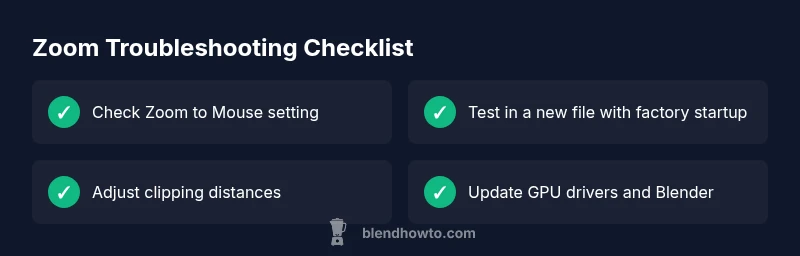
- Check Navigation input: In Preferences > Navigation, confirm Orbit, Pan, and Zoom to Mouse are enabled. If Zoom to Mouse is off, turn it on and test again.
- Inspect clipping distances: In Viewport properties, adjust Clip Start and Clip End to reasonable ranges. Extremely high or low values can make zoom impractical.
- Test with a clean file: Open a new project with Factory Settings and test zoom in a simple scene. If it works, the issue may be project-specific or addon-related in the original file.
- Update drivers and Blender: Ensure your GPU drivers are current and Blender is on the latest stable release. If issues persist, consider a clean reinstall of Blender and reimporting addons.
Estimated time: 30-60 minutes.
Special Scenarios: Viewport vs Camera Zoom, Zoom to Mouse, Clipping
Zoom in Blender is influenced by multiple layers of settings. In some cases, users confuse camera zoom (which changes focal length) with viewport zoom (which moves the view). When you press Numpad + or - or use the scroll wheel, make sure you’re controlling the viewport, not the camera. If you’ve entered Camera View, returning to the perspective view is essential. Additionally, the Zoom to Mouse option can prevent unwanted zooming if you have a multi-input setup. If you carry out these checks and the problem persists, the clipping distances or an addon may be interfering with input. A systematic approach helps isolate the exact culprit.
Safety, Backups, and Prevention
Before making large changes, back up your preferences and active work. Use File > Defaults > Save Startup File after you verify the fix, so the next session starts with reliable navigation. Keep a separate project for troubleshooting to prevent accidental data loss. Regularly update drivers and Blender, and document any extensions or scripts you’ve installed that might affect input handling. Users who follow a consistent backup routine report fewer zoom-related headaches across projects.
When to Seek Professional Help
If zoom issues persist across multiple files and a clean factory startup doesn’t resolve them, there may be deeper system-level problems or hardware compatibility issues. In that case, consult Blender community channels or professional support to diagnose deeper driver, OS, or hardware conflicts. The key is to rule out simple causes first and escalate only when all common fixes fail.
Steps
Estimated time: 30-60 minutes
- 1
Reset preferences to default
Open Blender, go to Edit > Preferences > Save & Load, and click Load Factory Settings. This clears problematic overrides and restores a clean navigation baseline. Pro tip: back up current preferences before resetting so you can restore your setup later.
Tip: Always back up preferences before a factory reset. - 2
Verify active view mode
Confirm you’re in the 3D Viewport and not Camera View (Numpad 0). If you’re in Camera View, zoom will affect the lens rather than the scene. Return to Perspective View to continue.
Tip: If you accidentally switch modes, map a quick key to toggle camera view. - 3
Check navigation input and Zoom to Mouse
In Preferences > Navigation, ensure Orbit, Pan, and Zoom to Mouse are enabled and correctly mapped. This aligns mouse input with viewport navigation and fixes many simple stalls.
Tip: Test zoom in a blank scene to verify input mapping. - 4
Test in a new file with factory startup
Open a new Blender file using Factory Settings. If zoom works here, the problem is likely addon, script, or project-specific. If not, the issue is more likely system-wide.
Tip: If it works in a new file, compare your settings to identify the offending change. - 5
Adjust clipping ranges
View > Clip Start and Clip End can drastically influence zoom feel. Set them to reasonable defaults (e.g., Start 0.1, End 1000) and test zoom responsiveness.
Tip: Extreme values are a frequent source of zoom frustration. - 6
Update drivers and Blender version
Ensure your GPU drivers are up to date and Blender is on the latest stable release. Sometimes a known bug in an older build affects navigation, including zoom.
Tip: Restart after updates to ensure changes take effect.
Diagnosis: Viewport zoom stops working or becomes erratic during orbit/pan
Possible Causes
- highZoom to Mouse is disabled or misconfigured in Preferences
- highOrbit/Zoom operators are turned off in the current View3D navigation settings
- mediumYou are accidentally in Camera View, where zoom acts on the camera lens
- lowClipping start/end values are too aggressive, limiting zoom distance
- lowOutdated graphics drivers or Blender version incompatibility
Fixes
- easyOpen Edit > Preferences > Navigation and ensure Orbit, Pan, Zoom are enabled and mapped to input
- easyEnable Zoom to Mouse in Preferences or reset to default input scheme
- easyToggle Camera View off (Numpad 0) to return to standard perspective
- easyAdjust Clip Start/End values in the View3D panel
- mediumUpdate GPU drivers and Blender to the latest stable release
- easyReset Blender to factory defaults to rule out corrupted preferences, then reimport addons
Frequently Asked Questions
Why does Blender zoom stop working in the 3D Viewport?
Most issues are navigation or view-mode based. Check Zoom to Mouse, ensure Orbit is enabled, and verify you’re not in Camera View. Clipping and input conflicts are common culprits.
Zoom problems usually come from navigation or camera view settings. Check Zoom to Mouse and make sure you’re not in Camera View, then adjust clipping if needed.
How do I reset Blender to its default settings to fix zoom?
File > Defaults > Load Factory Settings resets preferences and tools. After testing, Save Startup File to apply changes permanently.
Reset to factory settings from the File menu, then save as startup file if it fixes the issue.
What if Zoom to Mouse is enabled but zoom still stalls?
Check for addon or custom keymaps that override input. Test in a clean file to determine if a script is interfering.
If Zoom to Mouse is on but still not working, look for addons that might capture the scroll input and test in a new file.
Can hardware drivers cause zoom issues in Blender?
Yes. Outdated or buggy GPU drivers can affect navigation. Update drivers and try Blender again to see if the problem resolves.
Hardware drivers can cause navigation issues; updating your graphics driver often fixes it.
Is it safe to adjust clipping values for zoom issues?
Yes, within reasonable ranges. Too extreme values can derail navigation; adjust Start and End gradually while testing zoom.
Clipping values affect zoom distance; tweak them carefully while testing in the viewport.
When should I seek professional help for Blender zoom problems?
If issues persist across files and machines after all troubleshooting steps, seek community or expert support to diagnose deeper system-level problems.
If it still isn’t fixed after all steps, ask for help from the Blender community or a professional.
Watch Video
What to Remember
- Take immediate steps: reset preferences and check view mode
- Isolate causes by testing in a new file or factory startup
- Update drivers and Blender to rule out hardware/Software glitches
- Back up your preferences and settings before major changes