How to Stop Blender Slowing Down When Zooming In
Learn practical steps to stop Blender from slowing down when zooming in. This guide covers viewport tweaks, data management, and hardware considerations to keep your Blender viewport responsive and smooth.


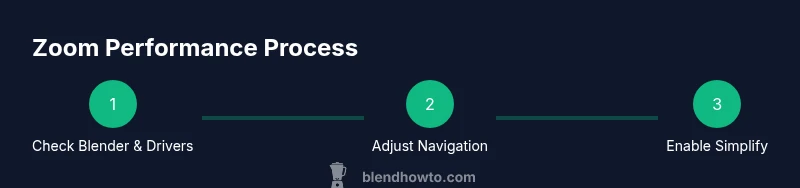
By the end you’ll stop Blender from slowing down when zooming in by optimizing the viewport, updating drivers, and trimming heavy scene data. Start with a quick check of your Blender version and graphics drivers, then tune navigation and viewport settings, enable Simplify, and reduce scene complexity. Apply these steps for smooth zoom performance.
Why the viewport slows down when zooming in
Blender’s viewport performance during zoom operations is a common pain point for both beginners and seasoned users. When you zoom in, Blender must recalculate visibility, shading, and geometry for the newly framed region. If your scene is dense, or the GPU/CPU is strained, this recalculation can cause visible lag, stuttering, or a choppy zoom. The good news is that most slow‑down issues are controllable with a handful of targeted adjustments. Understanding the root causes helps you pick the right fix without compromising your workflow. This section lays the groundwork for faster zooming by clarifying what slows Blender down in the viewport and where to start.
Key ideas to keep in mind:
- Viewport physics depend on scene density, shading, modifiers, and the available VRAM.
- Updates to drivers and Blender itself often fix timing-related slowdowns.
- Small, incremental tweaks yield bigger improvements than blanket, large changes.
When you’re chasing smooth zoom in Blender, you’re really balancing data load with your hardware capabilities. With the right tweaks, you can preserve scene fidelity while maintaining responsive navigation. The goal is to let Blender render just enough detail to keep progress flowing without bogging down the viewport during zoom.
Core causes behind slow zoom
Slow zoom in Blender is rarely caused by a single factor. More often, it’s a combination of data load, shading complexity, and viewport features that demand extra GPU memory and CPU cycles. Common culprits include very dense meshes, heavy modifiers in the viewport, high subsurf levels, and real‑time effects like ambient occlusion or screen space reflections. Add-ons that hook into the 3D viewport can also degrade performance by injecting extra computations during camera movements.
A quick diagnostic checklist helps you identify the primary bottlenecks:
- Are there thousands of polygon count in the current view layer?
- Are there modifiers (Subdivision Surface, Mirror, Solidify) enabled in the viewport?
- Is Ambient Occlusion, Shadows, or Screen Space Reflections turned on in the viewport?
- Is the scene using textures with very high resolution in the viewport?
- Is Blender using your GPU for viewport rendering (if available) instead of CPU?
Understanding these factors gives you practical levers to pull for a smoother zoom experience. The sooner you identify the dominating bottleneck, the faster you’ll recover interactive performance without sacrificing essential features.
Quick checks before changing settings
Before diving into deeper tweaks, run through these quick checks. They take minutes but can save you significant troubleshooting time.
- Confirm you’re on the latest Blender release and that your graphics drivers are current.
- Verify that you’re not in a heavy render mode by default; switch to a real‑time viewport (e.g., Eevee or Workbench) if you’re testing in Cycles.
- Look at the 3D Viewport shading mode: switch to Solid or Bounding Box to test zoom responsiveness without shading overhead.
- Check the scene for stray invisible geometry: use View > Cull and rapid visibility toggles to isolate problem areas.
If performance improves with these quick checks, you’ve narrowed the culprit. If not, proceed with deeper optimizations.
Update and driver hygiene
Software and driver hygiene matters for Blender performance. Graphics driver updates frequently include performance and bug fixes that enhance viewport responsiveness, especially during zoom operations. Similarly, Blender’s internal optimizations are released in regular updates.
What to do:
- Update Blender to the latest stable version from the official site or your package manager.
- Update your GPU drivers (NVIDIA, AMD, or Intel) from the manufacturer’s website or through your OS update utility.
- After updating, restart Blender and test the zoom performance again to confirm improvements. If you notice regressions, check Blender release notes for known issues in your version.
Notes:
- Always back up your preferences before major updates in case you need to revert.
- If you must stay on an older version, apply targeted bugfix patches through official Blender patches when available.
Blender preferences to tweak for faster zoom
Blender’s Preferences give you granular control over how the 3D Viewport behaves. Tweaks here can deliver substantial gains in zoom responsiveness without breaking your usual workflow.
Navigate to Edit > Preferences > Navigation and adjust:
- Zoom to Mouse Position: enable or disable according to your tracking preference. If zoom feels misaligned with your cursor, toggling this can stabilize zoom feel.
- Zoom Style: choose ‘Continue’ or ‘Dolly’ based on your comfort with how Zoom moves the camera.
- Zoom to Mouse Position and Zoom Speed: fine‑tune the speed so zooming feels immediate without overshooting.
In the Viewport section under Preferences > Viewport, consider:
- Disable Real‑Time Blender Features that aren’t needed for your current task (like Real-Time Shadows in the viewport).
- Reduce Overlays and grid density if you’re working on a heavy scene, as overlays consume GPU time.
These preferences directly affect zoom latency by limiting how much the viewport recalculates for every micro‑movement.
Viewport optimization techniques
The next layer of optimization focuses on how Blender renders the viewport while you zoom. Small changes can yield big results without sacrificing quality.
Techniques to try:
- Enable Simplify in the Render tab to reduce subdivision levels and texture resolution in the viewport.
- Lower viewport shading quality temporarily during zoom (Solid mode with minimal shading is fastest).
- Disable or reduce high‑cost effects like Ambient Occlusion, Screen Space Reflections, and Shadows in the viewport.
- Use the Workbench render engine in your viewport for speed during layout and navigation tasks.
- Consider enabling “Limit Selection to Visible” to reduce calculation for off‑screen geometry during rotation and zoom.
If you frequently work with large scenes, adopt a workflow that toggles these features on only when needed, then restores them for final renders.
Scene and object‑level optimizations
Often, slow zoom is a symptom of scene complexity. Reducing data handed to the viewport keeps navigation snappy while preserving your primary model details for later.
Practical steps:
- Remove or temporarily disable heavy modifiers (Subdivision Surface, Mirror, Array) in the viewport. Use 'Apply' or disable in viewport while you work.
- Use the Simplify setting to cap texture size and subdivisions to keep the scene light during navigation.
- Enable Loose Geometry Culling: hide distant or occluded objects from the viewport to cut down on compute during zoom.
- Bake or cache simulations (cloth, fluid, particles) if you don’t need real‑time updates while zooming.
- Organize your scene with Collections and layer management to isolate the active area and reduce overhead.
These tactics keep your zoom experience responsive even in complex scenes.
GPU memory, VRAM, and hardware considerations
Hardware limits frequently determine how smoothly you can zoom in Blender. If zoom lags even after software optimizations, you’re likely hitting VRAM ceilings or CPU/GPU bottlenecks.
Key considerations:
- VRAM utilization: large textures and high polygon density consume more memory. When VRAM is exhausted, Blender slows or stutters.
- GPU memory bandwidth: mid‑range GPUs may bottleneck when you pan and zoom across very detailed areas.
- CPU and RAM: complex modifiers and physics simulations can stress the CPU in the viewport; ensure you have enough RAM to cache geometry.
- Multi‑GPU setups: if you have more than one GPU, ensure Blender is configured to use the appropriate device for the viewport.
If hardware limits are the bottleneck, you’ll need a combination of scene simplification and hardware upgrades to achieve long‑term smoothness. Think of it as a staged approach: software tweaks first, then targeted hardware improvements if necessary.
Render settings vs viewport settings
A frequent source of confusion is the difference between render settings and viewport settings. What you configure for final renders does not always translate to the viewport. Focus on the latter during zoom optimization while reserving higher quality settings for final renders.
Tips:
- Use Eevee or Workbench for the viewport while hiding heavy effects; switch to Cycles for final renders only.
- In Render > Simplify, set lower texture sizes, subdivision levels, and shadow details for the viewport, while preserving high values for rendering.
- When you’re happy with navigation performance, gradually reintroduce high‑quality viewport features and test speed after each change.
Separating viewport sacrifices from final render quality is a practical path to persistent responsiveness.
Workflow tips for heavy projects
Projects with dense geometry, many modifiers, or intense materials require deliberate workflow adjustments. Adopting a consistent workflow helps you maintain smooth zoom without constant reconfiguration.
Recommended workflow:
- Work in a simplified proxy or decimated version of the scene while laying out composition, then switch to the full resolution for final checks.
- Save incremental states (blends) before enabling or disabling heavy features in the viewport.
- Build in pieces: isolate sections of the model into Collections and work on them individually. This reduces the active data Blender must manage during zoom.
- Use quick preview renders to validate details without fully re‑computing the viewport.
This approach keeps you productive even when your project’s scale grows.
When to consider hardware upgrades
If software optimizations and workflow changes don’t yield the needed responsiveness, it may be time to assess hardware upgrades. Prioritize GPU VRAM, fast memory, and a modern graphics card that supports the latest APIs Blender uses for viewport rendering.
Guidance:
- If you frequently work with high‑poly assets or large textures, aim for a GPU with ample VRAM (8GB or more recommended for heavy scenes).
- Ensure your CPU has sufficient cores and clock speed to handle modifiers and scene calculations during navigation.
- Consider faster storage (SSD) to improve load times when switching between large scenes.
- Keep a balanced system: CPU, GPU, RAM, and storage all contribute to a responsive viewport.
Hardware improvements often provide a lasting improvement, but combine them with software tweaks for best results.
Common pitfalls and misconceptions
Even seasoned users trip on common pitfalls that slow zoom unnecessarily. Awareness helps you avoid these missteps.
- Mistakenly enabling all viewport effects all the time. High‑cost effects should be turned off during zoom and reenabled for final checks.
- Assuming all heavy geometry must be visible at once. Use visibility toggles or Collections to isolate the active area.
- Overlooking driver updates. New Blender features frequently rely on up‑to‑date drivers for stability and speed.
- Relying on a single fix. A combination of small, deliberate changes typically yields the best results.
By avoiding these missteps, you’ll maintain a smoother zoom experience over time.
Tools & Materials
- Blender (latest stable release)(Ensure you’re using the current stable version for bug fixes and performance improvements.)
- A computer with a capable GPU and at least 8GB VRAM(More VRAM helps with large scenes and textures in the viewport.)
- Updated graphics drivers (NVIDIA/AMD/Intel)(Driver updates can significantly impact viewport performance.)
- Backup of preferences and saved work(Before major updates, back up settings to revert if needed.)
Steps
Estimated time: 40-90 minutes
- 1
Check for updates
Open Blender and confirm you are on the latest stable release. If not, update Blender and restart. Test zoom responsiveness after the update to establish a new baseline.
Tip: Always back up your preferences before updating to avoid losing customizations. - 2
Update GPU drivers
Check your GPU vendor for the latest driver. Install the update and reboot your system. Open Blender and test zoom speed to see if the driver update reduced lag.
Tip: If you’re on a laptop, ensure the driver update applies to the discrete GPU for best viewport performance. - 3
Adjust navigation and zoom settings
In Preferences > Navigation, toggle Zoom to Mouse Position and adjust Zoom Speed to a comfortable level. Test zoom in a simple scene to gauge responsiveness.
Tip: Small, incremental changes beat dramatic jumps in speed settings. - 4
Enable Simplify for the viewport
In Render > Simplify, set lower texture resolution and subdivision levels for the viewport. This reduces real‑time calculations during zoom.
Tip: You can reintroduce higher values for final renders later. - 5
Reduce viewport shading and effects
Switch to Solid shading, disable Ambient Occlusion, and turn off Screen Space Reflections or Shadows in the viewport. Keep these features off during zoom tests.
Tip: Shading costs can dramatically slow down the viewport during navigation. - 6
Optimize scene data
Hide or temporarily disable heavy modifiers (Subdivision, Mirror) in the viewport. Use Proxies or Collections to isolate active work areas.
Tip: Switch back to full detail only when you’re ready to render. - 7
Test performance and iterate
Reopen your project, zoom in on critical areas, and compare performance changes after each tweak. Repeat until you achieve smooth zoom.
Tip: Document which changes produced tangible improvements for faster future fixes.
Frequently Asked Questions
What causes Blender to slow down specifically when zooming in?
Zoom slowdown often results from heavy scene data, high shading costs, and modifiers active in the viewport. It can also be caused by outdated drivers or Blender versions. Diagnosing by testing one change at a time helps identify the bottleneck.
Blender slows down during zoom mainly due to heavy data and effects in the viewport; update drivers and test tweaks one by one to find the bottleneck.
Do I need to upgrade hardware to fix zoom lag?
Hardware upgrades are a valid long‑term solution if tweaks don’t yield sufficient improvement. Prioritize GPU VRAM, CPU performance, and RAM, then pair upgrades with viewport‑level optimizations for best results.
If software tweaks aren’t enough, upgrading GPU memory and overall system speed can provide lasting relief.
Can I still get accurate previews in the viewport after enabling Simplify?
Yes. Simplify reduces viewport detail for speed but can be adjusted to restore fidelity for final renders. Use different settings for viewport versus render to maintain accuracy when needed.
You can speed up the viewport with Simplify and then restore detail for final renders.
Is it better to use Eevee or Workbench for viewport navigation?
WorkBench is generally fastest for navigation, while Eevee provides a balance between speed and realism. Switch to Workbench during heavy zoom tests and reserve Eevee for real previews and renders.
For the fastest navigation, Workbench often beats Eevee in responsiveness.
How can I quickly test if a change helped?
After each change, zoom around your main work area and compare frame rate and smoothness. If the experience improves, keep the change; if not, revert and try the next tweak.
Test changes by moving the view and noting responsiveness; keep what helps and discard what doesn’t.
Watch Video
What to Remember
- Optimize viewport settings before hardware upgrades
- Update Blender and GPU drivers regularly
- Use Simplify and hide heavy modifiers in the viewport
- Test changes incrementally to measure impact
- Organize scenes to minimize active data during navigation