How to Zoom in Blender Without a Mouse: A Practical Guide
Learn how to zoom in Blender without a mouse using keyboard shortcuts and alternative controls. This practical guide covers steps, tips, and safe workflows for mouse-free navigation.


Mastering Blender navigation without a mouse is totally doable. This quick answer shows keyboard-based zoom, pan, and orbit techniques, plus practical tweaks. According to BlendHowTo, using shortcuts and customized keymaps keeps you productive. By the end, you’ll zoom efficiently with no mouse required. These steps assume a standard keyboard and a typical 3D Viewport layout.
Why zoom without a mouse matters
For Blender artists and hobbyists who spend long hours in the 3D Viewport, mouse-free zoom options can dramatically increase speed and comfort. A keyboard-first approach reduces context-switching, helping you stay focused on the viewport and your current task, whether you’re modeling, sculpting, animating, or refining camera angles. According to BlendHowTo, a reliable zoom workflow built around keyboard shortcuts isn’t just convenient—it’s a gateway to more fluid, precise navigation. When you can zoom quickly without reaching for the mouse, you gain consistency in your viewport management, which improves overall efficiency. In practice, a mouse-free zoom complements panning and orbiting, making your workflow less disruptive and more predictable across sessions and projects.
Understanding Blender's navigation basics
Blender traditionally relies on the mouse for most viewport operations: scrolling to zoom, dragging with the middle mouse button to orbit, and clicking-and-dragging to pan. If you’re working without a mouse, it’s essential to understand the core concepts behind zoom mechanics and how to access them via the keyboard. The 3D Viewport supports keyboard-driven zoom using Numpad keys and also provides options to customize the keymap for even more accessible navigation. A solid foundation in these basics helps you build a robust, mouse-free workflow that remains responsive across different scenes, scales, and camera setups.
Keyboard shortcuts for zooming in the 3D View
The most straightforward way to zoom in Blender without a mouse is through keyboard shortcuts. On most keyboards, Numpad + zooms in, while Numpad - zooms out. If your laptop lacks a numeric keypad, you can enable alternative input methods or map a dedicated keyboard shortcut to the zoom function. In Blender, you can also use the Home key to frame all objects, which effectively changes your zoom context, and Shift+C to recenter and zoom to fit. For those using a MAC or small keyboard, Blender’s keymap remains customizable to fit your layout, ensuring you can maintain a steady zoom cadence without a mouse.
Zoom using Emulate 3 Button Mouse (and why it helps)
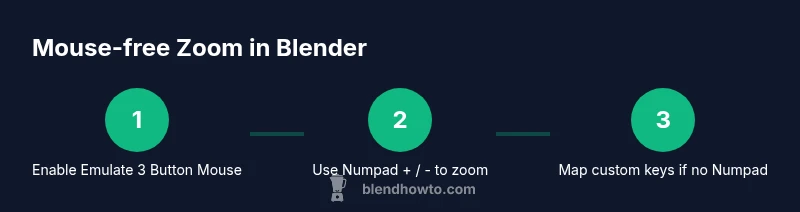
Emulate 3 Button Mouse is a Blender setting that substitutes the missing middle mouse actions with keyboard-friendly inputs. Enabling this option makes Alt + Left to rotate, Alt + Right to pan, and Alt + Middle to zoom in some configurations. This is particularly useful when you have no mouse at all, because it gives you a predictable way to navigate the viewport using modifier keys combined with the keyboard. The BlendHowTo team suggests trying Emulate 3 Button Mouse as a baseline before moving to custom keymaps, since it preserves the familiar feel of three-button navigation without hardware changes.
Customizing keymaps for zoom (non-Numpad setups)
If you’re on a laptop or compact keyboard, you’ll likely want to map zoom to easily accessible keys. In Blender, go to Preferences > Keymap and locate View3D.zoom. You can assign a pair of keys (for example, '=' for zoom in and '-' for zoom out) or remap to keys that fit your typing comfort. After mapping, save the preferences and, if possible, export a startup file so your mouse-free zoom setup loads automatically when you start Blender. Custom mappings can make zooming feel instantaneous and natural, reducing the friction of viewport navigation.
Practical workflows for a smooth mouse-free navigation
Use a disciplined sequence to practice keyboard zoom: (1) switch to a workspace with a large 3D View; (2) turn on Emulate 3 Button Mouse; (3) practice zoom in and out with Numpad + and -; (4) if needed, try your custom keymap and adjust sensitivity in the Preferences panel. Combine zoom with keyboard-based panning (via the Emulate 3 Button Mouse setup) to shift the view without touching the mouse. Add a short warm-up routine at the start of each session to train your muscle memory, gradually increasing complexity from simple rotations to camera-driven zooms.
Troubleshooting: common issues and fixes
If zoom feels jumpy or unresponsive, check that you’re in the correct 3D View context and that the active area is focused. Ensure keyboard input is routed to Blender (click inside the viewport if needed) and confirm that any custom keymaps didn’t conflict with other actions. If Emulate 3 Button Mouse isn’t behaving as expected, revisit Preferences > Input and re-enable the feature, or temporarily disable conflicting add-ons. Keep Blender up to date to benefit from the latest keyboard navigation improvements and bug fixes.
Accessibility considerations and setup tips
Mouse-free zoom can improve accessibility for some users by reducing reach strain and enabling quicker focus during long editing sessions. Consider increasing the UI scale and adjusting the zoom speed in preferences to your comfort level. If you rely on screen readers or other assistive technologies, validate that key mappings don’t interfere with accessibility shortcuts. A well-tuned mouse-free workflow not only speeds up your work but also makes Blender more approachable for beginners and those with physical constraints.
Quick drills to build confidence with keyboard zoom
Practice a small routine: open a simple scene, switch to a perspective view, enable Emulate 3 Button Mouse, and perform a series of zoom ins and outs using Numpad or the mapped keys. Do 20 cycles of zoom in, zoom out, reset view, and frame all to reinforce consistency. Progress by combining zoom with minor orbiting and panning without touching the mouse. With consistent repetition, your muscle memory will grow, and you’ll reach a smooth, mouse-free rhythm quickly.
Summary of mouse-free zoom options and tips
In Blender, you don’t need a mouse to zoom effectively. Keyboard shortcuts (Numpad +/−), the Home key, and view-framing commands give you precise control. Enabling Emulate 3 Button Mouse and customizing keymaps for zoom improves accessibility and speed. Practice regularly, save your preferred setup, and tailor the workflow to your screen layout for continuous, mouse-free productivity.
Tools & Materials
- Keyboard(Any full-size or compact keyboard; Numpad recommended for quick zoom shortcuts)
- Blender installed(Use a recent stable release)
- External numeric keypad (optional)(Helpful if your laptop has no Numpad)
Steps
Estimated time: 20-40 minutes
- 1
Open Blender and select a 3D Viewport
Launch Blender and click into a 3D Viewport. Ensure your keyboard input is active by clicking inside the viewport so that key presses affect the scene rather than other UI elements.
Tip: If Blender isn’t responding to keys, press Tab to switch modes or click the editor area to focus. - 2
Enable Emulate 3 Button Mouse
Go to Edit > Preferences > Input and enable Emulate 3 Button Mouse. This maps mouse operations to keyboard-friendly interactions, which is especially helpful when you lack a physical middle mouse button.
Tip: After enabling, Alt + Left can rotate, Alt + Right can pan, and Alt + Middle can zoom depending on your version setup. - 3
Test zoom with Numpad + / -
In your 3D Viewport, press Numpad + to zoom in and Numpad - to zoom out. If you’re on a laptop without a Numpad, use your mapped keyboard shortcuts (from Preferences > Keymap) for zoom.
Tip: Ensure you’re in Perspective view for the zoom to feel natural and predictable. - 4
Map custom zoom keys (if needed)
If you don’t have a Numpad, map a pair of keys to the View3D.zoom function in Preferences > Keymap. Choose easily reachable keys and avoid conflicts with other shortcuts.
Tip: Test the new mapping in a simple scene before starting a complex project. - 5
Practice combined navigation
Practice zooming while performing subtle orbiting or panning using the Emulate 3 Button setup. This helps you maintain context while refining camera angles.
Tip: Go slow at first; speed up only after you’re confident with the response curve. - 6
Save your settings
Save the current preferences and, if possible, create a startup file so the mouse-free zoom setup loads automatically on startup.
Tip: Export a keymap preset and back it up to avoid losing your configuration after an update.
Frequently Asked Questions
What is the fastest way to zoom in Blender without a mouse?
The quickest method is using Numpad + to zoom in and Numpad - to zoom out. If you lack a Numpad, map a pair of keys to View3D.zoom in Preferences > Keymap and use those instead.
Use Numpad plus and minus to control zoom, or map your own keys if you don’t have a numeric keypad.
Can I zoom without a 3-button mouse by using keyboard shortcuts?
Yes. Enable Emulate 3 Button Mouse in Preferences to simulate mouse buttons with the keyboard, then use keyboard shortcuts such as Numpad + and - or your custom mappings.
Yes. Emulate 3 Button Mouse lets you navigate with keyboard-friendly inputs; combine it with zoom shortcuts.
How do I enable Emulate 3 Button Mouse in Blender?
Open Preferences, go to Input, and check Emulate 3 Button Mouse. This provides Alt-based navigation that can substitute for a physical MMB.
Turn on Emulate 3 Button Mouse in Preferences to enable Alt-based navigation.
How can I map a custom key to zoom in Blender?
Go to Preferences > Keymap, search for View3D.zoom, and assign your preferred keys. Save the preset for future sessions.
In Keymap, set up a custom key for zoom and save the preset.
Will these methods work on all Blender versions?
Keyboard navigation and the Emulate 3 Button Mouse option have been available for multiple versions; however, exact key mappings can vary slightly between releases. Check Preferences for current options.
Most versions support keyboard zoom and Emulate 3 Button Mouse; verify in Preferences.
Do these techniques apply to Blender on Mac?
Yes. Macs support keyboard zoom and Emulate 3 Button Mouse; ensure you’re using the correct modifier keys for macOS and adjust key mappings if needed.
Mac users can navigate with the keyboard and Emulate 3 Button Mouse just like other platforms.
Watch Video
What to Remember
- Zoom in Blender without a mouse using Numpad + / - or mapped keys.
- Enable Emulate 3 Button Mouse to bridge keyboard and navigation.
- Save and back up your custom keymaps for consistent mouse-free workflow.
- Practice regularly to build fast, precise mouse-free zoom skills.