Blender Without Middle Mouse Button: A Practical Guide
Learn practical methods to navigate Blender without a middle mouse button, including Emulate 3 Button Mouse, keyboard shortcuts, and alternative workflows for beginners. This guide by BlendHowTo covers setup, common pitfalls, and step-by-step actions to keep your projects flowing on any device.


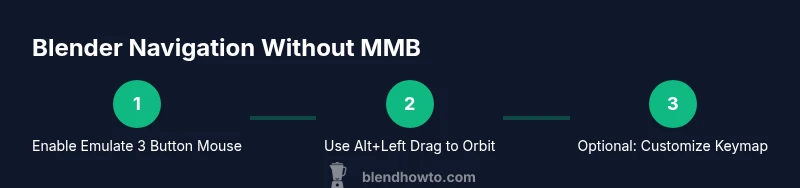
Blender without a middle mouse button is doable by enabling Emulate 3 Button Mouse in Preferences and using the left mouse button with modifiers. Orbit with Alt+Left, pan with Ctrl+Left, and zoom with Alt+Ctrl+Left (version dependent). You can also customize shortcuts to suit your hardware, so laptop users and trackpad setups aren’t left behind. This approach keeps your workflow fluid without needing a dedicated MMB.
Why Blender navigation without a middle mouse button matters
Blender’s viewport navigation has long relied on the middle mouse button (MMB) for orbiting, panning, and dollying. On laptops, trackpads, or two-button mice, this default setup can be inconvenient or nearly impossible to reproduce. The BlendHowTo team has observed in 2026 that many home cooks who dabble in 3D modeling or hobbyist Blender use cases encounter this barrier early in their learning curve. Adapting to a MMB-free workflow isn’t just a convenience; it accelerates your progress and reduces wrist strain during long sessions. Below are practical reasons to adopt a MMB-free approach and how to implement it effectively.
- Accessibility on laptops and trackpads: Many devices lack a dedicated MMB; Emulate 3 Button Mouse provides parity with desktop setups.
- Consistent experience across machines: When you switch between devices, the same navigation methods help you stay productive.
- Ergonomics and longevity: Left-click-centric workflows can reduce awkward hand positions during extended Blender sessions.
By planning ahead, you can keep your focus on modeling and shading rather than input quirks.
Enable Emulate 3 Button Mouse
One of the simplest ways to remove the middle mouse button from your Blender workflow is to turn on Emulate 3 Button Mouse. This option maps MMB actions to the left mouse button, plus modifier keys. It’s especially helpful on laptops and trackpads where a true MMB isn’t practical. Start by locating the setting in Blender’s Preferences and testing orbit, pan, and zoom to confirm the behavior aligns with your hardware.
- Open Blender, then go to Edit > Preferences > Input.
- Check the box labeled Emulate 3 Button Mouse.
- Save Preferences to make this change permanent for all future sessions (or enable for the current session only).
After enabling, you’ll typically use Alt+Left to orbit, with variations for pan and zoom depending on your Blender version. It’s a small adjustment that unlocks a much smoother workflow on non-MMB devices.
Orbit, pan, and zoom with Emulate mode
With Emulate 3 Button Mouse enabled, orbit is typically accessed with a left-click drag combined with a modifier (often Alt). Pan and zoom also become accessible via the left mouse button combined with modifiers such as Ctrl or Shift, depending on your version of Blender. The exact modifier keys can vary by release, so it’s important to test the combos in a simple scene before diving into work. The goal is to map the three core actions (orbit, pan, zoom) to left-click actions and predictable modifiers so you’re not hunting for the MMB.
- Orbit: Alt + Left drag (or Alt + Left-click) in most modern builds.
- Pan: Ctrl + Left drag (some setups may use Alt + Right drag if you rebind keys).
- Zoom: Alt + Ctrl + Left drag or use the scroll wheel if available.
If you’re unsure, open Preferences > Input and review the specific mappings for your Blender version. Customizing these mappings can align with how you physically interact with your device.
Other navigation aids you can use
Beyond Emulate mode, Blender offers several navigation tools that help when you don’t have MMB. You can use the viewport gizmo (the colored handle in the top-right of the 3D View) to rotate, or switch to the Orbit tool from the View sidebar. The N-panel’s View section provides additional quick controls, and the keyboard remains a robust asset:
- Use the Viewport Gizmo to rotate the view by dragging the handles.
- Access Orbit, Pan, and Zoom actions through the toolbar or via the View menu.
- Use numeric keypad shortcuts for standard views (e.g., 1, 3, 7 for front/side/top); while not a replacement for MMB, they aid quick orientation when combined with Alt or Ctrl modifiers.
Practically, combine these aids with Emulate mode to maintain a fluid workflow across projects and devices.
When to customize the keymap
If the default or Emulate mappings don’t align with your hardware or personal preference, Blender’s Keymap editor lets you tailor navigation quickly. Custom keymaps are especially useful if you rely on a tablet, a two-button mouse, or a compact laptop setup. To customize:
- Open Preferences > Keymap and search for Orbit, Pan, and Zoom.
- Bind Orbit to a comfortable modifier + LMB combo, and assign Pan/Zoom similarly.
- Save your custom keymap as a preset for easy transfer to another machine.
Tip: Start with small changes and test in a simple scene; large remaps can confuse muscle memory and slow you down temporarily.
Common pitfalls and how to avoid them
Transitioning away from MMB can introduce a few hiccups if you don’t test carefully. Common issues include confusing orbit and pan actions, forgetting to save preferences, or applying a remap that clashes with other tools. To avoid these problems:
- Always test navigation in a clean scene before starting a real project.
- Save your preferences after completing your setup so changes persist.
- Keep a quick-reference of your chosen key combos until you’ve memorized them.
Recap and practical workflow tips
A MMB-free Blender workflow is not about abandoning core concepts; it’s about translating the same actions to a setup that fits your hardware and comfort level. With Emulate 3 Button Mouse enabled and a clear set of modifier-based mappings, you can orbit, pan, and zoom without a dedicated middle button. Practice in small projects and gradually apply the approach to larger scenes. The key to success is consistency: use the same combos across different machines and Blender versions when possible.
Tools & Materials
- Blender (latest stable version)(Ensure Emulate 3 Button Mouse works as described; verify after updates.)
- Keyboard and mouse or laptop trackpad(A reliable input device is essential for testing modifier mappings.)
- Internet connection (optional)(Useful for checking version-specific notes or updates.)
- Backups of preferences(Create a quick copy before changing keymaps.)
Steps
Estimated time: 15-25 minutes
- 1
Open Blender and access Preferences
Launch Blender and open the User Preferences panel to adjust input settings. This ensures your navigation changes apply to all future sessions. If you’re on a laptop, prepare to test orbit and pan with the left mouse button.
Tip: Use the search field in Preferences to quickly locate input-related settings. - 2
Enable Emulate 3 Button Mouse
Find and enable the Emulate 3 Button Mouse option under Edit > Preferences > Input. This maps MMB actions to the left-click button for devices without a true MMB.
Tip: After enabling, save preferences so the setting persists across sessions. - 3
Test orbit with Alt+LMB
In a simple scene, try orbiting using Alt+Left Drag. Confirm that the view responsively rotates without needing the MMB. Adjust as needed if your version uses different modifiers.
Tip: If orbit feels sluggish, try a different left-button modifier combination in Preferences. - 4
Test pan and zoom
Test panning by dragging with the appropriate modifier (often Ctrl+Left Drag) and zoom by Alt+Ctrl+Left Drag or the scroll wheel where available. Confirm the mappings work consistently.
Tip: Note any conflicts with other tools and rebind if necessary. - 5
Save and export your keymap
Save your adjusted keymap as a preset and consider exporting it. This makes it easier to transfer your setup to another machine or share with teammates.
Tip: Document your key bindings for future reference. - 6
Optional: customize further
If needed, tweak the keymap further to suit your device (e.g., a two-button mouse or touchpad). Small refinements can yield big productivity gains.
Tip: Work in small, iterative changes to avoid overhauling your workflow.
Frequently Asked Questions
What is the middle mouse button used for in Blender?
MMB is the default trigger for orbiting, panning, and dollying the viewport. If you’re using a device without an MMB, Emulate 3 Button Mouse provides a practical workaround that maps those actions to the left button with modifiers.
In Blender, the middle mouse button rotates, pans, and dollys the view. If you don’t have an MMB, you can emulate it with the left mouse button and keyboard modifiers.
How do I enable Emulate 3 Button Mouse in Blender?
Open Blender, go to Edit > Preferences > Input, and check Emulate 3 Button Mouse. Save preferences to keep the setting across sessions. This maps MMB actions to the left-click with modifiers.
Go to Preferences, check Emulate 3 Button Mouse, and save. It maps MMB actions to the left click with modifiers.
Can I customize keyboard shortcuts to replace MMB?
Yes. Open Preferences > Keymap, locate Orbit, Pan, and Zoom actions, and rebind them to preferred modifier combos. Save as a preset for easy reuse.
Absolutely. Change the key bindings in Preferences > Keymap and save a preset for future use.
Is Emulate 3 Button Mouse compatible with Mac laptops?
Emulate 3 Button Mouse works on many Mac configurations, though some Mac trackpads behave differently. Test the mappings and adjust as needed in Preferences.
It works on many Macs, but trackpad behavior can vary; test and adjust in Preferences.
Will enabling Emulate 3 Button Mouse affect other Blender actions?
Enabling Emulate 3 Button Mouse primarily affects viewport navigation. Some tool shortcuts may share modifiers, so verify that your critical actions remain accessible after the change.
It mainly affects viewport navigation; check that other actions aren’t conflicted by your new mappings.
Are there other navigation tricks for Blender without MMB?
Yes. Use the viewport gizmo, the View menu navigation options, and the N-panel. Keyboard shortcuts for standard views (1, 3, 7, etc.) can help with orientation when combined with Alt or Ctrl.
You can use gizmos and standard view shortcuts to stay efficient without MMB.
Watch Video
What to Remember
- Enable Emulate 3 Button Mouse to restore navigation.
- Use Alt+Left Drag to orbit in Emulate mode.
- Pan and zoom via left-click with modifier keys; test and refine.
- Customize keymaps thoughtfully and save presets.
- Always back up preferences before changing input settings.