How to Remove Loop Cuts in Blender
Learn how to remove loop cuts in Blender with practical edge-dissolve techniques. This step-by-step guide covers selection, dissolution, topology checks, and common pitfalls for clean quad topology and reliable modeling results.


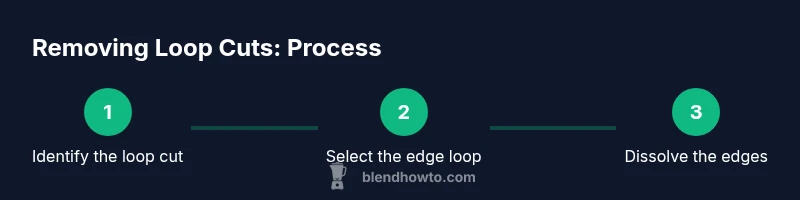
To remove a loop cut in Blender, dissolve the edge loop instead of deleting it. Enter Edit Mode, select the loop using Alt+Click on an edge of the loop to highlight the entire ring, press X and choose 'Dissolve Edges'. The loop disappears while preserving surrounding geometry. For best results, check topology afterward and undo if needed.
Introduction: how to remove loop cuts in blender
If you're refining a model, loop cuts can add unnecessary geometry. The phrase how to remove loop cuts in blender describes removing these edge rings to simplify topology. This is common during retopology, sculpting prep, or when converting a model to quads for animation. The key concept is to dissolve or collapse the loop rather than simply deleting vertices, which can create holes or non-manifold edges. In practice, you will select the loop cut and dissolve the edges, preserving surrounding faces while removing the extra edge ring. The exact steps vary slightly between Blender versions, but the core operation remains the same: identify the loop, dissolve the connecting edges, and verify your mesh remains manifold and clean. In this guide, BlendHowTo walks you through reliable, repeatable techniques you can apply to most mesh types, from cubes and spheres to complex organic shapes.
Why loop cuts sometimes need removal
Loop cuts are useful for adding edge loops that define sharp corners or control topology. However, they can accumulate in dense meshes and complicate shading, subdivision, or export. Knowing how to remove loop cuts in blender helps you simplify for animation, UV mapping, or game-ready models without compromising essential geometry. The goal is to remove only the redundant ring of edges while preserving face connectivity and quad integrity. A well-managed loop-cut removal workflow reduces artifacts and keeps your mesh clean for future edits.
Basic topology concepts for loop cuts
In Blender, meshes are made of vertices, edges, and faces. A loop cut inserts a ring of edges around a model, typically subdividing faces to create new topology. When removing a loop cut, you want to dissolve the connecting edges so surrounding faces merge cleanly without creating holes or ngons. Maintaining quad-dominant topology is important for smooth shading and predictable subdivision. If you’re unsure how to remove loop cuts in blender without upsetting topology, focus on selecting only the loop you intend to dissolve and verify that the resulting mesh remains manifold and well-formed. This foundation makes subsequent edits faster and less error-prone.
Core method: dissolve edges vs delete
The safest way to remove a loop cut is to dissolve the edges that constitute the loop. Dissolve preserves surrounding faces and merges vertices gracefully. Deleting the loop without dissolving can create holes or non-manifold geometry. In most cases, you’ll enter Edit Mode, select the edge loop, and choose Dissolve Edges from the X menu or Mesh > Clean Up > Dissolve Edges. If your loop cut is connected to multiple faces, you may need to dissolve in smaller segments to maintain control over shading and topology.
Step-by-step overview (high-level)
Executing the removal of a loop cut involves a clear sequence: 1) enter Edit Mode, 2) switch to Edge selection mode, 3) select the edge loop with a reliable selection method (Alt+Click on an edge of the loop), 4) dissolve the selected edges, 5) inspect surrounding faces for shading or gaps, 6) undo if the result isn’t acceptable, 7) re-dissolve neighboring loops as needed, 8) test the topology with a quick subdivision or mirror check, 9) save incremental progress, 10) repeat on similar meshes to build familiarity, 11) document any deviations, 12) compare the edited mesh to the original to confirm the change.
Step-by-step detailed procedure: Step A
Enter Edit Mode (Tab) and ensure you’re in Edge selection mode (2). This prepares you to target the loop cut precisely without affecting other geometry.
Tip: If you’re unsure which loop to remove, rotate around the model and visually confirm the loop line you intend to dissolve.
Step-by-step detailed procedure: Step B
Zoom in on the loop line and select the entire edge loop using Alt+Right-Click on any edge of the loop. The whole loop should highlight, indicating a successful selection.
Tip: If the loop comprises parallel edge pairs, you can use Alt+Click to cycle across the loop quickly.
Step-by-step detailed procedure: Step C
Press X (or Delete) and choose Dissolve Edges to remove the selected loop. This merges vertices along the loop and preserves surrounding faces.
Tip: After dissolving, rotate the viewport to check for shading artifacts or small gaps in nearby faces.
Step-by-step detailed procedure: Step D
Inspect the local topology for triangles or ngons. If needed, dissolve adjacent loops in small steps to maintain quad-dominant topology.
Tip: Use the Wireframe view (Z) to clearly see edge connectivity.
Step-by-step detailed procedure: Step E
If dissolving a loop affects symmetry in a mirrored model, perform the operation on both sides simultaneously or use X-Axis mirroring to keep consistency.
Tip: Always save a backup before large topology edits.
Step-by-step detailed procedure: Step F
When the loop is removed, run a quick subdivision test to ensure smoothing remains clean and even; adjust as needed by re-dissolving other loops if necessary.
Tip: Keep a non-destructive workflow by duplicating the mesh before testing major changes.
Step-by-step detailed procedure: Step G
Alternative path: use Mesh > Clean Up > Dissolve Edges for a GUI-based approach if you prefer not to use hotkeys.
Tip: This path is slower but helps if you’re learning keyboard shortcuts.
Step-by-step detailed procedure: Step H
For dense topology, dissolve loops in a staged fashion, selecting a few loops at a time to control edge flow and shading outcomes.
Tip: Work on smaller segments to avoid unintended topology changes.
Step-by-step detailed procedure: Step I
Once satisfied, compare the edited mesh against the original with a simple overlay or side-by-side view to confirm the loop removal hasn’t altered essential geometry.
Tip: Use a simple object like a cube to practice before moving to complex models.
Step-by-step detailed procedure: Step J
Document your final topology: note which loops were removed and why, so you can reproduce or revert later if needed.
Tip: Add comments to the project notes for future reference.
Step-by-step detailed procedure: Step K
Finalize by performing a quick shading test in both solid and material preview modes to ensure normals and lighting behave as expected.
Tip: Check for inverted normals in areas where the loop was removed.
Step-by-step detailed procedure: Step L
Close your session or continue with another loop cut, applying the same workflow to reinforce consistency and speed.
Tip: Repetition builds muscle memory for this common modeling task.
establishedTime: "15-30 minutes"
requiredProTipForThisStepNote":"Select loop edges precisely, as improper selection will produce unintended topology changes."}
Core principles: avoiding common mistakes
When removing loop cuts, avoid dissolving non-loop edges, as this can create gaps. Ensure that the edge loop you dissolve is genuinely isolated from critical topology. If the dissolution affects shading, revert and try dissolving adjacent loops in smaller increments. Always check for Ngons and triangles after each operation, as these can complicate UV mapping and subdivision. The goal is to retain quad-dominant topology for predictable results in animation and rendering.
Quick guidance: maintain quad topology
Aim to dissolve loops in a way that preserves quads. If you encounter an ngon, consider adding supporting edges or retopologizing surrounding areas to maintain surface flow and deformation quality.
Tools & Materials
- Blender software(Ensure you're using Blender 2.8+ for the latest dissolve options.)
- A simple mesh model to practice on(Start with a cube or a cylinder to practice loop-cut removal.)
- Mouse with scroll wheel(Helpful for navigating and selecting edge loops.)
- Keyboard/mouse shortcuts cheat sheet(Optional but speeds up workflow.)
- Backup copy of your project(Always save incremental versions before topology edits.)
Steps
Estimated time: 15-30 minutes
- 1
Enter Edit Mode
Switch from Object to Edit Mode using the Tab key or the mode dropdown. Ensure you’re in Edge selection mode so you can target edge loops precisely.
Tip: If you’re not seeing the loop, press Ctrl+2 to quickly switch to Edge mode and verify your selection. - 2
Select the edge loop
Hover over an edge that belongs to the loop and press Alt+Right-Click to select the entire edge loop around the model or a portion of it if needed.
Tip: If Alt+Right-Click fails, try selecting a single edge and press Ctrl+L to select linked geometry. - 3
Dissolve the loop
Press X and choose 'Dissolve Edges' from the pop-up menu to remove the loop while preserving nearby faces.
Tip: If the result removes too much, press Ctrl+Z to undo and dissolve a smaller segment. - 4
Inspect topology
Rotate the model and check for gaps, holes, or ngons after dissolution. Ensure the surrounding faces remain connected.
Tip: Enable Wireframe view (Z) to clearly see edge flow. - 5
Dissolve adjacent loops if needed
If the loop removal creates irregular shading, dissolve neighboring edge loops in small steps to maintain quad topology.
Tip: Avoid dissolving more than two rings in a single operation to preserve control. - 6
Try the Mesh menu option
If hotkeys feel risky, use Mesh > Clean Up > Dissolve Edges as a GUI alternative.
Tip: The GUI option helps beginners learn the exact command without memorizing hotkeys. - 7
Preserve quad topology
Prefer dissolving loops that maintain mostly quad faces; excessive removal can create triangles.
Tip: If triangles appear, you may need to retopologize or add supporting edges. - 8
Optimize in sections
For dense meshes, work in small sections to keep topology readable and controllable.
Tip: Save incremental versions before big changes. - 9
Undo and save
Use Ctrl+S to save progress and Ctrl+Z to undo any mistakes during the process.
Tip: Version control helps you revert without losing your baseline model. - 10
Validate shading
Render a quick preview to confirm lighting and normals behave as expected after removal.
Tip: Look for abrupt shading changes at the dissolution site. - 11
Document the change
Note which loop cuts were removed and why, for future edits or collaboration.
Tip: Clear notes speed up future revisions and reviews. - 12
Practice on other shapes
Apply the same workflow to cylinders, spheres, and more complex meshes to build confidence.
Tip: Practice builds muscle memory for efficient topology edits.
Frequently Asked Questions
What is a loop cut in Blender?
A loop cut adds a circular row of edges around a face, splitting it to create more topology. You remove it by dissolving the edges so surrounding faces merge cleanly.
A loop cut is a ring of edges that divides faces; you remove it by dissolving those edges to merge faces smoothly.
What happens if I dissolve too many edges at once?
Dissolving too many edges can change topology, create ngons or triangles, and affect shading. If this happens, undo and dissolve smaller segments.
If you dissolve too much, undo and try dissolving in smaller steps to preserve topology.
Can I remove loop cuts on any mesh, or only quads?
Loop cuts can be removed on most meshes, but quad-dominated topology yields the best shading and subdivision results. For complex meshes, consider retopology.
Yes, you can remove loop cuts on most meshes, but quads shade best; complex meshes may need extra cleanup.
Is there a faster way to remove multiple loop cuts at once?
Yes. In Edit Mode, box-select multiple edge loops and dissolve them together. This speeds up cleanup for larger models.
You can select several loops and dissolve them in one go to save time.
Should I always save before removing loop cuts?
Yes. Saving a backup before topology edits helps you revert if something goes wrong or shading looks odd.
Always save before doing topology edits, so you can revert if needed.
What Blender version changes affect loop-cut removal?
Loop-cut removal basics stay the same across versions, but the UI may differ slightly. Check the Mesh > Clean Up options for new paths in newer releases.
The core steps stay the same, but the UI may look a bit different across Blender versions.
Watch Video
What to Remember
- Dissolve edges to remove a loop cut instead of deleting it outright
- Use edge-loop selection for precise, non-destructive edits
- Check topology after each removal to maintain quad dominance
- Practice on simple shapes before moving to complex meshes
- Save incremental versions to enable easy reverts