How to Use Blender Video Editor: A Practical Guide
Learn how to use Blender's Video Sequencer to import media, edit, color grade, mix audio, and export polished videos. Step-by-step guidance, tips, and best practices for beginners and hobbyists.


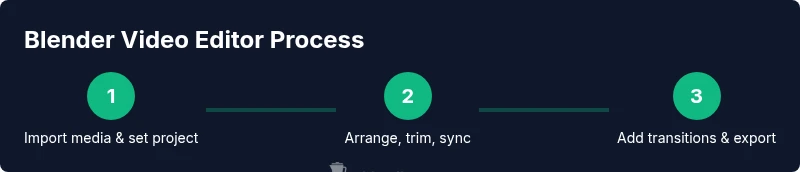
With Blender's Video Sequence Editor (VSE), you can assemble clips, trim and arrange strips, add transitions, adjust color, mix audio, and export a finished video without leaving Blender. Start by creating a new project, importing media, placing strips on the timeline, applying effects, and rendering to your chosen format. BlendHowTo guides you through every step.
Getting Started with Blender Video Editor
The Blender Video Editor, known as the Video Sequence Editor (VSE), is a flexible tool built into Blender that lets you perform end-to-end video editing without switching to a separate program. To begin, open Blender and switch to the Video Editing workspace, which places the timeline, preview, and editing panels in a layout designed for sequencing. Create a new project, set your output resolution (for most home projects 1920x1080) and frame rate (24, 25, or 30 fps), and save your file. According to BlendHowTo, starting in the right workspace reduces friction and helps you focus on the edit rather than configuration. As you gain comfort, you’ll learn to organize assets, use proxies for smooth playback, and apply basic color corrections directly in the VSE. This section lays the foundation for practical, approachable editing workflows that work on commodity hardware and scale with your goals.
Setting Up a New Project and Importing Media
A clean setup saves you countless headaches later. In Blender, start a new project and configure project properties before you begin importing media. Set the resolution to your target output, pick a frame rate that matches your source footage, and choose an internal encoding if you plan to reuse project assets. Import media by using the Add menu in the Video Sequencer or by dragging files into the timeline. Organize your media into a dedicated folder, then create strips on the timeline for each clip. Give each strip a clear name so you can identify it at a glance. If you’re working with multiple cameras or sources, consider using color labels to distinguish clips quickly. This careful organization helps you maintain a smooth editing rhythm and reduces the chance of misplacing clips during a busy edit session.
Organizing Your Timeline: Bins, Strips, and Markers
A well-structured timeline is easier to navigate and faster to edit. In Blender, each media item becomes a Strip on the timeline. Name strips descriptively (e.g., Intro_Take1, ProductShot_Angle2) and use color tags to categorize footage by scene, camera, or quality. Markers are invaluable for signaling important cuts, transitions, or audio cues; place markers at every cut point to keep track of timing. Use the ripple delete function to remove unwanted sections without leaving gaps, and then ripple everything down to close the space automatically. For long projects, consider creating a macro-like sequence: an intro strip, 2–3 media strips, B-roll, and an outro. This reduces decision fatigue and keeps your edit consistent across scenes.
Editing Essentials: Trimming, Splitting, and Moving Strips
Editing in the VSE is about precision and control. Use the blade tool to split clips at the exact frame where a cut should occur, then trim the ends of each strip to tighten pacing. When moving a strip, hold Ctrl to snap to frame boundaries or to other strips for clean vertical alignment. The playback toggle lets you review edits in real time, while the J/K/L keys provide fast shuttle control. If you’re working with a lot of footage, create a rough cut first, then refine with tighter trims. Remember to save frequently and consider creating alternate versions of your timeline to experiment with different storytelling approaches without losing your original work.
Transitions, Effects, and Color Correction
Transitions help smooth the flow between clips, but use them sparingly for a professional look. Add fades, cross-dades, or wipes by placing a transition strip between clips and adjusting its duration in the timeline. Color correction in Blender’s VSE is done via the Color management and Color Balance tools; start with exposure, contrast, highlights, and shadows, then fine-tune saturation and white balance. If your footage has mismatched color profiles, apply a basic color grade to unify the image across clips. For more control, consider using a LUT (lookup table) or a simple curve adjustment on individual strips to correct tonal range differences. Keep the changes subtle to maintain natural-looking footage.
Audio Essentials: Levels, Sync, and Noise Reduction
Audio is half of a compelling video. Ensure your audio levels are balanced by watching the loudness meters and aiming for consistent dialogue levels without clipping. Use the blade tool to cut or split audio strips to align with video cues; when needed, you can keyframe volume to emphasize or mute certain moments. If you’re mixing music or ambient sound, set a lower baseline level and allow dialogue to sit above the music. Blender’s audio strip supports simple faders and pan controls, but for advanced mixing use external audio software if your project demands it. Keep an eye on drift between video and audio, and re-sync as necessary after edits.
Exporting and Output Settings
Export settings determine how your final video will look on different devices and platforms. In Blender, choose an appropriate container (MP4 is widely supported) and an H.264 or H.265 encoder for a good balance of quality and file size. Check that the bitrate matches your target, with higher bitrates for 1080p and above. If your project includes lots of effects, consider enabling GPU encoding for faster renders, provided your hardware supports it. Always render a small test clip to verify color, audio, and timing before committing to a full export. If you plan to upload to social platforms, keep in mind platform-specific constraints; export multiple versions if needed for different destinations.
Troubleshooting Common Issues
Blender’s VSE can stall or playback poorly for several reasons: outdated GPU drivers, insufficient RAM, or too many heavy effects on a long timeline. Start by updating your graphics driver and Blender to the latest stable version. Reduce playback resolution during editing to avoid stuttering, and pre-derive proxies for heavy clips if you’re working with high-resolution footage. Check that your file paths aren’t too long or nested deep in folders, which Blender can stumble over. If audio is out of sync, re-check the frame rate of both video and audio strips, then re-sync from the start. When in doubt, save incremental versions of your project so you can roll back to a stable point.
Extending Blender Video Editor: Add-ons and Best Practices
While the built-in VSE is powerful, you can extend its capabilities with add-ons for faster editing, color grading, or audio workflows. Keep your library clean by disabling unused add-ons and only enabling those that directly support your workflow. Adopt a consistent naming convention and a simple folder structure for media and project files. Regularly back up your Blender projects and media to avoid data loss. Finally, practice with sample projects and gradually introduce new techniques, so you build confidence and reduce the risk of mistakes in real projects.
Tools & Materials
- Blender (latest stable release)(Install from blender.org; ensure it's compatible with your OS)
- A computer meeting minimum specs(8GB RAM or more; dedicated GPU recommended for 1080p+ editing)
- HD video clips for practice(Multiple sources help simulate real projects)
- External storage for media(Use fast drives (SSD preferred) for smooth playback)
- Headphones or speakers(Critical for audio editing and monitoring)
- Sample audio track(Useful for practicing mixing and levels)
- Notes and project folder structure(Organized folders prevent mislinks)
Steps
Estimated time: 45-60 minutes
- 1
Open Blender and switch to Video Editing
Launch Blender and select the Video Editing workspace to reveal the Video Sequencer layout. Create a new project and set your target resolution and frame rate. This ensures your edits map correctly to your final render.
Tip: Save your project early and name it clearly to avoid confusion later. - 2
Import media and create initial strips
Use Add > Movie or drag files into the Sequencer to create video strips. Place them on the timeline in the desired order and ensure there are no gaps between clips unless intentional.
Tip: Organize clips by scene in the browser before dragging to the timeline. - 3
Trim and align clips
Trim ends to tighten pacing and split clips at cut points with the blade tool. Align strips so transitions occur exactly when you want them, using frame-by-frame navigation for precision.
Tip: Enable snapping to frame boundaries to keep edits clean. - 4
Add transitions and basic color tweaks
Insert transitions between strips (e.g., crossfade) and adjust exposure, contrast, and color balance to achieve a cohesive look across clips.
Tip: Apply transitions sparingly; too many can look amateurish. - 5
Sync and adjust audio
Import or record audio, place it on the audio track, and balance levels with the video. Use keyframes to fade in/out and fix any minor sync issues.
Tip: Keep dialogue levels consistent to avoid listener fatigue. - 6
Fine-tune timing and effects
Review the entire timeline, adjust timing as needed, and tweak effects to avoid pushing the viewer away. Ensure transitions match the tempo of the scene.
Tip: Use subtle color-grading presets to speed up the process. - 7
Export your final render
Choose a suitable container and codec, set bitrate appropriately, and perform a short test render. If satisfied, render the full project.
Tip: Render at lower resolution for tests; final export should be at target resolution and bitrate. - 8
Review and backup
Watch the final video in full, note any last adjustments, and back up the project and media. Create a versioned archive to protect against data loss.
Tip: Keep an off-site or cloud backup if possible.
Frequently Asked Questions
Can Blender Video Editor handle 4K footage efficiently?
Yes, Blender can edit 4K footage, but performance depends on hardware. Use proxy editing or playback at a lower resolution to maintain smooth editing flow.
Blender can handle 4K with proxies; adjust playback to avoid lag while editing.
Is GPU acceleration essential for smooth playback in the VSE?
GPU acceleration significantly improves playback and render times, but you can start without a high-end GPU by optimizing settings and using proxies.
A good GPU helps, but you can edit with sensible settings and proxies if needed.
Can I color grade in Blender Video Editor?
Basic color corrections are possible in the VSE with exposure, contrast, and balance controls. For advanced grading, consider using a compositor or LUTs within Blender.
You can do basic color grading in the VSE; for advanced grading, explore Blender's compositor.
What export formats work best for online sharing?
MP4 with H.264 is widely supported for online sharing. Use a bitrate that balances quality and file size, and export a test clip first.
MP4 with H.264 is a good default for online sharing; test before final export.
Do I need external software for audio editing in a project?
For most home projects, Blender's built-in audio tools are sufficient. If you need advanced effects, use dedicated audio software and import the results back into Blender.
Blender handles basic audio; for advanced work, use external audio tools and re-import.
Can Blender replace professional editors for advanced workflows?
Blender handles many standard tasks well, but some complex, high-end workflows may benefit from specialized, paid software. Start with Blender and expand as your needs grow.
Blender covers many tasks, but for complex workflows you might need other tools.
Watch Video
What to Remember
- Plan your project sequence before editing
- Keep your timeline organized with descriptive names
- Export with matched container and codec to your platform
- Practice with a sample project to improve efficiency