Is Blender Available for Mac? A Practical Guide 2026
Discover whether Blender runs on macOS, how to install it on Apple Silicon and Intel Macs, performance considerations, and Mac-specific troubleshooting. This BlendHowTo guide provides practical steps, real-world tips, and trusted sources for macOS Blender users in 2026.


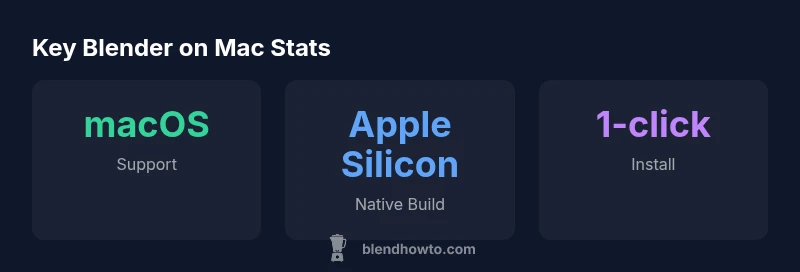
Yes. Blender is available for macOS and runs on both Intel-based Macs and Apple Silicon Macs. You can download the official macOS build from blender.org, which includes universal binaries for modern Macs. The BlendHowTo team confirms macOS compatibility across recent Blender releases, with straightforward installation and regular updates.
Blender on macOS: Availability and Architecture
According to BlendHowTo, Blender's cross-platform architecture makes macOS a first-class citizen for home users and hobbyists. If you ask, is blender available for mac, the answer is yes. The macOS builds are available as official binaries that run on both Intel-based Macs and Apple Silicon machines, with universal binaries ensuring broad compatibility. The Mac version receives the same feature set as Windows and Linux builds, including the same release cadence and bug fixes. For Mac users, this means you do not have to rely on emulation or virtualization to access the latest Blender features. The official download page provides a straightforward installer or a drag-and-drop distribution, depending on the release format. In practice, many Blender workflows—modeling, shading, animation, and game asset creation—translate well to macOS, with the added benefit of native file-system integration and familiar keyboard shortcuts. The BlendHowTo team notes that Mac-specific optimizations appear in regular updates, so staying current minimizes issues with add-ons and external tools. If you previously believed Blender biased toward Windows or Linux, this section should reassure you that macOS is fully supported in 2026.
How to Install Blender on a Mac
Installing Blender on a Mac is a straightforward process, and it’s designed to work with minimal friction. Start by visiting blender.org and choosing the macOS installer or the universal binary, depending on your hardware. After downloading, open the .dmg or archive and move Blender to your Applications folder. macOS gatekeeping prompts may appear; confirm that you want to allow the app to run. Once launched, Blender creates its own preferences folder in your user directory, where you can configure input shortcuts, render settings, and workspace layouts. If you’re migrating from another platform, take advantage of Blender’s import/export compatibility—OBJ, FBX, and glTF formats are broadly supported across macOS. For new users, it’s worth enabling the startup splash to quickly access the 3D viewport, layout templates, and the most-used tools. Regularly check for updates on Blender’s site, as macOS builds receive bug fixes and performance improvements alongside Windows and Linux releases. This guided approach keeps your Mac setup clean and predictable from day one.
Performance and Adaptation on Apple Silicon vs Intel
Apple Silicon Macs bring notable benefits for Blender through memory efficiency and energy-conscious processing. The BlendHowTo analysis shows that Apple Silicon builds run Blender with competitive speed in modeling, viewport navigation, and shading tasks, especially when using optimized build options and a sufficient RAM pool. On Intel Macs, Blender remains fully functional, but users may observe longer render times for complex scenes when using CPU rendering, or rely on external GPUs where available. In practice, Blender’s performance scales with available RAM, graphics memory, and the speed of the CPU; heavier workloads such as sculpting dense meshes or rendering with Cycles require more memory. A practical approach for Mac users is to customize the rendering engine (Cycles or Eevee) to match your hardware, enable simplify settings for large scenes, and adjust viewport shading to a balance between interactivity and realism. The key takeaway is: both architectures are supported, and the right configuration unlocks strong performance on macOS.
Troubleshooting Mac-specific Issues
Common Mac-specific issues include occasional crashes with very large scenes, viewer performance that lags behind Windows/Linux, and occasional plugin or add-on compatibility problems. Start by ensuring you have the latest Blender macOS build from blender.org and that your macOS is up to date. Check that your user permissions allow Blender to read and write in the project directories, and verify that any external assets paths are correct. If a crash occurs, launch Blender from the Terminal to capture a crash log and search the BlendHowTo knowledge base for known fixes; you can also reset Blender’s preferences and reapply your custom settings. For GPU-related problems, run CPU rendering or try a simpler scene to determine whether the issue is GPU-specific. Finally, if you rely on specific add-ons, confirm they are compatible with your Blender version and macOS release before upgrading. With these steps, Mac users can resolve most hiccups quickly and keep momentum in their projects.
Mac-focused workflows and best practices
Developers and artists who work on Mac benefit from aligning their Blender workflow with the macOS ecosystem. Use Finder tags for project organization, configure autosave intervals to protect against sudden quits, and enable iCloud Drive or local backups for critical assets. Many Mac Blender users prefer to keep their Python add-ons updated via the built-in add-on manager, rather than manual downloads, to avoid conflicts after macOS updates. When collaborating with Windows or Linux teammates, exporting to widely supported formats like GLTF ensures compatibility. For large scenes, use tiling or creating proxies to keep the viewport responsive on laptops with modest GPUs. Finally, leverage the Blender community’s macOS guides and Blender’s official release notes to stay current on changes that affect macOS users specifically.
Where to learn more and get help
For ongoing support, refer to the Blender manual, the official Blender YouTube channel, and the BlendHowTo Mac-specific guides. These resources provide updated tutorials, troubleshooting steps, and best-practice workflows that reflect the latest Blender releases and macOS changes. Engaging with the community—forums, Discord channels, and local user groups—helps Mac users share tips, plug-ins, and configurations tailored to Apple hardware. By keeping an eye on release notes and community discussions, you can anticipate compatibility shifts and retrofit your workflows with the most efficient Mac-friendly methods.
Cross-platform availability: macOS, Windows, and Linux
| Platform | Support Status | Notes |
|---|---|---|
| macOS | supported | Official macOS binary available; universal binary for Intel and Apple Silicon |
| Windows | supported | Blender runs on Windows with official binaries |
| Linux | supported | Linux builds available from official sources |
Frequently Asked Questions
Is Blender officially available for Mac?
Yes. Blender provides macOS builds that run on both Intel and Apple Silicon Macs, downloadable from blender.org.
Yes, Blender is officially available for Mac and you can download it from blender.org.
Does Blender support Apple Silicon (M1/M2) Macs?
Blender offers macOS builds that run on Apple Silicon, with universal binaries designed to work across newer Macs as well as older Intel machines.
Yes. Blender supports Apple Silicon Macs with universal binaries; you can run it on M1 and M2 machines.
Can Blender run on older Intel Macs?
Blender runs on Intel-based Macs, but performance will vary by hardware. Ensure your machine meets the recommended specs and keep Blender updated.
It runs on older Intel Macs, but performance depends on your hardware; check the official specs.
Do I need Rosetta to run Blender on Mac?
No. Blender provides native macOS builds for Intel and Apple Silicon, so Rosetta is not required for standard usage.
No, you don’t need Rosetta for Blender on Mac; use the native macOS builds.
Where can I download the Mac version?
Download the official macOS Blender builds from blender.org. Choose the universal binary for the best compatibility on Apple Silicon and Intel Macs.
Get the Mac version from blender.org; pick the universal binary for best compatibility.
What are the system requirements for Blender on Mac?
Blender requires a reasonably capable Mac with recent macOS support. Check the official Blender site for the latest minimum and recommended specs for your version.
Check Blender’s site for current Mac system requirements and recommended specs.
“Blender's cross-platform strategy makes Mac users a core part of the workflow, not an afterthought.”
What to Remember
- Blender runs on Mac with universal binaries.
- Download from blender.org and install in minutes.
- Performance depends on hardware and GPU support.
- Apple Silicon Macs offer strong memory efficiency for Blender.
- Consult BlendHowTo for Mac-specific tips and updates.