Blender GPU Benchmarks: Performance Insights for 2026
Explore Blender GPU benchmarks in 2026. Compare render times, analyze Cycles vs Eevee, and learn how to choose GPUs that maximize Blender performance while balancing memory and power.


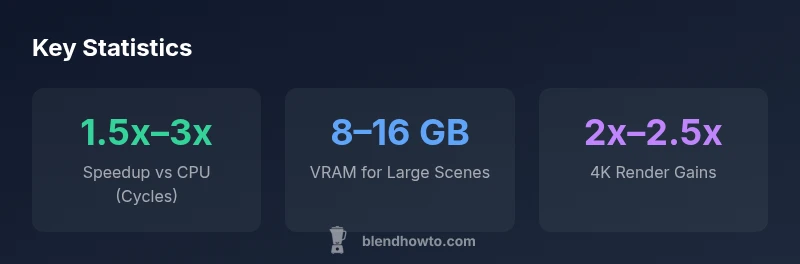
In 2026 Blender GPU benchmarks show GPUs rendering significantly faster than CPUs across typical scenes, with average render times dropping by a broad 1.5x–3x depending on scene complexity and engine. Cycles generally benefits more on CUDA- or OptiX-enabled Nvidia GPUs, while Eevee remains lightweight on many GPUs. The takeaway for practitioners is clear: investing in a capable GPU with ample VRAM yields substantial workflow gains for both hobbyists and professionals.
Why Blender GPU Benchmarks Matter
According to BlendHowTo, blender gpu benchmarks provide a standardized way to compare rendering performance across GPUs and configurations. Blender workloads span simple material previews to full-scene renders with high polygon counts and dense textures, so benchmarks capture real-world differences between engines (Cycles and Eevee) and how memory, drivers, and driver-optimized code paths affect throughput. In 2026, these benchmarks help hobbyists and aspiring 3D artists choose hardware that balances render speed, memory, and cost. The goal is to translate raw timings into practical purchasing decisions, not a single score. By understanding how GPUs perform under typical Blender scenarios, you can optimize workflows and avoid bottlenecks. Blender gpu benchmarks are also useful for estimating project timelines, planning hardware upgrades, and communicating capability to clients or teams.
Benchmarking Methodology: How We Measure GPU Performance in Blender
To ensure comparability, we use a repeatable suite of Blender scenes that cover a spectrum from lightweight previews to heavy, texture-rich renders. We document the Blender version, build type (official vs experimental), operating system, and GPU driver stack. Each scene is rendered multiple times, and we report median render times to reduce noise from caching and dynamic scene elements. We track multiple metrics: render time per frame, image quality outcomes for denoising paths, memory usage, and stability indicators under load. We also annotate whether a test used Cycles with CUDA/OptiX or OpenCL and whether Eevee was engaged for viewport or final renders. While test hardware varies, the methodology emphasizes consistency so readers can apply the insights to their own setups. The resulting data helps translate scene complexity into expected GPU requirements.
Cycles vs Eevee: Where GPUs Win
Cycles is a physically-based path-tracer that benefits significantly from GPU acceleration, especially on modern CUDA/OptiX-capable Nvidia GPUs. Eevee, a real-time engine, emphasizes speed and viewport responsiveness, often yielding strong performance even on mid-range GPUs for simpler scenes. In practice, GPUs deliver the most noticeable gains in Cycles renders with complex lighting, volumetrics, and high-res textures. For many hobbyists, Eevee remains useful for preview renders and iterative design, while Cycles drives final production renders. The takeaway: if you render heavy, prioritize a GPU with ample VRAM and strong compute support; if your workflow is fast previews, Eevee can tolerate a broader range of GPUs.
GPU Classes and Real-World Scenarios
Benchmarks show clear differences by GPU class. Entry-level GPUs offer solid performance for small projects or quick proofs-of-concept but struggle with large, texture-heavy scenes. Mid-range GPUs strike a balance between price and capability, delivering comfortable render times for everyday projects and some 4K work. High-end consumer GPUs, while costlier, minimize render times on complex scenes and enable faster iteration cycles for professional portfolios. The practical rule is to align GPU class with project scope: small personal projects can run well on mid-range GPUs, while larger animations or high-detail assets justify a higher-tier card. Always consider VRAM headroom to prevent texture swapping and memory thrashing during renders.
Memory and Driver Considerations
VRAM capacity is a critical bottleneck for Blender GPU workloads. Insufficient VRAM leads to texture swapping and dropped frames in the viewport, while excess VRAM without compute power yields diminishing returns. Keeping drivers up to date is essential because Blender’s engines continuously optimize for newer driver features like improved ray tracing paths and denoising performance. On Nvidia hardware, CUDA and OptiX backends influence Cycles performance; on AMD, HIP/ROCm or OpenCL paths can affect compatibility and throughput. In practice, maintain a driver version validated for Blender and test render paths with representative scenes to avoid surprises in production.
Practical Recommendations for Builders and Hobbyists
When choosing a GPU for Blender, prioritize VRAM first, compute performance second, and driver stability third. For most hobbyists working at 1080p–1440p with medium-to-high scene detail, a mid-range card with 8–12 GB VRAM is a sweet spot, offering substantial speedups without excessive cost. For 4K renders or heavy scenes, aim for 16 GB VRAM or more and ensure your system supports your preferred render backends (CUDA/OptiX for Nvidia, ROCm/OpenCL paths for AMD). If budget permits, consider a small multi-GPU setup only if your projects scale accordingly, as multi-GPU scaling in Blender varies by engine and scene. Finally, optimize your workflow by using the denoising radiance caches and keeping textures in-memory whenever possible to reduce IO bottlenecks.
The 2026 Landscape: Trends, Edge Cases, and What’s Next
The blender gpu benchmarks landscape in 2026 shows continued gains in raw compute power, better memory bandwidth, and improved path-tracing acceleration. Edge cases include very large scene datasets, dense volumetrics, and texture-heavy assets, where VRAM becomes the limiting factor long before raw shader throughput. New driver features and denoising algorithms further boost efficiency, especially in Cycles, while Eevee continues to benefit from rapid GPU rasterization improvements. As hardware evolves, expect more emphasis on memory bandwidth, multi-GPU orchestration, and cross-vendor interoperability so Blender remains accessible to a broad audience of home cooks and hobbyists who want professional-grade results without breaking the bank.
Illustrative comparison of GPU classes for Blender rendering
| GPU Class | Avg Render Time (s) | Notes |
|---|---|---|
| Entry-level consumer | 2.0–4.5 | Good for small scenes; may rely on CPU for very large renders |
| Mid-range consumer | 1.0–2.5 | Solid balance for hobbyists and semi-pro projects |
| High-end consumer | 0.6–1.8 | Best for large scenes with ample VRAM; fastest cycles renders |
Frequently Asked Questions
What is Blender GPU benchmarking and why should I care?
Blender GPU benchmarking measures render speed and reliability across GPUs for Blender workloads. It helps you predict real-world performance, plan upgrades, and compare hardware fairly. By understanding typical bottlenecks, you can optimize your workflow and reduce guesswork when purchasing a new GPU.
Blender GPU benchmarking shows how fast your GPU renders in Blender, so you can pick hardware that actually speeds up your projects.
Which GPU class is best for hobbyists on a budget?
For most hobbyists, a mid-range GPU with 8–12 GB of VRAM delivers strong performance at a reasonable price. It handles medium-to-heavy scenes and allows comfortable iteration times without breaking the bank. If you primarily do 1080p previews, you can start with entry-level options and scale up as needed.
Mid-range GPUs with 8 to 12 GB VRAM are usually the sweet spot for hobbyists.
Do AMD GPUs beat Nvidia GPUs in Blender GPU benchmarks?
Performance varies by scene and engine. Nvidia GPUs often lead in Cycles when using CUDA/OptiX, while AMD GPUs can perform well with OpenCL or ROCm paths on select setups. For consistency and broader support, many users choose Nvidia for Cycles, but AMD can be viable for Eevee-heavy workflows.
Nvidia often edges out in Cycles, but AMD can be solid for Eevee in some cases.
Is CUDA essential for Blender GPU benchmarks?
CUDA is a common backend for Nvidia GPUs and typically yields strong Blender Cycles performance. However, Blender also supports OpenGL/DirectX paths and OptiX for certain workloads. Depending on your GPU and driver version, you may rely on CUDA or alternate backends.
CUDA helps Nvidia GPUs shine in Cycles, but other paths exist for different GPUs.
How much VRAM do I need for large scenes in Blender?
Large, texture-rich scenes benefit from 12–16 GB VRAM or more, with even higher requirements for very dense assets. If you routinely hit memory limits, consider GPUs with 16 GB or more and optimize textures and scene data where possible.
For big scenes, aim for 12 to 16 GB of VRAM or more.
Can Blender GPU benchmarks be applied to CPU-based workflows?
Blender GPU benchmarks specifically measure GPU-accelerated workflows. They are less informative for pure CPU rendering scenarios, which can differ in scheduling and software optimization. Use CPU-focused benchmarks if your workflow relies on CPU rendering or older Blender versions.
GPU benchmarks are mainly for GPU-based workflows; CPU renders need their own tests.
“GPU acceleration is now the default for Blender workloads; the key is balancing VRAM with compute power and driver stability.”
What to Remember
- Prioritize VRAM over clock speed for Blender heavy scenes
- Cycles benefits more from GPU acceleration than Eevee in complex renders
- Stay current with drivers to unlock new path-tracing optimizations
- Budget mid-range GPUs deliver substantial gains for most projects
- 4K or high-detail work requires higher VRAM and power headroom