How to Make Blender Use GPU: A Practical Rendering Guide
Learn to enable GPU rendering in Blender, optimize Cycles and Eevee settings, install correct drivers, and troubleshoot issues to speed up your renders. A step-by-step approach for home studios and hobbyists.


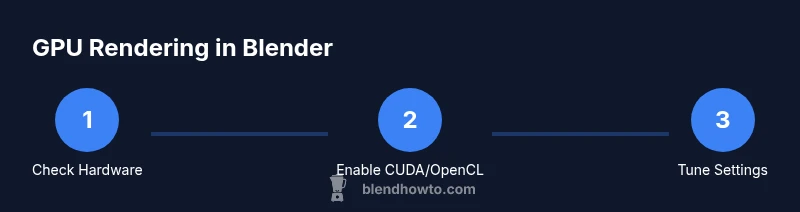
Goal: make Blender use GPU for rendering tasks. Start by confirming a compatible GPU, installing the latest drivers, and updating Blender to the current major version. Then enable GPU compute in Preferences, pick Cycles or Eevee as the render engine, and fine-tune tile size and samples for GPU. According to BlendHowTo, correctly configuring these steps yields the most reliable speedups for most scenes.
What GPU acceleration means in Blender
GPU acceleration in Blender refers to using the graphics processing unit to perform rendering tasks that would normally run on the CPU. Blender’s Cycles rendering engine and its real-time Eevee renderer can offload compute-heavy work to the GPU, dramatically speeding up complex scenes, lighting calculations, and material shading. The gains depend on the scene, the engine, and how well the GPU is utilized. It’s not a magic switch; you still need proper scene setup, efficient materials, and appropriate sampling. For many users, GPU acceleration is a baseline improvement for preview renders and final frames alike, especially in cycles where heavy lighting and global illumination are involved. The BlendHowTo team notes that the right combination of hardware, drivers, and Blender settings is essential for stable, repeatable results.
Prerequisites: hardware, drivers, and Blender version
Before enabling GPU rendering, verify you have a modern, compatible GPU and up-to-date drivers. Blender 3.x and newer provides improved support for GPU compute, including drivers that expose CUDA/OptiX on NVIDIA and OpenGL/OpenCL pathways on AMD. Ensure your operating system is current, and that you have enough RAM to handle large scenes. The blender project benefits from a fast storage drive for assets and caches. BlendHowTo recommends starting with a clean Blender install on a supported OS, then gradually enabling GPU paths to isolate issues. Keeping a small test scene helps confirm the GPU is engaged before scaling to full projects.
How to enable GPU compute in Blender
To switch Blender to GPU rendering, open Blender, go to Edit > Preferences > System, and locate the Compute Device section. Choose the appropriate option for your GPU (CUDA/OptiX for NVIDIA; OpenCL for AMD, depending on your version). Save preferences and restart Blender if prompted. Then set the Render Engine to Cycles (GPU compute) or Eevee with GPU-dependent features enabled. This setup tells Blender to dispatch shader and lighting computations to the GPU rather than the CPU. If you don’t see your GPU, ensure drivers are current and that your Blender version supports the device type.
Choosing between Cycles and Eevee for GPU rendering
Cycles is the primary path for physically-based rendering and benefits most from GPU acceleration for complex lighting, shadows, and global illumination. Eevee is a real-time engine that can also leverage GPU power, but it trades some realism for speed and may have different performance characteristics. When GPU-accelerated, Cycles often yields higher fidelity results at comparable render times, especially for high sample counts. For quick previews, Eevee can be the faster option, but you should verify whether the project requires Cycles’ physically based lighting for final output.
Tuning render settings for GPU performance
GPU rendering hinges on balancing samples, denoising, memory, and tile size. Start with moderate samples and enable denoising if you need clean results with fewer passes. For tiles, GPUs typically respond well to larger tile sizes than CPUs, with common starting points around 256×256 or 512×512, then adjust based on memory usage and render speed. Disable complex volumetrics or high-resolution displacement during test renders to isolate GPU bottlenecks. A well-tuned scene will render faster with stable frame times and fewer crashes.
Common GPU rendering issues and fixes
If Blender isn’t using the GPU, recheck the Compute Device selection, driver versions, and Blender version compatibility. Some issues stem from mixed GPUs in the same system, conflicting software, or overtaxed VRAM. For stability, reduce texture sizes, limit scene complexity during testing, and monitor memory usage. If memory errors occur, consider simplifying shaders or using instances. Regularly updating drivers and Blender can resolve many compatibility problems, as can resetting preferences and re-enabling GPU compute from scratch.
Real-world workflow: when to leverage GPU rendering
In everyday practice, GPU rendering shines for longer animation renders, high-resolution stills, and scenes with complex lighting where CPU-based renders would be impractical. For quick look-dev passes, the GPU can deliver instant feedback in Eevee or low-sample cycles in Cycles. In multi-GPU setups, distributing workloads across GPUs helps reduce render times, but you must manage memory distribution and ensure consistent device selection. The BlendHowTo team emphasizes testing on representative scenes to calibrate expectations and avoid over-optimizing for one scenario.
Benchmarks and expectations for GPU rendering in Blender
Expectations for GPU rendering vary with scene complexity, shader networks, and texture counts. In real projects, differences between CPU and GPU can be substantial, yet not uniform; some scenes scale better on GPU, others require CPU help for certain passes. It’s important to run your own tests using representative assets to determine realistic speedups and quality equivalence. BlendHowTo analysis highlights that consistent results depend on driver support, stable Blender versions, and disciplined scene management. Always validate with a few frames of your actual work.
Advanced tips: multi-GPU setups, memory management, and denoising
If you have more than one GPU, enable all detected devices in Preferences > System, then assign cycles devices accordingly. Monitor VRAM usage and avoid overloading a single GPU; distribute textures and render tiles to balance memory across devices. Denoising can help reduce final render time but may add a preprocessing step; use OptiX or CUDA-based denoisers if available for speed. Consider enabling a smaller resolution for denoise passes to save memory, and use render regions to isolate problematic parts of a scene during testing.
Next steps: validating GPU acceleration on your projects
Now that you’ve configured GPU rendering, run a controlled test on a representative scene. Compare render times and image quality against a CPU baseline, and adjust tiles, samples, and denoising accordingly. Create a simple checklist to verify device selection, driver version, and render engine, and keep it handy for future projects. The BlendHowTo team recommends documenting your GPU configuration to reproduce results and ensure consistency across tasks.
Tools & Materials
- Compatible GPU (NVIDIA CUDA/OpenGL or AMD RDNA2+ capable)(Supports GPU rendering in Blender (CUDA/OptiX for NVIDIA; OpenCL/DirectML depending on GPU and Blender version).)
- Latest GPU drivers(Install from the manufacturer’s site; reboot after update.)
- Blender 3.x or newer(Use the official release or a stable LTS build.)
- RAM (8GB min, 16GB+ recommended)(Larger scenes benefit from more RAM; GPU memory is separate from system RAM.)
- Operating system (Windows/macOS/Linux) updated(Keep OS up to date to ensure driver compatibility.)
- Power supply with adequate wattage(Ensure your PSU can handle GPU load plus other components.)
- Fast storage (SSD recommended)(Faster loading of assets and cache can improve workflow.)
- Test scene/assets(Useful for quick verification during setup.)
Steps
Estimated time: Total time: 30-60 minutes
- 1
Check hardware and Blender version
Confirm your GPU is capable of GPU rendering and that Blender is the latest stable release. A quick system check ensures compatibility, reducing debugging time later.
Tip: Use a small, representative scene to verify GPU engagement before full-scale work. - 2
Update graphics drivers
Download and install the latest drivers from the GPU vendor. Reboot after installation to ensure Blender can access the new capabilities.
Tip: If a clean install is available, choose it to avoid legacy driver conflicts. - 3
Enable GPU compute in Blender
Open Preferences > System, select CUDA/OptiX or OpenCL based on your card, and set the Compute Device to your GPU. Save and restart Blender if prompted.
Tip: If you have multiple GPUs, decide whether to enable all devices or limit to a single device for stability initial tests. - 4
Set render engine and device
In the Render Properties, choose Cycles (GPU Compute) or Eevee with GPU features enabled. Make sure Device is set to GPU Compute for the active scene.
Tip: Start with Cycles for realism and test Eevee for rapid previews to compare performance. - 5
Tune GPU-friendly render settings
Adjust samples, denoising, and tile sizes to balance quality and speed. Use moderate samples and test different tile sizes to find a sweet spot for your GPU.
Tip: Aim for a tile size around 256–512 and enable denoising if you need clean results with fewer passes. - 6
Run a test render and compare
Render a representative frame and compare against CPU renders to quantify speedups. Document the settings used for reproducibility.
Tip: Use a small region to quickly validate changes before committing to full-frame renders.
Frequently Asked Questions
What is GPU rendering in Blender?
GPU rendering uses the graphics card to accelerate rendering tasks in Cycles and Eevee. It usually delivers faster results for complex lighting and shading, provided the hardware and drivers are properly configured.
GPU rendering uses your graphics card to speed up Blender renders, especially for complex lighting. Make sure the drivers and Blender version are compatible.
Do I need CUDA for Blender GPU rendering?
NVIDIA GPUs typically use CUDA or OptiX for efficient GPU renders, while AMD GPUs use OpenCL or other supported paths depending on Blender version. Check Preferences > System to select the correct device.
NVIDIA users usually enable CUDA or OptiX; AMD users may use OpenCL depending on Blender. Verify device selection in Blender settings.
Is GPU rendering always faster than CPU rendering?
Not always. GPU speedups depend on scene complexity, memory usage, and render engine. Some scenes benefit more from CPU features or mixed CPU-GPU workflows.
Usually faster on heavy scenes, but it depends on memory and scene setup.
Why isn’t my GPU showing in Blender?
Ensure drivers are current, Blender version supports the device, and the correct compute device is selected in Preferences > System. Restart Blender after changes.
Make sure your drivers are up to date and the right device is selected in Blender's system preferences.
Can I use multiple GPUs for rendering in Blender?
Yes. Cycles supports multi-GPU rendering, but memory is separate per device. Plan scenes to fit across devices and monitor VRAM usage.
You can use more than one GPU. Just watch VRAM use across GPUs.
When should I prefer Eevee vs Cycles for GPU work?
Use Eevee for real-time previews and fast iterations; use Cycles for higher rendering realism and complex lighting. GPU capabilities enhance both, but results vary by scene.
Eevee for speed, Cycles for realism; GPU helps both with the right settings.
Watch Video
What to Remember
- Enable GPU compute in Blender preferences.
- Choose Cycles for GPU-heavy realism; Eevee for fast previews.
- Tune samples, tiles, and denoising for GPU efficiency.
- Test with representative scenes and document settings.