Blender Redshift Rendering: A Practical Guide
Learn to render with Redshift in Blender: installation, materials, lighting, and optimization for fast, studio-quality results in home studios and hobbyist projects.


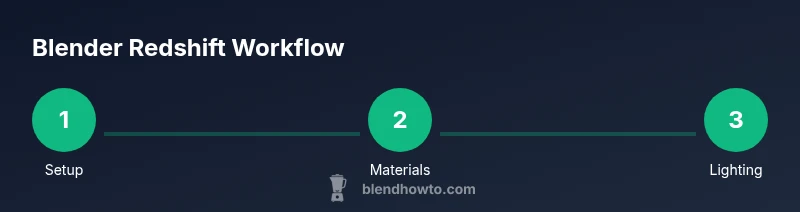
With Blender Redshift, you can render production-quality scenes by installing the Redshift for Blender plugin, enabling the add-on, and selecting Redshift as the render engine. Create RS materials, lights, and camera setups, then optimize sampling, global illumination, and denoising for faster, noise-free results. This workflow also supports GPU previews, instance handling, and advanced AOVs for compositing.
What Blender Redshift Is and Why It Matters
According to BlendHowTo, the combination of Blender with Redshift brings GPU-accelerated, photorealistic rendering to a familiar Blender workflow. Redshift is a production-oriented, path-tracing renderer designed to speed up renders on supported GPUs. Integrating it with Blender lets artists leverage RS materials, lights, and shaders directly inside their existing scene setups. This pairing is especially valuable for hobbyists moving toward professional visuals, as it offers a streamlined path from modeling to final output without leaving Blender.
The key advantage is speed without sacrificing control. Redshift exposes a robust material system, flexible lighting options, and a rich set of AOVs (arbitrary output variables) for post-processing. The result is a render engine that can handle complex scenes, volumetrics, and hair with relative efficiency compared to traditional CPU-based renderers. Throughout this guide, BlendHowTo emphasizes practical steps you can follow to achieve reliable, repeatable results in Blender using Redshift.
Prerequisites and Setup
To get started, ensure you have a compatible Blender version and license for Redshift. Install the Redshift for Blender plugin, then enable the add-on from Preferences > Add-ons. In the Render Properties, set the render engine to Redshift and configure basic device settings. If your system supports it, enable GPU rendering to take advantage of Redshift’s acceleration; if not, use CPU rendering as a fallback, understanding it will be slower. BlendHowTo’s analysis notes that keeping drivers up to date and verifying GPU compatibility are common first checks when you encounter issues.
Next, prepare your project by confirming units, scale, and camera setup. Redshift uses scene scale to influence lighting and shading, so aligning these with your real-world references helps achieve more accurate results. Organize assets, textures, and proxies to keep the workflow smooth and reduce memory usage as you iterate. Finally, wire up a basic RS material so you can preview shading in the viewport and confirm there are no obvious issues before you proceed to lighting and rendering.
Core Workflow: From Scene to Render
A practical Blender Redshift workflow starts with a clean scene, a well-structured material tree, and a lighting plan. Begin by creating or importing your subject geometry, grouping objects into collection sets for easier management, and establishing a clean UV layout for textures. Switch the material shader to Redshift’s RS Material and connect your textures (diffuse/color, roughness, metallic, normal). Use realistic base values as a starting point and then refine through test renders.
Establish a camera and a plausible composition, paying attention to depth of field and focal length. Load an HDRI as your environment map or light your scene with Redshift lights for accuracy. Roughly set up a basic global illumination approach, then render a low-sample draft to check lighting balance, shadow softness, and material response. Iteration here is key; small changes in lighting or material roughness can dramatically alter perceived realism.
Materials and Shading with Redshift
RS materials in Redshift for Blender use nodes to define surface properties, textures, and special effects. Start with a baseline RS Material, then plug in textures for color, roughness, metalness, and normal maps. The Redshift material has dedicated channels for sheen, subsurface scattering, and displacement, which you should enable only as needed to manage render times.
Texture maps should be properly connected to the corresponding inputs, and you can use level adjustments and gamma corrections within the node network to achieve consistent results across lighting scenarios. For realistic skin, fabric, or metal, build micro-details with roughness maps and use bump or normal maps sparingly to avoid excessive noise. Remember to check color management and ensure textures are exported in linear space to maintain consistency across devices.
Lighting and Environment
Lighting is central to the look of any scene. Redshift supports physically-based area lights, spotlights, and HDRI environments, each with its own parameters for intensity, color temperature, shadows, and softness. A practical approach is to start with a neutral HDRI for ambient illumination, then add area lights to emphasize form and direction. Use light temperature to match the mood you’re aiming for—warmer tones for pleasant daylight, cooler hues for dramatic scenes.
Environment textures can be used to enrich reflections and overall lighting. Redshift’s IBL (Image-Based Lighting) provides realistic reflections and shading when paired with a proper fisheye dome or spherical environment. Fine-tune shadow softness and distance falloff to control how light interacts with fine details and surfaces, ensuring that metallics, plastics, and organic materials respond convincingly under your chosen light setup.
Rendering Settings and Optimization
Rendering efficiency comes from balancing sampling, GI, and denoising. Start with modest sample counts for testing, then gradually increase where noise persists, focusing on regions with fine textures or subtle lighting. Redshift offers adaptive sampling and denoising options that can significantly reduce render times while maintaining quality. Enable denoising for final frames and use region renders or progressive refinement to iterate quickly.
Global illumination in Redshift can be tuned using primary and secondary bounce settings, while ray depth settings affect reflections and refractions. Use AOVs to separate beauty,Shadow, Diffuse and Specular passes for post-processing in your compositor of choice. Keep texture maps and assets organized; large textures can slow renders, so use tiling and mip-mapping to optimize memory usage. Finally, consider rendering with tile sizes optimized for your GPU, and save intermediate passes to avoid re-rendering entire frames after changes.
Animation, Passes, and Compositing
When animating, Redshift supports motion blur and motion vectors, which add realism but can increase render times. Enable motion blur on moving objects and adjust shutter settings to achieve natural blur without overpowering the scene. Render a set of passes (diffuse, specular, reflective, presence, z-depth, shadow) to give your compositor maximum control for color grading and depth cues. Separating passes helps you achieve more polished final results in post.
Compositing workflows with Redshift passes are straightforward in popular editors like Blender’s Compositor, Nuke, or After Effects. Tweak color balance, exposure, and contrast per pass to maintain a cohesive look. Maintain consistency by matching your color management settings between Blender and your compositor, and use LUTs sparingly to preserve dynamic range.
Troubleshooting and Common Pitfalls
Common issues include noise in dark areas, incorrect reflections, or memory limitations on GPU rendering. If you encounter noise, increase sampling selectively for problematic regions or enable denoising. If reflections look off, verify your environmental HDRI, reduce roughness where needed, and ensure the material’s IOR is appropriate for the surface. Memory warnings often indicate too many textures or large displacement maps; reduce texture resolution or use proxy objects to lighten the scene.
A frequent pitfall is underestimating the importance of proper color management and linear workflow. Ensure color spaces are consistent across textures and outputs and that your display-referred and scene-referred workflows align. Finally, keep drivers up to date and monitor hardware temperatures during long renders to prevent thermal throttling or instability.
Quick Project: Studio Scene Setup
Create a simple studio scene to apply the techniques described. Start with a neutral backdrop, add a few props with varied materials (metal, plastic, fabric), and light with a combination of HDRI and area lights to simulate a controlled studio environment. Build RS materials with realistic roughness levels, then render a few test frames to confirm lighting balance and material response before moving to higher-res textures and more complex geometry.
Tools & Materials
- Blender (latest stable release)(Ensure compatibility with Redshift for Blender plug-in.)
- Redshift for Blender plugin(License or trial; install from vendor.)
- GPU with CUDA/OptiX or Metal support(GPU acceleration is highly recommended for best results.)
- Stable internet connection(For plugin installation and texture/assets access.)
- HDRI environment textures(Used for environment lighting and reflections.)
Steps
Estimated time: 90-150 minutes
- 1
Install Redshift and configure Blender
Download and install the Redshift for Blender plugin. In Blender, enable the add-on and switch the render engine to Redshift. Verify that the GPU device is selected and that drivers are up to date before proceeding.
Tip: Restart Blender after installation to ensure all components load correctly. - 2
Set up a clean scene framework
Import or build your scene with organized collections. Confirm units and scale align with real-world measurements so lighting behaves predictably. Create a baseline camera and a simple background for context.
Tip: Group related assets into collections for easier material and light management. - 3
Create initial RS materials
Replace basic shaders with RS Materials, connect color, roughness, and normal maps. Start with neutral roughness values and progressively refine to mimic real surfaces.
Tip: Keep a local copy of baseline materials to compare changes quickly. - 4
Establish lighting and environment
Add Redshift area lights and optionally an HDRI for ambient illumination. Adjust light size, intensity, and shadows to sculpt the scene without washing out details.
Tip: Use a two-light setup (key and fill) to define depth and mood. - 5
Tune rendering settings
Adjust sampling, GI bounces, and denoising. Enable AOVs for post-compositing and monitor render times. Run iterative test renders to balance speed and quality.
Tip: Start with lower samples for drafts and increase only where needed. - 6
Animate and optimize passes
If animating, enable motion blur on moving objects and set up passes for compositing. Export a few passes (diffuse, specular, shadow) for flexible color grading in your editor.
Tip: Label passes clearly to avoid confusion in post. - 7
Final render and export
Do a final render pass at target resolution. Save as EXR or TIFF with embedded color profile, then composite in your preferred editor to fine-tune color and contrast.
Tip: Check final render against different display devices to ensure consistency. - 8
Review and iterate
Assess the final image, note any noise or lighting oddities, and re-render targeted frames if needed. Maintain a log of settings for future projects to improve efficiency.
Tip: Keep a change log to build a personal best-practice library.
Frequently Asked Questions
What is Blender Redshift and why use it together?
Blender Redshift combines the modeling power of Blender with Redshift’s GPU-accelerated renderer for fast, production-quality visuals. It provides advanced materials, lights, and post-processing options that are ideal for hobbyists moving toward professional rendering.
Blender Redshift combines Blender with Redshift for fast, professional-looking renders.
Do I need a GPU to use Redshift in Blender?
Redshift is designed for GPU rendering, which provides significant speed advantages for complex scenes. If a compatible GPU isn’t available, CPU rendering is possible but much slower, affecting iteration times.
Redshift uses your GPU for speed; CPU rendering is possible but slower.
Is Redshift free with Blender?
Redshift requires a separate license or trial from the Redshift/Maxon ecosystem. Blender is free, but Redshift is a paid plugin with licensing terms.
Redshift isn’t free with Blender; you need a license or trial for Redshift.
How can I optimize render times in Blender Redshift?
Start with lower sampling for drafts, enable denoising, use adaptive sampling, and render in passes to isolate noise areas. Use GPU-accelerated rendering and adjust sample ranges per region to balance speed and quality.
Try lower samples at first, enable denoising, and render in passes to save time.
What are common Redshift issues in Blender?
Common issues include noise in dark areas, memory errors from large textures, and incorrect material responses. Check driver compatibility, texture sizes, and ensure your HDRI is properly configured.
Common issues are noise, memory errors, and material mismatches. Check drivers and textures.
Can I use Redshift with animation in Blender?
Yes, Redshift supports animation and motion blur. Plan passes and denoising for sequences, and test with short clips to ensure performance stays consistent.
Redshift can render animated scenes with motion blur; test small clips first.
Watch Video
What to Remember
- Install and switch to Redshift in Blender to start rendering fast.
- Use RS materials and lights for realistic shading and shadows.
- Balance sampling and denoising to reduce noise without long waits.
- Leverage AOVs for flexible post-processing and grading.