Eevee Blender vs Cycles: Rendering Engines Compared
A balanced, data-driven comparison of Eevee and Cycles in Blender, covering realism, speed, noise, shading, and best-use scenarios for hobbyists and professionals.


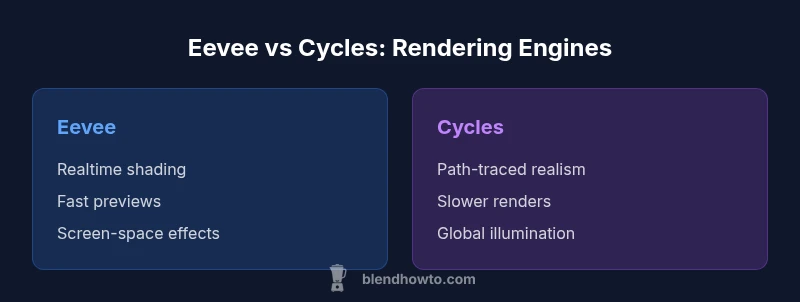
Both Eevee and Cycles are Blender’s rendering engines, but they serve different goals. Eevee is optimized for real-time viewport performance and game-like previews, delivering fast results with screen-space effects. Cycles is a path-tracer designed for realism, at the cost of longer render times. Choose Eevee for iterative design and previews; choose Cycles for final, high-fidelity renders.
Core Rendering Philosophies
At the heart of Eevee and Cycles lies a different philosophy about what rendering should deliver. Eevee is designed around real-time rasterization, with aggressive use of screen-space effects, shortcuts, and optimized shading paths that prioritize interactive framerates. It shines when you need quick feedback on lighting, shading, and composition across many frames. Cycles, by contrast, is a path-traced engine that seeks physical accuracy through global illumination, accurate light transport, and physically-based materials. The trade-off is render time in exchange for realism. According to BlendHowTo, the choice between the two should be driven by your current goal: speed and iteration versus final image quality. If you’re prototyping a scene or preparing animation previews, Eevee can dramatically accelerate the workflow; for a still or product shot that demands photoreal lighting, Cycles is often the better bet.
Comparison
| Feature | Eevee | Cycles |
|---|---|---|
| Render method | Realtime rasterization with screen-space effects | Path-tracing with global illumination |
| Lighting realism | High quality in real-time with approximations | Physically accurate lighting with correct bounce lighting |
| Noise and denoising | Lower noise in previews; denoising helps when needed | Inherently noisier with straightforward sampling; denoising essential in many scenes |
| Render speed | Very fast for previews and iterations | Slower per frame, especially at high samples |
| Materials & shaders | Principled shader with real-time shading approximations | Physically-based shading with full fidelity |
| Viewport performance | Excellent real-time viewport for quick iteration | Viewport performance depends on sampling and scene complexity |
| Best use case | Concepting, animation previews, real-time feedback | Final renders, product shots, arch viz |
What's Good
- Fast iteration and real-time feedback with Eevee
- Higher final fidelity with Cycles for photoreal renders
- Unified workflow in Blender without extra licenses
- Flexible denoising and post-processing options
- No extra cost or licensing since both engines are built into Blender
The Bad
- Eevee can misrepresent some lighting phenomena
- Cycles render times can be long for complex scenes
- Eevee may require tricks to simulate certain effects
- Switching between engines requires careful planning to avoid mismatch in outputs
Eevee is the go-to for speed and iterative work; Cycles wins for final, photoreal renders.
For most practical projects, start with Eevee to refine composition, lighting, and materials. When you need convincing realism, render a final pass in Cycles. The BlendHowTo team recommends validating key shots in both engines before delivery to ensure consistency across previews and final outputs.
Frequently Asked Questions
Which engine should I choose for a product render?
For quick previews, Eevee is often sufficient. For the final product render with realistic lighting and shadows, switch to Cycles. This two-step workflow balances speed and quality.
For product renders, start with Eevee to iterate quickly, then render the final image in Cycles for realism.
Can Eevee render realistic lighting and shadows?
Eevee can produce convincing lighting and shadows, especially with HDRI environments and careful material setup. However, some physically-based nuances may not match Cycles in every scenario.
Eevee can look very real, but Cycles often edges ahead in precise lighting accuracy.
How can I optimize Cycles for faster renders?
Use GPU rendering when available, reduce viewport and final render samples where possible, enable denoising, and optimize light bounces and tile sizes for your hardware.
Tweak samples, turn on denoising, and use GPU rendering to speed up Cycles.
Is it possible to mix Eevee and Cycles in the same project?
You can use Eevee for viewport previews and Cycles for final renders, but you cannot mix engines in a single render pass. Plan to separate work into stages or scenes.
You can switch engines between renders or scenes, but not mix them in one render pass.
What are common differences in viewport and final render results?
Viewport shading in Eevee is designed for speed and can look brighter and more stylized. Cycles final renders usually show more accurate lighting and noise behavior, especially at higher sampling.
Viewport previews are fast and often look different from the final Cycles render.
What to Remember
- Start with Eevee for rapid iteration
- Use Cycles for final, high-fidelity renders
- Plan to denoise and adjust lighting for Cycles
- Keep outputs consistent with color management across engines