Eevee Blender: Real-Time Rendering Guide for 3D Artists
Learn how to use Eevee in Blender for fast previews and cinematic visuals. This educational guide covers lights, materials, shadows, post-processing, and common pitfalls to help home artists and hobbyists achieve production-ready results with real-time rendering.


Eevee Blender is Blender’s real-time render engine designed for fast previews and production-ready visuals. This concise guide shows how to set up Eevee, optimize lighting, materials, and shadows, and render believable scenes without the heavy path-tracing of Cycles. By following practical steps, you’ll achieve responsive previews, smooth iterations, and compelling results for games, visual effects, and product renders.
Understanding Eevee: Real-Time Rendering Basics
Eevee Blender is Blender’s real-time render engine designed to provide instant feedback on lighting, materials, and composition. According to BlendHowTo, Eevee shines for iterative workflows, letting you see changes as you type. The engine uses screen-space effects, simplified lighting paths, and optimized shading to deliver cinematic previews without long render times. In practice, this means you can test camera angles, textures, and reflections while sculpting your scene. For home artists and hobbyists, Eevee bridges the gap between quick concept art and polished renders, making it ideal for look-dev, product previews, and game-ready assets. Throughout this guide you’ll learn how to configure Eevee for reliability, balance speed with quality, and troubleshoot common issues that arise when pushing real-time rendering to production-friendly results. eevee blender workflows can be adjusted to your hardware, but the core principle remains: accuracy in shading and performance go hand in hand. Let’s start by outlining the essential settings you’ll adjust first, then move into practical scenes.
Eevee vs Cycles: Real-Time Rendering vs Path Tracing
Eevee Blender is designed for speed, not the physically exact light transport of Cycles. While Cycles uses path tracing for photorealism, Eevee relies on screen-space shading, light portals, and simplified bounce calculations to deliver fast previews. This makes Eevee ideal for look-dev, animation previews, and concept art where iteration speed matters more than ultimate physical accuracy. BlendHowTo’s experience shows that many artists use Eevee for early-stage lighting studies and asset previews, then switch to Cycles for final frames when utmost realism is required. Knowing the trade-offs helps you choose the right tool for each stage of your project, saving time without sacrificing creative intent.
Lighting and World Settings in Eevee
Lighting in Eevee hinges on world settings, light probes, and HDRI maps. Start with a neutral World color and progress to HDRI for realistic reflections. Enable Ambient Occlusion to add depth in shaded areas, and consider Screen Space Reflections for glossy surfaces. Bloom can enhance highlights but should be used sparingly to avoid an overexposed look. In practice, you’ll balance multiple light sources, adjust intensity, and experiment with probe placement to achieve believable mood. For beginners, a simple three-point lighting setup paired with a subtle HDRI often yields strong results quickly. eevee blender benefits from iterative adjustments rather than a single perfect setup.
Materials and Shaders: Principled BSDF in Eevee
Eevee uses the Principled BSDF shader as the workhorse for most materials. You’ll adjust Base Color, Roughness, Metallic, and Specular to achieve the desired surface feel. Subsurface Scattering, Transmission, and Alpha settings unlock realistic skin, glass, and translucent materials. Don’t forget to enable Screen Space Reflections and adjust Texture Space to improve how textures interact with lighting. Color management in Eevee should align with your project’s goals, whether you aim for stylized looks or near-photorealism. The key is to test material across several lighting scenarios to ensure consistency, since Eevee’s real-time shading can react differently under varied conditions. eevee blender users should iteratively tweak textures and roughness maps for consistency across frames.
Shadows, Reflections, and Screen Space Effects
Shadows in Eevee rely on shadow maps and bias adjustments to minimize artifacts. Fine-tune Shadow Cubes and Distance for your scene scale, and enable Contact Shadows for tight, contact-based realism on close objects. For reflections, Screen Space Reflections provide believable gloss without expensive environment probes, but may fail in extreme angles. Use Reflection Cubemap probes when your scene requires stable reflections across camera movement. These settings often determine how convincing your renders feel in motion or with changing lighting, so test from multiple angles. eevee blender workflows benefit from a cautious approach to reflections and shadows to avoid noisy or flickering results.
Post-Processing, Color Management, and Final Touches
Eevee’s post-processing stack includes Color Management, View Transform, and various compositing options. Set the View Transform to Filmmic or Standard, depending on your project’s mood, and adjust Exposure, Gamma, and High Dynamic Range mapping for consistency. Bloom, Depth of Field, and Vignette can add cinematic polish, but overuse may reduce readability. Use the Compositor for non-destructive tweaks like color balance and lens effects. Remember, Eevee is built for speed; keep post-processing lightweight during early iterations and reserve heavier passes for final renders in Cycles if needed. eevee blender can deliver strong looks with careful post-pro, but avoid overprocessing real-time previews.
Performance and Quality: Finding the Right Balance
Performance in Eevee hinges on scene complexity, texture resolution, and shader complexity. Start with lower resolution textures and a reduced count of lights to maintain interactivity. Global Illumination is approximated; adjust samples and bounce limits to keep frame rates acceptable. If you encounter lag, disable high-cost effects like Screen Space Ambient Occlusion in viewport and reduce resolution for previews. As you refine materials and lighting, gradually re-enable features to measure impact on performance. The goal is a steady workflow where feedback loops remain fast without sacrificing essential look and feel. eevee blender workflows excel when you track performance as you iterate, not after the fact.
Troubleshooting Common Eevee Issues
Flickering shadows often stem from shadow bias or inconsistent light direction. Noisy materials can result from overly aggressive roughness or high texture density; adjust texture filters and mipmaps. If reflections look flat or incorrect, re-check HDRI setup and Screen Space Reflections settings. Some effects may behave differently when toggling between Eevee and viewport shading. When you encounter a stubborn issue, revert to a minimal test scene and reintroduce elements one by one to identify the culprit. Consistent naming, clean node groups, and careful texture management reduce troubleshooting time. eevee blender users should maintain a baseline scene to isolate artifacts quickly.
Animation with Eevee: Quick Preview and Limitations
Eevee supports animation previews with real-time feedback, making it ideal for blocking and timing. However, some effects like shadows and reflections may change slightly during motion due to real-time approximations. For accurate motion visuals, test animation across your entire timeline and compare against a Cycles render if you need final frame fidelity. Bake shadow maps where necessary to stabilize shadows during movement, and consider using simple emissive passes to maintain consistent lighting. This workflow helps you iterate faster while preparing for higher-fidelity renders later. blendHowTo notes that Eevee remains a strong choice for animation previews and look-dev.
Putting It All Together: A Simple Eevee Project Workflow
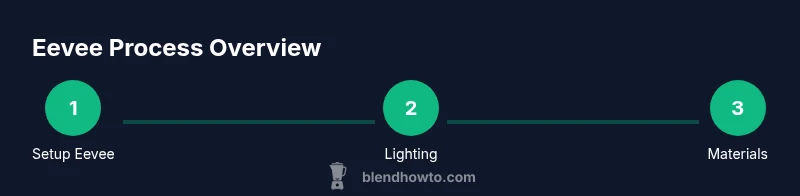
To close this guide, apply a practical, repeatable workflow for new projects. Start by setting Eevee as the render engine, configure a neutral world, and establish a basic three-point lighting setup. Create a simple material with Principled BSDF and test with HDRI lighting. Add Screen Space Reflections and Ambient Occlusion, then apply modest post-processing to achieve a cinematic look. Run quick test renders, tweak materials and lights, and finalize with a clean render test. The aim is to build a simple, repeatable process that scales to more complex scenes while keeping iteration fast. BlendHowTo’s approach emphasizes practical steps and consistent checks to help you master Eevee blender techniques efficiently.
Authority Sources
- Blender Official Documentation: https://docs.blender.org/manual/en/latest/render/eevee/
- Blender Official Documentation: https://docs.blender.org/manual/en/latest/render/eevee/settings.html
- CG Channel: https://www.cgchannel.com/
mainTopicQuery":"eevee blender"],
toolsMaterials
:
Tools & Materials
- Blender (latest stable)(Download from blender.org and enable Eevee in Render Properties)
- Compatible GPU with updated drivers(NVIDIA/AMD; check Blender's system requirements for your OS)
- HDRI environment map(For realistic reflections and lighting context)
- Test scene (low-poly)(Cube, plane, basic lamp to demo lighting and materials)
- Color-calibrated monitor(For accurate previewing of colors and HDRI)
Steps
Estimated time: 60-90 minutes
- 1
Open project and set render engine to Eevee
Launch Blender and open your project. In the Render Properties panel, set Render Engine to Eevee and verify that the camera, lamp, and objects are visible in the viewport. This initial step ensures you’re working with Eevee’s real-time renderer from the start.
Tip: Save frequently as you switch render engines to avoid losing setup progress. - 2
Switch viewport to Eevee-friendly shading
Configure the viewport shading to Material Preview or Rendered view, whichever shows Eevee’s shading in real time. This helps you review lighting, textures, and reflections as you build the scene.
Tip: Enable when testing textures that react to light for faster feedback. - 3
Set up world lighting and HDRI
Add an HDRI image for realistic lighting and reflections. Adjust World > Color and Strength, then introduce Ambient Occlusion to deepen creases and corners. This gives a convincing baseline illumination for your model.
Tip: Start with a neutral HDRI and gradually increase intensity as needed. - 4
Place lights and tune shadows
Add area or point lights to shape the scene. Calibrate shadow bias and distance to avoid flicker and artifacts. Ensure shadows align with camera angles for consistent motion visuals.
Tip: Use Contact Shadows for close-up details on glossy surfaces. - 5
Configure Eevee-specific render settings
In Render Properties, adjust settings such as Sampling, Shadow Method, and Screen Space Reflections. Lower sampling for interactive previews, then increase for final renders. Enable Bloom sparingly for highlights where appropriate.
Tip: Test with a mid-range sample count to keep real-time feedback meaningful. - 6
Material setup with Principled BSDF
Create materials with the Principled BSDF shader. Tweak Base Color, Roughness, Metallic, and Specular to achieve your look. Add Subsurface or Transmission as needed for translucent or glassy surfaces and verify with lighting from multiple angles.
Tip: Keep texture maps consistent across the scene to maintain cohesion. - 7
Enable post-processing features
Turn on Color Management (Filmic, Exposure, Gamma) and consider a subtle Color Balance. Add Vignette or Depth of Field in the Compositor if needed for final polish without slowing your workflow.
Tip: Prefer in-compositor adjustments over heavy in-scene effects for speed. - 8
Test render and iterate
Render a quick test frame, review, and adjust lights, materials, and shadows. Repeat with different angles to ensure the look holds across the scene.
Tip: Document changes to track what improves the render quality. - 9
Finalize and export
Save a final Eevee render, switch to Cycles only if you need maximum realism, and export your assets for the target platform. Keep a lightweight viewport version for ongoing iterations.
Tip: Backup your project and preserve a look-dev version for future edits.
Frequently Asked Questions
What is Eevee in Blender?
Eevee is Blender’s real-time render engine designed for fast previews and look-dev. It provides interactive feedback on lighting, materials, and scene composition, making it ideal for rapid iterations.
Eevee is Blender’s real-time renderer for quick previews and look development.
Can Eevee produce photorealistic renders?
Eevee can achieve photorealistic results with careful lighting, textures, and post-processing, but it uses real-time approximations rather than full path tracing. For final frames, Cycles remains the gold standard.
Eevee can look very realistic, but for ultimate realism you may switch to Cycles.
How do I enable global illumination in Eevee?
Eevee uses environment lighting and light probes to approximate global illumination. Enable appropriate probes and ensure your lights contribute to soft, natural bounces without overburdening performance.
GI in Eevee uses lighter probes and environment lighting for quick results.
What are common Eevee issues and fixes?
Flickering shadows, noisy materials, and dark corners are typical problems. Tweak shadow bias, check texture maps, and adjust ambient occlusion and screen space reflections. Start from a clean scene and reintroduce elements gradually.
Shadows flicker; fix it by adjusting bias and testing with a simpler scene.
Is Eevee suitable for animation previews?
Yes. Eevee offers fast previews for animation blocking and timing. For high-fidelity final frames, consider Cycles, but use Eevee for iterations to save time.
Great for quick animation previews, then switch to a higher-fidelity render if needed.
What are best practices for performance in Eevee?
Keep texture sizes reasonable, reduce light counts, and enable only necessary post-processing effects during drafts. Use simplified materials and incremental tests to maintain interactivity.
Use smaller textures and fewer effects at first to keep it snappy.
Watch Video
What to Remember
- Master Eevee's real-time workflow for fast previews
- Balance lights, materials, and shadows for realism
- Leverage post-processing for cinematic polish
- Use HDRI lighting to boost realism quickly
- Test early and iterate to maintain speed and quality