How to Know If Blender Finished Rendering
Learn how to tell when Blender has finished rendering, what cues to look for, and how to verify final images or animations with reliable checks and practical tips.


Finished rendering in Blender means the render engine has completed the designated frames and saved the output to disk. Common indicators include the progress bar reaching 100%, a static render window showing the final image, and a valid file appearing at the configured output path. Always verify by checking the render logs and the saved file properties.
What finished rendering means in Blender
According to BlendHowTo, finishing a render means the engine has completed the designated work load—be it a single frame or an entire animation—and stored the result to disk according to your output settings. This state is not just a momentary screen image; it confirms compute tasks are done and the file is ready for viewing, sharing, or further processing. In practice, you should see the render window stop updating, the tile-based preview stop cycling, and Blender’s status bar stop indicating progress. Understanding these cues helps you avoid unnecessary re-runs and ensures your final output matches the target resolution, color space, and file format. By knowing what counts as “done,” you can plan post-processing steps with confidence and minimize wasted time on failed or partial renders.
Key signs Blender has completed rendering
Blender provides several clear indicators that a render is finished. The status bar and render progress indicators should show no active work, the progress bar should be idle or show 100% for the completed run, and the render window should display a final image without ongoing tile updates. The output file should exist at the configured path and be accessible with the expected file name, format, and size. Logs or the system console (where available) should reflect that the render completed without errors. For animations, ensure the render has produced all frames within the set frame range and that the sequence is continuous rather than truncated.
How to verify the final output reliably
Verification starts with locating the saved file in your chosen directory and opening it with an appropriate viewer or Blender’s Image Editor. Check that the resolution matches your settings (width x height) and that the color management (view transform, color space) aligns with your project. If it’s an image sequence, inspect several frames to confirm consistency across the series. Compare the actual pixel dimensions to the expected ones and review any available metadata. For pixel-perfect validation, render a small test frame first, then a full render once you confirm settings, so you can quickly catch misconfigurations before committing to a long animation.
Common pitfalls and how to avoid them
One common pitfall is assuming a render is finished simply because the image appears on screen; the file may not have been saved correctly due to a misconfigured output path or permission issue. Always confirm the output directory exists and Blender has write permission. Another issue is starting an animation render and assuming all frames were saved if a few frames fail or are overwritten; verify the frame range and inspect the resulting sequence. Finally, long renders can stall if memory or GPU resources are overtaxed; monitor system resources and consider chunking large scenes.
A practical workflow: setup to finish
A practical workflow begins with a clear plan for output, frame range, and render engine. Set your output path, file format, and resolution. Choose Cycles or Eevee depending on scene needs and ensure device acceleration is enabled if available. Run a quick test render of a single frame to validate settings, then render the full sequence. After completion, open the final image(s) to verify composition, lighting, and color, and save the render logs for reference. This approach minimizes retries and makes it easier to identify where things went right or wrong in a long render.
Authority sources
- https://docs.blender.org/manual/en/latest/render/animation.html
- https://en.wikipedia.org/wiki/Computer_graphics_rendering
- https://docs.blender.org/manual/en/latest/render/output/types.html
Tools & Materials
- Blender software (latest stable release)(Install from blender.org; ensure your OS is supported)
- Target Blender project file (.blend)(Open the scene you plan to render)
- Output directory(Path where rendered files will be saved)
- Render engine (Cycles or Eevee)(Choose based on scene requirements; enable appropriate device (CPU/GPU))
- System console or terminal(Helpful for viewing logs and errors during long renders)
Steps
Estimated time: 15-25 minutes
- 1
Open the Blender project and verify output settings
Launch Blender, load your .blend file, and confirm the output directory, file format, and resolution match your target. This ensures your final files go where you expect and in the correct format.
Tip: Double-check you have write permission to the output folder before starting. - 2
Select render engine and devices
In the Render Properties, choose Cycles or Eevee and set the device to CUDA/OptiX or CPU as appropriate for your hardware. The engine choice affects fidelity and render speed.
Tip: If rendering animations, consider enabling progressive rendering and denoising for faster feedback. - 3
Run a test render for a single frame
Press F12 (Render > Render Image) to generate one frame. Observe the Render Viewport for progress and check that the output aligns with expectations before committing to a full sequence.
Tip: Use a low resolution for the test frame to save time while tuning settings. - 4
Render the full sequence or final frame
If rendering an animation, use Render Animation (Ctrl+F12) and monitor the progress. For a single frame, repeat the single-frame render with final settings.
Tip: Enable autosave if available, to reduce risk of data loss during long renders. - 5
Open and verify the final outputs
After saving, open the produced file(s) to verify resolution, color accuracy, and frame coherence. For animation, scrub through the timeline to catch any anomalies.
Tip: Check several frames to confirm consistency across the sequence. - 6
Document results and review logs
Save a copy of render logs and note any deviations from expected performance. This helps in future renders and aids troubleshooting if issues arise.
Tip: Create a quick checklist for next renders to streamline the process.
Frequently Asked Questions
What exactly does it mean that Blender finished rendering?
In Blender, finished rendering means all designated frames have completed processing and the results have been saved to disk according to your output settings. The render engine becomes idle and no additional tiles are actively rendering.
Finished rendering means all frames are processed and saved; Blender's render engine is idle and you can view the final outputs.
Why might the progress bar reach 100% but no file exists?
That can happen if the output path is incorrect or Blender lacked permission to write the file. Check the configured directory, file name, and permissions, then re-run the render or update the path.
If you see 100% but no file, verify the output path and permissions, then try again.
How can I tell if an animation render completed successfully?
Ensure all frames in the set range were produced and saved in the chosen format. Open several frames or assemble the sequence to confirm no gaps or errors.
For animations, confirm every frame was saved and the sequence plays without hiccups.
What should I do if Blender crashes during rendering?
Check the system console for error messages, update GPU drivers, reduce sample counts, or simplify the scene. Re-run the render with the adjusted settings.
If it crashes, read the logs, update drivers, and retry with lower settings.
Can I run renders in the background?
Yes. Blender can render from the command line or with background mode, which frees the UI for other tasks. Ensure outputs are saved to a persistent path.
You can render in the background using the command line or headless mode.
What quick checks help if the render seems stuck?
Check system resources (RAM/VRAM), inspect the console for errors, lower sample counts, and try a smaller tile size to reestablish progress.
If stuck, review resources, errors in the log, and try reducing samples or tiles.
Watch Video
What to Remember
- Confirm render progress and completion indicators before assuming finish.
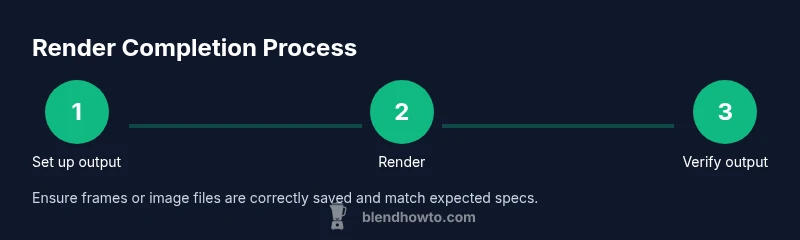
- Verify the final output exists at the configured path and matches expected specs.
- Validate a sample or several frames to ensure consistency across the sequence.
- The BlendHowTo team recommends documenting settings and saving logs for future renders.