How to Make Glass in Blender: A Practical Guide
Learn how to make glass in Blender with Cycles and Eevee, mastering transmission, IOR, roughness, lighting, and caustics for realistic renders. Step-by-step shader setup, scene tips, and troubleshooting guide.


By the end of this tutorial you will create a realistic glass material in Blender, ready for render in Cycles or Eevee. You’ll learn to apply a glass shader, adjust transmission, IOR, roughness, and shader nodes, and optimize lighting for reflections and caustics. This guide also covers common pitfalls and how to choose between Eevee and Cycles for glass.
Understanding Glass in Blender
In Blender, glass-like materials rely on a balance of transmission, refraction, and light interaction. The core concept behind how to make glass in Blender is to simulate how light passes through a solid with a smooth surface, bending and reflecting at the boundary. This section covers the physical cues you should replicate: clear transparency, subtle distortion, and realistic reflections. According to BlendHowTo, glass in Blender is defined by transmission (light passing through), roughness (surface microstructure), and the index of refraction (IOR) that governs bending. Start with a simple cube and move toward a more complex shape to study how glass behaves with different shapes and lighting. As you experiment, keep in mind that true glass requires accurate shading, proper scene scale, and mindful light positioning to avoid flat, washed-out results.
Choosing the Right Render Engine
Blender’s two main render engines handle glass differently. Cycles uses ray tracing to simulate light paths accurately, producing convincing caustics and refractions but potentially longer render times. Eevee, by contrast, is faster and great for real-time previews, yet can produce less physically precise glass unless you enable advanced settings like screen-space refractions and accurate reflection probes. For the most realistic glass, start in Cycles, then test a quick pass in Eevee to compare performance versus fidelity. BlendHowTo recommends starting with Cycles for final renders and using Eevee for early concept visualization.
Building a Realistic Glass Shader
The backbone of a glass material in Blender is a shader network that emphasizes transmission and color management. A typical setup uses a Principled BSDF with Transmission set to 1.0, roughness tuned for surface clarity, and an appropriate IOR (commonly around 1.45 for standard glass). You can layer additional nodes for environmental tint or subtle absorption, but a clean base yields the most convincing results. Remember to connect the shader to the Material Output node and verify color management in your render settings. BlendHowTo notes that even small changes in Transmission or IOR can dramatically affect perceived realism.
Controlling Transmission, IOR, and Roughness
Transmission determines how much light passes through; roughness controls surface microstructure and edge clarity. A perfectly smooth surface (roughness near 0) yields crystal-clear refraction but can appear unrealistically perfect if not lit well. Start with Roughness around 0.0–0.05 for clear glass, then introduce minimal roughness to simulate real-world imperfections. IOR influences bending of light at the boundary; common values for glass sit near 1.45–1.52 depending on glass type. In scene units, ensure your object is scaled realistically because the IOR interacts with your scale to affect caustics and distortions.
Lighting for Glass: Caustics, HDRI, and Brightness
Lighting is essential to sell glass. Use a well-balanced HDRI environment to provide realistic reflections, and add a few strong point lights or area lights to create caustics. Enable caustics in Cycles and, if using Eevee, enable screen-space reflections and refractions. Avoid overpowering lights that wash out transparency; instead, aim for a subtle balance that reveals the glass’s edge and internal distortions. The lighting setup should highlight both specular reflections and transmission through the material.
Environment and Reflections: Environment Textures
Reflections give glass its telltale signature, so environment textures matter. A clean, high-dynamic-range image as an HDRI map can produce natural reflections on curved surfaces, while an isolated studio backdrop helps you study how light interacts with edges and corners. You can also add a soft reflector card to fill shadows without flattening contrast. Adjust exposure and gamma during post-processing to avoid clipped highlights in the glass.
Rendering Tips for Eevee vs Cycles
Cycles offers physically based rendering with accurate light paths and more reliable caustics, but at longer render times. Eevee provides speed with real-time feedback; enable features like Screen Space Reflections (SSR), Refractions, and high sample counts for glass scenes. For Eevee, consider baking light probes or using a denoiser to reduce noise in translucent regions. When in doubt, render a sample pass in both engines to compare fidelity and decide based on final output needs.
Common Pitfalls and How to Fix Them
A frequent issue is glass that looks cloudy or opaque due to high roughness or incorrect IOR. Another common problem is over-dark refractions when lights are placed behind the camera or the camera’s clipping planes cut off refractions. Ensure normals are clean, scale is correct, and the environment is properly set up to avoid trapped light. If caustics look off, increase sampling or switch render engine and adjust light paths. Finally, verify color management and exposure settings to keep glass from appearing tinted or washed out.
Practical Projects: Quick Glass Scene Walkthrough
For a hands-on exercise, start with a simple test scene: a glass pane resting on a clear surface beside a single light source. Apply a bright glass shader with Transmission 1.0, IOR around 1.45, and Roughness near 0.02. Add an HDRI backdrop and perform a few test renders in Cycles, then tweak the lighting until reflections and edges appear crisp. As you iterate, experiment with different shapes—cups, bottles, or bowls—to observe how curvature affects refraction and edge sharpness. This practice reinforces the core concept that the glass look hinges on accurate shading, thoughtful lighting, and careful scene setup."],
},
mainTopicQueryOnlyHolder1
Tools & Materials
- Blender (latest stable release)(Supports Cycles and Eevee rendering modes)
- A computer capable of rendering(GPU acceleration helps; use a reasonable CPU/GPU combo for interactive work)
- HDRI environment map(For realistic reflections and lighting)
- Reference images for glass types (optional)(Inspiration for color and absorption variations)
Steps
Estimated time: 90-120 minutes
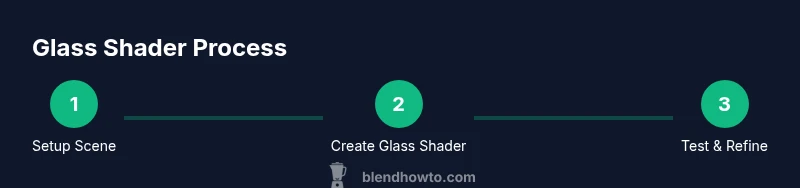
- 1
Prepare your scene
Delete the default cube, set up your camera and a simple geometry (plane or basic mesh) to house the glass material. Ensure the scene units are reasonable to avoid distortion in refraction. This step creates a clean baseline for testing the glass shader.
Tip: Keep the object centered and scale consistent with your lighting for predictable refraction. - 2
Create the glass material
Add a Principled BSDF shader and set Transmission to 1.0. Connect to the Material Output and adjust the base color to pure white or very light tint. This forms the core of the glass shader that will refract and reflect light.
Tip: Start with a low roughness; refine after testing with lighting. - 3
Tune IOR and roughness
Set IOR around 1.45–1.52 depending on glass type. Adjust Roughness to 0.02–0.05 for a crisp edge. Small changes can drastically affect caustics and edge clarity.
Tip: Watch real-world glass as a reference to calibrate IOR and roughness. - 4
Set up lighting and environment
Add an HDRI for realistic reflections and a light source to create visible caustics. In Cycles, enable caustics; in Eevee, enable Screen Space Reflections and Refractions.
Tip: Avoid overexposure near bright highlights that wash out refractions. - 5
Choose render engine and enable settings
Test in Cycles for final renders due to physical accuracy; test in Eevee for quick previews. Enable transmission and refraction settings accordingly.
Tip: If you see noisy glass, increase samples or enable denoising. - 6
Render a test frame
Render a low-resolution preview to evaluate edge sharpness, reflections, and overall clarity. Adjust lighting or shader roughness until the result looks natural.
Tip: Use a denoiser in Cycles to reduce noise without losing detail. - 7
Refine and finalize
Fine-tune color tint, absorption (optional), and edge sharpness. Save multiple variants to compare under different lighting conditions.
Tip: Document settings so you can reproduce the result later. - 8
Export and share
Save the final render at an appropriate resolution and share with your audience or team. Include notes on shader setup for future projects.
Tip: Keep a small reference sheet of your IOR, roughness, and lighting values.
Frequently Asked Questions
What is the best render engine for glass?
Cycles is typically best for physically accurate glass because of its ray-tracing caustics. Eevee can approximate glass with screen-space tricks and careful settings, but may not always reproduce true caustics. Choose based on final quality needs and render time.
Cycles is usually best for realistic glass due to caustics, while Eevee can work for quick previews with careful tuning.
How can I reduce noise in glass renders?
Increase sampling, enable denoising, and ensure the light paths are optimized. Lower roughness and a clean IOR can help, but balance is key to avoid overly sharp artifacts.
Raise samples and use denoising to clean up grain in glass renders.
Why isn’t my glass refracting correctly?
Check object scale, normals, and IOR. Ensure the glass is not inverted and that the camera and light positions align to show refraction correctly.
Make sure your object is scaled properly and normals point outward; then adjust IOR for realistic bending.
Can glass show transparent shadows in Blender?
Yes, but you may need to enable accurate shadow handling in the render settings and adjust light path options to capture translucency.
Yes, with proper render settings for refractions and shadows.
Is glass possible in Eevee?
Yes, with Screen Space Reflections and Refractions enabled, plus careful lighting. Results won’t be as physically precise as Cycles, but can be visually convincing for real-time work.
You can do glass in Eevee, just tune reflections and refractions carefully.
Watch Video
What to Remember
- Apply accurate IOR around 1.45 for standard glass
- Enable transmission and correct roughness for edge clarity
- Use HDRI and proper lighting to reveal reflections
- Prefer Cycles for final, high-fidelity glass renders
- Test multiple shapes to study refraction behavior