Blender Transparent Material: Glass & Clear Surfaces
Learn to create realistic blender transparent materials like glass and crystal using transmission, IOR, and lighting techniques. This step-by-step guide covers Cycles and Eevee workflows, practical tips, and common pitfalls.


By the end, you’ll be able to create a realistic blender transparent material suitable for glass, water, or clear plastics. You’ll learn how to use the Principled BSDF with Transmission enabled, set an appropriate IOR, fine-tune roughness, and manage reflections and refractions for both Cycles and Eevee. This guide also covers practical lighting tricks, test renders, and common pitfalls to avoid.
Understanding Blender Transparent Materials
Blender transparent materials are shader setups that let light pass through a surface while still showing reflections, refractions, and colors from the surrounding environment. In practice, you’ll use a Principled BSDF or a dedicated Glass/Glossy mix to control how transparent the object appears. According to BlendHowTo, mastering transparency starts with a solid grasp of how light interacts with glass, water, and clear plastics in a 3D scene. The keyword blender transparent material frames a family of techniques used across product design, architecture, and visual effects. In cycles-based workflows, realistic transparency relies on precise control of Transmission, IOR, roughness, and the fresnel edge to create believable edges and glare. In Eevee, you’ll need to enable screen space reflections and refraction to achieve similar results. The BlendHowTo team found that consistent lighting and clean HDRI backdrops dramatically improve perceived clarity and realism for transparent surfaces.
Key Parameters That Define Transparency
The core sliders and nodes that dictate how a transparent material behaves are Transmission, IOR (Index of Refraction), and Roughness. Transmission controls how much light passes; a value of 1 means fully transparent. IOR determines bending of light as it passes through the material; typical values range from about 1.33 for water to 1.5–1.6 for standard glass. Roughness softens reflections and blurring caustics; set to 0 for a perfectly smooth surface, or higher values for frosted glass. In addition, consider Transmission Roughness to soften refraction independent of color; Color helps tint the material slightly (for example, a faint greenish tint is common in older glass). For absorption and tint, you can use volume shaders in the object’s interior or gradient textures to simulate colored liquids. Finally, always test under your intended lighting conditions because real-world glass interacts with surroundings in complex ways, especially with HDR lighting.
Eevee vs Cycles: Rendering Transparent Materials
Cycles tends to produce more physically accurate refractions and caustics, while Eevee shines with real-time performance. In Cycles, rely on accurate Transmission, IOR values, and a clean scene with HDR lighting to achieve believable glass. In Eevee, enable Screen Space Reflections and Refraction, and consider using a mix of Principled BSDF with a Glass or Glossy shader for faster previews. If caustics matter for your shot, you may need to enable experimental features or switch to Cycles for final renders. The BlendHowTo approach emphasizes testing both engines to understand their trade-offs for your project.
Step-by-Step Example: Glass Bottle
- Create a simple bottle mesh or use an existing model and add a new material slot. Assign the material to the bottle and name it clearly. This creates a dedicated workspace for transparent tuning.
- Switch to Cycles for realistic refraction, or keep Eevee for fast previews with the proper settings. In Cycles, enable Transmission and set IOR around 1.45 for glass. Fine-tune Roughness to control edge sharpness.
- Set the base color to white or a pale tint, then increase Transmission to 1.0 and adjust Transmission Roughness to soften light paths. Add a subtle tint if you’re simulating colored glass.
- Fine-tune reflections by enabling glossy reflections with a small roughness value. This balances sharp highlights with realistic surface variance.
- Add a HDR lighting environment and perform test renders from several angles to check how refractions interact with the scene. Iterate until edges and caustics look natural.
Lighting and Environment Considerations
Transparent materials respond dramatically to lighting and environment. A bright HDRI or a high-contrast light setup reveals accurate refraction, color tint, and edge softness. Keep reflections under control by balancing world lighting with scene lights; too bright reflections can wash out the material’s transparency, while too-dark lighting can make the material look flat. For arch-vis and product visuals, a clean, neutral background helps the material shine without competing colors.
Textures and Tinting for Realism
Textures can add subtle color, imperfections, or thickness to a transparent material. Use a very light color texture to tint glass subtly, or a gradient for liquids inside a container. If you’re simulating colored water or wine, consider Absorption Color in a Volume Shader to create depth inside the object. Layering a translucency texture over the surface can mimic micro-scratches and dust. Always test with your target lighting because tint and texture interact with light in complex ways.
Troubleshooting Common Issues
Common issues include unrealistic edge darkening, missed refractions in Eevee, or noisy reflections. If refraction looks wrong in Eevee, ensure Screen Space Reflections and Refraction are enabled and that you’re not mixing opaque shaders unintentionally. In cycles, over-bright transparent areas can indicate improper exposure or too-high light intensity; reduce light strength or increase render samples. Remember to check normals, scale, and object thickness, as very thin objects can produce artifacts.
Practical Workflows: Quick Projects
Start with a simple glass pane, then progress to a glass bottle and a crystal cube. For each project, duplicate the base glass shader and tweak the tint, IOR, and roughness to observe how small changes affect the final render. Build a small library of presets for different materials (water, clear glass, frosted glass, tinted glass) to speed up future scenes. This hands-on practice aligns with BlendHowTo’s recommended workflows for rapid proficiency.
Performance and Testing Best Practices
Aim for progressive renders when adjusting material properties. Begin with lower samples for quick feedback, then raise samples for final renders. Use HDRI lighting to evaluate transparency under realistic conditions, and compare results across Eevee and Cycles to understand engine-specific behavior. Document your presets and settings so you can reproduce results across scenes.
Tools & Materials
- Blender software(Version 3.0+ recommended; supports Cycles and Eevee rendering.)
- HDRI environment or strong lighting setup(High dynamic range lighting improves transparency realism.)
- Reference images of glass and water materials(Useful for calibrating color, tint, and transmission.)
- GPU or CPU capable hardware(Faster renders, especially with high samples.)
- Test objects and simple shapes(Squares, bottles, and cylinders help test refraction and edge behavior.)
Steps
Estimated time: 45-60 minutes
- 1
Create material and assign to object
In Blender, select the object, go to the Materials tab, and click New to create a fresh material. Make sure the material is assigned to the correct object in Edit mode by checking the material slot. This step sets the foundation for all subsequent transparency tweaks.
Tip: Rename the material to something like Glass_Pane for quick reference. - 2
Choose render engine
Decide between Cycles for realism or Eevee for speed. Cycles handles light interactions more physically, while Eevee requires extra settings for comparable results. Make the choice before tweaking transmission and IOR.
Tip: If you’re unsure, start with Cycles for the first pass. - 3
Enable Transmission
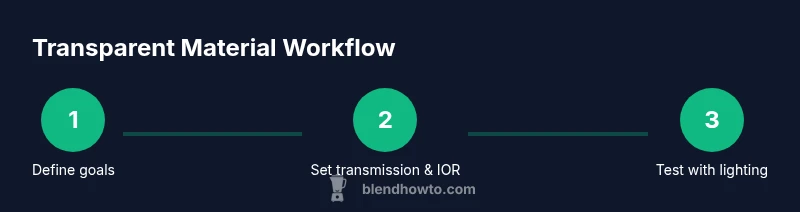
In the Principled BSDF, set Transmission to 1.0 to allow light to pass fully through the surface. This is the core setting for transparency and should be the first adjustment when building a glass material.
Tip: Keep Transmission color white unless you want a tinted glass. - 4
Set IOR
Adjust the Index of Refraction to resemble the material (about 1.45 for standard glass). IOR affects how light bends at the surface and influences the edge sharpness of refractions.
Tip: Test several IOR values to see how edge bending changes with your scene. - 5
Tune Roughness
Set Roughness to 0 for a polished glass edge, or higher (0.05–0.2) for frosted glass. Roughness controls the blur of reflections and the clarity of refraction.
Tip: Smaller surfaces often require lower roughness for realism. - 6
Enable reflections and refractions
In Eevee, enable Screen Space Reflections and Refraction in the render settings. In Cycles, ensure samples are sufficient to render smooth refractions without noise.
Tip: Use a reflective environment to highlight edges and crisper highlights. - 7
Tint and thickness considerations
If needed, add a subtle tint by adjusting the color input or using Volume Absorption for colored liquids inside the object. Thickness affects how deep the light travels and can influence color depth.
Tip: Keep tint subtle to avoid washing out the material. - 8
Test with lighting
Place objects under bright and dim lighting to observe how the material handles reflections and refractions. Adjust HDRI brightness to balance highlights.
Tip: Render at multiple angles to catch caustics and edge behavior. - 9
Save presets and compare
Save your glass presets as named materials so you can reuse successful setups in future scenes. Compare subtle variations to choose the most convincing look.
Tip: Document IOR, Roughness, and any tint for future projects.
Frequently Asked Questions
What is the difference between Transmission and alpha in Blender transparency?
Transmission controls how light passes through a material, creating clear transparency. Alpha is a mask that controls per-pixel visibility. For glass, you typically rely on Transmission rather than Alpha, unless you’re building layered materials with cutouts or masks.
Transmission drives light transmission; Alpha masks visibility. For glass, use Transmission first.
Can Eevee render transparent materials realistically?
Yes, Eevee can render transparent materials with realism by enabling Screen Space Reflections and Refraction, and by using accurate material settings. It’s best for quick previews, but Cycles remains the gold standard for final renders requiring physical accuracy.
Yes, with Screen Space Reflections and Refraction enabled, Eevee can handle transparent materials well for previews.
Why isn’t my glass material refracting in Blender?
Check that you’re using a transparency-capable shader (e.g., Principled BSDF with Transmission 1.0) and that the render engine supports refraction (Cycles or Eevee with Refraction enabled). Ensure the object has correct normals and isn’t blocked by an opaque shader in a mix.
Make sure Transmission is enabled and refraction is active in your render settings; check normals.
How can I tint glass without losing transparency?
Add a subtle tint to the color input or use a very light color in the transmission path. For colored liquids, use a Volume Absorption shader to impart depth without sacrificing overall transparency.
Tint the color very lightly and test under your lighting to avoid color shifts.
What nodes create realistic tinted glass?
A common approach uses a Principled BSDF with Transmission, an appropriate IOR, and a slight color in the base color. For more depth, mix with a Glass shader or Layer Weight for fresnel-based highlights.
Use Principled BSDF with Transmission and a touch of color; you can combine with Glass for richer edges.
Watch Video
What to Remember
- Master transparency through Transmission, IOR, and Roughness
- Test Cycles and Eevee setups to understand engine-specific results
- Enable HDRI lighting for accurate reflections and refractions
- Tint and absorption add depth to clear, colored glass
- Save and reuse glass presets to speed future work