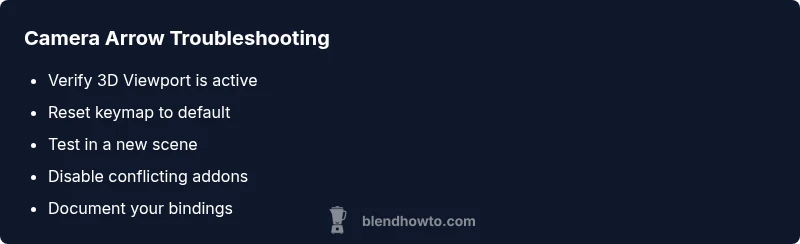
Blender Arrow Camera Movement Troubleshooting
Learn quick fixes to restore Blender camera movement with the arrow keys. This step-by-step guide covers keymap issues, viewport settings, and best practices for 3D navigation in 2026.


Camera arrows not moving in Blender is usually caused by a misconfigured keymap or an inactive viewport. Start by confirming you’re in the 3D View and that the default keymap is active. If needed, reset to Blender defaults and rebind camera controls. This quick fix buys time while you diagnose deeper settings in your project and verify results with confidence.
Quick Camera Movement in Blender: Why It Fails and What to Do Next
If you’re seeing 'blender can t move camera with arrows' in practice, you’re not alone. This guide by BlendHowTo helps you diagnose and fix the issue quickly by focusing on the most common culprits: keymap problems, viewport state, and editor context. The problem often stems from a recent change—either a keymap remap, a new addon, or a modified viewport setting. In 2026, Blender’s navigation remains robust, but user customization can temporarily disable familiar shortcuts. We’ll walk through a practical workflow to identify the root cause, verify settings, and restore reliable camera control without overwhelming you with jargon. As you follow the steps, remember that precise sequencing matters: start with the simplest check, then move to the more involved fixes. The BlendHowTo team emphasizes diagnosing in a structured way so you can reproduce the solution on different machines or projects when needed.
Confirm You Are in the Correct Editor and Context
The first thing to verify is that you are working in the 3D Viewport and that the camera is the active object or that you’re in a context where camera movement is intended. If the 3D Viewport isn’t focused, arrow keys may move the selection or scroll the viewport rather than translating or rotating the camera. Ensure you are not inadvertently in a different editor, such as the Shader Editor or UV Editor, where input maps differ. Check that the top-left editor type is set to 3D Viewport and that you haven’t split the window into a layout that intercepts inputs differently. A quick focus test is to click inside the 3D Viewport with your mouse and then press the arrow keys again—if nothing happens, you’re facing a map or viewport issue rather than a hardware problem.
Review and Reset the Blender Keymap
Keymaps are the most common culprit. A remapped keymap can assign the arrow keys to actions other than camera navigation, or disable certain navigation. In Blender, go to Edit > Preferences > Keymap, and compare the active actions for 3D View navigation with Blender’s default configuration. If you are unsure, load the factory default keymap temporarily to see if the problem resolves. If the default works, rebind the camera controls to your preferred shortcuts or keep the default for reliability. After resetting, test in a small scene to confirm behavior before applying changes to larger projects.
Check Viewport Lock Settings and 'Lock Camera to View'
Blender’s 'Lock Camera to View' option can cause confusion: when enabled, moving the view translates into camera moves in a way that may feel inconsistent. If you want to navigate the scene freely, disable that option in the N-panel (View) within the 3D Viewport. Then try moving the camera with the arrows again. If you rely on 'Lock Camera to View' for certain workflows, re-enable it only after you confirm that the base navigation works as expected. This step helps you distinguish between global navigation issues and workflow-specific constraints.
Try a Fresh Scene to Isolate the Issue
Project-specific settings, overlays, or a heavy addon load can interfere with navigation. Create a new Blender file (File > New) or open a clean workspace, switch to the 3D Viewport, and attempt to move the camera with the arrows. If it works in a clean scene, your original file likely contains a hidden modifier, an active constraint on the camera, or a conflicting addon. In that case, progressively reintroduce elements from the original project while testing input each time to locate the obstacle. If the problem persists in a fresh scene, the issue may be due to a blender version or OS-level keyboard handling.
Add-ons, Version, and OS Interactions
Add-ons can unexpectedly intercept input or modify keymaps. Disable all addons temporarily (Edit > Preferences > Add-ons > Disable All) and retest. If the arrows work, re-enable addons one by one to identify the offender. Also consider Blender version compatibility with your operating system; occasionally, input handling differs between versions. If you’re unsure which version you’re running, check Help > About Blender to confirm it aligns with your workstation’s specs. Keeping a stable, tested configuration reduces future navigation glitches.
Prevention and Best Practices for Reliable Navigation
To prevent arrow-key navigation issues, maintain a clean, backed-up keymap, and save a small project template with default settings you can reference. Regularly export your keymap so you can restore quickly after updates or transfers to another machine. Create a simple checklist for each project: verify viewport focus, test navigation in a new scene, and confirm keymap defaults before heavy editing. These habits minimize downtime and ensure you can move efficiently in Blender, even with complex scenes or new addons.
Steps
Estimated time: 15-25 minutes
- 1
Open Blender in a clean workspace
Start by launching Blender and opening a new, empty scene to remove interference from complex projects. Ensure your workstation keyboard is functioning and Blender is in focus. This creates a neutral baseline for testing camera movement with the arrows.
Tip: Create a small default scene (a cube) to simplify testing. - 2
Check the active editor
Click inside the 3D Viewport to ensure it is the active editor. If the viewport isn’t active, inputs will affect the UI rather than the camera. Confirm you are in Object Mode when attempting to move the camera.
Tip: Use Alt+F11 to toggle full screen for clarity during testing. - 3
Reset keymap to default
Navigate to Edit > Preferences > Keymap and load the factory default. After resetting, test the arrow keys to verify camera movement. If it works, gradually reintroduce your custom keys to locate the conflict.
Tip: Back up your current keymap before resetting. - 4
Test in a new scene
Open a fresh Blender file and repeat the test. If the arrows work in the clean file, the issue is project-specific. If not, the problem likely lies with global settings or your OS input handling.
Tip: Avoid importing complex addons until the baseline test completes. - 5
Inspect add-ons and preferences
Disable any add-ons that might intercept input, then re-test. If needed, review the Preference panel for unusual or conflicting settings. Identify any addon that modifies navigation and disable or reconfigure it.
Tip: Disable all addons briefly to confirm baseline behavior. - 6
Rebind camera controls if necessary
If you use custom bindings, rebind the camera transform to intuitive shortcuts (e.g., G for grab, R for rotate) or assign a dedicated arrow-to-camera mapping. Test thoroughly before resuming work.
Tip: Document new bindings for future sessions.
Diagnosis: Arrow keys do not move the camera in Blender's 3D Viewport
Possible Causes
- highArrow keys remapped or disabled in Input Preferences (Keyboard Map)
- mediumThe 3D Viewport is not the active window or Blender is not in focus
- lowThe camera object is not selected/active or you are in a mode that affects navigation
- lowLock Camera to View is enabled or there is a conflicting addon affecting navigation
Fixes
- easyReset to default keymap (Edit > Preferences > Keymap > Load Factory Default)
- easyClick inside the 3D Viewport to focus, then retry arrow navigation
- mediumIf remapped, rebind the camera controls to appropriate shortcuts or restore defaults
- easyDisable 'Lock Camera to View' to test camera movement independently, then re-enable if needed
- easyTest in a new scene to determine if the issue is project-specific
Frequently Asked Questions
Why can't I move the Blender camera with arrow keys?
Most often a remapped keymap or an inactive 3D Viewport. Start by focusing the 3D View, then reset the keymap to factory defaults and test in a new scene. If it persists, review addons and preferences for conflicts.
Usually it's a keymap or viewport focus issue. Try focusing the 3D View and resetting the keymap, then test in a new scene.
How do I reset Blender to the default keymap?
Open Edit > Preferences > Keymap and click 'Load Factory Default'. After resetting, re-test and consider exporting a copy of your preferred bindings.
Go to Edit, Preferences, Keymap, and load the factory defaults. Then test the navigation again.
Can 'Lock Camera to View' affect navigation with arrows?
Yes. If enabled, moving the view can move the camera unexpectedly. Turn it off to test base navigation, then re-enable if needed for your workflow.
Lock Camera to View can change how movement feels. Disable it to test navigation basics.
Do addons typically cause input conflicts in Blender?
Add-ons can remap or hijack inputs. Disable them temporarily to see if navigation returns to normal, then enable them one by one to identify the culprit.
Some addons can interfere with keys. Disable them to test navigation and locate the offender.
Is this issue version-specific or OS-dependent?
Input handling can vary by Blender version and operating system. Check Help > About Blender for version details and ensure you’re using a compatible build with your OS.
It can be version or OS dependent. Check your Blender version and OS compatibility.
Watch Video
What to Remember
- Reset keymap to defaults when arrows fail
- Confirm 3D Viewport is active before testing
- Disable conflicting addons to isolate issues
- Test in a fresh scene to verify project-specific causes