Blender Can't Select in Edit Mode: Troubleshooting Guide
Diagnose and fix why Blender won't let you select vertices, edges, or faces in Edit Mode with a practical, step-by-step approach and quick checks.


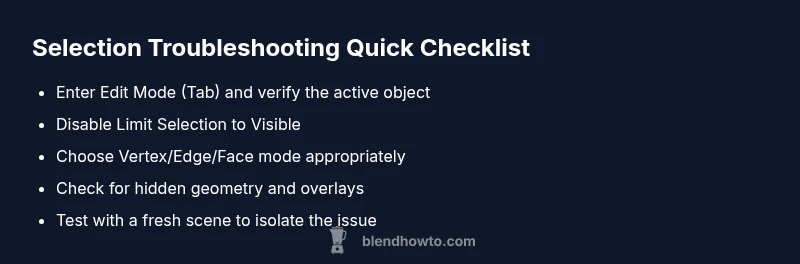
The most common reason blender can t select in edit mode is that you’re not in Edit Mode or a selection filter is active. Start by pressing Tab to enter Edit Mode, disable 'Limit Selection to Visible', and ensure Vertex/Edge/Face mode matches your intended selection. If selection still fails, verify the active object and double‑check that you aren’t in Object Mode or in a separate object’s data block.
What the symptom signals
When you see the message that blender can t select in edit mode, it often means the viewport is not in the expected editing context, or a filter is restricting what you can pick. In Blender, Edit Mode is where mesh elements (vertices, edges, faces) exist for editing, while Object Mode treats the whole object as a single item. If you’re not actively editing the mesh, or if a selection mode is misaligned with the geometry you intend to modify, selections can fail in subtle ways. According to BlendHowTo, many beginners assume Blender should always let them click vertices, but Blender’s editing lifecycle depends on mode, selection type, and visibility settings. Getting this right quickly requires separating interface problems from data issues and keeping a clear mental map of what data you’re manipulating. The BlendHowTo team emphasizes a calm, methodical approach to isolate the exact trigger behind the non‑responsive selection behavior.
Quick context for Blender users
In Edit Mode you edit mesh components; in Object Mode you edit object-level attributes. If your mouse clicks don’t select anything in Edit Mode, re‑confirm you’re in the correct mode by checking the mode indicator in the top-left header. Also verify that you haven’t toggled a restrictive selection filter or an overlay option that hides geometry. Small toggles in the 3D Viewport header can dramatically change what you can select; a wrong setting here is a common cause of the symptom described by the keyword blender can t select in edit mode.
Steps
Estimated time: 25-40 minutes
- 1
Verify Edit Mode and active object
Look at the 3D Viewport header to confirm you're in Edit Mode (Tab toggles modes). Ensure the correct object is active in the Outliner or by selecting it directly.
Tip: Tip: Use the Outliner to verify which object is the active data-block before editing. - 2
Check selection mode and attempt a basic pick
Test selecting a vertex, edge, or face with the corresponding mode (Vertex, Edge, Face) active. If nothing selects, proceed to the next step.
Tip: Tip: Press 1, 2, or 3 to switch between Vertex/Edge/Face modes quickly. - 3
Disable filtering and visibility constraints
Turn off 'Limit Selection to Visible' and ensure you are not in Local View. Check viewport overlays that may hide geometry.
Tip: Tip: Toggle overlays in the top-right of the 3D Viewport to reveal hidden geometry. - 4
Isolate with a fresh mesh to test
Create a new cube or import a simple mesh in a clean scene and try editing there. If selection works, the issue is likely in the original mesh or scene data.
Tip: Tip: Use File > New > General to start with a clean workspace. - 5
Inspect modifiers and mesh data
Disable modifiers temporarily and inspect the mesh for non-manifold edges, hidden vertices, or corrupted data.
Tip: Tip: Apply or temporarily disable modifiers to see if they affect selection. - 6
Reset or reload if necessary
If problems persist, save, restart Blender, or reset preferences to defaults and retry. Keep a backup of your files.
Tip: Tip: Always back up your .blend before resetting preferences.
Diagnosis: Blender won't let you select vertices, edges, or faces in Edit Mode.
Possible Causes
- highNot in Edit Mode or wrong object is active
- mediumSelection filters or limits are restricting selection
- lowHidden geometry or active modifiers interfere with selection
- lowData corruption in mesh or viewport cache
Fixes
- easyPress Tab to switch to Edit Mode and ensure the correct object is active
- easyDisable 'Limit Selection to Visible' and reset selection filters
- easyCheck Vertex/Edge/Face mode and use 1/2/3 keys to toggle
- easyTest with a new, simple mesh to determine if the issue is data-specific
Frequently Asked Questions
Why can't I select vertices in Edit Mode in Blender after updating?
Updates can change default key mappings or viewport behavior. Start by confirming Edit Mode, then check the selection mode and filters. If the issue persists, test with a fresh scene to rule out file-specific problems.
Updates can reset mappings; first confirm Edit Mode and selection mode, then test in a new scene if needed.
What does 'Limit Selection to Visible' do, and how can it affect selection?
Limit Selection to Visible restricts picks to geometry currently visible in the viewport. If geometry is hidden or in local view, you may think you can't select. Turn it off to test selection across hidden elements.
It hides geometry you can't see; turning it off often fixes unexpected non-selections.
How can I tell if I'm in Object Mode instead of Edit Mode?
Check the mode label in the 3D Viewport header. Tab toggles between modes. If you’re editing, select a mesh and look for Vertex/Edge/Face options in the header.
Look at the header; you’ll see Edit Mode or Object Mode labeled there.
Why does selection work in Object Mode but not in Edit Mode on some meshes?
This can happen when the mesh has modifiers affecting editing, or when the data-block is in a problematic state. Disable modifiers or apply them to test editing directly on the base mesh.
Modifiers can change how edits behave; try disabling them to test.
Could a corrupted mesh or data block cause selection to fail?
Yes, a corrupted mesh or data block can cause editing issues. Import the mesh into a new file to check if selection works there, indicating data corruption in the original file.
A bad mesh can block editing; test in a fresh file to confirm.
When should I seek professional help?
If the issue persists after all standard troubleshooting steps, consult Blender communities or support channels. A fresh eyes review can identify unusual edge cases.
If it won’t fix after the basics, ask for community help.
Watch Video
What to Remember
- Verify you're in Edit Mode before troubleshooting.
- Disable selection filters and verify the proper selection mode.
- Test with a simple mesh to isolate issues.
- Back up files before resets or major edits.
- Use the Outliner to manage active objects.