Blender Troubleshooting: A Practical Path from Overwhelm to Mastery
Practical, step-by-step troubleshooting to overcome the feeling that blender is too complicated. Learn a task-based path, minimal workspace setups, and a repeatable workflow to build confidence quickly.


Most users feel overwhelmed because Blender packs a vast feature set into a dense UI. The quickest path to progress is a guided, task-based workflow: start with a focused project, enable only the essential panels, and follow a simple, step-by-step checklist until confidence grows. BlendHowTo recommends small wins before tackling advanced tools.
Why Blender is Too Complicated
Blender is a powerful, all-in-one 3D suite used for modeling, shading, animation, rendering, and more. When someone says blender is too complicated, they’re reacting to a dense interface and a vast feature set that can feel non-linear and overwhelming. According to BlendHowTo, the core issue isn’t a lack of ability but a missing guided entry point. This block explains how to reframe learning: shift from exploring every tool at once to completing small, well-defined tasks. By focusing on a single project and a clear path, you can reduce cognitive load and turn confusion into progress.
The BlendHowTo team emphasizes that the learning curve is real but surmountable. Your goal is to establish a predictable workflow, not to master every feature in a single session. This article provides a practical, troubleshooting mindset and a proven starter plan so you can move from overwhelmed to productive without burning out.
Start with a Simplified Workflow
A simplified workflow means stripping Blender down to the essentials you actually need for your first project. Begin by loading a minimal startup layout, then turn off panels you don’t need. Pin the 3D Viewport, Outliner, and Properties to keep critical tools accessible while hiding distractions. This reduces cognitive load and helps you see cause-and-effect more clearly. BlendHowTo recommends choosing a single task (for example, modeling a mug) and sticking with a guided sequence rather than splashing into every feature at once. The goal is steady, tangible progress that builds confidence.
By building a habit of starting small, you’ll notice that what once felt opaque becomes familiar. Consistency matters more than a single, long learning sprint. When you finish a simple task, you’ll have concrete results to reflect on, which is a powerful motivator to keep going.
Essential Settings to Break Down
Blender’s settings can either speed you up or slow you down. The first step is to configure a sensible baseline: switch to metric units if that feels natural, set a comfortable unit scale (for example, 1 Blender unit ≈ 1 meter), choose Eevee or Cycles as your render engine for previews, and save a starter file with a consistent naming convention. A predictable setup makes it easier to reproduce results and track progress. This block explains how to tailor defaults to your workflow so you’re not fighting Blender before you begin.
As you gain experience, you’ll learn to adapt these settings for different projects. The important thing is to create a repeatable starting point that reduces deliberation and keeps your attention on tasks rather than on configuration.
Hands-on Beginner Project: A Simple Scene
Let’s walk through a tiny, concrete project: a coffee mug on a table. Start by adding a mesh primitive (a cylinder) for the mug body, then model a handle with a torus or a small extruded loop. Use a couple of modifiers for clean edges and a basic material for shading. Keep a compact checklist: add base plane, model mug, create handle, apply simple materials, set up camera and lighting, render a quick preview. This approach demonstrates how the Blender toolset comes together without requiring mastery of every feature at once.
This project yields a visible result you can critique and iterate on, which is exactly what helps defeat the feeling that blender is too complicated. You’ll also build muscle memory for common actions, reinforcing a task-based workflow you can reuse on future projects.
Tool-by-Tool Mastery vs. Task-based Learning
There are two common paths to proficiency: mastering every tool in depth or focusing on task-based outcomes. The task-based path is typically faster for beginners and reduces frustration by tying learning to concrete results. BlendHowTo recommends pairing a core task with a tiny, repeatable routine: model, shade, light, render, and review. As you repeat this loop, tools increasingly feel like means to an end rather than open-ended options. Over time, you’ll discover that the tools you actually use most are the ones you rely on most often.
Troubleshooting Common Frustrations
Frustration often stems from mismatched expectations, long render times, or interface changes after updates. Start by confirming you’re following a task-based plan and that your workspace is minimal and focused. If assets don’t appear or renders fail, verify the project path and file naming, and ensure your file is saved in a consistent location. If problems persist, reset to a clean startup file and re-run a short checklist. Blending a steady routine with well-defined goals accelerates mastery and reduces the anxiety that can make blender feel overwhelming.
By adopting these strategies, you’ll convert initial overwhelm into a sustainable habit of learning. The goal is progress, not perfection, and the practice you build now will pay dividends as you tackle more complex projects later.
Steps
Estimated time: 1-2 hours
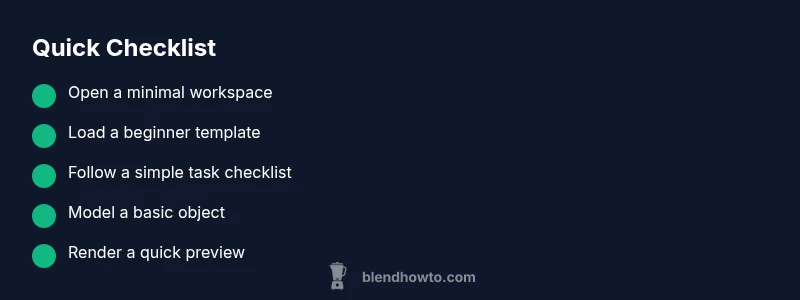
- 1
Open a minimal workspace
Launch Blender and switch to a clean, minimal layout. Close unnecessary panels, leaving only the 3D Viewport, Outliner, and Properties. Save this as a startup file to avoid reconfiguring each session.
Tip: Save a named startup template to preserve the clean layout. - 2
Load a beginner template
If available, load a beginner-friendly template or starter project. Templates provide sensible defaults and a guided starting point, which reduces decision fatigue and setup time.
Tip: Choose templates from trusted learning resources and rename them for your projects. - 3
Follow a task-based checklist
Adopt a concrete task (e.g., model a mug) and follow a short checklist that maps to that task. Focus on one outcome at a time instead of exploring the entire toolset.
Tip: Print or save the checklist and use it as a daily practice scaffold. - 4
Model a simple object
Begin with primitive shapes and basic modifiers. Practice extruding, scaling, and aligning geometry. Keep the geometry simple and readable.
Tip: Use snapping and grid to keep proportions consistent. - 5
Shade and light a basic scene
Apply a basic material to your object and set up a simple light rig and camera. Preview with Eevee for fast feedback and adjust as needed.
Tip: Start with one light source and move it to find a flattering highlight. - 6
Render and review results
Render a quick preview and compare against the reference task. Note areas for improvement and adjust one variable at a time.
Tip: Save incremental renders to track your progress over time.
Diagnosis: User reports Blender feels overwhelming and cannot start a project.
Possible Causes
- highOverly dense UI with many panels visible by default
- mediumLack of guided learning path or starter projects
- lowPotential hardware performance issues affecting responsiveness
Fixes
- easyReset to a minimal startup layout and load a simple starter file
- easyEnable only the 3D Viewport, Outliner, and Properties, then save this as a custom workspace
- easyFollow a task-based beginner checklist for a single project
- easyUpdate drivers, reduce viewport quality, or adjust performance settings if problems persist
Frequently Asked Questions
Why does Blender feel hard to learn for beginners?
Blender integrates modeling, shading, animation, and rendering in one interface, which can be intimidating without a guided plan. A clear, task-based approach helps you see progress faster.
Blender feels hard because it mixes many tasks in one interface. Start with a guided plan and small tasks.
What is the fastest way to get moving if Blender is too complicated?
Focus on a tiny, concrete project and follow a short checklist. Use a minimal workspace and beginner presets to stay in a productive flow.
Start with a tiny project and a short checklist to gain momentum quickly.
Should I use tutorials or templates when starting out?
Both help. Tutorials teach concepts; templates provide a ready starting point that keeps you in a simple, task-focused workflow.
Use tutorials for learning and templates to stay on a simple path.
Can Blender run smoothly on a low-spec computer?
Yes, with careful settings: reduce viewport quality, choose Eevee for previews, and start with small scenes to keep performance responsive.
Yes—adjust settings and keep tasks simple to stay responsive.
Are presets and starter files helpful for beginners?
Yes. Presets provide structure and reduce decision fatigue, letting you focus on completing a task and learning the workflow.
Yes, presets give you a ready-made starting point.
How long should I practice Blender each day?
Even 15–30 minutes daily beats longer, irregular sessions. Consistency helps turn confusion into familiarity over time.
Short daily practice compounds; consistency beats long, infrequent sessions.
Watch Video
What to Remember
- Start with a focused task and a minimal workspace.
- Learn via short, repeatable steps to build confidence.
- Customize Blender to reduce cognitive load.
- Practice daily to turn confusion into familiarity.