How to Check Blender Version: A Practical Guide
A complete, step-by-step guide to verify your Blender version across Windows, macOS, and Linux. Learn splash screen checks, About Blender details, Python console queries, and best practices for version management to ensure addon compatibility and project reliability.


In this guide you’ll learn how to check Blender version across Windows, macOS, and Linux. You’ll verify it from the splash screen, About Blender, and optional Python checks, plus how to handle multiple installations. This quick answer covers the essential steps and points you to official release notes for comparison.
Understanding Blender version and why it matters
When you work with Blender, the exact version you’re using matters for compatibility with addons, tutorials, and saved projects. This section helps you understand what a Blender version is, how builds differ, and why you should verify version numbers before starting a project. According to BlendHowTo, knowing how to check blender version is a foundational skill for any workflow. Blender versions are typically written as a major.minor.patch sequence, sometimes followed by a build tag or suffix. Some releases also carry edition identifiers for long-term support versus experimental builds. Grasping this helps you anticipate feature availability, workflow changes, and addon compatibility. In practical terms, confirming the version prevents surprises when you open an old file or share work with teammates. This awareness is essential for reproducible results and smooth collaboration across 3D scenes and pipelines.
Quick checks you can do inside Blender
If you want a fast sanity check, you can rely on the built-in UI without leaving Blender. Start by glancing at the splash screen on first launch (or when Blender starts without a project loaded). The version is typically visible in the bottom-right corner or near the Blender logo. If you miss it, the About dialog is your next reliable source. In addition, you can quickly test the version by running a tiny Python command from the built-in text editor or the Python Console. These quick checks give you a solid baseline without installing anything else. Remember, for precise compatibility decisions, compare your version to the addon or tutorial prerequisites. This is especially important when working with dynamically updated add-ons or nightly builds, where minor version fluctuations can change tool behavior.
Checking via Splash Screen and About Blender
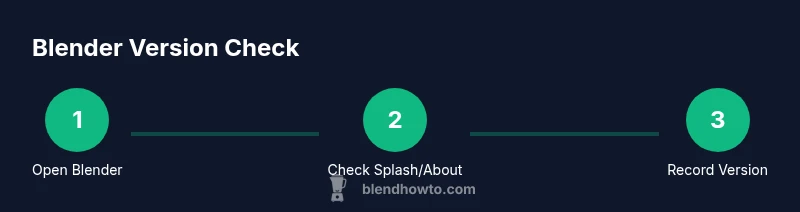
The splash screen is a fast visual cue that tells you the exact Blender version in use. If you’ve opened Blender with a default startup file, the splash screen often shows the version and build. For a more persistent check, navigate to the About Blender dialog. On Windows and Linux, you’ll usually find it under Help > About Blender; on macOS, Blender > About Blender. The About panel displays the version number, build date, and often the precise patch level. Writing this down or keeping a screenshot handy helps when you’re comparing versions across team members or colleagues. If you’re using a portable or standalone ZIP installation, you may see a slightly different build tag, which is common in development or portable workflows.
Using the About Blender dialog
Opening the About Blender dialog is a reliable, non-destructive way to confirm the installed version. The dialog lists the version number prominently, and sometimes includes a link to release notes or a changelog. If your workspace uses multiple Blender profiles or user directories, be sure you’re inspecting the instance you intend to use. In some setups, the PATH or desktop icon might launch a different build than the one described in the About panel, so it’s worth performing a quick double-check. If you’re sharing a project with teammates, capture a quick screenshot of the About dialog to document the exact version used for the file’s history. This practice aids future edits and reduces version-related confusion.
Verifying with the Python Console
For precision beyond the UI, you can query Blender’s internal version via Python. Open the Scripting workspace or the Python Console and enter: import bpy; bpy.app.version. The output is a tuple like (2, 93, 0), representing major, minor, and patch levels. You can format this into a string for logging or notes. If you regularly work with scripts or addons that require exact version checks, this method minimizes human error. In edge cases, a mixed Python environment or a corrupted startup script might affect results, so verify the output against the UI as a cross-check. Blender’s Python API also provides build info you can inspect for flags that indicate beta or nightly builds.
OS-specific methods to confirm Blender version
On Windows, macOS, and Linux you can also verify the version via the command line. Windows users can run blender.exe --version from a command prompt to print the exact version and build. macOS users can run /Applications/Blender.app/Contents/MacOS/Blender --version, or use the blender binary in the Terminal. Linux users typically install Blender via package managers or from a tarball; running blender --version in a terminal will reveal the version and build. These commands are helpful when you manage multiple installations or when the GUI is inaccessible. If you see discrepancies between the GUI and terminal output, you may be launching a different build from the one you intended.
Handling multiple Blender installations
Many users maintain more than one Blender version for testing or project-specific requirements. In such workflows, it’s essential to identify which binary is associated with a given project. Check the exact installation path and run the --version command on each path to confirm. If you regularly switch between versions, consider naming conventions (for example, Blender_3.2.1) or using a version manager script to avoid ambiguity. Keep a small changelog for each installation noting the version, build, and date. This practice helps you avoid accidentally opening a project with the wrong Blender version and ensures consistent results across your pipeline.
Keeping Blender up to date: best practices
Staying current with Blender releases brings new features, performance improvements, and bug fixes that can affect your workflow. However, updating should be intentional, especially in professional projects. Before updating, verify addon compatibility and backup your scenes. Maintain a shortlist of stable versions you depend on for critical work, with a plan to test new builds in a sandbox space before upgrading production files. BlendHowTo recommends establishing a versioning protocol: label major, minor, and patch levels, keep notes on compatibility changes, and rotate between a stable release and a controlled nightly build if your work demands it. This approach helps you plan upgrades without disrupting ongoing projects.
Troubleshooting common version-detection issues
If Blender seems to report a version that's clearly wrong or inconsistent, start with a clean start: reset to factory defaults and restart Blender to ensure the version readout isn’t affected by a corrupted startup file. Check for conflicting PATH entries or symbolic links that might point to an older build. If you’re using portable or embedded installations, verify that you’re launching the intended binary. Finally, consult the release notes for known issues related to version reporting in your platform, and consider re-downloading a fresh copy if problems persist. These steps help you isolate the cause and restore accurate version detection.
Best practices for version management in Blender workflows
A robust Blender version strategy combines visibility, documentation, and testing. Always record the exact version used for each project, and align it with addon requirements and tutorial references. Create a small library of approved versions for production work and reserve time to evaluate new builds in a controlled environment. Automate checks where possible—scripts that log version numbers on startup can reduce manual errors. By integrating version management into your workflow, you improve reproducibility, support, and overall reliability of your 3D pipeline.
Tools & Materials
- Computer or workstation with Blender installed(Ensure you can run Blender and access the GUI)
- Internet connection(For downloading updates or consulting release notes)
- Text editor or terminal/command prompt(Needed for Python snippets or command-line checks)
- Blender installation paths(Keep track of multiple install locations if you use more than one build)
- Backup strategy(Backup projects before upgrading Blender versions)
Steps
Estimated time: 15-25 minutes
- 1
Open Blender and view the splash
Launch Blender and look at the splash screen if it appears. The version number is typically displayed prominently on this initial screen, giving you a quick read without opening any menus.
Tip: If the splash screen doesn’t show, proceed to the About Blender dialog for a definitive readout. - 2
Open About Blender
In the Blender UI, access Help > About Blender (Windows/Linux) or Blender > About Blender (macOS). The dialog lists the exact version, build date, and often a patch level.
Tip: Take a screenshot or note the version for future reference, especially when collaborating. - 3
Check the Python console
Switch to the Scripting workspace or open the Python Console. Type: import bpy; print(bpy.app.version) to fetch the version as a tuple.
Tip: Cross-check the printed tuple with the UI readout to confirm consistency. - 4
Use the command line (Windows/macOS/Linux)
From a terminal or command prompt, run blender --version (or the path to blender --version). This prints the installed version and build information.
Tip: If you have multiple Blender installations, run the command for each executable path. - 5
Verify on each OS install
If you dual-boot or use different OSes, repeat the version check on each system to ensure parity across your environment.
Tip: Note any differences in major/minor numbers that could affect addons. - 6
Document multiple installations
If you keep more than one Blender version, record the path and version for each, and consider naming conventions like Blender_3.2.1 to avoid confusion.
Tip: Create a simple inventory file or spreadsheet for quick reference. - 7
Cross-check with release notes
Visit the Blender release notes page to compare your version against new features, bug fixes, and compatibility notes.
Tip: Note addon compatibility requirements before upgrading any production projects. - 8
Set a future upgrade plan
Develop a staged upgrade plan that fits your workflow, including testing, backups, and rollback procedures.
Tip: Schedule upgrade windows to minimize disruption to ongoing work.
Frequently Asked Questions
Where is the quickest place to check Blender version on Windows?
The quickest check on Windows is to use the About Blender dialog (Help > About Blender) or run blender --version from a Command Prompt. The About dialog shows the exact version and build date, while the command line confirms the installed binary.
On Windows, open Blender and go to Help, About Blender, to see the version. You can also open a Command Prompt and type blender --version to confirm the exact build.
How can I check Blender version on macOS?
On macOS, use Blender > About Blender in the menu or execute the Blender binary with --version from Terminal. Both methods display the precise version and build information.
Mac users can check the version from the About Blender dialog or by running the Blender binary with --version in Terminal.
What if I have multiple Blender installations?
If you have several Blender versions, verify each installation path with --version and note the version for that path. Use a naming convention or a small inventory to track which version is used for which project.
If you run into multiple Blender versions, check each path with --version and label them so you know which one applies to a project.
Can I check Blender version without launching the GUI?
Yes. You can check the version via the command line using blender --version or by running a short Python snippet in a scripted environment. This method is useful for automated checks or headless setups.
You can verify the version from the command line or with a quick Python snippet, even without opening the GUI.
Why might Blender show a different version in the splash screen vs. About Blender?
Differences can occur if separate installations are on the system or if an older binary is being launched from a particular shortcut or PATH entry. Always cross-check with both sources.
If splash and About Blender disagree, you may be launching different Blender binaries—check each path or shortcut.
How do I know if I should upgrade?
Upgrade decisions should consider addon compatibility, project requirements, and test results in a staging environment. Review release notes for new features and bug fixes relevant to your work.
Upgrade if addons and projects support the new version and you’ve tested it in a safe environment.
Watch Video
What to Remember
- Know the exact Blender version by using multiple readouts.
- Use UI checks and Python queries for accuracy.
- Maintain a simple version inventory for multi-install setups.
- Always consult release notes before upgrading for production work.
- Create a workflow that integrates version checks into project documentation.