How to Remove the Blender Cursor Circle Quickly in Blender
Learn how to remove the cursor circle in Blender when painting or sculpting. This educational guide covers per-mode tweaks, workflows, and saving preferences for a tidy, distraction-free workspace in 2026.


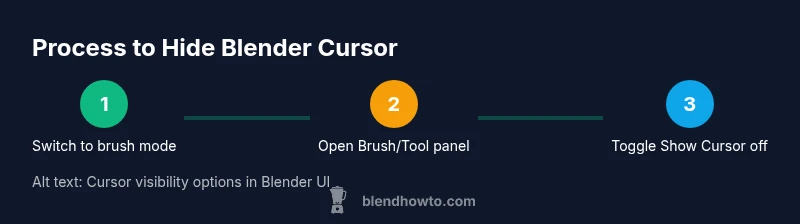
The circle around the cursor in Blender is the brush cursor that appears when you are in painting, sculpting, or texture painting workflows. To remove it, disable the brush cursor from the active tool’s options: open the Brush panel (in Texture Paint/Sculpt mode), turn off Show Cursor or Show Brush in the Display or Tool settings, or switch to a non-brush tool. This hides the circle while you work.
Understanding the cursor circle in Blender
The circle around the cursor in Blender is typically the brush cursor that appears when you are in painting, sculpting, or texture painting workflows. It indicates where your brush will apply edits and shows the current brush size and falloff. Understanding when this indicator appears helps you decide whether you want to see it or hide it to reduce visual clutter. BlendHowTo notes that while helpful during fine-tuning, persistent cursor rings can distract you during precise modeling tasks. If you are new to Blender, you might be surprised by how many different cursor representations exist across modes, but most share the same goal: to visualize your brush influence. Remember: this circle is not a separate object in your scene; it’s a UI cue tied to the active tool and mode. By knowing when and where it appears, you can tailor your workspace to your preferred workflow.
Where the cursor circle appears and how to identify mode
In Blender, you’ll usually see the circular brush cursor in texture painting, vertex color painting, and sculpting modes. In texture or weight paint, the circle reflects brush size and strength, while in sculpt mode the indicator helps you gauge stroke width. The circle also adapts to brush settings such as hardness and falloff, which means its appearance changes as you modify those values. If you are using a tablet or pen, you may notice pressure sensitivity also affects the circle’s edge, making it softer or sharper. To identify the current mode, look at the top center of the Blender interface or the active tool panel on the left. The group of options will tell you whether you’re painting, sculpting, or using a non-brush tool. This context matters because the toggle to hide the circle often lives in the brush/tool settings for the active mode.
Step-by-step overview to disable the brush cursor in Blender (per mode)
-
Start in a brush-based workspace: switch to Texture Paint or Sculpt mode where the brush cursor is visible. This sets the relevant tool options you’ll adjust next. Tip: If you’re not sure which mode is active, switch to Texture Paint temporarily to test the visibility toggle.
-
Open the Brush/Tool panel: this is where most brush-related controls live. In Blender’s defaults, you’ll find a row of tabs for Brush, Tool, and Display. The exact layout may vary by version, but the Show Cursor option is typically near the brush visualization controls.
-
Locate Show Cursor or Show Brush: toggle the switch off. This action hides the circular cursor while preserving the brush’s functionality. If you don’t see the toggle, check under the Display section of the brush settings or in the Tool panel’s dropdown menu.
-
Test the result: use a small stroke on a test mesh or texture to confirm the circle no longer appears. If the circle persists, re-check the mode and ensure you’re adjusting the correct brush settings.
-
Save as default (optional): if you want the change to apply across new projects, Save Startup File or enable Save Preferences in Blender’s Preferences. This ensures the brush cursor remains hidden whenever you start Blender in your environment.
-
If the option still isn’t visible, reset to factory defaults or update Blender: some UI options shift between versions, so the exact label or path may differ. Keeping Blender up to date improves consistency across workflows.
Tools & Materials
- Blender 3.x or newer(Any recent Blender release works; align to your preferred edition or distro.)
- Computer with Blender installed(Ensure your system meets Blender’s minimum requirements.)
- Mouse or drawing tablet(Precise input helps test brush cursor visibility accurately.)
- Test project file (optional)(A simple mesh or texture helps verify the cursor behavior without affecting a real project.)
Steps
Estimated time: 8-12 minutes
- 1
Switch to a brush-based workspace
Open Blender and switch to Texture Paint or Sculpt mode so the brush cursor is active. This prepares the relevant UI for toggling the cursor visibility. Tests show that some modes hide the circle by default when you enter brush-based workspaces.
Tip: If you’re unsure which mode is active, try Texture Paint first to locate brush-related controls quickly. - 2
Open the Brush/Tool panel
Navigate to the Brush or Tool tab where brush-related controls live. In many Blender versions this is a left-side panel or a pop-up panel; you’re looking for brush visualization options.
Tip: If you don’t see the panel, switch into a different brush-based mode to reveal mode-specific UI. - 3
Find the Show Cursor toggle
Look for a Show Cursor or Show Brush option within the brush visualization area. This is the primary control to hide the circle without affecting brush function.
Tip: If the option is labeled differently in your version, check the Display or Overlay sub-sections of the brush settings. - 4
Disable the cursor
Toggle Show Cursor off to hide the circular indicator. Verify by painting a few strokes on a test surface to ensure the circle is gone.
Tip: If your strokes still show a circle, confirm you’re adjusting the correct brush for the active mode. - 5
Test across modes
Switch to another brush-based mode (e.g., from Texture Paint to Sculpt) and repeat the toggle check to ensure consistent behavior across modes.
Tip: Some users prefer per-mode toggles; you can assign quick-access shortcuts for faster testing. - 6
Save your preferences
In Preferences, enable saving of your startup file or preferences so the cursor setting persists between Blender sessions.
Tip: If you share workstations, export and import your startup file to maintain consistency.
Frequently Asked Questions
What is the cursor circle in Blender and when does it appear?
The cursor circle is the brush cursor that appears during painting, sculpting, or texture painting to visualize brush size and influence. It appears whenever you are in a brush-based tool.
The cursor circle is Blender’s brush cursor that shows brush size while you paint or sculpt. It appears whenever you use a brush-based tool.
Which Blender modes show the brush cursor?
Texture Paint, Vertex Paint, and Sculpt mode commonly display the brush cursor. The exact UI location varies by version, but the cursor is tied to the active brush tool.
Texture Paint, Vertex Paint, and Sculpt modes show the brush cursor. Location varies by version, but it’s tied to the active brush tool.
How can I permanently disable the brush cursor across sessions?
Disable the cursor in the Brush/Tool panel and save Blender preferences or startup file. This stores your choice so Blender starts with the cursor hidden.
Turn off Show Cursor in the brush panel and save your preferences so Blender starts with the cursor hidden.
Will hiding the cursor affect my painting accuracy?
Hiding the cursor reduces immediate feedback, so re-enable it briefly for critical edges or small details. Use alternate cues like snapping and guides to stay accurate.
Yes, hiding it can reduce feedback; re-enable it for exact edges and use guides to stay accurate.
Is there a keyboard shortcut to toggle the cursor visibility?
Some setups allow a custom shortcut to toggle Show Cursor, but it isn’t universal across Blender versions. Check Preferences > Keymap for your configuration.
There isn’t a universal built-in shortcut in every version, but you can map one in Preferences > Keymap.
What should I do if I can’t find the Show Cursor option?
Ensure you’re in a brush-based mode and check the Brush/Tool panel's Display or Overlay sections. If still missing, update Blender or reset the workspace to default.
Make sure you’re in a brush mode and check the brush display options. If not found, update Blender or reset the workspace.
Watch Video
What to Remember
- Hide the brush cursor per mode via Brush/Tool settings.
- Test after toggling to ensure the circle is gone in all brush modes.
- Save your preferences to persist across sessions.
- Balance cursor visibility with workflow needs to maintain accuracy.