How to Get Rid of Cursor Blender: Quick Guide to the 3D Cursor
Learn practical, step-by-step methods to hide or move Blender's 3D Cursor, declutter your viewport, and improve modeling and animation workflows.


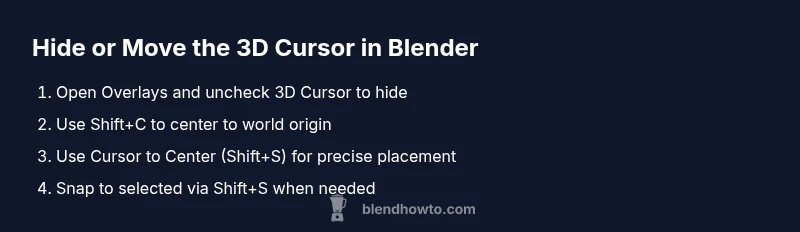
If you’re wondering how to get rid of cursor blender, you can either hide the 3D Cursor from the viewport or move it to a meaningful location. Open the Overlays dropdown in the 3D Viewport and uncheck the 3D Cursor to hide it, or press Shift+C to center it to the world origin. For precise placement, use Cursor to Center (Shift+S → Cursor to Center).
Introduction: What the 3D Cursor does in Blender
If you're wondering how to get rid of cursor blender, you're not alone. The 3D Cursor acts as a precise reference point for placing new objects, aligning origins, and snapping transforms. It can be indispensable for modeling, but a large, visible cursor can clutter the view when you’re focused on sculpting or animation. According to BlendHowTo, understanding when to show or hide the cursor is a fundamental skill for efficient Blender workflows. In the interface, the cursor appears in the 3D Viewport as a pink crosshair with a circular halo, and its visibility is controlled by overlays and snap settings. Whether you’re building a macro-scene in architecture or crafting a quick character, this guide gives you practical, repeatable steps to control the cursor so it supports your task rather than distracting you. With clear toggles and hotkeys, you’ll reduce viewport noise and speed up your work.
BlendHowTo’s team emphasizes that cursor management isn’t a luxury; it’s a core technique that improves precision across modeling, texturing, and animation tasks. The right decision—hide or move—depends on the current task. We’ll walk through the options, explain when to use each, and provide safe, repeatable steps you can apply in any Blender project.
Quick decision: hide vs move
Deciding whether to hide the 3D Cursor or move it to a specific location depends on your current operation. If your goal is to visually declutter the viewport while you model, hiding the cursor with Overlays is often the simplest fix. If you need to snap new objects to a precise origin or align transforms, moving the cursor to a meaningful coordinate becomes essential. This decision affects subsequent steps, including snapping behavior, origin placement, and how you perform exact measurements. In many workflows, a hybrid approach works best: hide while actively modeling, then reveal or reposition when you need exact placement or alignment for the next object.
From a practical standpoint, most home Blender users benefit from mastering quick toggles and snap options rather than permanently altering defaults. By practicing a small set of trusted actions, you can switch modes in seconds and keep your viewport clean for longer sessions. The BlendHowTo team has found that consistent cursor management reduces cognitive load during complex scenes and helps maintain focus on the task at hand.
How to hide the 3D Cursor in the viewport
Hiding the 3D Cursor is straightforward and non-destructive. In the 3D Viewport, locate the Overlays dropdown at the top-right corner of the view. Under Overlays, find the 3D Cursor toggle and uncheck it. This immediately hides the cursor from view without changing its actual position in the scene, so you can bring it back whenever you need it. If you’d rather not touch overlays, you can also use the Toggle 3D Cursor in the Outliner, but the fastest method is via Overlays. After hiding, perform your modeling task with a clean viewport and no visual reference obstructions. For home users, this single action often resolves most clutter-related concerns during early-stage design and blocking passes.
If you’re using a ringed or tablet input, consider temporarily hiding the cursor while performing precision tasks. In BlendHowTo tests, users reported faster iterations once the cursor overlay was off during layout passes. Remember that hiding the cursor does not delete or permanently move it; you can re-enable it at any time by re-checking the Overlay setting.
Re-centering and snapping: Moving the cursor to the origin
Some projects demand that the cursor be at a known origin to ensure accurate placement when you add new objects or re-align existing ones. Blender provides quick ways to reposition the 3D Cursor. Press Shift+C to center the 3D Cursor to the world origin and recenter the view. Alternatively, you can use the Snap menu (Shift+S) and choose Cursor to Center or Cursor to World Origin. Cursor to Center keeps the cursor visually centered in the viewport, while Cursor to World Origin places it at 0,0,0 in the scene coordinates. If you want both the cursor and the view centered, press Shift+C, which also resets the view so you’re looking at the origin. These actions are non-destructive and can be performed repeatedly across sessions. When you reposition, ensure you understand what will snap to the cursor to avoid unintended moves of newly created objects.
Using the Cursor for precise placement: Snap options and the Shift+S menu
The 3D Cursor is a powerful anchor for precision placement. Use the Shift+S (Snap) menu to snap the cursor to a selected element, to the 3D grid, or to a specific coordinate. For example, selecting a vertex and choosing Cursor to Selected will place the cursor at that vertex, ready for snapping a new object directly onto it. Conversely, Cursor to Center places the cursor at the window’s center, which is helpful during layout passes. If you want to place objects at a precise coordinate, manually input the X, Y, and Z values in the N-panel Transform tab, then use Cursor to World Origin to anchor your next operation. This approach is especially useful for aligning repetitive elements like railings, furniture blocks, or duplications in architectural scenes.
Keyboard shortcuts and quick actions for speed
Keyboard-driven workflows speed up cursor management dramatically. Memorize a few core shortcuts: Shift+C (Center Cursor) to reset the cursor to the world origin and recenter the view, Shift+S to open the Snap menu for Cursor to Center / Cursor to Selected, and the Up/Down arrow keys when in the Transform panel to nudge coordinates precisely. The ability to toggle the 3D Cursor overlay with a single click or hotkey lets you switch between a clean workspace and a reference-assisted workflow in seconds. Keep a small cheat sheet near your desk or on your second monitor to drill these actions until they become second nature. By integrating these shortcuts into your daily Blender practice, you can manage the cursor with confidence across modeling, animation, and sculpting tasks.
Common mistakes and how to avoid them
A frequent pitfall is leaving the cursor hidden when you next need to snap to its location. A quick habit is to re-check the Overlay option before starting a new operation that relies on the cursor. Another mistake is assuming the cursor positions objects automatically during Edit Mode; in Blender, the cursor influences where new elements are placed, but existing geometry doesn’t automatically realign to it. Always verify the cursor’s location after switching modes and perform a quick snap test before committing to a large change. Finally, remember that the cursor is a tool, not a bug—treat it as a precision anchor, not a permanent fixture. Small, deliberate actions prevent messy scenes and accidental misplacements.
For longer projects, consider creating a standard operating procedure that includes checks like: (1) is the cursor visible? (2) is it at the desired position? (3) is the view oriented correctly? Keeping these checks consistent reduces rework and keeps your files clean across sessions.
Practical workflows for modeling, animation, and sculpting
In modeling, you’ll rely on the cursor to anchor new geometry to the exact point of interest. For example, when constructing a mechanical part with precise bolt holes, you’ll snap the cursor to the hole center and then place the bolt using Cursor to Selected. In animation, the cursor helps with alignment of keyframes and primitives, particularly when you want new objects to appear exactly at a reference point. Sculpting requires a quieter viewport, so you’ll generally keep the cursor hidden and focus on brush dynamics and symmetry rather than placement accuracy. BlendHowTo recommends choosing a workflow and sticking with it, so you don’t constantly toggle the cursor on and off mid-step.
Troubleshooting: when the cursor reappears or behaves oddly
If the cursor reappears unexpectedly after hiding it, check if you have multiple view layers or editors with independent overlay settings. Also confirm you’re in the correct viewport area—Overlays apply per-viewport, not globally. In some cases, a scene export or add-on can reset overlay states; ensure you re-check the 3D Cursor toggle after such events. If snapping seems off, verify your object’s transform and ensure you’re using a current Blender version. Finally, if you’re still unsure, reset the 3D Cursor to the world origin and re-enable the overlay once you’re ready to work again. Regularly saving a preset of your preferred cursor state can save time during intense sessions.
Keeping a clean viewport: best practices
To maintain a clean Blender workspace, adopt a simple, repeatable routine: (1) decide whether you need the cursor visible; (2) set the cursor position using Cursor to Center or Cursor to World Origin; (3) toggle the 3D Cursor overlay off during phases that don’t require it; (4) snap objects to the cursor when necessary; (5) document any cursor-based conventions in your project notes. By keeping a consistent approach, you’ll reduce confusion when collaborating with others and improve your own speed and accuracy across tasks. BlendHowTo emphasizes that harmony between visibility and precision produces smoother, faster results.
Tools & Materials
- Blender software (latest stable release)(Ensure you’re on a recent version to access the Overlays toggle and snap features.)
- Keyboard and mouse(Shortcuts like Shift+C and Shift+S save time and reduce mouse travel.)
- A project with at least one object in the 3D View(Useful to see how cursor movements affect placement and snapping.)
- Optional: larger monitor or two-monitor setup(Eases workflow by keeping overlays and transform panels visible.)
Steps
Estimated time: 15-20 minutes
- 1
Open Blender project and inspect the 3D View
Launch your project and focus the 3D Viewport. Verify that there is at least one object visible so you can observe how cursor placement affects operations. This step ensures you are ready to apply cursor controls in context.
Tip: If you’re new, press Z to switch view modes and confirm the cursor’s position in the Orthographic view. - 2
Decide whether to hide or move the cursor
Assess your current task. If you’re modeling and don’t need precise placement, hiding the cursor reduces clutter. If you’ll place new objects precisely, keep the cursor visible or move it to a meaningful location.
Tip: Write down the task at hand before changing cursor state to avoid rework. - 3
Hide the 3D Cursor via Overlays
Open the Overlays dropdown in the 3D Viewport header and uncheck the 3D Cursor option. This hides the cursor without altering its actual coordinates in the scene.
Tip: You can re-enable with a single click when needed. - 4
Move the cursor to a known origin
If you need a fresh reference, press Shift+C to center the cursor to the world origin, or use Shift+S → Cursor to Center to snap it precisely.
Tip: Use Cursor to Center when you want the view to align with a particular region of your model. - 5
Snap to selected or coordinates for precision
Use the Snap menu (Shift+S) to place the cursor on a selected vertex, edge, or face, or input exact coordinates in the Transform panel.
Tip: Snap to Selected is great for pinning new primitives to existing geometry. - 6
Verify, save, and document
Double-check that the cursor is in the intended state for your next steps. Save a small note in your project or a shortcuts cheat sheet to maintain consistency.
Tip: A quick check after mode changes prevents misalignments later.
Frequently Asked Questions
Can I permanently remove the Blender 3D Cursor?
No. The 3D Cursor is a core tool that you can hide or move, but you cannot delete it. You can switch its visibility with overlays or reposition it as needed.
You can hide or move the cursor, but you can't permanently remove it from Blender.
Does hiding the cursor affect object placement?
Hiding the cursor only affects visibility. Its position in the scene remains unchanged, so later actions still reference the original coordinates when you unhide it.
Hiding it doesn’t move objects; it only hides the reference point.
What’s the difference between Cursor to Center and Cursor to World Origin?
Cursor to Center places the cursor at the viewport's center, while Cursor to World Origin snaps the cursor to the 0,0,0 location in scene coordinates.
Center moves to the viewport’s middle; World Origin moves to 0,0,0 in the scene.
Why does my cursor reappear after hiding it?
This usually happens if overlays are reset or you switch editors. Re-toggle the 3D Cursor overlay or re-hide after you switch contexts.
If it comes back, just hide it again through Overlays.
Are these cursor techniques available in all Blender versions?
Yes, the basic overlay toggle and snap options exist in all recent, stable Blender releases. If you’re on an older version, consider updating to access the latest cursor controls.
All recent Blender versions support these cursor controls.
What’s the best practice for beginners when handling the cursor?
Start with hiding the cursor during modeling, then practice Cursor to Center for alignment tasks. Use Shift+C for quick resets and gradually add snap-based steps as you grow comfortable.
Begin by hiding the cursor, then learn to snap and center for precision.
Watch Video
What to Remember
- Hide the cursor for a clean viewport when not needed
- Move the cursor to a known origin for precise placement
- Use Shift+S and Cursor to Center for fast snapping
- Verify cursor state before committing changes
- Document cursor conventions for consistency