Blender: Reset the 3D Cursor — Quick Guide for Beginners
Learn how to reset the 3D cursor in Blender with a clear, step-by-step guide. Ideal for beginners and pros needing precise pivot control.


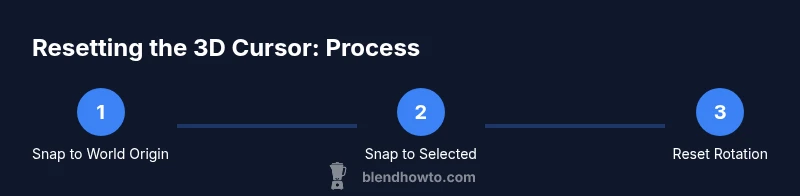
To reset the Blender 3D cursor, use the Snap menu: Shift-S then Cursor to World Origin to set its position back to the origin. For repositioning to a selection, choose Cursor to Selected. If you want to reset the cursor’s rotation, open the N-panel (3D Cursor) and enter 0 for each rotation axis. This keeps modeling precise and repeatable.
What the 3D Cursor does in Blender and why resetting helps
In Blender, the 3D Cursor is a special point in 3D space that acts as an anchor for many operations. It defines where new objects appear when you press Shift-A, where you originate transformations, and where pivots are placed during modeling and animation. Because it is a dynamic reference, its position or rotation can drift as you work, especially when you use nudging, snapping, or parent-child relationships. When you’re learning blender how to reset 3d cursor, the goal is to restore a known reference point so future actions are predictable. A cursor at the world origin (0,0,0) gives you a clean baseline for starting a new object, copying transforms, or aligning geometry with global axes. Resetting the cursor is not about losing work; it is about reestablishing a consistent coordinate origin that your tools will rely on.
In practice, you’ll typically reset location first, then rotation if needed. You can also align the cursor to a selected object to place your next piece precisely where you want it. In a team project, a standard cursor origin at the start of each scene helps ensure everyone places objects consistently. The rest of this guide covers practical, repeatable methods you can apply in Blender today, regardless of your current project type or Blender version, so you can move faster with confidence.
Quick methods to reset the 3D cursor
There are several quick, reliable ways to reset the 3D cursor in Blender, depending on your goal. If you want a universal origin, Shift-S and choose Cursor to World Origin (often labeled Cursor to World Origin in the Snap menu). This instantly places the cursor at (0,0,0) in world space, giving you a clean reference for creating new objects or aligning pivots. If you’d rather position the cursor at an existing object, select that object first and choose Cursor to Selected; the cursor jumps to that object's origin, which can save time when you want to snap new work to a specific feature.
Finally, you can use the dedicated 3D Cursor panel to reset rotation. Open the right-hand N panel in the 3D Viewport, locate the 3D Cursor section, and set Rotation values to 0° on all axes. Some users also rely on shortcuts like Shift-C to recenter the view and the cursor together. Remember that Shift-C is a viewport shortcut; use it if you want a quick visual reset, but rely on Shift-S for precise cursor placement. The most important part is choosing the method based on what you’re trying to accomplish: world-origin alignment, object-based placement, or a clean rotational reset.
Resetting location vs rotation: clear steps
Resetting the location of the 3D Cursor is often the first priority when you start a fresh modeling task. Use Shift-S → Cursor to World Origin to set the location, or Shift-S → Cursor to Selected if you want the cursor to sit at a specific object’s origin. Rotation reset is a separate action: open the N panel (the sidebar) in the 3D Viewport, locate the 3D Cursor section, and enter 0 for Rotation X, Y, and Z. This combination makes the cursor a true neutral reference point for subsequent operations. If you frequently need both, you can perform location reset first, then rotation reset, and finally verify by placing a quick object to confirm alignment.
Step-by-step scenarios: when to use Cursor to World Origin vs Cursor to Selected
Scenario A – New scene from scratch: place the 3D Cursor at the world origin using Cursor to World Origin, then add your first object so it anchors to a predictable center.
Scenario B – Aligning to existing geometry: select a feature and use Cursor to Selected so the next object snaps to exactly that feature’s location, ensuring clean joins or precise pivots. After placement, you can reset the rotation if you need the object’s orientation to align with global axes. These workflows keep your scene tidy and reduce trial-and-error placements.
Common pitfalls and how to avoid them
- Don’t confuse the 3D Cursor with the object origin; resetting the cursor won’t automatically move existing objects.
- If you reset rotation, double-check any active constraints or animation pivots that might rely on the previous orientation.
- Remember that the cursor position is saved per Blender file; different projects won’t inherit the same cursor state unless you set it in Startup File.
- When switching scenes or files, verify your cursor position and rotation to avoid misaligned new objects.
Practical workflows: modeling, animation, and viewport alignment
- Modeling: Use Cursor to World Origin to anchor the first primitive, then shift to Cursor to Selected for subsequent pieces that must attach to a specific point.
- Animation: Keep a stable cursor base so that new keyframes or bone placements align consistently with your rigs.
- Viewport alignment: Pair Cursor resets with a quick view center (Shift-C) to ensure your camera and axes align with your new reference.
Version differences and hotkey notes across Blender releases
Blender’s cursor handling has remained consistent across modern releases, but the exact panel placement can shift between versions. In 2.8+ editions, Shift-S remains the primary snap tool for cursor positioning, and the N panel provides a dedicated 3D Cursor area where rotation can be reset. If you’re using a significantly older or newer release, check the current keymap and the 3D Cursor panel to locate Cursor to World Origin, Cursor to Selected, and Rotation reset controls.
Tools & Materials
- Blender software (latest or LTS)(Install from blender.org; ensure you can see the 3D Cursor options in the 3D Viewport)
- Computer with compatible OS(Windows/macOS/Linux with at least 4GB RAM)
- Keyboard and mouse(Quick access to Shift-S and other shortcuts)
- Optional: second monitor(Helps with panels like N-panel)
Steps
Estimated time: 8-12 minutes
- 1
Open the 3D Viewport and locate the 3D Cursor
Ensure you are in the 3D Viewport and that the cursor is visible as a small red/white dot. Confirm you are in an appropriate mode (Object or Edit) for the actions you plan to perform. This prepares you for precise placement and reduces errors when snapping or setting origins.
Tip: Tip: Press Z to switch viewport shading if you can’t clearly see the cursor. - 2
Snap Cursor to World Origin
Press Shift-S and select Cursor to World Origin from the Snap menu. This moves the cursor to the scene's origin (0,0,0), giving you a universal starting point.
Tip: Pro-tip: Use Shift-C afterward to quickly recenter view and verify alignment. - 3
Snap Cursor to a Selected Target
Select the target object or vertex, then press Shift-S and choose Cursor to Selected. The cursor places itself exactly at the origin of that target, which is ideal for placing new components relative to existing geometry.
Tip: Pro-tip: If you’ve got multiple objects, use Outliner to pick the exact target before snapping. - 4
Reset Cursor Rotation
Open the N panel in the 3D Viewport, locate the 3D Cursor section, and set Rotation X, Y, Z to 0. This neutralizes any prior orientation and avoids skewed placements.
Tip: Pro-tip: You can copy rotation values from a reference object to maintain consistent orientation. - 5
Test by creating a new object at the cursor
Add a simple mesh (e.g., a cube) and observe that its origin aligns with the 3D Cursor’s location. If it doesn’t, repeat the relevant steps until the alignment is exact.
Tip: Pro-tip: Enable snapping for transforms if you want to lock the new object to the cursor precisely. - 6
Save or set startup state for future work
If you want a consistent default cursor across new projects, save the startup file or adjust the default preferences. This ensures your first actions in new scenes begin from the same reference point.
Tip: Pro-tip: Create a small template scene with the cursor reset as your baseline.
Frequently Asked Questions
What exactly is the 3D Cursor in Blender?
The 3D Cursor is Blender’s reference point used to place new objects and set pivots. It determines where actions like object creation, snapping, and transformations originate.
The 3D Cursor is Blender’s reference point for placement and pivots.
How do I reset the 3D Cursor to the world origin?
Use Shift-S and select Cursor to World Origin. This snaps the cursor to the scene’s origin, creating a consistent starting point for new work.
Shift-S and Cursor to World Origin snaps the cursor to the world origin.
Can I reset the 3D Cursor rotation?
Yes. Open the N panel in the 3D Viewport and set Rotation X, Y, Z to 0. This clears any prior orientation.
Set Rotation to 0 on all axes in the 3D Cursor panel.
What if Shift-S options aren’t available?
Ensure you are in the 3D Viewport and not in a different editor. The Snap menu appears when you press Shift-S in the 3D Viewport.
Make sure you’re in the 3D Viewport; Shift-S opens the snap menu there.
Is there a quick hotkey to re-center the cursor?
Shift-C centers the view and can reposition the cursor toward the world origin. It’s a fast way to check alignment during editing.
Shift-C centers the view and can help with quick alignment.
Does resetting the cursor affect existing objects?
Resetting the cursor only changes future placement and pivots. Existing objects retain their positions unless you explicitly move them.
Cursor resets don’t move existing objects by themselves.
Watch Video
What to Remember
- Use Shift-S for fast cursor snapping.
- Reset both location and rotation when starting fresh.
- Choose Cursor to World Origin or Cursor to Selected based on task.
- Verify by placing a test object to confirm alignment.