How to Scale in Blender Without Distorting
Learn how to scale in Blender without distorting geometry or textures. This practical guide covers uniform scaling, applying transforms, UV considerations, and exporting with correct proportions for reliable results in Blender workflows.


If you’ve asked yourself how to scale in Blender without distorting, this guide shows you how to keep proportions intact by using uniform scaling, applying transforms, and verifying dimensions before exporting. You’ll learn practical steps you can apply immediately to prevent distortion in both geometry and UVs, plus tips for non-destructive methods that preserve future edits.
Why uniform scaling matters in Blender
In Blender, distortion often happens when you scale an object unevenly across axes or fail to reset the object's transformation before exporting or rigging. If you’re learning how to scale in Blender without distorting, the core rule is simple: keep your scale uniform when resizing and apply your scale once you’ve finished a resize. Uniform scaling ensures all dimensions grow or shrink at the same rate, maintaining the model’s proportions and avoiding unexpected deformations during animation or physics simulations. BlendHowTo’s guidance emphasizes consistent workflows so you can trust your models to behave predictably in renders and engines.
The key takeaway is that scale in Blender isn’t just about size—it’s about the relationship between your object’s dimensions and its local coordinates. When you scale non-uniformly and then animate or export, you may encounter skewing, stretched faces, or collapsed edges. By starting from a clean, uniform scale, you’ll avoid these issues and set yourself up for smoother downstream work.
According to BlendHowTo, adopting a disciplined scaling routine reduces surprises during export, rendering, and game-engine workflows, making it easier to share work with teammates or clients. This is especially important for hobbyists who want reliable, repeatable results in Blender projects.
The difference between object scale and UV/texture scale
Object scale affects the geometry of a model, while UV/texture scale controls how textures map onto surfaces. Distortion often arises when you scale the object but forget to adjust textures or UV coordinates accordingly. If your model looks fine in Object Mode but textures stretch or distort after scaling, you’re likely dealing with UV scaling or texture mapping rather than geometry alone. When learning how to scale in Blender without distorting, separate the concerns: scale the mesh uniformly and then address any texture scale separately in the Shader Editor or UV Editor. This separation helps prevent unintended deformations in textures during a resize.
Texture scales can be critical for procedural materials, where non-uniform adjustments can warp patterns and tiling. For clean results, scale UVs to match the new geometry, or reproject UVs using smart projections after resizing. Blender offers texture mapping nodes that let you decouple the texture’s scale from the mesh’s scale, letting you preserve texture integrity even when the object’s size changes dramatically.
Applying scale vs. non-destructive scaling
Directly applying scale (Ctrl+A -> Scale) updates the object’s local transform so that the scale values become 1,1,1 while the geometry remains visually the same. This is often necessary before exporting to game engines or when you need precise dimensions for mechanical parts. Non-destructive scaling, on the other hand, lets you resize without altering the underlying data by using modifiers or the transform panel, which is ideal during early design stages. The recommended practice for how to scale in Blender without distorting is to resize on a temporary basis with a non-destructive approach and then apply scale only once you’re confident the proportions are correct.
Modifiers like the
Displace
Stretch
Simple Deform
Cast
are sometimes used to tweak perception without changing geometry in ways that would complicate further edits. When used carefully, these tools let you preview scale effects before finalizing, helping you avoid distortion that would require reworking the mesh. The BlendHowTo method emphasizes validating every resize step with dimension checks and visual tests in multiple viewports to confirm uniformity across axes.
Preparation: assess model and grid units
Before scaling, take a moment to review your model’s baseline dimensions and the grid units in Blender. Confirm whether you’re working in metric or imperial units and ensure the grid scale aligns with your target output. A consistent unit system reduces errors when you bring the model into other software or export formats. If you’re unsure about scale directions, enable the metric ruler or add a simple reference object (like a 1m cube) to compare against your target size. This baseline check helps you scale with confidence, reducing the chance of distortion when finalizing the model.
Establishing a reliable reference makes it easier to measure how the model grows or shrinks, ensuring you don’t inadvertently stretch faces or distort proportions during larger resizes. BlendHowTo recommends starting with a known reference size and then applying uniform changes to reach your target. This approach provides a clear, auditable path from initial concept to a finished, distort-free model.
Step-by-step workflow overview
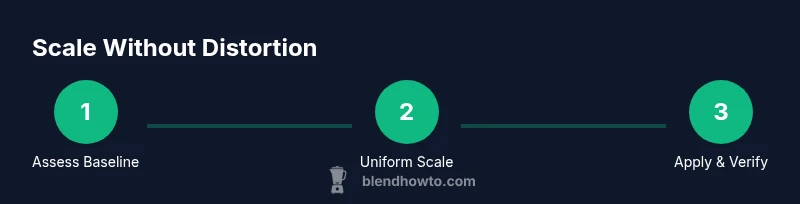
A structured workflow is essential for consistent results when learning how to scale in Blender without distorting. Start with a simple cube or a low-poly model to practice the steps before moving to complex geometry. Always check that your scale is applied before exporting, and verify the final dimensions with the Properties panel. Keep an eye on the bounding box to ensure no axis is disproportionately stretched. As you gain experience, you’ll develop a quick instinct for when a resize risks distortion and how to adjust accordingly, preserving the integrity of your model for animation or rendering.
The process also includes testing the scale under different shading modes (solid, material, and rendered) to ensure lighting and texture mapping respond correctly to the new size. With practice, your scaling becomes a repeatable, reliable operation rather than a guesswork task.
Common pitfalls and how to avoid them
Several common mistakes cause distortion during scaling. The most frequent is neglecting to apply scale after resizing, which leaves the object’s transform in a non-uniform state and can break physics, modifiers, and export pipelines. Another pitfall is non-uniform scaling on parented hierarchies, which can warp bones or rigging when animations are applied. Finally, resizing without updating UVs or texture maps leads to stretched or compressed patterns that spoil the final look. To avoid these issues, adopt a discipline: always apply scale when resizing, keep scaling uniform across all axes, and adjust UVs or textures separately as needed.
During larger scale changes, re-check the object’s dimensions in the Transform Panel and verify that the bounding box appears proportional across all axes. If you must scale non-uniformly for a specific design reason, plan ahead by adjusting textures and weights, and consider creating a separate duplicated mesh for the scaled version to minimize impact on the original. BlendHowTo emphasizes maintaining a clean, auditable workflow so you can revert changes easily if distortion appears later.
When exporting to engines: ensure consistent scale
Exporting to game engines or external renderers can introduce scale discrepancies if the target environment uses a different unit system. Before exporting, ensure your model’s scale is applied or that you export with a consistent unit scale option. A reliable approach is to apply scale (Ctrl+A -> Scale) and then lock the dimensions to a known unit in the export settings. You may also want to export a reference cube alongside your model to verify proportions in the destination application. This practice prevents distortions caused by mismatched units during import.
In some pipelines, you may export with a uniform scale factor, then adjust in the target engine. Always test with a simple scene first to confirm that dimensions, textures, and normals behave as expected after import. BlendHowTo notes that an upfront, standardized export workflow reduces rework and distortion risk later in the project.
Non-destructive methods: modifiers and constraints
Non-destructive approaches let you experiment with scale without permanently changing the model. Use modifiers such as Corrective Smooth, Simple Deform, or Warp to preview how scale changes affect the surface. You can also use a parent-child relationship or a control object to scale the entire group uniformly. Constraints can drive scale from another object or a custom control, which is especially useful in animation-heavy workflows where you want to keep proportions intact during movement. These tools keep the original geometry intact while you refine your composition.
When using non-destructive methods, remember to bake or apply the final adjustments only when you’re ready to finalize. Save incremental versions so you can revert to a known-good state if a non-destructive change introduces distortion. BlendHowTo emphasizes careful versioning as part of a robust scaling workflow.
Measuring and verifying scale accuracy
Verification is the final step in ensuring you’ve scaled without distortion. Use the Dimensions panel to compare length, width, and height before and after scaling. A quick visual check with the bounding box can reveal asymmetries, while the 3D Print, MeasureIt, or a simple ruler object can confirm real-world sizes. If you’re working toward precise tolerances, set up exact dimension values in the N panel and adjust until they match your target. A recurring habit is to re-check after applying transforms and after any significant project milestone, such as after exporting or final render setups.
In practice, you’ll want a repeatable process: scale, apply, verify dimensions, and test with a quick render or engine import. This loop catches distortion early and keeps your project on track for accurate results across applications.
Real-world checks: scaling for export and rendering
In real-world workflows, scaling decisions often hinge on downstream requirements—render resolution, camera framing, or engine units. A practical check is to compare a known reference object against the target cap at the final render. If the camera’s focal length or perspective looks off after a scale change, re-check the scene’s scale relationships and re-apply as needed. It’s common to adjust lighting or materials after scaling to preserve the intended look, so test renders early and often. This approach minimizes the risk of distortion in final outputs and helps ensure consistency across tools used in the project.
BlendHowTo’s guidance for professionals emphasizes a disciplined, test-driven approach to scaling. By incorporating these checks into your routine, you’ll produce predictable, distortion-free results suitable for presentation or production.
Tools & Materials
- Blender software (latest release)(Install the latest version for best compatibility with new scale-related features.)
- Practice model (cube or simple mesh)(Start with a basic shape to master uniform scaling before moving to complex models.)
- Reference object (1 unit cube)(Useful for dimension checks and real-world sizing.)
- A capable monitor with good resolution(Helps you spot distortions and texture tiling issues more easily.)
- Export target account or engine (optional)(Test scaling in the destination environment (game engine, renderer).)
Steps
Estimated time: 15-25 minutes
- 1
Check current scale and baseline dimensions
In Object Mode, inspect the Scale and Dimensions in the Item panel. If the object is already scaled, decide whether to resize now or reset to a known baseline. This avoids compounding distortions later.
Tip: Record the current dimensions before resizing to track what changes you make. - 2
Scale uniformly using the S key
Press S to initiate uniform scaling. To scale by a precise factor, type the number (e.g., 1.5) and press Enter. This preserves proportions across all axes.
Tip: If you want to constrain to a single axis later, press X, Y, or Z after starting the scale. - 3
Apply scale to reset the local coordinates
After achieving the desired size, apply the scale to reset the object’s local scale to 1,1,1 (Ctrl+A > Scale). This prevents future distortions when adding modifiers or exporting.
Tip: Applying scale is essential before exporting to ensure consistent results in engines. - 4
Verify dimensions with the Transform panel
Open the Transform panel to confirm that X, Y, and Z dimensions reflect the intended final size. Use a known reference for accuracy.
Tip: Cross-check with a reference object to ensure proportional changes. - 5
Adjust textures separately if needed
If UVs or textures look stretched after scaling, adjust the UV map or texture scale in the UV Editor or Shader Editor rather than re-scaling geometry.
Tip: Do texture corrections in a separate pass from geometry resizing. - 6
Scale multiple objects efficiently
Parent the objects under a single empty or an empty group, scale the parent, then apply scale to individual children if needed.
Tip: Parenting ensures uniform scaling across related objects. - 7
Test in target engine or render
Export a test scene or render a quick frame to confirm that scale looks correct in the final environment.
Tip: If something looks off, revisit the unit settings in both Blender and the target app. - 8
Document the final scale settings
Save a note or a small readme with the final scale factor and unit choices for future projects.
Tip: Documentation saves time on long-term workflows and collaborations.
Frequently Asked Questions
Why does Blender distort models when scaling?
Distortion usually happens when scaling is non-uniform across axes or when transforms aren’t applied. Applying scale or ensuring uniform scaling helps prevent deformation during export or animation.
Distortion comes from uneven scaling or un-applied transforms; apply scale and keep scaling uniform to avoid it.
How do I scale uniformly without changing proportions?
Use the S key to scale and type a numeric value (e.g., 1.2) to scale uniformly on all axes, or lock to a single axis if you need directional changes.
Press S and input the same value to scale equally across all axes.
When should I apply scale?
Apply scale before exporting to engines or when you need exact measurements for real-world sizes. Applying scale ensures the local transform matches the actual geometry.
Apply scale before export to ensure correct size in other apps.
Does adjusting UVs affect textures when scaling?
Yes. If you scale geometry and don't adjust UVs, textures can stretch. Update UV maps or use texture mapping nodes to compensate.
UVs can stretch if you don’t adjust them after scaling.
How can I scale multiple objects together without distortion?
Parent objects under a single control (an empty or a master object) and scale the parent. Then apply scale if needed to individual objects later.
Group or parent objects and scale as a unit for consistency.
What tools help verify scale accuracy?
Use the Dimensions panel, bounding box, and a reference object to compare measurements before and after scaling.
Check dimensions and use a reference to ensure accurate scale.
Watch Video
What to Remember
- Always apply scale before exporting
- Scale uniformly to preserve proportions
- Separate geometry scaling from UV/texture adjustments
- Verify dimensions with a reference object
- Use non-destructive methods to preview changes
- Document final scale settings for consistency