What Causes Blender to Crash: A Troubleshooting Guide
This in-depth troubleshooting guide explains common reasons Blender crashes, how to diagnose them quickly, and step-by-step fixes to keep your 3D projects running smoothly in 2026.


Understanding what causes blender to crash
The phrase what causes blender to crash is common among Blender users who run into abrupt terminations during modeling, animation, or rendering. Crashes can be sudden, or appear after complex operations like heavy subdivision, large node trees, or importing high-poly assets. By understanding the underlying patterns, you can triage quickly and minimize downtime. According to BlendHowTo, crashes are rarely caused by a single fault; they are usually the result of a combination of system limits and software state. In practice, the most frequent culprits fall into four buckets: graphics drivers and GPU memory, Blender build and installation health, add-ons and scripts, and the integrity of the project data. This guide uses those categories to help you diagnose faster, reproduce the issue, and apply safe fixes without risking your work. You 0You 0 We 0gain a practical workflow you can reuse across projects and hardware setups, cutting debugging time dramatically and keeping your creative momentum.
Common crash scenarios and quick fixes
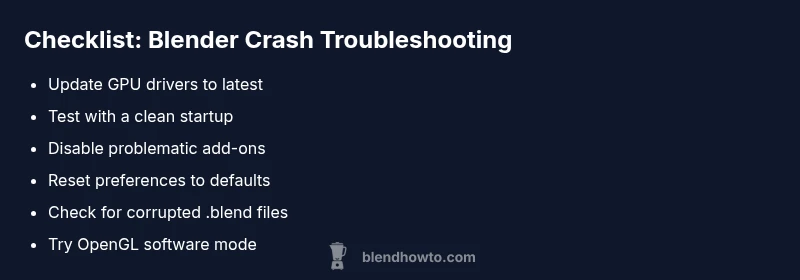
Blender crashes can show up in several familiar ways. The most common are startup crashes, crashes when loading a heavy scene or a specific .blend file, and hangs during render or viewport navigation. Quick fixes in order of ease: 1) Update graphics drivers and Blender to the latest stable release. 2) Disable or remove recently installed add-ons that might conflict with Blender’s Python context. 3) Open Blender with factory defaults to test whether the issue is preferences-related. 4) Load a fresh scene with a simple object to verify if the crash is scene-specific. 5) Clear the startup file or reset the preferences to eliminate corrupted configuration. Each scenario hints at where the fault lies; if the crash persists, move to systematic checks below. The key is to change one variable at a time and test, so you know what actually resolves the issue rather than guessing.
Diagnostic flow: quick triage before heavy debugging
Start with a fast triage to distinguish hardware, software, or data problems. Symptom: Blender crashes or freezes when opening, editing, or rendering. Diagnosis pathways: 1) If the crash occurs with a specific file, the file or its data blocks may be corrupted. 2) If Blender crashes even with a new empty scene, the problem is likely global (driver, hardware, or installation). 3) If only certain tools or add-ons trigger the crash, focus on scripts or add-ons. Solutions follow: test with a clean startup, disable add-ons, update drivers, and inspect memory usage. After each change, replicate the issue to confirm. If the crash still happens, escalate to more detailed steps in the next sections. This flow keeps you from chasing ghost bugs and helps you converge on a real root cause quickly.
Step-by-step fixes for the most frequent culprits
Step 1: Update graphics drivers and Blender. Ensure you are running the latest stable Blender build and that your GPU drivers support the features you use. Step 2: Reset preferences or start with a fresh user profile. This clears corrupted configuration that can trigger crashes when Blender starts or loads complex scenes. Step 3: Disable problematic add-ons and test with a minimal, clean scene. Step 4: Open the file in a new project or with simplified data (lower poly count, fewer modifiers) to see if the crash still occurs. Step 5: Run Blender using software OpenGL mode to determine if the GPU is the bottleneck. Step 6: Check for corrupted .blend files by exporting a new version or starting from a published baseline. Step 7: Monitor memory usage in the system monitor while Blender runs; migrate to a machine with more RAM or adjust the scene. Step 8: If possible, try a different version of Blender or a portable installation to isolate the issue. Tip: change one variable at a time and document results for fast reproduction.