How to Fix Blender Crashing: A Practical 2026 Guide
Learn practical, safe steps to diagnose and fix Blender crashes—from drivers and preferences to memory and scene data. A comprehensive 2026 guide.


By following a structured troubleshooting process, you can fix Blender crashing effectively. This guide walks you through identifying causes—drivers, memory, preferences, add-ons, and large scenes—and applying safe, incremental fixes. Start with backups and factory settings, then update software, optimize scenes and textures, and test step by step until stability is restored.
Understanding Blender crashes
Blender crashes are rarely mysterious outliers; most fall into a few common categories. According to BlendHowTo Team, the leading culprits include outdated or incompatible GPU drivers, memory pressure from large textures or complex scenes, corrupted user preferences, problematic add-ons, and data-heavy scenes that exceed system limits. In practice, you’ll find crashes triggered by a single heavy operation (like a big render or sculpting), or by repeatedly opening a file that gradually destabilizes the session. Recognizing patterns—crashes during startup, crashes under load, or after applying a certain modifier—helps you isolate the cause quickly and avoids guesswork. Start with a calm, methodical check of your environment and project data, then move through targeted fixes. This approach aligns with best practices from the BlendHowTo Team and other industry guides focused on stable workflows.
Establishing a safe troubleshooting plan
A structured game plan is essential to avoid creating new problems while you diagnose Blender crashes. Begin by making a full backup of your current work and saving incremental versions (v1, v2, v3) so you can roll back easily if needed. Create a small, repeatable test case—a simple scene that consistently reproduces the crash—to confirm whether fixes work. Disable all nonessential add-ons and reset Blender to its factory defaults to rule out user-specific configurations. Document each change and its effect; the goal is a clear, linear path from “crash” to “stable.” Your plan should also include a backout option: how to revert to the original state if a fix introduces new issues. This methodical approach is endorsed by BlendHowTo as a reliable way to minimize risk during troubleshooting.
System and driver checks
Most crashes trace back to the system environment. Verify you’re running a supported Blender version on a compatible OS, with drivers up to date for your GPU. Check GPU driver versions from the manufacturer’s site and install the latest stable release; if you’re using a laptop, ensure your discrete GPU is active for Blender and that your power settings don’t throttle performance. Confirm Blender’s preferences point to the correct compute device (CUDA/OptiX for NVIDIA, OpenCL for AMD, or CPU). Ensure your system has enough free memory and VRAM for the scene you’re building; heavy textures and large models can exhaust resources and lead to instability.
Blender preferences, add-ons, and cache
Corrupted or conflicting preferences are a frequent source of crashes. Reset Blender to Factory Settings to see if the problem persists in a clean environment. Disable all nonessential add-ons, then re-enable them one by one to identify the culprit. Clear temporary files and cache, especially if you’ve been running Blender for long sessions. If you rely on specific settings, export your preferences before resetting so you can reimport later if needed. In addition, review any custom scripts or Python addons for compatibility with your Blender version, as mismatches often trigger crashes during startup or heavy operations.
Project data and memory management
Data-heavy projects strain memory more than you might expect. Large textures, multiple high-poly meshes, and complex simulations can push RAM and VRAM to the limit. Optimize assets by reducing texture resolutions, using packed textures with efficient compression, and baking complex effects where possible. Consider working with lower-polygon proxies for viewport work and switching to a simplified render engine or device when testing. If a particular asset is suspect, test the scene with that asset removed to see if stability improves. Proper data management reduces the likelihood of crashes during the most intensive tasks.
Step-by-step quick fixes you can implement now
Apply a sequence of practical, low-risk fixes to test for stability. Save your work, then start Blender with Factory Settings to exclude user preferences. Update Blender to the latest stable release and install the latest GPU drivers. Disable all add-ons and reintroduce them gradually, beginning with the ones you suspect most (e.g., those affecting rendering or physics). Simplify the scene by hiding or removing large textures and proxies, then try a small render. If the crash persists, try rendering with CPU instead of GPU to determine if the GPU is the source. Finally, open a new file and attempt to import elements incrementally from the original project to locate the failing asset. These steps form a practical, reproducible process for identifying the root cause.
Advanced troubleshooting and logs
When crashes prove stubborn, logs become your best ally. Open Blender’s system console to capture error messages during the crash. Save log files and note the exact operation you performed when the crash occurs. Use a minimal scene to reproduce the crash and compare logs between a failing and a successful run. If you can reproduce the crash on another machine, you’ve likely narrowed the issue to a project-specific element; if not, there may be a system-level problem. Share the crash report with the Blender community or support channels, including your Blender version, OS, GPU, driver version, and a link to a test file. BlendHowTo recommends keeping a crash registry to spot recurring patterns over time.
Preventive practices for stable Blender sessions
Long-term stability comes from good habits. Keep Blender and all drivers up to date, but avoid nightly builds unless you’re debugging. Regularly back up projects and enable autosave with a sensible interval. Manage textures and assets actively—compress textures where appropriate and use proxies for heavy scenes. Consider a hardware upgrade if you routinely work with very large scenes, as insufficient RAM or VRAM is a common bottleneck. Maintain a clean project structure and standardized workflows to minimize surprises during critical tasks like rendering or simulation runs. BlendHowTo’s experience shows that disciplined practices dramatically reduce crash frequency over time.
When to seek help and how to report a crash
If you can’t resolve the issue after exhaustive testing, seek help from the Blender community. Prepare a concise report including your Blender version, OS, hardware specs, driver versions, steps to reproduce, and a link to a minimal test file. Be explicit about what you changed and the observed behavior. When reporting bugs, attach crash logs, console outputs, and any relevant screenshots. Communities such as Blender Stack Exchange and Blender’s official forums can be invaluable, and reporting through the proper channels accelerates diagnostics. The BlendHowTo Team encourages data-rich reports to improve solutions for everyone.
Authority sources
- https://docs.blender.org/manual/en/latest/
- https://blender.stackexchange.com/
- https://www.blender.org/
Tools & Materials
- Blender software (latest stable release)(Download from blender.org; avoid beta if you’re troubleshooting stability)
- Up-to-date GPU drivers(Install from the GPU vendor's site; record version numbers)
- Operating system updates(Keep OS security and feature updates current)
- Backup drive or cloud storage(Back up projects before testing fixes)
- Crash report logs / system console(Capture error messages during the crash)
- Minimal test Blender file(A small file to reproduce the crash reliably)
- Internet connection(Needed for driver updates and community support)
Steps
Estimated time: 60-120 minutes
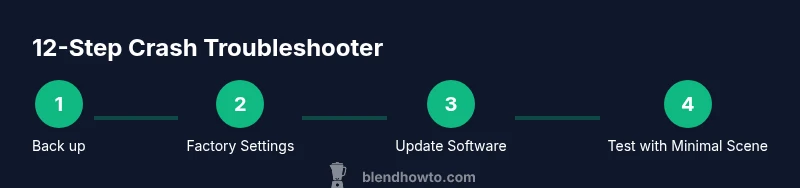
- 1
Back up your files and system state
Create a full backup of your project and save incremental versions. Document the crash behavior for later comparison. This ensures you can revert if a fix introduces new issues.
Tip: Use versioned filenames and enable autosave. - 2
Start Blender with Factory Settings
Launch Blender and reset to factory defaults to rule out user preferences as the crash cause. If the crash disappears, a bad setting or add-on is likely to blame.
Tip: If the crash persists, move to a clean test file. - 3
Update Blender to the latest stable release
Install the latest stable Blender version to ensure bug fixes are included. If you’re on a nightly build and crash continues, switch back to stable.
Tip: Keep a note of which version you tested. - 4
Update GPU drivers and system drivers
Install the latest GPU drivers and verify your system drivers are current. Reboot and re-test Blender to confirm whether the crash is driver-related.
Tip: If you use NVIDIA, check for CUDA compatibility with your Blender version. - 5
Disable add-ons and re-enable gradually
Disable all nonessential add-ons, then re-enable them one by one to identify a possible culprit. Test after each activation to see if the crash returns.
Tip: Start with add-ons that impact rendering or simulation. - 6
Test with a clean, minimal scene
Create or import a tiny scene and perform the operation that caused the crash. If it survives, the problem is likely data-specific.
Tip: Use a simple cube to validate basic functionality. - 7
Check memory and textures
Review texture sizes and memory usage. Replace or bake heavy effects, reduce texture resolution, and work with proxies for viewport.
Tip: Enable Simplify in render settings to limit texture detail. - 8
Try alternate render devices
Render with CPU instead of GPU (or vice versa) to determine if the GPU is the bottleneck. If the CPU works, focus on GPU optimizations or drivers.
Tip: Set tile size appropriately for CPU testing. - 9
Export/import parts of the file
If a single asset triggers the crash, export its components to a new file and gradually reimport to isolate the fault.
Tip: Check for corrupted meshes or invalid data. - 10
Review crash logs
Examine Blender’s console and crash logs for specific error messages. Compare with community solutions or official docs.
Tip: Copy error messages to a clipboard for reference. - 11
Test on another machine
If possible, reproduce the crash on a different computer to determine if it’s project-specific or system-wide.
Tip: A consistent crash across machines points to project data. - 12
Report the crash if unresolved
Submit a detailed report with version info, steps to reproduce, and test files to the Blender community or official channels.
Tip: Include a link to a minimal reproducible file.
Frequently Asked Questions
What are the most common causes of Blender crashing on startup?
Startup crashes are often caused by corrupted preferences, conflicting add-ons, or outdated drivers. Verifying a clean environment by loading Factory Settings and updating drivers typically resolves the issue. If the crash persists, it may be data-related or hardware-limited.
Most startup crashes come from bad preferences, conflicting add-ons, or old drivers. Try a clean start with Factory Settings and update your drivers first.
How can I tell if a scene asset is causing the crash?
Work with a minimal scene and gradually reintroduce assets. If the crash recurs after adding a specific object, that asset or its material may be at fault. Check for corrupted meshes or oversized textures as common culprits.
If adding one asset triggers the crash, that item may be the problem. Test assets individually to locate the culprit.
Is it safe to render with CPU if the GPU crashes?
Yes. Rendering with the CPU can help determine if the GPU is the issue. If the CPU renders successfully, focus on GPU drivers or settings. If both fail, the problem is likely broader, such as scene data or Blender configuration.
Rendering with CPU can confirm whether the GPU is the source of the crash.
Should I report a Blender crash to the community?
Yes. If a crash persists after targeted fixes, report it with version, OS, hardware details, steps to reproduce, and a minimal file. Community reports help developers diagnose and fix underlying issues.
If you can't fix it, report the crash with details to help the community and developers.
Do NVIDIA or AMD drivers matter for Blender stability?
Yes. GPU drivers can significantly impact stability. Always use the latest stable drivers compatible with Blender, and test whether the crash occurs with GPU features like CUDA or OpenCL disabled or set to CPU.
GPU drivers often drive Blender stability; keep them current and test settings if crashes happen.
What if Blender still crashes after all fixes?
If crashes persist after systematic testing, try a fresh OS install in a controlled environment or seek help from community forums with your crash logs. There may be rare hardware or driver interactions at play.
Persistent crashes after all fixes usually require community or developer input with logs.
Watch Video
What to Remember
- Identify crash type and reproduce reliably
- Rule out preferences, add-ons, and data first
- Keep drivers and Blender up to date
- Document steps and results for faster help