What is Wrong with Blender? An Urgent Troubleshooting Guide for 2026
Struggling with Blender issues? This urgent BlendHowTo guide helps you diagnose startup crashes, freezes, and rendering glitches, with a clear, step-by-step path to a fast fix for what is wrong with blender.


The most likely culprits are outdated GPU drivers, corrupted Blender preferences, or conflicts with add-ons. Start with a quick reset: close Blender, delete the user preferences (the Blender config folder) to force a fresh start, then relaunch and update graphics drivers. If issues persist, disable add-ons one by one to isolate the fault.
What is wrong with blender — Quick Diagnosis
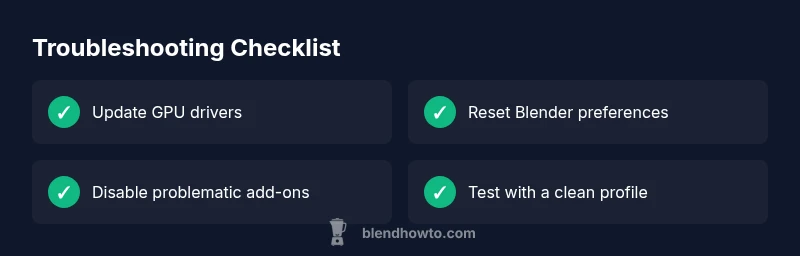
If you're asking what is wrong with blender, the quick answer is that most issues stem from your computer setup or Blender's own configuration rather than the software itself. In practice, startup failures and crashes usually come from graphics drivers, corrupted preferences, or conflicting add-ons. This BlendHowTo guide emphasizes a structured check: verify drivers, reset preferences, and test with a clean Blender profile before diving into complex edits. By approaching the problem methodically, you can cut through the noise and get back to work quickly. As we outline, the goal is to identify whether the problem is hardware, software, or data, and respond with targeted fixes rather than broad reinstallations. At every step, keep your important Blend files safe and your notes handy for rollback if needed.
Common Blender Issues and Their Symptoms
Blender is powerful, but its failures are frustrating. Common problems include a crash at startup, a blank or unresponsive UI, or a stall during rendering. You might see artifacts in renders, freezes when switching modes, or sudden shutoffs. Each symptom points to a family of causes: driver or GPU issues, corrupted preferences, or broken add-ons. The quick signal is consistency: if a fresh project still exhibits the same issue, it’s more likely a system-wide problem; if only a single file acts up, the problem is probably data- or file-specific. In all cases, keep a baseline checklist handy and document any recent changes. This approach aligns with BlendHowTo's guidance for urgent troubleshooting that gets you productive quickly.
Check Your Software and Add-On Landscape
The next layer is to verify your software stack. Ensure you’re running a Blender version compatible with your operating system and hardware. Check for GPU compute compatibility, OS updates, and whether Blender’s render engine is affected by driver changes. Add-ons are a frequent culprits: outdated plugins can crash, conflict with other software, or cause UI lag. Temporarily disable all non-essential add-ons, then re-enable them one by one to spot the offender. If you recently updated Blender, review the release notes for known issues and required system changes. Finally, confirm that Blender’s startup file and user preferences are not corrupted by performing a clean launch with a fresh profile.
Diagnostic Flow: Symptoms to Diagnosis to Fixes
A well-defined diagnostic flow helps prevent circular debugging. Start from observable symptoms, then consider the most likely causes, and apply fixes in a logical order. For example: a startup crash suggests driver or profile problems; a slow scene or heavy viewport lag points to GPU limits or memory pressure; render artifacts hint at driver stability or engine settings. The goal is to progress from simple, reversible steps to more involved interventions. Keep a running list of what you tried and the outcome so you don’t duplicate efforts. In BlendHowTo’s experience, a disciplined approach reduces downtime and accelerates recovery from Blender issues.
Step-by-Step Fixes for the Most Common Cause
This section provides a concrete, repeatable sequence to address the most common failure mode: corrupted user preferences and configuration. Follow these steps in order, pausing between steps to test Blender:
- Close Blender and back up your important files. 2) Reset Blender preferences to default and clear the config folder. 3) Update your GPU drivers to the latest stable version. 4) Launch Blender with add-ons disabled; if it runs, re-enable add-ons one by one. 5) If needed, reinstall Blender or try a stable earlier version. 6) Create a new project and test basic operations before re-importing older work.
Pro Tips to Prevent Future Issues
Pro tip: establish a routine for backups and versioned projects. Save Blender preferences before applying major changes, and periodically reset to factory defaults to avoid long-term configuration drift. Keep your GPU drivers current, but avoid beta releases unless you need a specific feature. Document any troubleshooting steps you take so you can reproduce results later. Finally, build a small test scene to validate a clean startup after each major change. These habits minimize downtime and improve reliability over time.
Steps
Estimated time: 45-60 minutes
- 1
Close Blender and back up data
Save all work, locate the Blender config folder, and copy it to a safe location. This ensures you can restore preferences if needed. Confirm you have a copy of recent .blend files before proceeding.
Tip: Backups prevent data loss during resets. - 2
Update GPU drivers
Visit the GPU manufacturer's site and install the latest stable drivers compatible with your OS. Restart the computer after installation to ensure changes take effect.
Tip: Always use the official driver page rather than third-party mirrors. - 3
Reset Blender to factory defaults
In Blender, go to Edit > Preferences > Save & Load > Load Factory Settings, then restart Blender. This clears custom configurations and problematic add-ons.
Tip: Only perform this step if you’re comfortable reconfiguring preferences later. - 4
Disable add-ons and test
Launch Blender with add-ons disabled (use the command line flag or start in Safe Mode if available). If Blender runs, re-enable add-ons one by one to locate the culprit.
Tip: Keep a list of essential add-ons to re-enable first. - 5
Test with a new project
Create a new project and perform basic operations (modeling, shading, rendering). If the issue doesn’t appear, it’s likely file-specific or related to assets in the original project.
Tip: Avoid importing complex assets until the baseline works. - 6
Reinstall Blender if needed
If issues persist, uninstall Blender and perform a clean reinstall. Remove residual config folders before reinstalling to ensure a pristine setup.
Tip: Double-check you’re installing from the official Blender website.
Diagnosis: Blender won't start, crashes, or UI hangs during startup or while rendering
Possible Causes
- highOutdated or incompatible GPU drivers
- highCorrupted user preferences or config files
- mediumConflicting add-ons or mismatched Blender version for OS
Fixes
- easyUpdate GPU drivers from the official vendor site
- easyReset Blender preferences and clear the config directory
- easyLaunch Blender with add-ons disabled and test with a clean startup
- mediumReinstall Blender or roll back to a stable version if issues persist
Frequently Asked Questions
Why does Blender crash on startup?
Startup crashes are typically driver or configuration related. Update GPU drivers and test with a clean profile. If the crash persists, reset preferences and disable add-ons to identify conflicts.
Startup crashes usually mean drivers or configuration are at fault. Update drivers, test with a clean profile, then disable add-ons to isolate the issue.
How can I reset Blender to its default settings?
Go to Edit > Preferences > Save & Load > Load Factory Settings, then restart Blender. If needed, Save Startup File to apply the defaults for new sessions.
Use the factory settings option under Preferences and restart Blender to apply defaults.
Can add-ons cause Blender to run slowly or crash?
Yes. Disable all add-ons, restart Blender, and re-enable them one by one to find the culprit. Keep essential add-ons active but remove the risky ones.
Yes—try disabling add-ons to test performance, then re-enable one by one to find the offender.
What should I do if Blender renders artifacts?
Artifacts can stem from GPU memory issues or driver instability. Update drivers, check memory usage, and ensure render settings match your hardware capabilities.
Artifacts mean memory or drivers may be off. Update drivers and review render settings.
Is there a safe way to test Blender without affecting my system?
Yes. Run Blender with a clean user profile or in portable mode, avoiding new plugins. This helps determine if the issue is global or project-specific.
Test in a clean environment to avoid system-wide effects.
When should I seek professional help?
If issues persist after following standard steps, consult Blender support or a local IT professional for deeper diagnostics.
If everything fails, it's time to get expert help.
Watch Video
What to Remember
- Identify root cause with a structured approach
- Reset preferences and update drivers first
- Disable add-ons to isolate conflicts
- Backups prevent data loss and speed recovery