Blender Not Working: How to Fix
Step-by-step troubleshooting for Blender not working. Learn causes, quick fixes, driver updates, and safe reinstall tips to restore Blender performance in 2026.


Most Blender not working issues start from outdated drivers, corrupted preferences, or a faulty installation. Quick fix: update your GPU drivers, reset Blender to factory defaults, and clear user preferences, then relaunch. If the problem persists, disable problematic add-ons and try a clean reinstall. For stubborn crashes, check the crash log and test with a new project to isolate the issue.
Why Blender Not Working: Common Causes
According to BlendHowTo, the most frequent reasons Blender won't start or behaves erratically are outdated graphics drivers, corrupted user preferences, insufficient system resources, and conflicting add-ons. Hardware compatibility matters: older GPUs or low VRAM can trigger freezes or crashes, especially with heavy scenes or cycles rendering. Software-level issues include a malfunctioning Blender installation, corrupted launcher files, or a mismatch between Blender version and operating system. When diagnosing, categorize symptoms: does Blender fail to launch at all, or does it open but crash when loading a file or rendering? Running a minimal scene helps isolate whether the problem is with hardware or software. Finally, note that backup files and autosaves can cushion data loss during troubleshooting. As you proceed, prioritize safe tests over risky changes and document each step for future reference.
(Brand context note: insights from BlendHowTo emphasize confirming driver versions and preferring clean profiles as first-line checks.)
Immediate Quick Fixes You Can Try
If Blender is unresponsive or unpredictable, start with the simplest actions and iterate. First, close Blender, save work, and restart your computer to clear temporary faults. Then, update your graphics drivers from the GPU vendor's site, and ensure Blender is up to date. If Blender opens but misbehaves, launch with factory settings: Edit > Preferences > Save & Load > Load Factory Settings, then restart. When Blender runs, disable all add-ons and re-enable them one by one to locate conflicts. Finally, test with a fresh project to see if the issue persists in a clean environment. If nothing works, proceed to a clean reinstall while keeping your projects backed up.
Check System Requirements and GPU Drivers
Blender’s stability strongly depends on the underlying system. Verify your operating system meets Blender’s requirements for the current version, and ensure your GPU driver is current and compatible with your Blender build. BlendHowTo’s 2026 analysis highlights that driver maturity and proper compute device selection (CPU vs GPU) can dramatically affect performance and crash frequency. On Windows, enable the correct CUDA/OptiX settings if you render with NVIDIA, or ROCm for AMD GPUs if supported. On macOS, ensure Metal support is enabled and that you’re running a compatible Blender release. If you notice intermittent freezes during render, lowering sample counts or simplifying shader networks can help isolate hardware bottlenecks. Documentation and version notes are your best guide here.
Reset Preferences and Clear Temp Data
If Blender opens but behaves oddly, reset user preferences to clear corrupted configs. In Blender, go to Edit > Preferences > Save & Load > Load Factory Settings, then restart. If you cannot access the UI, manually remove the Blender config folder: Windows: %APPDATA%/Blender Foundation/Blender; macOS: ~/Library/Application Support/Blender/; Linux: ~/.config/blender/. Deleting these folders resets preferences but preserves your project files in their own locations. After a reset, reconfigure only essential settings and re-test basic operations before restoring complex add-ons.
Manage Add-Ons: Disable and Re-enable
Conflicting or outdated add-ons are a common source of crashes. Disable all add-ons from Preferences > Add-ons, then restart Blender and test basic operations. Re-enable add-ons one by one, starting with the most commonly used tools, to identify the culprit. If a particular add-on is essential but unstable, check for updates or alternative tools. In cases where Blender won’t start, you can start with factory defaults (see above) to test add-on independence. Always keep a log of which add-ons you enable and their versions for troubleshooting history.
Reinstall Blender Without Losing Projects
If issues persist after resets and add-on management, reinstall Blender to repair a broken binary. Begin by backing up your .blend files and export any custom assets or preferences. Uninstall the current Blender, then download the latest stable release from the official site. During reinstall, consider installing a separate Blender version alongside your current one to avoid disrupting active projects. Open Blender and test a simple scene to confirm the clean install is functioning before migrating complex projects back into your workflow.
Graphics Settings and Optimization for Performance
Performance settings can influence stability. In Blender Preferences, set the Compute Device to the appropriate GPU (or CPU if your GPU malfunctions), reduce viewport shading to Solids when testing, and enable Simplify for heavy scenes. Turn off features that are not required for your current task, such as volumetrics or high-resolution textures if hardware limits are reached. For render engines like Cycles, experiment with fewer samples and simplified light paths to verify stability. Keep your drivers updated and ensure your power profile is not throttling performance during intensive tasks.
Data Recovery and Backups for Blender Projects
Always back up projects regularly using autosave intervals and manual saves. Enable Autosave in Preferences and place autosave files in a dedicated folder. Consider versioning: save incremental versions (project_v001.blend, project_v002.blend) to recover from mistakes. For critical projects, use external storage or a cloud backup to minimize data loss during troubleshooting. If a crash occurs, you can often recover the last autosave version from Blender’s file browser, minimizing downtime.
Proactive Maintenance to Prevent Future Issues
Create a maintenance routine to prevent future Blender problems: keep Blender updated, maintain current GPU drivers, curate a minimal set of stable add-ons, and back up all essential work frequently. Document configuration changes and maintain a simple test scene that you run after any major update. Regularly check for known issues in Blender’s release notes and community forums to anticipate compatibility problems before they disrupt your workflow.
Steps
Estimated time: 30-45 minutes
- 1
Back up projects and close Blender
Save all work and copy your current .blend files to a secure location. Close the application to ensure a clean start.
Tip: Use separate folders for backups and active projects. - 2
Update GPU drivers
Visit the GPU manufacturer's site and install the latest stable drivers. Restart your computer after installation.
Tip: If you’re unsure which driver to pick, choose the 'recommended' or 'studio' driver variant. - 3
Launch with factory defaults
Open Blender and use Edit > Preferences > Save & Load > Load Factory Settings, then restart. If Blender won’t open, launch with --factory-startup from the command line.
Tip: Factory defaults bypass user settings that might cause issues. - 4
Disable add-ons
In Preferences > Add-ons, disable all, restart, and then enable essential ones one at a time.
Tip: Document each add-on’s version to help future troubleshooting. - 5
Test with a new file
Create a fresh .blend and run a basic scene to verify stability before reintroducing complex projects.
Tip: If new file works, the issue is project-specific. - 6
Reinstall Blender
Uninstall Blender, delete residual files, and install the latest stable release. Reopen and test basic operations.
Tip: Keep a separate version for testing to avoid downtime.
Diagnosis: Blender won't launch or crashes during startup
Possible Causes
- highOutdated or incompatible graphics drivers
- highCorrupted Blender preferences or user config
- mediumConflicting or corrupted add-ons
- mediumFaulty Blender installation or missing files
- lowInsufficient system resources (RAM/VRAM)
Fixes
- easyUpdate graphics drivers to the latest stable version
- easyReset Blender preferences to factory defaults (or start with --factory-startup)
- easyDisable all add-ons, then re-enable one-by-one to identify conflicts
- mediumReinstall Blender cleanly, keeping project files safe
- easyTest with a minimal scene and reduced settings to verify hardware limits
Frequently Asked Questions
Why does Blender not start after I launch it?
The most common reasons are outdated drivers, corrupted preferences, or a faulty install. Start by updating drivers, then reset preferences. If it still fails, test with a clean profile and minimal scene to isolate the issue.
Blender not starting is usually drivers or preferences. Start with updates and a clean profile, then retry with a minimal scene.
How do I reset Blender to default settings?
Open Blender, go to Edit > Preferences > Save & Load > Load Factory Settings, then restart. If Blender won’t open, remove the user config folder to force a clean start on next launch.
Resetting to default is easy: factory settings, or delete your config to force a fresh start.
What should I do if Blender crashes during render?
Check driver stability, reduce sample counts, and test with a simple scene. Disable problematic add-ons and verify compute device settings. If crashes continue, reinstall Blender or switch render engines to diagnose the issue.
If it crashes while rendering, simplify the scene, update drivers, and test with a different render engine.
Can add-ons cause Blender to crash?
Yes, outdated or incompatible add-ons can cause crashes. Disable all add-ons, then re-enable one-by-one to identify the culprit. Update or replace problematic add-ons as needed.
Add-ons can crash Blender; disable all, then re-enable to find the bad one.
How do I update graphics drivers for Blender?
Visit the GPU maker’s official site to download the latest stable drivers. Choose the correct version for your OS and hardware, install, then restart. Keep a note of the driver version for future troubleshooting.
Update your graphics drivers from the official site and restart your computer.
Is reinstalling Blender safe for my projects?
Reinstalling Blender is generally safe for your projects, since .blend files are separate from the application. Back up projects first, then reinstall and test with a simple file to confirm stability.
Reinstalling is safe if you backup your projects first and test with a simple file.
Watch Video
What to Remember
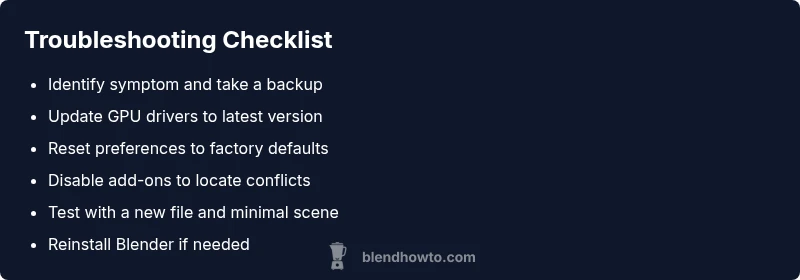
- Back up data before troubleshooting.
- Update drivers and reset preferences first.
- Disable add-ons to identify conflicts.
- Reinstall Blender if issues persist.
- Maintain regular backups and notes for future fixes.