Why Blender Not Responding? A Practical Troubleshooting Guide
Urgent guide to diagnose and fix Blender not responding issues. Learn common causes, step-by-step fixes, and prevention tips to recover work quickly without risking data loss.


Blender not responding is usually caused by resource strains or corrupted settings. Start by saving your work, closing other programs, and launching Blender in factory settings. Update GPU drivers, disable recently added addons, and test with a simple scene. If it still freezes, back up files, reinstall Blender, or check hardware temps for throttling.
Why Blender Not Responding: Immediate Reality
If you’re wondering why is blender not responding, you’re not alone. This symptom often shows up during heavy modeling, long renders, or real-time playback. The root causes are typically predictable: hardware pressure, software conflicts, or corrupted preferences. In urgent studio workflows, a quick, structured approach helps you recover work faster and avoid data loss. This guide explains how to prioritize fixes, isolate the culprit, and restore interactive performance without wasting time.
First, pause nonessential tasks and save your current progress. Blender can stutter when memory usage spikes, so close browser tabs, game apps, and other programs that consume RAM or GPU bandwidth. If your project uses high‑resolution textures or large datasets, temporarily simplify the scene by lowering viewport resolution or hiding heavy objects. A corrupted set of preferences can also lock Blender up after plugins update or extended sessions. Resetting preferences often resolves these freezes, but you’ll lose custom layouts and hotkeys, so back up your settings first. Finally, ensure your graphics drivers are current, as outdated drivers can cause timeouts and hangs. If the problem persists, you may be dealing with a deeper hardware or software issue that requires thorough investigation.
Steps
Estimated time: 30-60 minutes
- 1
Back up work and prepare environment
Save all open projects and export critical files. Close unrelated applications to free memory. Restart Blender to clear temporary states if needed, then test with a simple scene.
Tip: Use incremental saves or Blender's auto-save to avoid data loss during troubleshooting. - 2
Test with a clean slate (Factory Settings)
Launch Blender with factory settings to rule out corrupted preferences. If the issue disappears, reconfigure your workspace gradually to identify a problematic add-on or setting.
Tip: Keep a list of changes you make so you can backtrack easily. - 3
Update drivers and verify system health
Update GPU/CPU drivers and run a quick system health check. Check for thermal throttling and ensure your cooling is adequate during heavy tasks.
Tip: High temps can cause stuttering; ensure fans are working and vents are clear. - 4
Isolate addons and plugins
Disable all addons, then re-enable them one by one to identify a conflict. Particularly scrutinize recently installed plugins or script-based addons.
Tip: Document which addon you disable first to speed up re-enabling later. - 5
Assess memory usage and scene complexity
Monitor Blender’s memory footprint. If you’re approaching RAM/VRAM limits, simplify the scene or increase system memory/page file size if possible.
Tip: For large textures, consider streaming textures or resize assets to reduce memory load. - 6
Consider reinstalling Blender
If none of the above resolves the issue, perform a clean reinstall of Blender, ensuring you remove preferences only if backups exist.
Tip: Uninstall and reinstall can fix deeply embedded corruption; keep a copy of addons list for easy setup.
Diagnosis: Blender becomes unresponsive or freezes during modeling, rendering, or playback.
Possible Causes
- highOut-of-date or corrupted GPU drivers
- highScenes exceed available RAM/VRAM or excessive texture data
- mediumCorrupted Blender preferences after updates or crashes
- mediumConflicting addons or recently installed plugins
- lowBackground processes consuming CPU/GPU resources
Fixes
- easyUpdate GPU drivers to the latest stable version from the manufacturer.
- easyClose other heavy applications and reduce scene complexity (lower samples, simplify materials, hide heavy objects).
- easyReset Blender to factory defaults to rule out corrupted preferences.
- easyDisable or remove recently added addons to identify conflicts.
- mediumMonitor system temperatures and ensure adequate cooling; reduce overclocking if present.
Frequently Asked Questions
Why does Blender freeze during rendering or modeling?
Blender can freeze when GPU drivers are outdated, memory is maxed, or a plugin conflicts with core features. Isolating these causes helps you apply targeted fixes quickly.
Blender can freeze due to driver issues, memory limits, or add-ons, so isolate the cause to fix it fast.
Should I reset preferences or reinstall Blender first?
Start with a Preferences reset to clear corrupted settings. If the problem persists, reinstall Blender to ensure a clean installation and clean configuration.
Try resetting preferences first; if that doesn’t fix it, reinstall Blender.
Can large scenes cause Blender to crash on startup?
Yes, extremely large scenes can exceed memory limits, causing Blender to become unresponsive during load or playback. Reducing scene complexity often resolves this.
Big scenes can overwhelm memory; reduce complexity to test if that’s the cause.
Do addons usually cause freezing, and how to test?
Addons can conflict with Blender’s core, especially after updates. Disable all addons and re-enable one-by-one to identify the culprit.
Add-ons can clash with Blender; test by disabling and re-enabling them set by set.
Is it safe to wait for Blender to respond, or should I restart?
Waiting rarely helps in persistent unresponsiveness. A graceful restart after saving work often resolves the issue.
If Blender is stuck, save if possible and restart to reset the state.
How can I check GPU drivers and temps quickly?
Use your GPU’s control panel or a hardware monitor to verify driver status and monitor temperatures during tasks.
Check drivers and monitor temps to rule out hardware throttling as the cause.
Watch Video
What to Remember
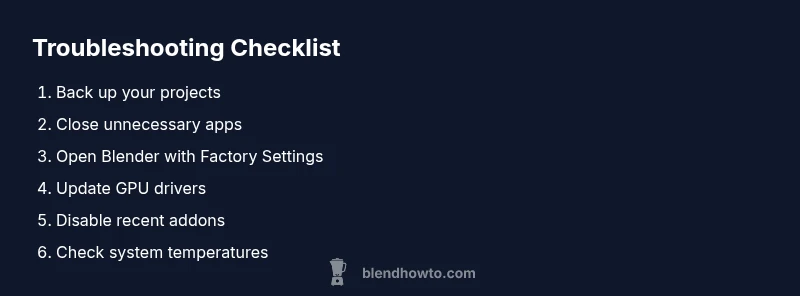
- Back up before troubleshooting
- Rule out corrupted prefs with a factory reset
- Update drivers and reduce scene complexity
- Disable addons to identify conflicts
- If unresolved, reinstall Blender and verify hardware health