Why Blender Keeps Freezing: A Practical Troubleshooting Guide
Tackle Blender freezes quickly with a proven troubleshoot flow. Diagnose common causes, follow a safe diagnostic path, and apply step-by-step fixes to restore smooth performance in Blender.


Blender freezing is usually caused by hardware limits, outdated drivers, or heavyweight scenes. The quickest fix is to close other programs, update Blender and your GPU driver, then test with a simple scene. If the problem recurs, run Blender in factory defaults and disable addons. This BlendHowTo guide walks you through a safe, proven flow.
Why Blender Freezes: A Practical Overview
If you’ve ever been interrupted by a frozen Blender session, you’re not alone. The question of why does blender keep freezing has a practical, root-cause answer. In most cases, freezes trace to hardware constraints, driver problems, or overly complex scenes that exhaust memory. According to BlendHowTo, the fastest path to clarity is a simple, methodical checklist that isolates variables rather than guessing. This section lays the groundwork: what symptoms look like, which components are most often involved, and how to approach testing without risking your work. With the right checks, you’ll often identify the bottleneck within minutes and avoid spiraling into hours of trial-and-error. The goal is to restore smooth interactivity and reliable renders, not to overhaul your system. Keep in mind that Blender’s behavior during freezing can vary between modeling, shading, sculpting, and rendering, so tailor tests to your current task. See why does blender keep freezing in common scenarios, and how BlendHowTo recommends approaching each case.
Quick Checks You Can Perform Right Now
Before diving into deeper diagnostics, run through a handful of fast checks. These steps are designed to be safe, low-effort, and highly effective at catching the most common culprits:
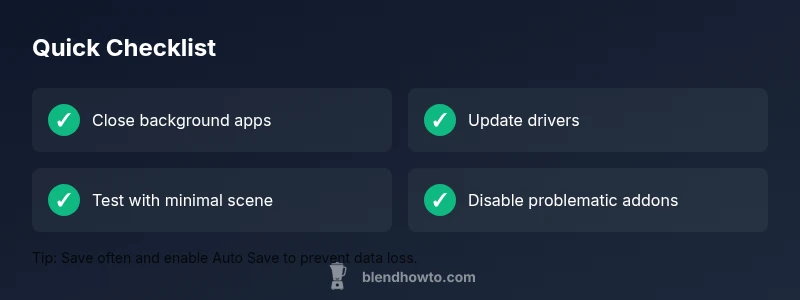
- Close nonessential programs to free up RAM and VRAM. Applications like web browsers or game clients can steal memory that Blender needs, especially during large textures or complex scenes.
- Update Blender to the latest stable version and ensure your graphics card drivers are current. GPU driver updates often fix freezes caused by driver-hardware compatibility issues.
- Try a very small scene or a default startup file to see if Blender still freezes. If it behaves normally with a tiny scene, the issue is likely tied to scene complexity.
- Check Blender’s preferences: make sure Auto Save is on, and clear caches if you’re seeing stale data causing hangs. These quick signals can point to where the problem originates.
These checks, suggested by BlendHowTo, are designed to resolve many freezes without heavy tinkering. If you still experience freezes after these steps, proceed to more targeted diagnostics focused on memory, addons, and hardware.
Common Culprits That Trigger Freezing
Blender can freeze for a range of reasons, from the obvious to the subtle. Understanding the most frequent culprits helps you prioritize fixes and avoid wasting time on unlikely causes:
- Hardware bottlenecks: A GPU or CPU struggling to keep up with a large scene or heavy render can cause Blender to become unresponsive. This is especially true when you push high-res textures, complex shaders, or physics simulations.
- Outdated drivers or Blender version: When drivers don’t support new features or have known bugs, Blender may freeze during certain operations or while rendering.
- Add-ons and scripts: Faulty or poorly optimized add-ons can create deadlocks or memory leaks, especially if multiple add-ons are active at once.
- Corrupted preferences or caches: If Blender’s configuration files become corrupted, Blender may freeze on start or during routine tasks.
- Thermal throttling: Overheating components reduce performance and can trigger freezes, especially during long renders or heavy simulations.
Recognizing these common culprits helps you narrow down the root cause quickly and plan a targeted fix. BlendHowTo’s troubleshooting philosophy emphasizes isolating variables: test one change at a time and verify results before moving on.
How to Isolate the Issue with a Diagnostic Mindset
A structured diagnostic mindset accelerates problem solving. Treat Blender freezing as a series of testable hypotheses rather than a single mystery. Start with the simplest explanation and escalate to more complex ones as needed:
- Symptom documentation: Note when the freeze happens (modeling, shading, animation, render) and the file size or texture resolution involved.
- Branch testing: Use a clean startup file to rule out scene-specific issues. If the problem disappears, it’s likely tied to your scene or addons.
- Incremental changes: Disable groups of addons or reset preferences in small steps to see if stability improves.
- Resource monitoring: Watch VRAM and RAM usage during the freeze with memory monitors. Spikes often reveal memory leaks or texture-heavy scenes.
If you’re still stuck after these tests, you’ll have a clearer target for fixes and fewer blind alleys. BlendHowTo emphasizes a methodical flow so you can provide a precise description to support channels if you need help.
Step-by-Step Fixes for the Most Common Cause
The most common cause of Blender freezes is a heavy scene combined with aging drivers. Follow these step-by-step fixes to address that root cause:
- Update drivers and Blender: Install the latest GPU driver and Blender release. Reboot after installation.
- Simplify the scene: Reduce texture resolution, enable Simplify, and lower viewport shading. Try rendering a smaller portion of the scene.
- Disable addons: Temporarily disable all addons, then re-enable them one by one to identify the culprit.
- Reset preferences: In Blender, use Load Factory Settings, then reconfigure only essential preferences. Clear caches if needed.
- Check cooling: Ensure your PC has adequate airflow and monitor CPU/GPU temps during workloads that cause freezes.
- Save a test file: Before applying any changes to production work, save a copy of your project to test stability after updates.
If the freeze persists after these steps, consider reinstalling Blender and performing a clean driver install. Always back up important files first so you don’t lose progress.
Safety, Backups, and Prevention
Prevention is cheaper than reactive troubleshooting. Adopt these safeguards to keep Blender from freezing in the future:
- Enable Auto Save and create regular backups of your projects. This minimizes data loss if a freeze interrupts work.
- Maintain a minimal, clean add-on set. Periodically review active add-ons and remove any that aren’t critical.
- Monitor system health: keep drivers updated, ensure adequate cooling, and run Blender with sufficient RAM headroom for your typical projects.
- Create a testing routine: after any major update or hardware change, run a quick test with a simple scene to confirm stability.
By following these best practices, you’ll reduce the probability of freezes and accelerate recovery when they happen. BlendHowTo’s approach combines practical checks with proactive habits to keep Blender running smoothly.
Steps
Estimated time: 30-60 minutes
- 1
Document the symptoms
Record when the freeze happens, the file, scene complexity, and hardware load. This establishes a baseline to test against.
Tip: Capture a short video or screenshots of the freeze for reference. - 2
Open factory defaults
Start Blender from a clean profile to rule out user-specific settings as the cause. If it runs normally, the issue is in your preferences or addons.
Tip: Always back up your custom settings before resetting. - 3
Test with a minimal scene
Create a tiny scene with basic objects and textures to see if the problem persists. If not, progressively rebuild your original scene.
Tip: Incrementally reintroduce textures and complex shaders to identify the trigger. - 4
Disable addons and scripts
Turn off all addons, then re-enable one by one to identify conflicts or poorly optimized tools.
Tip: Document which addon causes the issue to assist future troubleshooting. - 5
Update drivers and Blender
Install the latest GPU driver and Blender version, reboot, and retest with the minimal scene.
Tip: If updates fail, use a stable previous version as a temporary workaround. - 6
Assess hardware health
Check CPU/GPU temps, RAM usage, and power supply. Overheating or inadequate power can trigger freezes under load.
Tip: Clean dust from fans and ensure good airflow.
Diagnosis: Blender freezes or becomes unresponsive during modeling, animation, or render.
Possible Causes
- highGPU driver incompatibility or outdated driver
- highInsufficient RAM/VRAM due to heavy scenes or textures
- mediumToo many addons or faulty scripts causing deadlocks
- lowCorrupted preferences, caches, or Blender installation
- lowThermal throttling or overheating under load
Fixes
- easyUpdate GPU drivers and Blender to the latest versions
- easyReduce scene complexity or enable Simplify to lower memory usage
- easyDisable problematic addons and reset Blender to a clean profile or Safe Mode
- mediumReset preferences or clear caches; reinstall Blender if necessary
- mediumCheck and improve system cooling; reduce background processes during heavy tasks
Frequently Asked Questions
What are the most common causes of Blender freezing?
The most common causes are hardware bottlenecks (RAM/VRAM), outdated drivers, heavy scenes, faulty addons, and corrupted preferences. Isolating these factors quickly helps pinpoint the fix.
Common causes include hardware limits, old drivers, heavy scenes, buggy addons, and corrupted preferences. Isolate these factors to fix the freeze fast.
Can Blender freezes happen during rendering?
Yes. Rendering places peak load on GPU and memory. If VRAM is exhausted or drivers lag, Blender may hang. Reducing texture resolution and simplifying scenes often resolves this.
Rendering can push your GPU to its limit. If it freezes, reduce textures and simplify scenes to regain stability.
How do I reset Blender to default settings?
You can reset by choosing Load Factory Settings from the splash screen or File > Defaults > Load Factory Settings. Remember to back up important preferences before resetting.
Reset Blender by loading factory settings from the splash screen and back up your preferences first.
Do addons cause Blender to freeze? How can I test?
Add-ons can trigger freezes if they’re poorly coded or conflict with others. Disable all addons, then re-enable them one-by-one to identify a culprit.
Yes, addons can cause freezes. Turn them off, then re-enable one at a time to find the offender.
Is Blender freezing related to overheating?
Overheating can throttle performance and cause freezes during long tasks. Check system temps and improve cooling or reduce load during heavy work.
Overheating can cause freezes. Monitor temps and improve cooling or reduce load during heavy tasks.
Watch Video
What to Remember
- Diagnose before changing everything.
- Update drivers and Blender first.
- Test with minimal scenes to isolate cause.
- Disable addons to identify conflicts.
- Back up work and maintain good cooling.