Why Does Blender Stop Working? Troubleshooting Guide
Experiencing Blender crashes or freezes? This urgent troubleshooting guide identifies the main causes and provides step-by-step fixes to get Blender running smoothly again in 2026.


Blender stops working usually because of resource limits, driver issues, or conflicting add-ons. Quick fixes include saving your work, updating Blender to the latest stable release, and updating your graphics driver. If the issue persists, disable third-party add-ons, reset preferences, and run Blender with factory settings to isolate the culprit.
Why Blender Stops Working: Common Triggers
If you're wondering why does blender stop working, you're not alone. In most cases, the culprit is a mix of hardware limits, outdated software, and configuration conflicts. Real-world symptoms include abrupt startup failures, freezing during heavy scenes, or crashes when rendering. By understanding the typical triggers, you can triage quickly and avoid chasing phantom issues.
- Insufficient memory: Large scenes, high-resolution textures, or complex shaders can exhaust RAM or VRAM, causing Blender to stall.
- Driver problems: Outdated or incompatible graphics drivers can lead to instability, incorrect shading, or crashes.
- Add-on conflicts: Third-party tools may work fine individually but clash when Blender loads them together.
- Corrupted preferences: A broken startup file or corrupted user preferences can cause unpredictable behavior.
- Hardware temperature and throttling: Overheating can throttle performance or trigger safety shutdowns.
- Blender version issues: Running a very new release on old hardware, or a stale version on a new OS, may create incompatibilities.
Addressing these triggers early saves time later, so adopt a methodical approach.
First Quick Checks to Do Right Now
Start with the simplest checks first. Save any open work, then perform the following steps in order:
- Verify Blender and OS updates: install the latest stable Blender build and ensure your operating system is current.
- Update graphics drivers: visit the GPU vendor site and install the recommended driver for your card.
- Check for problematic add-ons: disable all add-ons, restart Blender, and see if the issue persists. If Blender runs, re-enable add-ons one by one to identify the culprit.
- Reset to factory settings: File > Defaults > Load Factory Settings, then restart Blender. If it runs, you know the problem is within the user preferences or startup file.
- Free up resources: close other heavy applications, reduce the active scene complexity, and consider increasing swap space if you’re on a constrained system.
If none of these steps resolve the problem, proceed to deeper diagnostics or consider reinstalling Blender.
How System Resources and Drivers Affect Blender
Blender's performance hinges on the balance between your computer's resources and the demands of the task at hand. Inadequate RAM can cause Blender to swap to disk, resulting in noticeable slowdowns or freezes, especially with high-poly models or large textures. VRAM is equally critical when rendering or using heavy cycles; once VRAM is exhausted, Blender may crash or drop frames. CPU performance matters for simulation and physics calculations, while disk speed affects load times for scenes and textures. Regularly monitor resource usage while Blender runs: use your operating system's task manager on Windows, Activity Monitor on macOS, or top/htop on Linux. If you notice consistently high memory usage, consider simplifying the scene, baking simulations in advance, or upgrading hardware. Drivers play a pivotal role: GPU driver bugs can cause incorrect shading, artifacting, or crashes. Keep drivers current by checking the GPU vendor's site and applying recommended updates. If problems persist after updates, test Blender with a minimal scene to separate software issues from hardware limits.
Add-Ons, Preferences, and Blender Versions: The Hidden Culprits
Third-party add-ons expand Blender's capabilities but can also introduce instability. If Blender stops working after installing a new add-on, disable it and test. Some add-ons rely on specific Blender versions or require upgrades to keep compatibility. Start Blender with factory settings to see if the issue persists without any startup scripts. If it runs, reintroduce add-ons one by one to identify the offender. Preferences corruption can also trigger odd behavior: reset to default preferences and clear recent startup files to restore a clean baseline. Finally, consider version compatibility with your operating system and hardware. If you’re on an older GPU, a newer Blender build may not be fully supported; using an LTS or stable release aligned with your hardware can resolve stubborn crashes.
Safe Fixes: Step-by-Step Troubleshooting You Can Trust
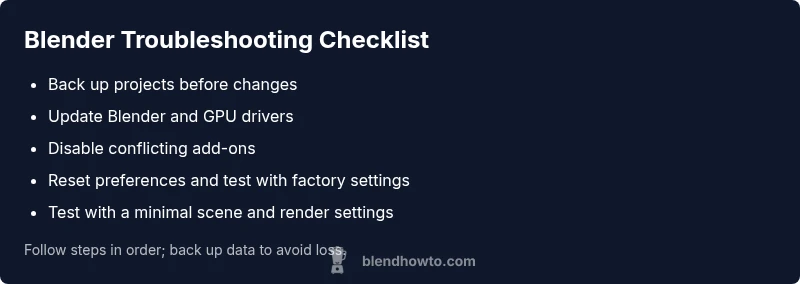
Follow this safe sequence to minimize risk to your work.
-
Back up current projects and export important scenes; keep a separate copy in a cloud or external drive.
-
Launch Blender with factory settings to confirm baseline behavior.
-
Update drivers and Blender to the latest stable versions, then restart.
-
Disable all add-ons; if Blender runs, enable them one by one to reveal conflicts.
-
Rebuild a clean startup file: File > Defaults > Load Factory Settings, then File > Save Startup File.
-
If heavy rendering is the task, reduce render settings or render in passes to ease memory load.
Tip: work incrementally; small changes reduce the risk of data loss when diagnosing issues.
Isolating the Issue: Repro Steps and Testing Scenarios
To isolate the cause, recreate the problem in a controlled way. Start with a blank scene and minimal assets, then gradually reintroduce elements to see when the problem returns. Test across different projects and files to determine whether the issue is file-specific. If the crash happens during rendering, try a lower sample count or switch fromCycles to Eevee to see if the problem is GPU-related. Document the conditions that trigger the issue, including scene size, textures, particle counts, and physics simulations. This record helps you communicate the problem to others—whether a colleague or support forum—so you receive targeted guidance rather than generic tips.
Rendering vs Viewport: Different Failure Modes
Blender can fail differently depending on whether you are rendering or simply rotating, sculpting, or animating in the viewport. Rendering tends to stress VRAM and GPU drivers, while viewport operations rely more on CPU for simulations and memory management. If rendering crashes but the viewport is responsive, you likely deal with memory limits or render settings. Conversely, a sluggish viewport with a stable render could indicate poor scene organization or a slow disk. Use diagnostic steps that consider both modes: monitor VRAM usage during renders, disable high-cost features like volumetrics, and simplify scenes for testing. By separating these modes, you can pinpoint whether the root cause is hardware, drivers, or software configuration.
Data Safety and When to Seek Professional Help
Your data safety should guide every troubleshooting decision. Regularly back up projects before making major changes, and enable versioning if possible. If you encounter persistent crashes that you cannot reproduce consistently, seek help from Blender communities or professional support channels. When in doubt, document your steps and the outcomes; a clear report speeds up diagnosis. If data loss seems imminent, power down only after you have saved files and exported important assets. For critical projects, consider professional IT or Blender-specific consultancy to avoid longer downtime.
Prevention: Habits to Keep Blender Running Smoothly
Prevention beats diagnosis. Establish a routine that keeps Blender stable over time. Update drivers and Blender regularly, but test new builds on a separate machine or a non-critical project before deploying to production. Maintain clean startup files and tidy libraries; remove orphaned assets and optimize textures. Track hardware temperatures, fan speeds, and system load during heavy tasks, adjusting scene complexity as needed. Create a robust backup strategy with incremental saves and cloud syncing. Finally, cultivate a habit of saving frequently and using render passes to isolate changes, ensuring you can recover quickly after a crash.
Steps
Estimated time: 25-40 minutes
- 1
Back up and prepare
Backup all active projects and assets before making changes. Create a separate copy of critical scenes and textures to prevent data loss during troubleshooting.
Tip: Always verify backups by opening a copy to confirm integrity. - 2
Launch with factory settings
Start Blender using factory defaults to determine if the issue is tied to preferences or startup scripts.
Tip: If it runs fine, the culprit is likely in your user preferences or an add-on. - 3
Update drivers and Blender
Update your GPU drivers and install the latest stable Blender release. Restart and test again with a simple scene.
Tip: Prefer official driver sources over third-party updaters. - 4
Disable add-ons and test
Disable all add-ons, then re-enable them one at a time to identify conflicts. If Blender runs without add-ons, reintroduce them gradually.
Tip: Document which add-ons are active during testing. - 5
Test with a minimal scene
Create a minimal scene and render a basic animation or frame to see if the issue persists. This helps isolate file-specific problems.
Tip: If the issue appears only in large scenes, simplify assets or bake simulations. - 6
Consider a reinstall
If all else fails, reinstall Blender and reimport projects from backups. Ensure you remove old config files to prevent conflicts.
Tip: Keep your startup file clean to avoid reintroducing issues.
Diagnosis: Blender won't start, freezes, or crashes during use
Possible Causes
- highInsufficient RAM or VRAM during heavy scenes
- highOutdated or incompatible graphics drivers
- mediumProblematic or conflicting add-ons
- lowCorrupted Blender preferences or startup file
- lowHardware overheating or throttling
Fixes
- easyClose other applications to free memory
- easyUpdate GPU drivers and Blender to latest stable version
- easyDisable conflicting add-ons and launch with factory settings
- mediumReset preferences or reinstall Blender if needed
- mediumCheck hardware temps and ensure proper cooling; reduce scene complexity
Frequently Asked Questions
Why won't Blender start after updating?
Updates can reset preferences or require newer drivers. Check system requirements, ensure drivers are current, and try launching Blender with factory settings to confirm baseline behavior.
Updates can reset settings. Try launching with factory settings to see if the problem goes away.
Why does Blender crash when rendering?
Rendering often stresses VRAM and GPUs. Lower render samples, test with simpler scenes, and update drivers to fix crashes.
Rendering crashes are usually VRAM-related; try lowering samples and updating drivers.
Can add-ons cause crashes?
Yes. Disable add-ons to test, then re-enable one by one to identify the culprit. Remove or update problematic add-ons.
Yes—disable add-ons to test, then re-enable them individually to find the offender.
How do I reset Blender to default?
Use File > Defaults > Load Factory Settings, restart Blender, and save the startup file to preserve the baseline.
Reset to factory settings through the File menu, then save the startup file.
Should I reinstall Blender?
Only after trying all fixes. Uninstall, download the latest stable version, and reinstall. Restore projects from backups if needed.
If nothing else works, reinstall Blender after backing up files.
Watch Video
What to Remember
- Back up before troubleshooting.
- Update drivers and Blender first.
- Disable add-ons to isolate issues.
- Reset preferences if required.
- Monitor hardware temps during tests.