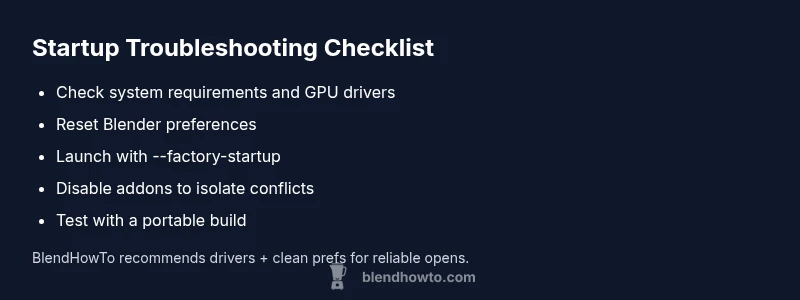
Why Won't Blender Open? Fast Troubleshooting Guide
Struggling with why won't blender open? Get practical steps to fix startup issues across Windows, macOS, and Linux: reset prefs, update drivers, and reinstall safely with BlendHowTo guidance.


When Blender won’t open, the most common causes are corrupted user preferences, missing runtime components, or outdated graphics drivers. Start with a quick reset of Blender preferences, update your GPU driver, and try launching with the factory startup. If issues persist, repeat with a clean reinstall or try a portable Blender build.
Common Causes at a Glance
If you're asking why won't blender open, you're not alone. In most cases startup failures are not dramatic: Blender struggles to launch because the user preferences got corrupted, essential runtime components are missing, or the graphics driver is out of date. Occasionally a conflicting add-on, a recent OS update, or even insufficient system resources prevents the program from rendering its initial window. The BlendHowTo team has found that these root causes account for the vast majority of startup issues. When you see a crash dialog or a blank splash screen, examine any error codes or messages. Even small clues like a missing DLL, a permissions prompt, or a path mismatch point you toward a specific fix. By prioritizing these common causes, you can avoid needless reinstallation and get Blender opening again faster.
Check System Requirements and Software Versions
Before you dive into fixes, make sure your system is compatible with your Blender version. Blender's official pages outline OS requirements, and matching your hardware with the recommended build reduces open failures. Verify that Python components and runtime libraries are present if you installed Blender manually. Update your graphics driver to the latest stable release from NVIDIA, AMD, or Intel, and install any pending OS updates—these can affect how Blender starts and runs. If you see messages about missing libraries, install the correct Visual C++ redistributables or equivalent runtime packages for your platform. BlendHowTo analysis shows that aligning Blender with current drivers and runtimes dramatically improves startup reliability, especially on Windows and Linux. If Blender still won’t open after a driver update, check for conflicting software that may inject environment variables or block graphics calls.
Step-by-Step Troubleshooting Path
Follow a logical sequence to isolate the issue. Start Blender from the command line to reveal startup errors, using a clean startup to eliminate user prefs: blender --factory-startup. Then reset your preferences by removing or renaming the Blender config folder, forcing Blender to regenerate defaults on next launch. If issues persist, launch with addons disabled: blender --no-addons. Check for crash messages in the terminal, log files, or Blender's console, then tackle any reported missing libraries. Update graphics drivers, and try a portable version or an older stable release if needed. If nothing works, perform a clean uninstall and reinstall of Blender, making sure to delete residual files in the user profile to avoid cached configurations. Finally, consider contacting Blender support or using a different build as a last resort.
Advanced Diagnostics: Logs and Crash Reports
When Blender won't open, deeper diagnostics can reveal the cause. Run Blender with --debug-all to print verbose startup messages to the console, or redirect logs to a file for later review. Look for lines about missing DLLs, failed Python imports, or segmentation faults. If the crash occurs before the UI loads, this often points to a graphics driver issue or a corrupted user profile. Collect system information (OS version, GPU model, driver version) and attach it to any bug report. On Windows, check the Event Viewer for application errors; on macOS, review the Console app; on Linux, inspect journalctl logs. Sharing these details with BlendHowTo guidance helps you obtain faster, more accurate assistance.
OS-Specific Tips and Workarounds
Windows users should ensure administrative rights and consider temporarily disabling antivirus to test startup. Run Blender as Administrator if necessary, and avoid aggressive security policies that could block dynamic libraries. On macOS, grant necessary permissions in System Settings (Accessibility, Full Disk Access) and launch from Terminal to catch messages. Linux users should verify the correct Blender package or PPA, ensure GLX/mesa drivers are up to date, and install any missing 32-bit libraries for compatibility. If you still see issues, try a portable build that doesn’t rely on system-wide libraries. These OS-specific tweaks solve many open issues without a full reinstall.
Rebuild or Reinstall Blender Safely
Sometimes a clean reinstall is the fastest path back to a working Blender. Uninstall Blender completely, then delete residual folders in your user profile that store configuration and caches. Reinstall the same version or try a prior stable release to test compatibility. After reinstalling, reset preferences and avoid loading third-party addons initially to confirm Blender opens cleanly. Once you confirm it opens, re-enable addons one by one to identify conflicts. Always back up your preferences before resetting so you can restore them later if needed.
Prevention and Best Practices
To minimize future startup problems, adopt a simple maintenance routine: keep your GPU drivers updated, back up your Blender configuration, and create a separate test profile for new builds. Maintain a short list of known-good addon combinations and avoid beta drivers unless necessary. Regularly run Blender in a clean startup after OS updates to catch issues early. BlendHowTo recommends documenting your troubleshooting steps so you can reproduce fixes quickly next time.
Common Mistakes to Avoid
Rushing to reinstall without checking logs wastes time and may lose settings. Ignoring error messages or crash logs means you miss vital clues. Running Blender with mismatched Python versions or unsupported libraries can keep it from starting. Finally, neglecting to back up configuration data when resetting preferences can inconvenience you later. By avoiding these mistakes, you improve your odds of a quick win when Blender won’t open.
Steps
Estimated time: 20-40 minutes
- 1
Launch with factory startup
Open Blender from the command line with --factory-startup to bypass user preferences. This helps determine if the issue is tied to corrupted prefs. If Blender opens, you know the problem is in your config.
Tip: Use the exact flag --factory-startup and note any error messages. - 2
Reset or recreate user preferences
Navigate to the Blender config folder (varies by OS) and rename or delete it to force a fresh defaults setup on next launch. This removes corrupted preferences and broken addons from the equation.
Tip: Back up your current config before deleting. - 3
Disable addons and test
Launch with --no-addons to rule out an add-on causing the crash. If Blender starts, re-enable addons one by one to locate the culprit.
Tip: Re-enable in small groups to isolate quickly. - 4
Check startup logs for clues
Run Blender from a terminal with --debug-all or capture the console output. Look for missing libraries, Python import errors, or segmentation faults to direct your next steps.
Tip: Copy error lines to a notes file for reference. - 5
Update drivers and libraries
Update GPU drivers (NVIDIA, AMD, Intel) and install any missing Visual C++ runtimes or equivalent, depending on your OS. This resolves many startup failures linked to graphics and runtime dependencies.
Tip: Restart after installation before retesting. - 6
Reinstall Blender cleanly
If nothing else works, perform a full uninstallation, delete residual config folders, and install the latest stable build or a previous compatible version. Then verify startup before restoring preferences.
Tip: Avoid loading third‑party addons initially.
Diagnosis: Blender won’t open
Possible Causes
- highCorrupted user preferences
- highOutdated graphics drivers
- mediumMissing runtime components or libraries
- lowConflicting/add-ons or OS updates
Fixes
- easyReset Blender preferences by resetting the config folder or using --factory-startup on launch
- easyUpdate graphics drivers to the latest stable release and install pending OS/runtime updates
- easyLaunch Blender with addons disabled (--no-addons) to isolate conflicts
- easyRun Blender from the command line to capture startup errors and check logs
- mediumPerform a clean reinstall and delete residual config files before reinstalling
Frequently Asked Questions
What should I try first when Blender won't open?
Start with the basics: attempt a factory startup, reset preferences, and launch with addons disabled to rule out conflicts. Check for any error messages or crash logs that point to missing libraries or drivers.
Try the factory start, reset prefs, and disable addons to identify the issue fast.
Can addons cause Blender not opening?
Yes. Some addons can conflict with Blender’s startup process. If Blender opens after disabling addons, re-enable them one by one to locate the culprit and update or replace the problematic extension.
Add-ons can block startup; test by turning them off first.
Why do I see a missing library error when starting Blender?
Missing libraries usually indicate incomplete runtime installations or system updates. Install the required Visual C++ redistributables or equivalents for your OS and ensure Python components are intact.
Missing libraries point to missing runtimes or Python components.
Is it safe to reinstall Blender?
Yes. A clean reinstall can fix many startup problems. Remove Blender, delete residual config folders, then reinstall the latest stable version and test startup before restoring preferences.
A clean reinstall is safe and often effective.
How can I capture startup errors on Windows/macOS/Linux?
Run Blender from the terminal or command prompt with --debug-all to see detailed startup logs. Save the output to a file for later review or to share with support.
Run with --debug-all to capture startup errors.
What if Blender opens in Safe Mode but not normally?
This suggests a faulty addon or user preference. Start Blender in safe mode, then gradually reintroduce components to identify the root cause.
Safe mode helps isolate addon or prefs issues.
Watch Video
What to Remember
- Reset prefs to resolve startup issues
- Update drivers and runtimes for reliable startup
- Disable addons to uncover conflicts
- Check logs to diagnose crashes
- Use a clean reinstall as a last resort